TRENDING
How to Create Strong Passwords and Stay Safe Online

8 min read
Last updated November 6, 2026
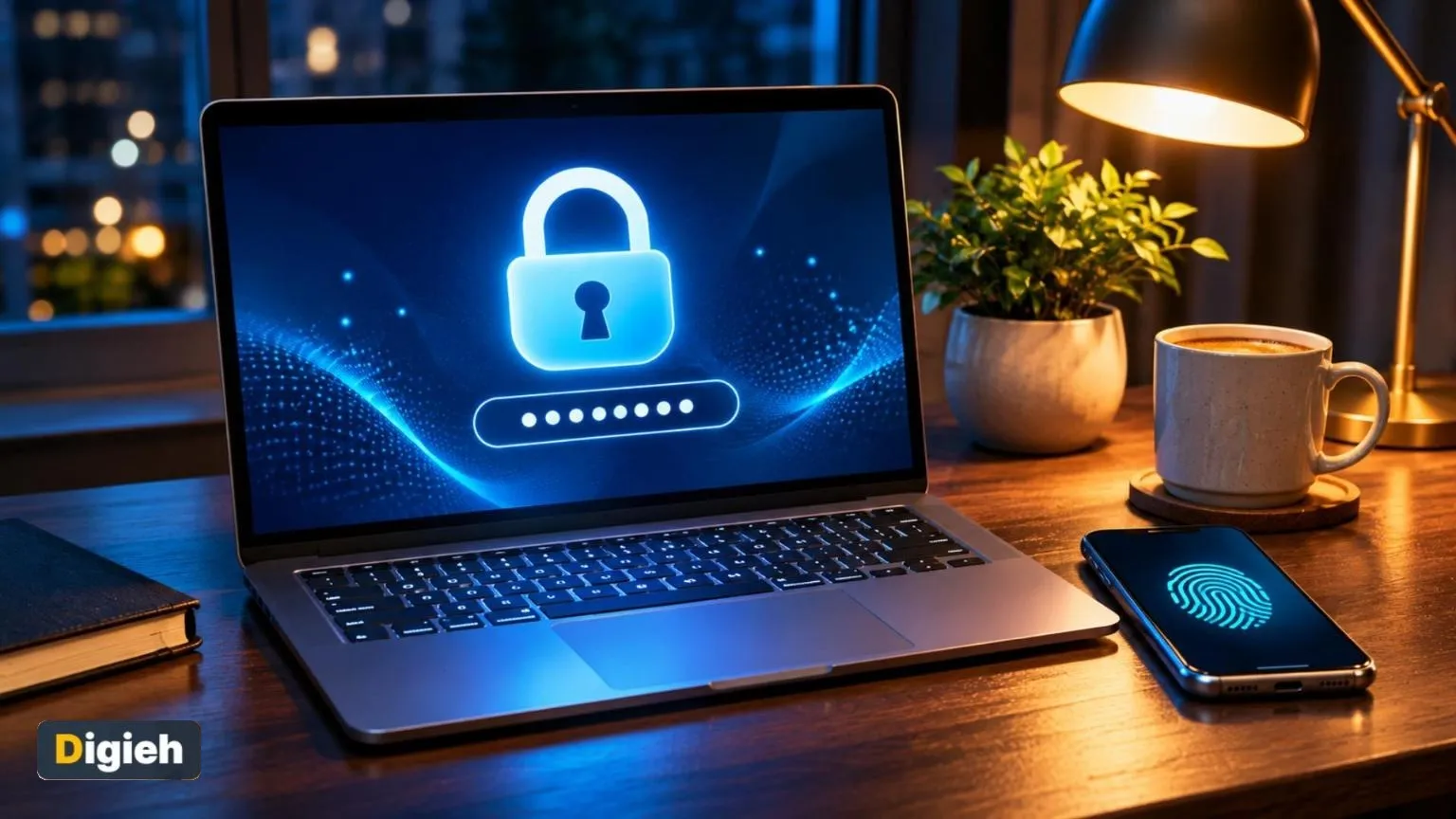
To create a strong password, make it long, random and unique for every account. The Cybersecurity and Infrastructure Security Agency (CISA) suggests at least 16 characters. A password manager can create and store them for you, and passkeys or two-step login add more protection.
Weak or reused passwords are one of the easiest ways for hackers to break into accounts. A few changes can make you much safer before holiday shopping season.
Never share your passwords or login codes with anyone who contacts you. That includes callers who claim to be from a bank.
Key Takeaways
- Longer passwords are harder to crack.
- Use a different password for every account.
- A password manager remembers them for you.
- Turn on two-step login wherever you can.
- Passkeys let you sign in without typing a password.
On This Page
- What Makes a Password Strong
- How to Create a Strong Password
- Use a Password Manager
- Add Two-Step Login and Passkeys
- What to Do After a Data Breach
- Common Password Mistakes
- How Hackers Get Passwords
- Prioritize Your Most Important Accounts
- Set Up Account Recovery Options
- Check Whether Your Passwords Were Exposed
- Help Family Members Stay Safe
- Plan for the Unexpected
- Make Good Habits Stick
- Passwords for Shared Family Accounts
- Protect Your Wi-Fi Network
What Makes a Password Strong
Cybersecurity and Infrastructure Security Agency (CISA) explains its advice on its use strong passwords page. A strong password is long, random and unique.
| Weak password | Why it is weak |
|---|---|
| password123 | Very common and easy to guess |
| Your pet’s name | Easy to find on social media |
| Same password everywhere | One leak opens every account |
| Short passwords | Faster for computers to crack |
16+The minimum number of characters Cybersecurity and Infrastructure Security Agency (CISA) suggests for a strong password.
How to Create a Strong Password
1. Make It Long
Aim for at least 16 characters. Length matters more than odd symbols.
2. Try a Passphrase
String together four or five random words, like a silly sentence. Passphrases are long and easier to remember.
3. Make Each One Unique
Never reuse a password. If one site leaks, the rest stay safe.
Quick tip. Start with your email password. Most other accounts can be reset through email.
4. Avoid Personal Details
Skip birthdays, names and addresses. Hackers can find these online.
Use a Password Manager
A password manager creates strong passwords and saves them in a secure vault. You only need to remember one main password.
Prices and plans for these apps may change, so check before you sign up.
Many browsers and phones include a built-in password manager. Standalone apps are also available.
How do you keep track of your passwords?
- Password manager
- Browser saves them
- Written down
- I reuse a few
Add Two-Step Login and Passkeys
Two-step login, also called multi-factor authentication, asks for a second proof that it is really you. That may be a code from an app or a tap on your phone.
The Cybersecurity and Infrastructure Security Agency (CISA) explains how to turn on multifactor authentication.
Passkeys go a step further. They let you sign in with your face, fingerprint or device personal identification number (PIN) instead of a password. Turn them on where sites offer them.
Use this calculator to check your password length.
Password length checker
Good to know. Never type your real password into a random website to test it. Just count the characters.
What to Do After a Data Breach
If a company you use reports a breach, change that password right away. Also change it anywhere else you used it.
Report identity theft at IdentityTheft.gov.
Turn on two-step login and watch your accounts for unusual activity.
- Use 16 or more characters
- Make every password unique
- Set up a password manager
- Turn on two-step login
- Add passkeys where offered
- Update passwords after any breach
Add to calendar
Common Password Mistakes
Many people make the same password mistakes. Avoiding them makes your accounts much safer.
| Mistake | Why It Is Risky |
|---|---|
| Using the same password everywhere | One leak can unlock many accounts |
| Short passwords | Computers can guess them quickly |
| Common words like “password” | They appear on lists hackers try first |
| Simple number patterns | Patterns like 123456 are easy to guess |
| Writing passwords on sticky notes | Anyone nearby can see them |
| Sharing passwords by text or email | Others can read or forward the messages |
Fixing even one of these habits improves your security. Start with your most important accounts.
How Hackers Get Passwords
Knowing how passwords get stolen helps you protect them.
Data Breaches
Hackers break into company systems and steal lists of passwords. If you reused a password, they try it on other sites.
Phishing
Scammers send fake emails or texts that look real. They trick you into typing your password on a fake site.
Guessing Attacks
Computers try thousands of common passwords quickly. Short or simple passwords fall first.
Malware
Harmful software can record what you type. Keep your devices updated and avoid unknown downloads.
Prioritize Your Most Important Accounts
You do not need to fix every password at once. Start with the accounts that matter most.
- Email. It can reset passwords for most other accounts.
- Banking and payment apps. They protect your money.
- Phone carrier account. Scammers target it to steal your number.
- Cloud storage. It holds photos and documents.
- Social media. Hacked accounts can scam your friends.
Give each of these a long, unique password. Turn on two-step login for all of them.
Set Up Account Recovery Options
If you forget a password, recovery options help you get back in. Set them up before you need them.
Add a recovery email and phone number to important accounts. Keep them up to date.
Save backup codes in a safe place at home. Some people keep them in a locked drawer or a password manager.
Avoid security questions with answers people can find online, like your hometown. Some people use fake answers stored in their password manager.
Free updates
Join the Digieh list
Be the first to know when our weekly brief launches.
No spam. Unsubscribe anytime. Read our Privacy Policy.
Check Whether Your Passwords Were Exposed
Many password managers and browsers can check whether your passwords appeared in known breaches. Use these built-in tools.
Change any password marked as exposed or reused. Start with your email and banking accounts.
Help Family Members Stay Safe
Older relatives and kids are common targets for scams. Share simple password tips with them.
Help them set up a password manager. Show them how to save and fill in passwords.
Write down the master password and store it somewhere safe at home. Make sure they know where to find it.
Teach kids never to share passwords with friends. Explain that real companies will never ask for passwords by text or email.
Plan for the Unexpected
Think about what happens if you cannot access your accounts because of illness or an emergency.
Some password managers let you name an emergency contact. That person can request access if needed.
Keep a list of your most important accounts for trusted family members. Store it securely, not in plain text on your computer.
Make Good Habits Stick
Strong passwords work best as part of a routine. Small habits keep you protected over time.
Review your password manager’s security report every few months. Update weak or reused passwords.
Delete accounts you no longer use. Fewer accounts mean fewer chances for hackers.
Passwords for Shared Family Accounts
Families often share streaming, shopping and Wi-Fi accounts. Handle these passwords with care.
Use a password manager that lets you share specific passwords with family members. It avoids sending passwords by text.
Change shared passwords when someone moves out or a relationship ends. Remove old devices from the account too.
Give kids their own profiles when services allow it. Profiles keep settings and history separate without sharing the main password.
Protect Your Wi-Fi Network
Your home Wi-Fi password protects every device on your network. Change the default password that came with your router.
Use a long passphrase and the strongest security setting your router offers. Create a separate guest network for visitors.
Password Mistakes to Avoid
Some habits make your accounts easy targets. Watch out for these common mistakes.
- Using the same password for many accounts
- Using names or birthdays in passwords
- Writing passwords on sticky notes near your computer
- Sharing passwords by text or email
Use a password manager to create and store strong passwords. It remembers them for you.
Teach Your Family Good Habits
Strong passwords protect the whole family. Share simple tips with everyone at home.
Help kids create long passphrases they can remember. Show older relatives how to use a password manager.
Update Passwords After a Breach
Change your password right away if a company reports a data breach. Turn on two-step sign-in too.
Check your accounts often for anything unusual.
Try this today. Change the password on your main email today to a long passphrase. Then turn on two-step login.
Test Yourself
How many characters does Cybersecurity and Infrastructure Security Agency (CISA) suggest at minimum?
- 6
- 8
- 16
Cybersecurity and Infrastructure Security Agency (CISA) suggests passwords of at least 16 characters.
What lets you sign in with your fingerprint instead of a password?
- A passkey
- A cookie
- A pop-up
Passkeys use your face, fingerprint or personal identification number (PIN).
Frequently Asked Questions
How long should a password be?
Cybersecurity and Infrastructure Security Agency (CISA) suggests at least 16 characters.
Is it safe to use a password manager?
Yes. A reputable password manager is far safer than reusing passwords.
What is a passkey?
A passkey lets you sign in with your face, fingerprint or personal identification number (PIN) instead of a password.
Should I change my passwords often?
Change them if a site reports a breach or you suspect a problem. Strong, unique passwords do not need frequent changes.
How do hackers steal passwords?
Through data breaches, phishing emails, guessing attacks and harmful software.
Which accounts should I protect first?
Start with email, banking, your phone carrier, cloud storage and social media.
Should I use real answers for security questions?
Not if people can find them online. Some people store fake answers in a password manager.
How can I tell if my password was exposed?
Many password managers and browsers check passwords against known breaches.
Wrapping Up
Pick your three most important accounts, like email and banking, and update them today. Then turn on two-step login for each one.
Stay safe while shopping with our guide to holiday scams. Learn to spot fake images and deepfakes too.
Found this useful?
Editor’s Note
This guide is accurate as of November 6, 2026. Security advice evolves, so check official sources for updates.
Spot an error in this article? Please contact us at support@digieh.com or read our Corrections Policy.
Keep exploring
Your next read is waiting
 1News5 Airlines Where Premium Economy WiFi Is Free4 min read
 2Finance & MarketsPound Hits Highest Level Since the Brexit Vote3 min read
 3BusinessHow to Ask for a Raise: Tips and What to Say8 min read
 4HealthHow to Reduce Screen Time: 5 Simple Steps8 min read
 5SportsHow to Start Walking for Fitness: Beginner Plan8 min read
 6TechnologyHow to Use Your Phone as a Hotspot Safely8 min read