
TRENDING
6 Gemini Voice Commands That Make Android Hands-Free

4 min read
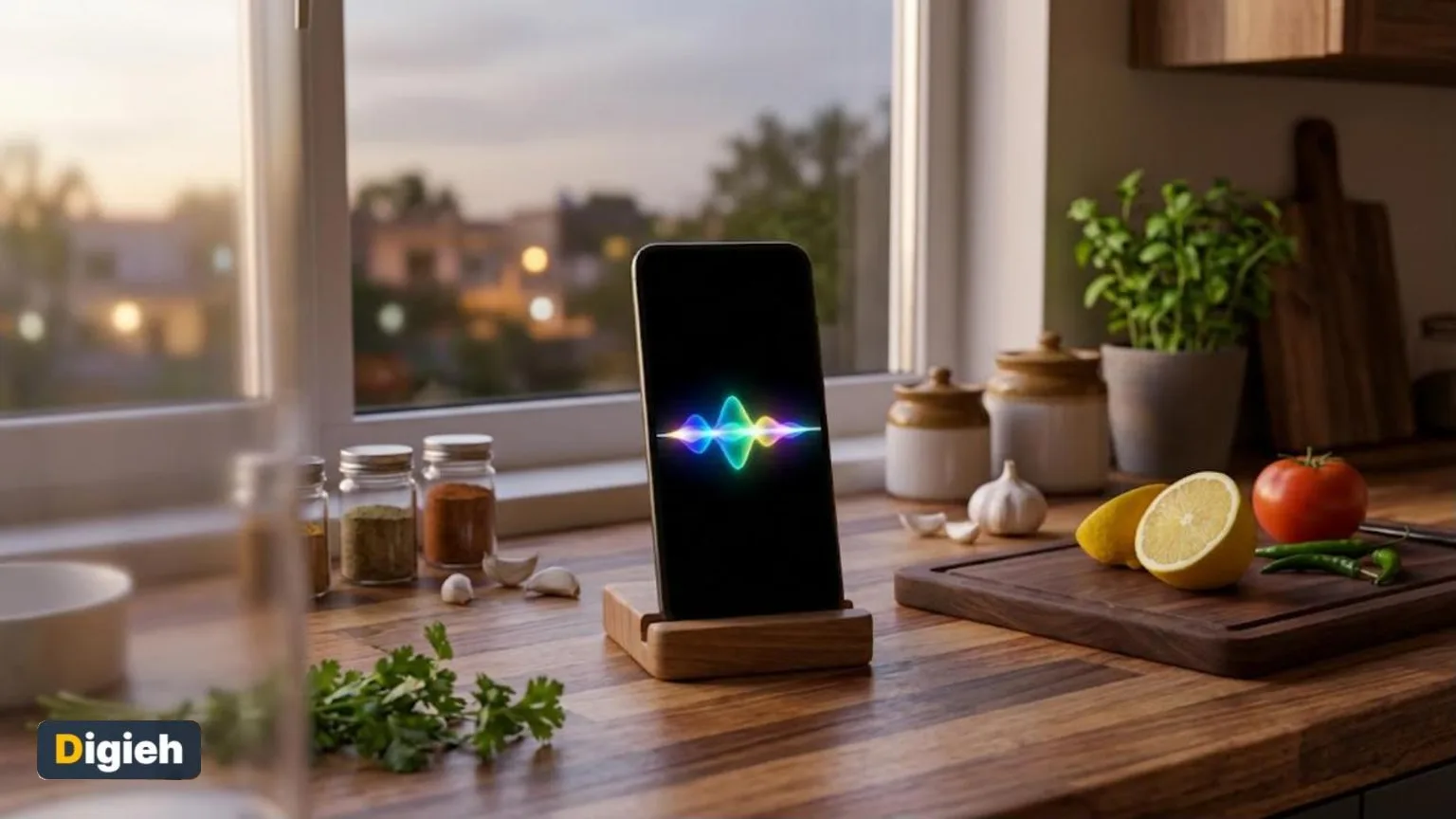
Google’s Gemini assistant can run many Android tasks by voice, Android Police noted in November 2026. These six commands can make your phone almost hands-free.
Key Points
- Saying “Hey Google” lets you ask Gemini for help without touching your phone.
- Gemini Live supports back-and-forth spoken chats that you can interrupt.
- Some actions need connected apps, like Google Calendar or Google Home.
How Gemini Voice Commands Work on Android
Gemini can act as the main assistant on many Android phones. After setup, you can wake it by saying “Hey Google.” On some phones, you can also hold the power button.
Google explains how to talk naturally with Gemini Live on its help site. You need the Gemini app and a signed-in Google account.
Some features roll out slowly, so not every command may work on every phone yet.
You can also switch between voice and typing in the same chat. That helps when you move from a noisy place to a quiet one.
Good to know. Some voice commands need connected apps. Link Google Calendar or Google Home first for those to work.
1. Start a Live Conversation
Say “Hey Google, let’s talk Live” to start Gemini Live. This mode lets you talk back and forth like a phone call.
You can interrupt Gemini to change the topic or add details. When you end the chat, you get a written transcript.
2. Set Timers and Alarms
Say “Hey Google, set a timer for 10 minutes” while cooking. You can also ask it to set an alarm for the morning.
This is one of the most useful hands-free tricks in the kitchen. You can also ask how much time is left without touching your messy hands to the screen.
3. Send a Quick Message
Say “Hey Google, send a message to” followed by a contact name. Gemini will ask what you want to say.
Always check the message before it sends, especially for important texts. Speak clearly and name the contact the way it appears in your phone.
How often do you use voice commands on your phone?
- Every day
- Sometimes
- Rarely
- Never
4. Check Your Day
Say “Hey Google, what is on my calendar today?”
Gemini can read your plans when you connect Google Calendar.
You can also ask it to add a new event or reminder.
Free updates
Join the Digieh list
Be the first to know when our weekly brief launches.
No spam. Unsubscribe anytime. Read our Privacy Policy.
5. Control Smart Home Devices
Say “Hey Google, turn off the living room lights.”
This works when you set up your devices in the Google Home app.
It is handy when your hands are full or you are already in bed. Our guide on how to set up a smart speaker covers the basics.
6. Get Help While Driving
In the car, Gemini can work through Android Auto on supported vehicles and phones. Google’s Android Auto help page explains how to talk to it on the road.
You can ask for directions, play music or reply to messages. Keep your eyes on the road and let your voice do the work.
Protect Your Privacy
Voice assistants listen for a wake word. That is why privacy settings matter. You can turn off the wake word when you do not need it, such as during private meetings.
The Federal Trade Commission shares tips on how to secure your voice assistant. Review your activity settings and delete recordings you do not want to keep.
A tidy phone also makes voice help smoother. See our guide on how to organize your phone home screen.
Try this today. Say “Hey Google, set a timer for five minutes” next time you cook. See how easy hands-free help can be.
Frequently Asked Questions
How do I start Gemini Live by voice?
Say “Hey Google, let’s talk Live.” You can also tap the Live icon in the Gemini app.
Does Gemini work while my phone is locked?
Gemini Live can run on the lock screen and in the background if you turn on its notifications.
Is Gemini free on Android?
The Gemini app is free to use with a Google account. Some advanced features may need a paid plan.
Found this useful?
Editor’s Note
This story is accurate as of November 6, 2026. Google updates Gemini often, and features vary by phone, country and account type.
Spot an error in this article? Please contact us at support@digieh.com or read our Corrections Policy.
Keep exploring
Your next read is waiting
 1Finance & MarketsHow to Teach Kids About Money: Simple Lessons8 min read
 2AI & TechHow to Use AI for Budgeting: Easy Steps8 min read
 3SportsHow to Start Walking for Fitness: Beginner Plan8 min read
 4BusinessHow to Write a Cover Letter: Simple Guide8 min read
 5Food & LifestyleHow to Store Fresh Herbs So They Last8 min read
 6TechnologyHow to Spot Phishing Emails: 5 Warning Signs8 min read