TRENDING
Passkeys Explained: Should You Stop Using Passwords Now

5 min read
Last updated November 19, 2026
Passkeys let you sign in with your face, fingerprint or screen lock instead of a password. They resist phishing, so switch your key accounts when you can.
You do not need to delete every password today. Many sites still need them, so a password manager stays useful.
Key Takeaways.
- A passkey is a pair of digital keys. The private key never leaves your device.
- Passwords are not phishing-resistant, federal security guidelines say.
- Synced passkeys follow you to new devices through your account.
- Start with email, banking and shopping accounts, and plan how you will recover them.
Jump to a section
- What a passkey is
- How passkeys work
- Passkeys vs passwords
- Should you switch now
- How to set up a passkey
- If you lose your phone
- Mistakes to avoid
- Frequently asked questions
- Conclusion
What Is a Passkey?
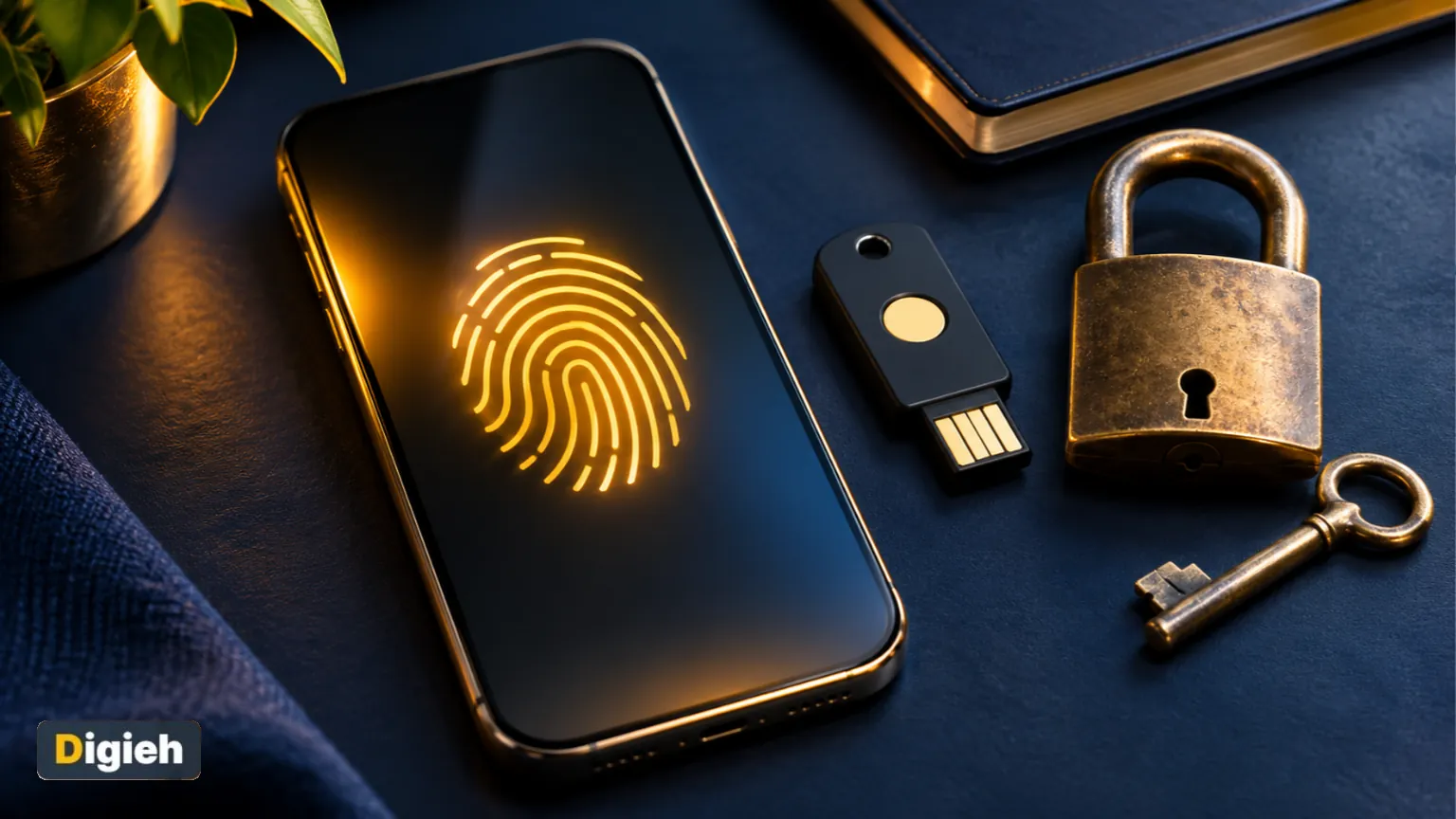
A passkey is a sign-in method that replaces your password. You approve sign-ins the way you unlock your phone, per the FIDO Alliance, the group behind the standard.
That can be your fingerprint, your face or your device screen lock code. Your fingerprint or face data stays on your device and is never sent to the website.
53%%Share of people in a 2024 survey with passkeys on at least one account, per the FIDO Alliance.
How Do Passkeys Work?
Each passkey is a key pair. The website keeps a public key, and your device keeps the private key.
When you sign in, the site sends a challenge. Your device signs it after you unlock it, and the site checks the answer with the public key.
There is no secret for a fake site to steal. That is why passkeys resist phishing, and stolen website databases hold nothing useful.
Synced vs Device-Bound Passkeys
Synced passkeys are stored by a passkey provider, like your phone maker’s password manager. They are encrypted end to end. Device-bound passkeys live on one gadget, like a hardware security key.
Passkeys vs Passwords
| What matters | Passwords | Passkeys |
|---|---|---|
| Phishing protection | Not phishing-resistant | Phishing-resistant |
| Something to remember | Yes, for every site | No, you unlock your device |
| Risk if a site is breached | Your password may leak | Only a public key is stored |
| Works on every site today | Yes | Only where supported |
| Works without your device | Yes | Needs a device or synced account |
Comparison based on the FIDO Alliance and the National Institute of Standards and Technology digital identity guidelines.
The federal guidelines state plainly that passwords are not phishing-resistant. They ask services to offer at least one phishing-resistant option at higher security levels.
Have you tried a passkey yet?
- Yes, on several accounts
- Yes, on one account
- Not yet
- Not sure
Should You Stop Using Passwords Now?
Switch Now If
- You use a modern phone or computer with a screen lock.
- Your email, bank or shopping sites already offer passkeys.
- You have fallen for a phishing email before or worry about it.
Wait or Keep Both If
- You often sign in on shared or public computers.
- You have no backup device or recovery method set up.
- Key sites you use do not support passkeys yet.
Good to know. Keep using a password manager for sites without passkeys. Our guide on setting up a password manager walks you through it.
Free updates
Join the Digieh list
Be the first to know when our weekly brief launches.
No spam. Unsubscribe anytime. Read our Privacy Policy.
How to Set Up a Passkey
- Make sure your device has a screen lock turned on.
- Sign in to an account that supports passkeys, starting with email.
- Open the security or sign-in settings and choose to create a passkey.
- Confirm with your fingerprint, face or screen lock.
- Sign out and sign back in to test it.
- Repeat for banking and shopping accounts.
- Turn on a second device or backup key if the site allows it.
- Save recovery codes in a safe place.
- Keep your phone and computer updated.
- Remove old passwords from accounts only after testing the passkey.
What If You Lose Your Phone?
If your passkeys are synced, sign in to your passkey provider on a new device and they come back. Device-bound passkeys on a lost security key are gone, so you need another method.
Set up a backup now. That can be a second security key, another trusted device or recovery codes stored offline.
For accounts still using codes, an authenticator app beats text codes. That advice comes from the Federal Trade Commission two-factor guide. It calls security keys the strongest second factor.
Mistakes to Avoid
- Creating passkeys on a shared or work computer for personal accounts.
- Skipping a backup method before deleting your password.
- Approving a sign-in prompt you did not start.
- Thinking passkeys stop every scam. Fake support calls can still trick people.
Learn other scam signs in our guides to spotting phishing emails and creating strong passwords.
Try this today. Create a passkey for your main email account today. Test it on a second device before you change anything else.
Test Yourself
Where is a passkey’s private key kept?
- On the website’s server
- On your device or passkey provider
- In your email inbox
The private key stays on your device or in your encrypted passkey provider. The website only keeps a public key.
Frequently Asked Questions
Are passkeys safer than passwords?
Yes, against phishing and data breaches. Federal guidelines say passwords are not phishing-resistant.
Do passkeys share my fingerprint with websites?
No. Your fingerprint or face check happens on your device. The website only learns that the check passed.
Should I delete all my passwords?
Not yet. Keep passwords for sites without passkeys, and store them in a password manager.
Conclusion
Passkeys are safer and easier than passwords, but they are not everywhere yet. Use both for now.
Your next step is to add a passkey to your email account and set up a backup recovery method.
Editor’s Note
This article is accurate as of November 19, 2026. Details come from the FIDO Alliance, the National Institute of Standards and Technology and the Federal Trade Commission.
Spot an error in this article? Please contact us at support@digieh.com or read our Corrections Policy.
Keep exploring
Your next read is waiting
 1GamingHow to Reduce Lag and Ping When Gaming8 min read
 2RecipesEasy Shakshuka Recipe With Eggs in Tomato Sauce7 min read
 3Education & CareersLinkedIn Profile Tips That Help Recruiters Find You8 min read
 4Pets & AnimalsCat Throwing Up: Causes and When to Worry5 min read
 5Fitness & ExerciseHow to Warm Up and Cool Down Safely8 min read
 6Finance & MarketsCompound Interest Calculator: See How Your Money Grows5 min read
Found this useful?