
TRENDING
Digieh · free image to GIF maker
Giflume
Turn one photo or a whole set into a GIF in seconds. Pick the quality, set the speed and download your GIF. Everything runs in your browser, so your images never leave your device.
FreeNo sign-upNo watermarkPrivate
1. Add your images
Add one image for a still GIF, or several images to make an animated GIF. They play in the order shown.
JPGJPEGPNGWebPGIFBMPSVGAVIFICOHEIC*
*HEIC photos from iPhone open in Safari only. On other browsers, set your iPhone camera to “Most Compatible” or save the photo as JPG first.
2. Choose your settings
Not sure? The default settings work well for most images.
Giflume studies your images and picks the best settings for you.
Quality (number of colors)
Tap this button 3 or more times in the rhythm you want. Giflume sets the speed for you.
Background
Add images to see your GIF size and time estimate.
Making your GIF
Getting your images ready…
Reading imagesChoosing colorsBuilding framesPacking your GIF
Your GIF is ready
Check the preview, then download it.
0File size
0Size in pixels
0Frames
How to use Giflume
Never made a GIF before? No problem. This simple guide explains every button, with real GIFs we made using this tool.
Add imagesDrop one photo, or several photos in the order you want.
Tap Smart PickGiflume chooses the best settings for your images.
Make my GIFWatch the progress bar while your GIF is built.
DownloadCheck the preview and tap Download GIF.
Every option, explained simply
Each setting changes how your GIF looks, how big the file is or how it plays.
Quality number of colors
A GIF can hold up to 256 colors in each frame. More colors look smoother. Fewer colors make a smaller file.
Look at the sky in these two examples. With 32 colors, soft color changes turn into blotchy bands.
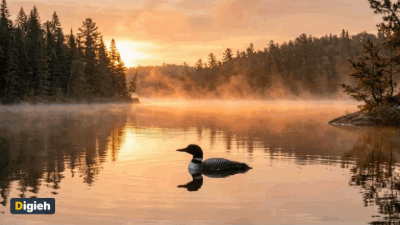
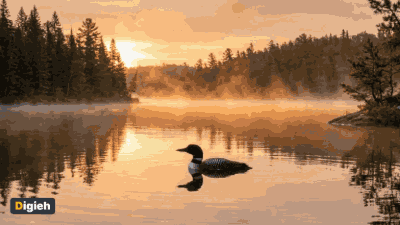
When to use itBest or High for photos. Medium for screenshots and memes. Small for logos and icons.
Width size in pixels
Width sets how wide your GIF will be. The height changes to match, so your image never stretches.
- 640 px is the best choice for websites, blogs and chats.
- 480 or 320 px load fast in emails and messages.
- 1080 px or Original keep extra detail, but the file gets much bigger.
Good to knowDoubling the width makes the file about four times bigger. Start small and go up only if you need more detail.
Time per image speed
This sets how long each image stays on screen. It shows up only when you add two or more images.
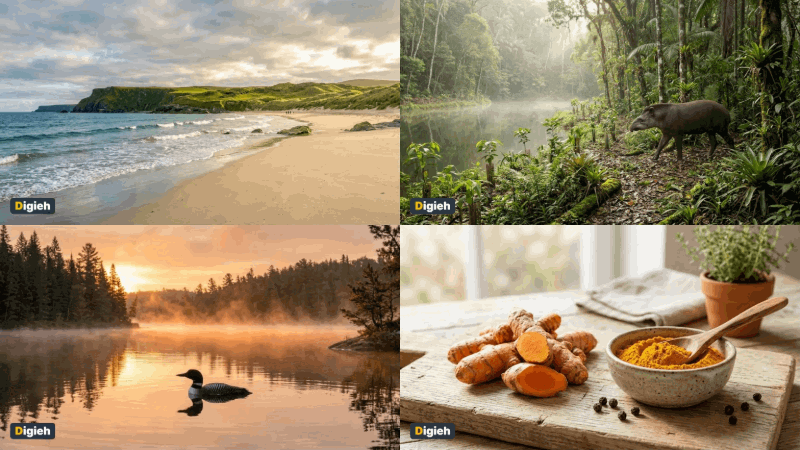
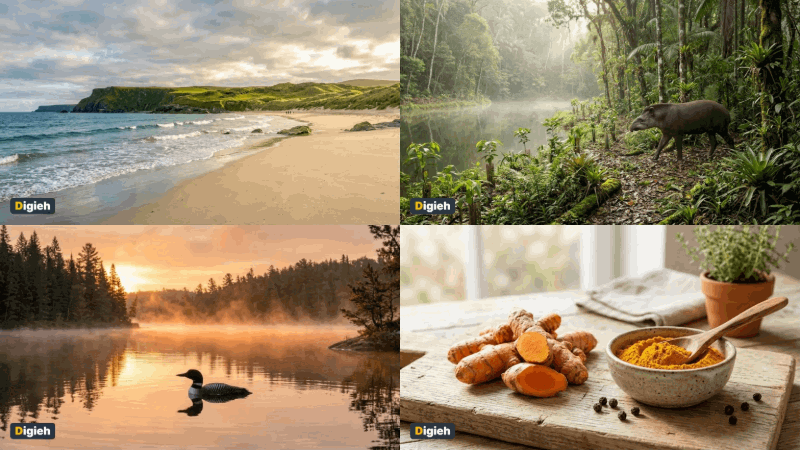
Speed guide0.1 to 0.3 seconds for smooth motion. 0.5 seconds for a lively mix. 1 to 2 seconds for slideshows people need to read.
Loop how many times it plays
Loop decides what happens when the GIF reaches the last image.
- Loop forever plays again and again. Best for social posts and websites.
- Play once stops on the last image. Great for a final message, like “Sale ends today”.
- Play 3 times repeats a few times, then stops. It grabs attention without getting annoying.
Motion for a single image one photo only
Got just one photo? Giflume can still bring it to life with a soft movement.
- None makes a still GIF, like a normal picture.
- Gentle zoom slowly moves closer, like a movie camera.
- Pulse gently grows and shrinks. It works well for logos and buttons.

TipMotion adds 24 frames, so the file grows. Pick High or Medium quality to keep it light.
Keep transparent areas PNG and WebP
Some images, like logos and stickers, have see-through parts. Tick this box to keep them see-through in your GIF.
Leave it off for normal photos. Giflume then fills empty areas with white.
Good to knowGIF transparency is either on or off for each pixel. Soft shadows may look a little rough around the edges.
Fit all images to the same size
When your images have different shapes, this keeps every frame the same size. Giflume uses the first image as the guide and adds a little space around the others.
Best resultCrop all your images to the same shape before you upload. Then nothing gets extra space.
Image order
Your GIF plays images from top to bottom. Use the arrow buttons to move an image up or down. Use the cross to remove it.
Only on Giflume
Two smart helpers you will not find in most GIF makers.
Smart Pick
Not sure which settings to choose? Tap Smart Pick. Giflume checks your images for colors, size, shape and see-through parts. Then it picks the best quality, width, speed and motion, and tells you why.
Tap the beat
Choosing a speed by numbers is hard. Just tap the “Tap the beat” button in the rhythm you like, such as along with a song. Giflume measures your taps and sets the perfect speed.
Frequently asked questions
Is Giflume free?
Yes. Giflume is completely free. There is no sign-up, no watermark and no limit on how many GIFs you make.
Are my images uploaded anywhere?
No. Giflume makes your GIF inside your own browser, so your images never leave your device. Nothing is saved on our server.
How many images can I use?
You can add up to 60 images to one GIF, and each image can be up to 25 MB (megabytes).
Which image formats can I use?
JPG, JPEG, PNG, WebP, GIF, BMP, SVG, AVIF and ICO work in all modern browsers. HEIC (High Efficiency Image Container) photos from iPhones work only in the Safari browser. In other browsers, save them as JPG first.
Can I make a GIF from just one photo?
Yes. Add one image and pick a Motion option. Gentle zoom slowly moves closer to your photo, and Pulse makes it softly grow and shrink. This turns a still photo into a moving GIF.
How do I change the order of my images?
Use the up and down arrows next to each image in the list. The image at the top plays first. Tap the cross to remove an image.
Why is my GIF file so big?
GIF is an old format, so files get large quickly. To make it smaller, pick a smaller width (480 px or 320 px), use fewer images, or choose a lower quality such as Medium (64 colors).
Why do the colors in my GIF look blotchy?
A GIF can show only 256 colors in each frame. Photos with soft color changes, like skies, can turn into bands. Choose Best quality (256 colors) to keep them as smooth as possible.
Can my GIF have a transparent background?
Yes. Upload a PNG or WebP image with a see-through background and turn on Keep transparent areas. GIF pixels are either fully clear or fully solid, so very soft edges may look a little rough.
If I upload an animated GIF, will it keep moving?
No. Giflume uses only the first frame of an animated GIF. To build a new animation, add several still images instead.
How long does it take to make a GIF?
Most GIFs are ready in a few seconds. Many large images take longer, especially on older phones. Giflume shows a progress bar and the time left while it works.
Can I use my GIF on social media or my website?
Yes. The GIF is yours to download and share anywhere. Just make sure you have the right to use the images you put in it.
How to make a great looking GIF
GIFs can show only 256 colors in each frame. These simple tips help your GIF look sharp and stay small.
Start with a sharp image
Use clear, well-lit photos. A blurry or dark image only gets worse as a GIF.
Pick the right width
640 px is perfect for websites and chats. Choose 480 px or smaller for email and quick loading.
Use simple colors
Logos, cartoons and flat graphics look best. Photos with smooth sky or skin tones may show color bands.
Keep images the same size
Crop all your images to the same shape before you upload. This stops black or white bars around frames.
Fewer frames, smaller file
Every extra image adds weight. 5 to 20 images is a sweet spot for most GIFs.
Set a comfortable speed
Use 0.1 to 0.3 seconds for smooth motion. Use 1 to 2 seconds for slideshows people need to read.
| Quality | Best for | File size |
|---|---|---|
| Best · 256 colors | Photos and detailed images | Largest |
| High · 128 colors | Most images and social posts | Large |
| Medium · 64 colors | Graphics, screenshots and memes | Medium |
| Small · 32 colors | Icons, logos and simple art | Smallest |
Giflume runs fully in your browser. Nothing you upload leaves your device. Use only images you own or have permission to use.