TRENDING
Easily Make Stunning GIFs From Photos in Minutes

8 min read
Last updated November 9, 2026
You can make a GIF from photos in about a minute with a free browser tool. Add your pictures, pick a speed and quality, then download the animation.
You do not need an app, an account or design skills. Below, you will learn each step and how to keep the file small enough to share anywhere.
Key Takeaways. Put your photos in order before you start. Pick 640 pixels wide for most uses. Fewer colors and a smaller width make a lighter file. Check the size limit of the app where you plan to post.
Jump to a section
- What a GIF is
- Get your photos ready
- Make a GIF from photos
- Choose the speed
- Keep the file small
- GIF or short video?
- Make GIFs everyone can enjoy
- Ideas to try
- Frequently asked questions
What a GIF Is and Why It Still Works
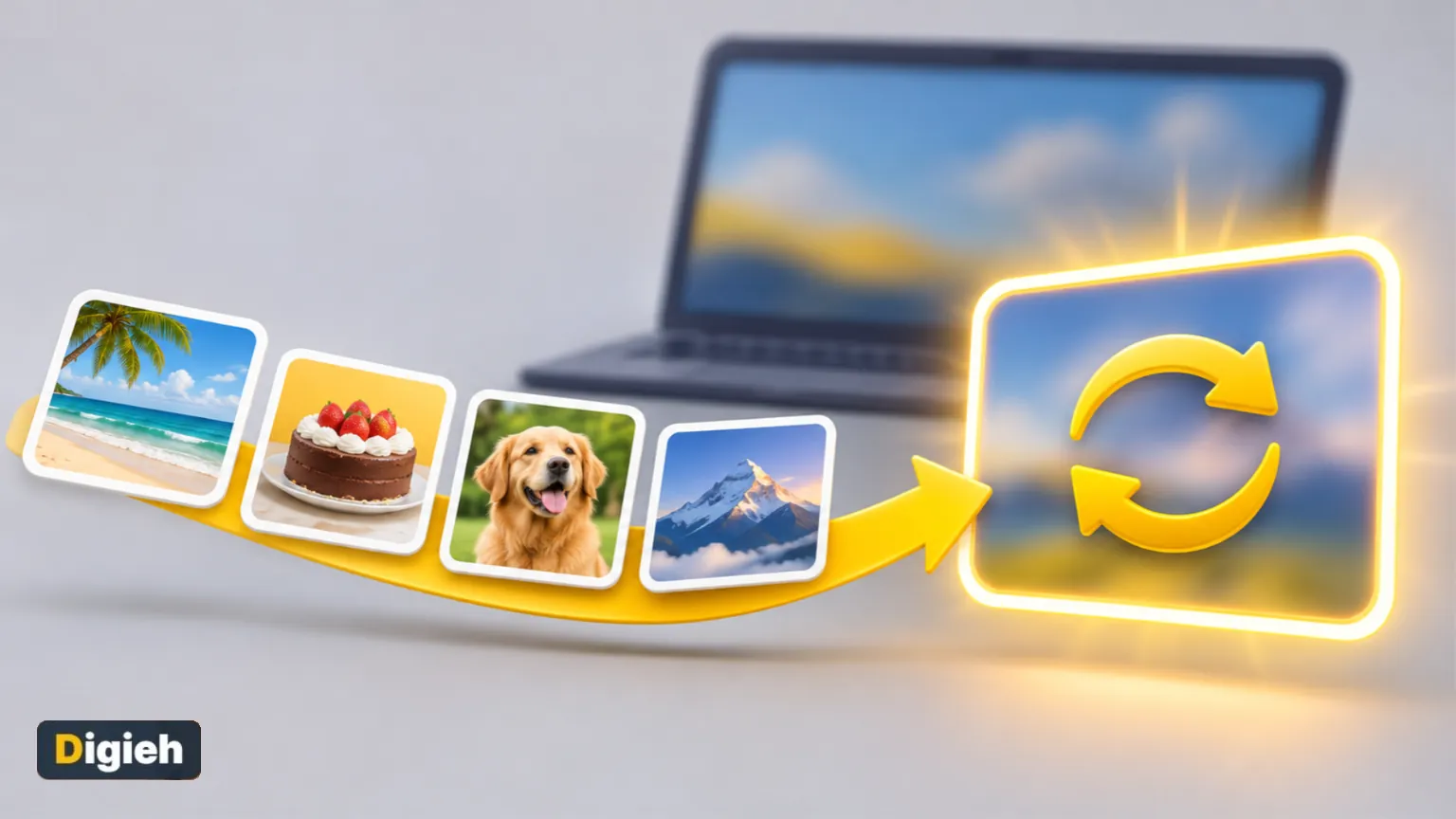
A GIF is an image file that can hold many frames. When those frames play in a loop, you get a short, silent animation.
The format is older than most websites. According to MDN Web Docs, CompuServe introduced it in 1987.
People still love GIFs because they play everywhere. They work in chats, emails, slides and web pages, with no play button needed.
256The most colors a GIF palette can hold, as described in MDN Web Docs.
That color limit is the main trade-off. Smooth photos can show slight bands, while logos and cartoons look crisp.
Get Your Photos Ready First
A little prep makes a much better animation. Spend two minutes on these steps before you open any tool.
- Pick 3 to 15 photos that tell one short story.
- Put them in the order you want them to play.
- Use photos with the same shape, such as all wide or all tall.
- Remove blurry shots, since every frame shows up in the loop.
Taking new pictures for your GIF? Our holiday photo tips help you shoot sharper frames with any phone.
How to Make a GIF From Photos With Giflume
Giflume is a free GIF maker from Digieh. It runs in your browser, so your photos never leave your device.
There is no sign-up and no watermark on your finished GIF. Here is how to use it.
Step 1. Add your images
Drop your photos into the box, or tap Choose images. Giflume accepts up to 60 images, and they play in the order shown.
Have only one photo? Giflume can still turn it into a still GIF, which some forums and chat apps prefer.
Step 2. Let Smart Pick help
Not sure which settings to use? Tap Smart Pick, and Giflume studies your photos and chooses settings for you.
Step 3. Set quality, width and speed
Choose how many colors to use, how wide the GIF should be and how fast it plays. The sections below explain each choice.
Step 4. Create and download
Make the GIF, watch the preview loop, then download it. If something looks off, change one setting and try again.
Change only one thing at a time, such as speed or width. That way you can see exactly what made the difference.
Giflume shows the final file size too. Compare it with the limit of the app where you plan to post.
Where do you share GIFs most often?
- Chats and group messages
- Social media posts
- Work slides or emails
- Not sure
How to Choose the Right Speed
Speed decides how long each frame stays on screen. The official format specification measures that delay in hundredths of a second.
In plain terms, a delay of 50 means half a second per frame. A delay of 10 means a tenth of a second.
| Type of GIF | Time per frame | Why |
|---|---|---|
| Photo slideshow | About 1 second | Gives people time to see each picture |
| Step-by-step demo | About half a second | Easy to follow without feeling slow |
| Smooth burst motion | A tenth of a second or less | Frames blend into fluid movement |
Try a slower speed first. You can always speed it up, but a too-fast slideshow is hard to watch.
Keep Your GIF File Small
GIF files grow fast. Large ones load slowly and may not upload at all.
Use fewer colors
Giflume offers 256, 128, 64 or 32 colors. More colors look smoother, while fewer colors make a smaller file.
In Giflume’s own sample, the 32 color version was about a third of the size. The 256 color version looked smoother, though.
Pick a sensible width
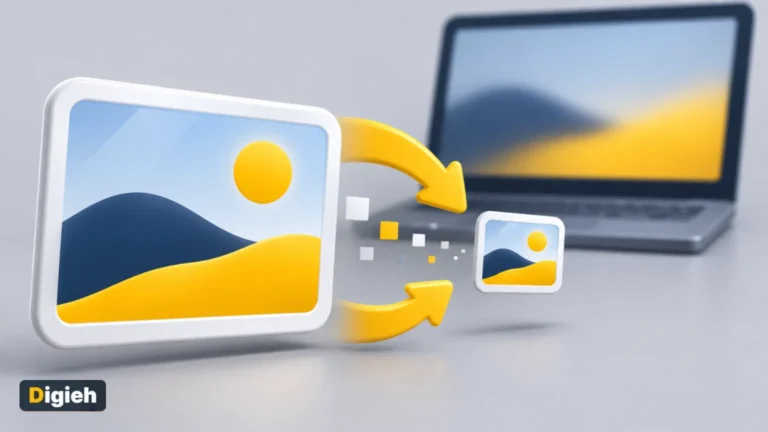
Width has the biggest effect on size. Doubling the width makes the file about four times bigger, because the height grows too.
A width of 640 pixels suits websites, blogs and chats. Choose 480 or 320 pixels for emails and slow connections.
Check where you will post it
Each app has its own limit. For example, X allows animated GIFs up to 5 megabytes on mobile and 15 megabytes on the web.
Quick tip. Shrink large photos before you add them. Our free Pixlume image compressor resizes a whole batch in seconds.
GIF or Short Video? Which One to Use
Many phones can also record short video clips. So when does a GIF make more sense?
A GIF plays on its own, loops forever and needs no sound. That makes it perfect for quick reactions, simple steps and tiny slideshows.
A video handles long clips, sound and rich color much better. It also tends to be smaller for anything longer than a few seconds.
| Choose a GIF when | Choose a video when |
|---|---|
| The clip lasts a few seconds | The clip runs longer than about ten seconds |
| It must play in emails or slides | Sound matters |
| You want an endless loop | You need smooth, true colors |
If you are unsure, start with a GIF. It works almost everywhere without extra steps.
Free updates
Join the Digieh list
Be the first to know when our weekly brief launches.
No spam. Unsubscribe anytime. Read our Privacy Policy.
Make GIFs Everyone Can Enjoy
Fast flashing can make some people feel unwell. The web accessibility guidelines warn that flashing content can cause migraines, dizziness and seizures.
Those guidelines say content should not flash more than three times in any one second. So avoid rapid swaps between very light and very dark frames.
When you post a GIF on a website, add a short description, also called alt text. Screen readers read it aloud for people who cannot see the image.
Finally, keep important words out of the GIF itself. Put them in the message or caption so everyone can read them.
Fun GIF Ideas to Try
Need inspiration? These ideas work well with everyday photos.
- A holiday slideshow of the family gathering
- A before and after of a room makeover
- A recipe shown in four quick steps
- A product turning around for an online shop
- A pet doing something silly, made from burst shots
- A thank you message for customers, built from a few branded images
Running a small business? A short GIF can brighten a holiday thank you email to your customers.
Where to Share Your Finished GIF
Once your GIF is ready, you can use it almost anywhere.
- Drop it into a group chat to react or celebrate
- Add it to an email newsletter to show a product in action
- Place it in a slide to explain a quick process
- Post it on social media with a short caption
- Use it on a blog to show steps without a video player
In emails, place the GIF near the top. Some email apps may only show the first frame, so make that frame clear on its own.
Common Mistakes to Avoid
Most disappointing GIFs come from a few simple slips.
- Mixing tall and wide photos, which leaves bars or awkward crops
- Choosing a huge width, which makes the file too big to share
- Setting the speed so fast that nobody can see each photo
- Using photos you do not have the right to share
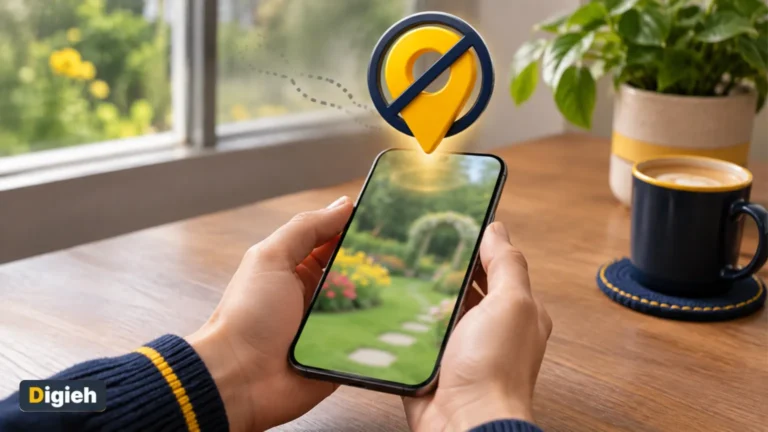
Sharing photos taken at home? Some photo files store the place you took them. First read our guide on how to remove location from photos.
Your GIF Checklist
- Choose and order your photos
- Keep every photo the same shape
- Pick 640 pixels wide unless you need smaller
- Set a speed people can follow
- Check the file size against the app limit
- Watch the preview before you share
Try this today. Pick three photos from your last weekend and turn them into a one second per frame slideshow GIF.
Test Yourself
What usually makes a GIF file much smaller?
- Adding more frames
- Choosing a smaller width
- Using more colors
Fewer pixels mean far less data, so a smaller width shrinks the file the most.
How many colors can a GIF palette hold at most?
- 256
- 1,000
- 16 million
A GIF palette holds up to 256 colors.
Frequently Asked Questions
Can I make a GIF from photos on my phone?
Yes. Giflume works in the browser on iPhone and Android, so you do not need to install an app.
How many photos do I need for a GIF?
Two is enough for a simple loop. Most good GIFs use between 3 and 15 photos.
Why does my GIF look grainy?
GIFs can only show a limited number of colors. Choose the highest color setting, or use simpler images with fewer shades.
Is it free to make a GIF with Giflume?
Yes. Giflume is free, needs no account and adds no watermark.
Conclusion
Making a GIF from photos takes only a few clicks. Choose your pictures, set a sensible width and speed, and keep an eye on file size.
Your next step is easy. Open Giflume and turn three favorite photos into your first GIF today.
Found this useful?
Editor’s Note
This guide is accurate as of November 9, 2026. It draws on MDN Web Docs, the official GIF format specification and X Help Center. It also uses the World Wide Web Consortium accessibility guidelines.
Tools, app limits and features may change over time.
Spot an error in this article? Please contact us at support@digieh.com or read our Corrections Policy.
Keep exploring
Your next read is waiting
 1Food & LifestyleHoliday Road Trip Checklist: Smart Tips for Families11 min read
 2BusinessHow to Write a Powerful Year-End Self Review10 min read
 3CarsHow to Drive in Snow Safely, Simple Tips That Work8 min read
 4BikesE-Bike Buying Guide for Beginners, What to Know8 min read
 5MarketingSimple Guide to Writing SEO Titles That Work8 min read
 6Finance & MarketsGiving Tuesday 2026, Date and How to Give Safely8 min read