TRENDING
Table Photo to Excel: Convert Printed Tables Free
Table photo to Excel, tested: we turned a printed table into a spreadsheet cell for cell. See real results, how to open the .csv file and fixes for issues.

7 min read
Last updated November 20, 2026
To turn a table photo into Excel, take a straight photo of the table and open Artlume. Choose Table to Excel and tap Get the table. Then download the .csv file and open it in Excel or Google Sheets.
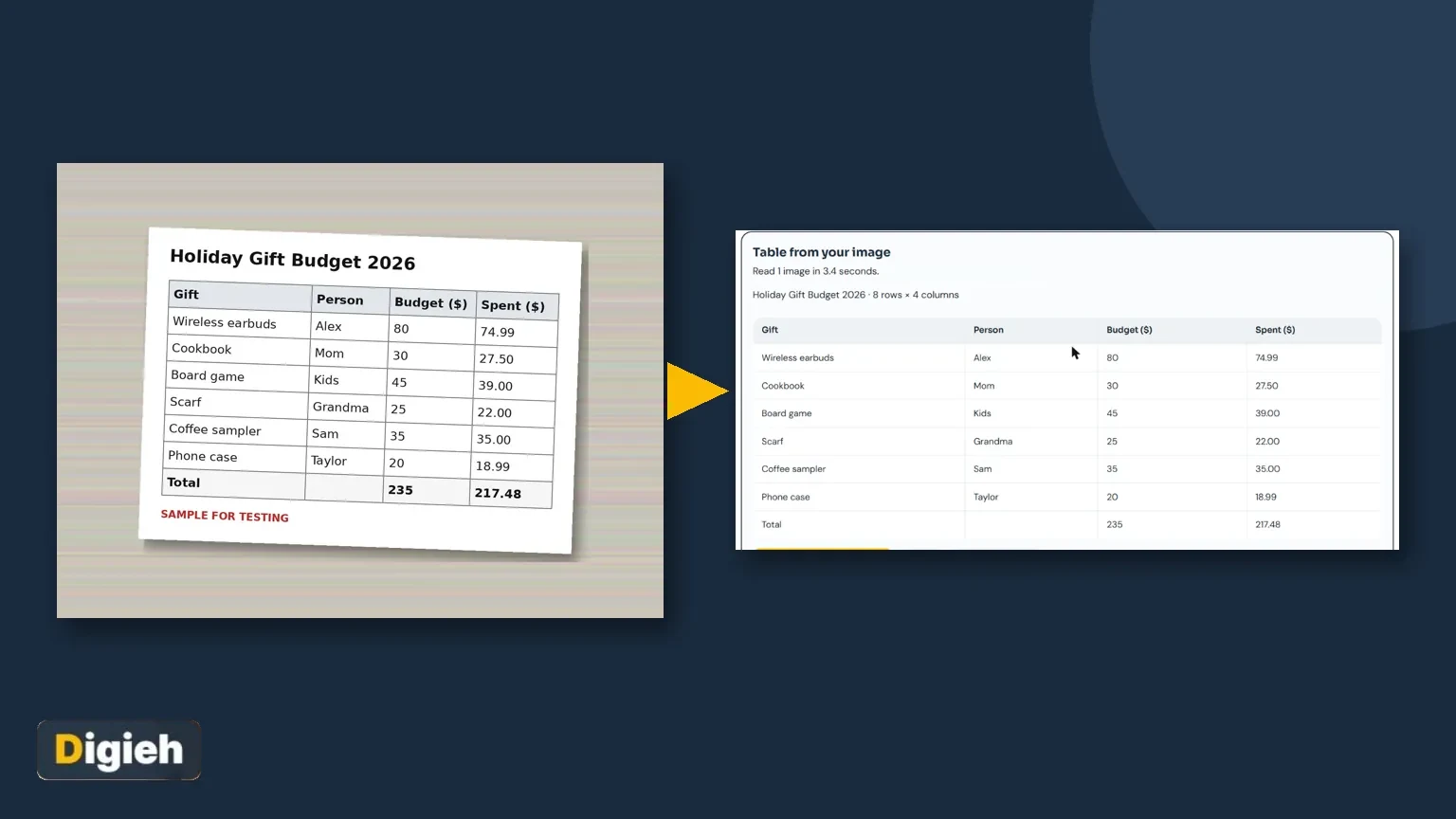
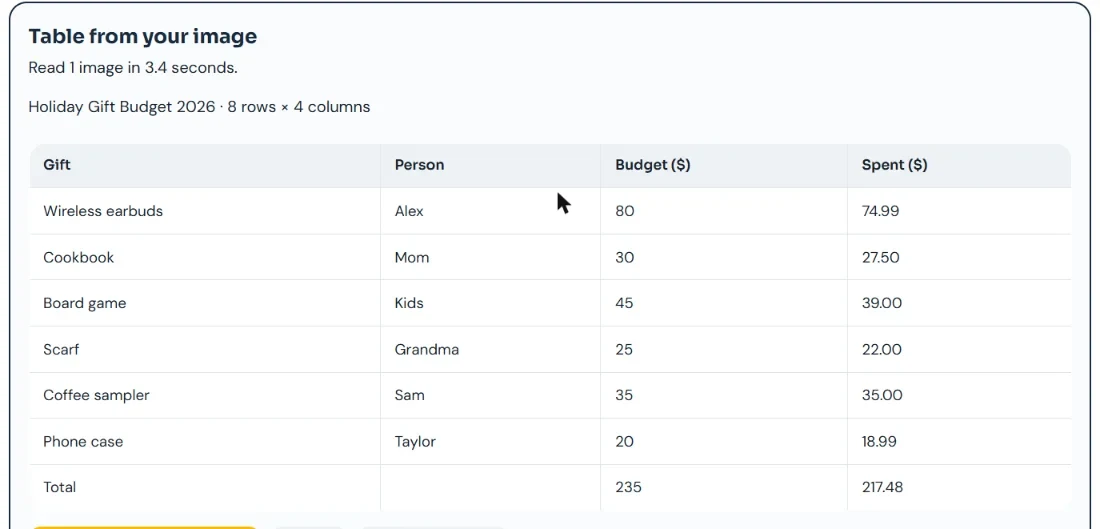
We tested it on a printed gift budget table with eight rows and four columns. Every cell, including the totals row, came back in the right place.
Key Takeaways.
- Artlume rebuilds the rows and columns of a table photo as a grid you can download.
- Our 8 row by 4 column sample came back fully correct in 3.4 seconds.
- The .csv file opens in Excel, Google Sheets and Numbers.
- Excel has its own Data from Picture tool, but it needs Microsoft 365.
- Check numbers stored as text and re-add totals with a formula.
Jump to a section
- Our test result
- Step-by-step guide
- Open the file the right way
- Photo tips for tables
- Fix common spreadsheet issues
- What you can convert
- Other free ways
- Privacy and limits
- Frequently asked questions
- Conclusion
Our Test: A Printed Gift Budget Table
TestedTested on November 20, 2026 with Artlume in Table to Excel mode. Our sample image was read in 3.4 seconds on the free plan.
We printed a holiday gift budget with a header row, six gifts and a totals row. The photo was taken at a slight tilt on a light background.

Artlume found the title, counted 8 rows and 4 columns, and showed the grid on screen. The Download for Excel button saves it as a .csv file.
| What we checked | On the paper | Artlume result |
|---|---|---|
| Title | Holiday Gift Budget 2026 | Correct |
| Size | 8 rows, 4 columns | 8 rows by 4 columns |
| Headers | Gift, Person, Budget, Spent | Correct |
| Decimals | 74.99, 27.50, 18.99 | All kept, including trailing zeros |
| Totals row | 235 and 217.48 | Correct, empty cell kept |
| Time | Not applicable | 3.4 seconds |
Source: Digieh test on November 20, 2026, using the Artlume image to text tool.
It kept the empty cell in the totals row, so the numbers stayed under the right headers. That is where many converters slip.
Step-by-Step: Table Photo to Excel
- Lay the page flat and take a straight photo of the table.
- Open Artlume and add the photo, or paste a screenshot with Ctrl+V.
- Choose the Table to Excel tile.
- Tap Get the table.
- Check the grid on screen, row by row.
- Tap Download for Excel to save the .csv file.
- Open it in Excel, Google Sheets or Numbers.
- Save it as a normal workbook if you plan to add formulas.
You can also tap Copy and paste the table straight into a spreadsheet. Each cell lands in its own column.
Many pages? A Pro key lets you add up to 20 table photos at once. You then download every table in one ZIP file.
Open the File the Right Way
A .csv file is plain text with commas between cells. Double-clicking usually works, but importing gives you more control over numbers and dates.
| App | How to import |
|---|---|
| Excel | Data, then From Text, then pick the .csv file |
| Google Sheets | File, then Import, then Upload |
| Numbers on Mac | Drag the file onto the Numbers icon |
| Excel on a phone | Open the file from Downloads with the Excel app |
Source: Microsoft Support and Google Docs Editors Help.
Importing lets you set the column type. Choose Text for codes like zip codes or part numbers, so leading zeros are not lost.
Photo Tips for Tables
- Shoot straight on, so rows stay level.
- Fill the frame with the table and leave a small border.
- Use even light with no shadow across the rows.
- Split very long tables into two photos with an overlap.
- Screenshots of digital tables work even better than photos.
- Avoid photos of screens, which can show stripes.
Microsoft gives similar advice for its own picture tool. It suggests cropping to just the table and shooting straight, not at an angle.
Where do you usually find tables you need to retype?
- Printed reports
- Screenshots
- Textbooks
- Not sure
Fix Common Spreadsheet Issues
| Issue | Why it happens | Quick fix |
|---|---|---|
| Numbers will not add up | Stored as text | Select the column, then use Text to Columns or Convert to Number |
| Currency signs in cells | Kept from the photo | Find and replace the sign with nothing |
| Dates look wrong | Day and month swapped | Set the date format during import |
| Merged headers split | Spreadsheets need one header per column | Rename headers by hand |
| Totals row breaks sorting | Totals are mixed with data | Delete it and use a sum formula instead |
Source: Digieh testing notes and Microsoft Support on importing .csv files.
After converting, replace any copied totals with a formula. That way the total updates if you fix a cell later.
Check a few cells against the paper before you trust the sheet. Two minutes of checking beats a wrong report.
Pay extra attention to cells with long numbers, such as order or phone numbers. Spreadsheets may show them in scientific format, like 1.2E+10. Format the column as Text to see every digit.
Free updates
Join the Digieh list
Be the first to know when our weekly brief launches.
No spam. Unsubscribe anytime. Read our Privacy Policy.
What You Can Convert
| Table type | Good fit? | Note |
|---|---|---|
| Price lists | Yes | Great for comparing shops |
| Timetables | Yes | Check times carefully |
| Sports and score tables | Yes | Watch for small fonts |
| Bank statement printouts | Careful | Hide account numbers first |
| Handwritten tables | Often | Neat columns help a lot |
Source: Digieh use cases tested with the Artlume tool.
Already have the table as a PDF file? Our guide to converting a PDF to Excel covers that route.
Other Free Ways to Convert a Table
| Method | Best for | Limits |
|---|---|---|
| Artlume | Any device, no account, .csv download | 10 free images a day |
| Excel Data from Picture | Microsoft 365 users on Windows or Mac | Needs a subscription |
| Typing it in | Very small tables | Slow and error-prone |
Source: Microsoft Support and our Artlume test.
Microsoft says Data from Picture is available in Excel for Microsoft 365. You pick Data, then From Picture, then review and insert the data.
Our pillar guide, how to copy text from any image, compares every method for text, tables and receipts.
Build on Your New Spreadsheet
Once the table is in a spreadsheet, it becomes far more useful than the paper. A few quick moves add a lot of value.
- Sort by any column, such as cheapest to most expensive.
- Add a filter row to show only one person or category.
- Add a column for the difference between budget and spent.
- Use conditional colors to flag anything over budget.
- Insert a simple bar chart to see spending at a glance.
In our sample, a difference column shows the coffee sampler hit its budget exactly. Every other gift came in a little under.
Save the file to a shared folder if family or teammates need it. Everyone then works from the same numbers instead of photos.
Privacy and Limits
Artlume shrinks your photo and removes hidden photo data, such as location, on your device before upload. The page says Digieh does not keep your image after reading it.
The free plan reads 10 images a day with no sign-up. A Digieh Pro key raises that to 200 a day and lets you add up to 20 images at once.
Good habit. Avoid uploading full card numbers, bank details or identity documents to any online tool. Cover them with your finger or crop them out first.
Try this today. Find one printed table you retype often. Convert it with Artlume and keep the spreadsheet for next time.
Test Yourself
What should you do with a copied totals row after converting?
- Keep it as typed numbers
- Replace it with a sum formula
- Delete the whole sheet
A formula updates automatically if you fix any cell later.
Frequently Asked Questions
Can I convert a table image to Excel for free?
Yes. Artlume converts 10 images a day free and gives you a .csv file.
Can Excel convert a picture of a table by itself?
Yes, with Data from Picture in Excel for Microsoft 365.
Why do my numbers show as text?
Imported numbers can arrive as text. Use Convert to Number or Text to Columns.
Does it work with handwritten tables?
Often yes, if columns are neat and the photo is sharp.
Can it read tables in other languages?
Yes. Check decimal commas and date formats after import.
Conclusion
A straight photo and one tap rebuild a printed table as a real spreadsheet. Our sample came back cell for cell, totals included.
Your next step is to convert one table you would otherwise retype today.
Editor’s Note
This article is accurate as of November 20, 2026. Test results come from our own run of Artlume on a Digieh sample image marked for testing. Feature details come from the official help pages linked above.
Spot an error in this article? Please contact us at support@digieh.com or read our Corrections Policy.
Keep exploring
Your next read is waiting
 1AI & TechGoogle Genie 4: How to Build Playable Worlds5 min read
 2Home & KitchenLaundry Symbols Explained: Free Printable Care Label Chart5 min read
 3CarsTrade-In vs Private Sale Calculator: Which Pays More7 min read
 4MarketingGoogle Business Profile Setup: Get Found Locally Free7 min read
 5TechnologyHow to Copy Text From Any Image, Free7 min read
 6Pets & AnimalsCat Not Using Litter Box: Causes and Fixes6 min read
Found this useful?