TRENDING
Blur Faces in Photos Before Sharing Them Online

5 min read
Last updated November 19, 2026
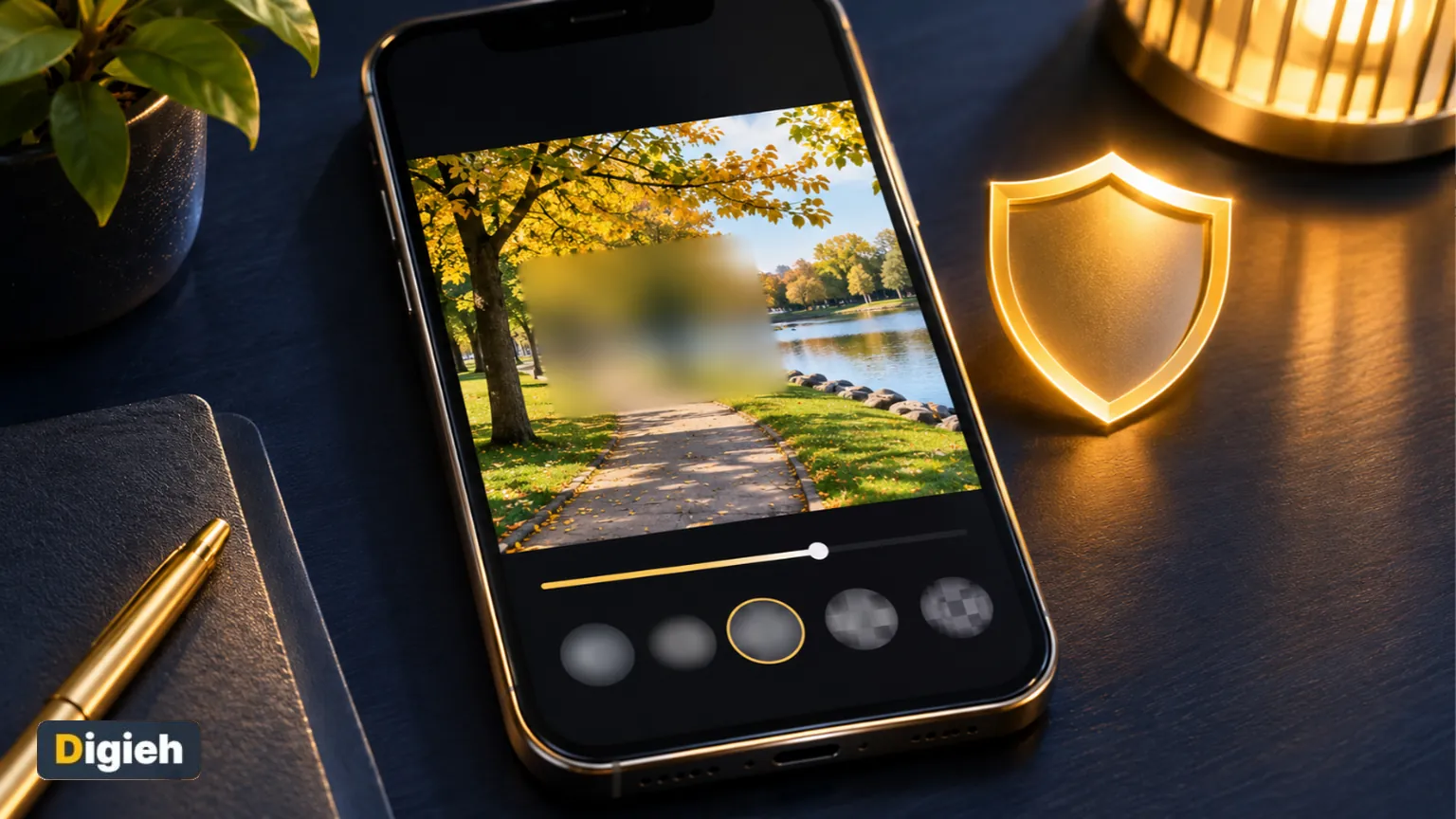
Blur faces in photos before you post them to protect kids, friends and strangers. Free phone tools can do it, and your photos never need to leave your device.
Many online blur sites ask you to upload your photo to their server first. This guide shows private ways to hide faces and other details.
Key Takeaways.
- Hide faces of children and anyone who has not agreed to be online.
- Also hide car plates, house numbers, school logos and screens.
- Signal has a free face blur tool that works on your phone.
- Remove hidden location data too, since blurring does not touch it.
Jump to a section
- Why blur faces
- What to hide
- Ways to blur, compared
- Blur free with Signal
- Cover faces on iPhone
- Blur in your browser
- Remove location data
- Before you post
- Frequently asked questions
- Conclusion
Why Blur Faces Before You Post?
A public photo can be saved, shared and copied by anyone. Faces can be matched to names, schools and homes.
Kids face extra risks. The Federal Trade Commission warns about apps that turn real photos into fake explicit images.
48 hoursTime platforms have to remove a reported explicit image of a child, according to the Federal Trade Commission.
What to Hide in a Photo
- Faces of children, including your own kids.
- Faces of friends or strangers who did not agree to be posted.
- Car license plates.
- House numbers and street signs near your home.
- School names, logos and uniforms.
- Screens, mail, tickets and name badges.
Good to know. A soft blur can leave a face partly visible. Use a strong blur or a solid cover for anything you truly need to hide.
Ways to Blur Faces, Compared
| Method | Cost | Finds faces for you | Stays on your device |
|---|---|---|---|
| Signal photo editor | Free | Yes | Yes |
| iPhone Markup (solid cover) | Free | No | Yes |
| Cropping the photo | Free | No | Yes |
| Digieh Cleanlume Pro | $2.99 pass or $19.99 lifetime | Yes | Yes, works in your browser |
| Typical upload sites | Free or paid | Often | No, photo is uploaded |
Signal details come from the Signal blog. Markup details come from Apple Support. Cleanlume prices come from the Cleanlume page.
Do you blur faces before posting photos online?
- Always
- Only for kids
- Rarely
- Not sure
Blur Faces Free With Signal
The Signal messaging app has a built-in blur tool. It finds faces for you, and you can brush over anything it misses.
- Open Signal and start a chat with yourself, called Note to Self.
- Attach the photo, then tap the blur icon in the editor.
- Turn on face blur and check every face is covered.
- Brush over plates, numbers or faces it missed.
- Save the blurred photo to your phone.
All processing happens on your device, the Signal blog says. It also notes face finding does not catch every face, so always check.
Cover Faces on iPhone With Markup
The iPhone Photos app has no blur brush, but Markup can cover a face. Draw over it with a marker at full opacity.
- Open the photo, tap Edit, then tap the Markup button.
- Pick the marker and slide its opacity to full.
- Choose a thick line and color over the face completely.
- Tap Done to save.
Opacity and fill options are explained in Apple Support. Crop the photo instead if the face sits near an edge.
Free updates
Join the Digieh list
Be the first to know when our weekly brief launches.
No spam. Unsubscribe anytime. Read our Privacy Policy.
Blur Faces in Your Browser With Cleanlume
Digieh Cleanlume works inside your browser, so your photos are never uploaded. Blurring is part of Cleanlume Pro.
- Open Cleanlume and drop in your photos.
- Tap Blur areas and mark each face, plate or house number.
- Pro can also find faces and text to blur for you.
- Download the cleaned copy, with location and camera details removed.
Good to know. The free version removes location, camera and date details from 5 photos at a time. Blur, resizing and batches of 200 need Pro.
Remove Hidden Location Data Too
Blurring changes what people see. It does not remove the hidden details stored inside the file, like where the photo was taken.
Learn more in our guide to removing location from photos. Strong passwords also protect your accounts, as our passkeys guide explains.
Before You Post: A Quick Checklist
- Every face that needs hiding is fully covered.
- No plates, house numbers or school logos show.
- Location data is removed from the file.
- You zoomed in to check the blur at full size.
- You asked other adults before posting them.
Try this today. Check your blurred photo on a big screen before posting. Small phone screens can hide gaps in the blur.
Test Yourself
Does blurring a face remove the photo location data?
- Yes, always
- No, location data must be removed separately
- Only on iPhone
Blurring only changes the picture. Location data sits inside the file and needs its own removal.
Frequently Asked Questions
How do I blur a face on my iPhone?
Use the free Signal app blur tool, or cover the face in Photos Markup with a marker at full opacity.
Is there a free app to blur faces?
Yes. Signal is free and blurs faces on your phone without uploading the photo.
Should I blur my kids faces online?
Many parents do, especially on public accounts. It limits who can recognize your child and where they go to school.
Is blurring enough to hide a face?
A strong blur or a solid cover usually is. A light blur may still show the face, so check at full size.
Conclusion
Blurring faces takes a minute and protects people who never chose to be online. Free, private tools make it easy.
Your next step is to blur and clean one photo before your next post.
Editor’s Note
This article is accurate as of November 19, 2026. Tool details come from Signal, Apple Support and the Digieh Cleanlume page. Prices are in US dollars.
Spot an error in this article? Please contact us at support@digieh.com or read our Corrections Policy.
Keep exploring
Your next read is waiting
 1Pets & AnimalsPuppy First Week at Home: Day-by-Day Training Plan5 min read
 2Finance & MarketsGold and Bitcoin Falling: Why Both Prices Dropped5 min read
 3NewsCalifornia AI Rules: What Newsom’s Plan Would Change4 min read
 4RecipesEasy Shakshuka Recipe With Eggs in Tomato Sauce7 min read
 5AI & TechGemini 4 Neon Release: Features, Access and Price5 min read
 6GamingGaming Eye Strain and the 20-20-20 Rule Explained8 min read
Found this useful?