TRENDING
How to Make a Boomerang GIF From Video
How to make a boomerang GIF from any saved video. Our real test shows how clip length changes the file size, plus the best moments and tips for smooth loops.


7 min read
Last updated November 21, 2026
To make a boomerang GIF, pick a short moment with movement and set the play direction to Boomerang. The clip plays forward, then backward, on a loop.
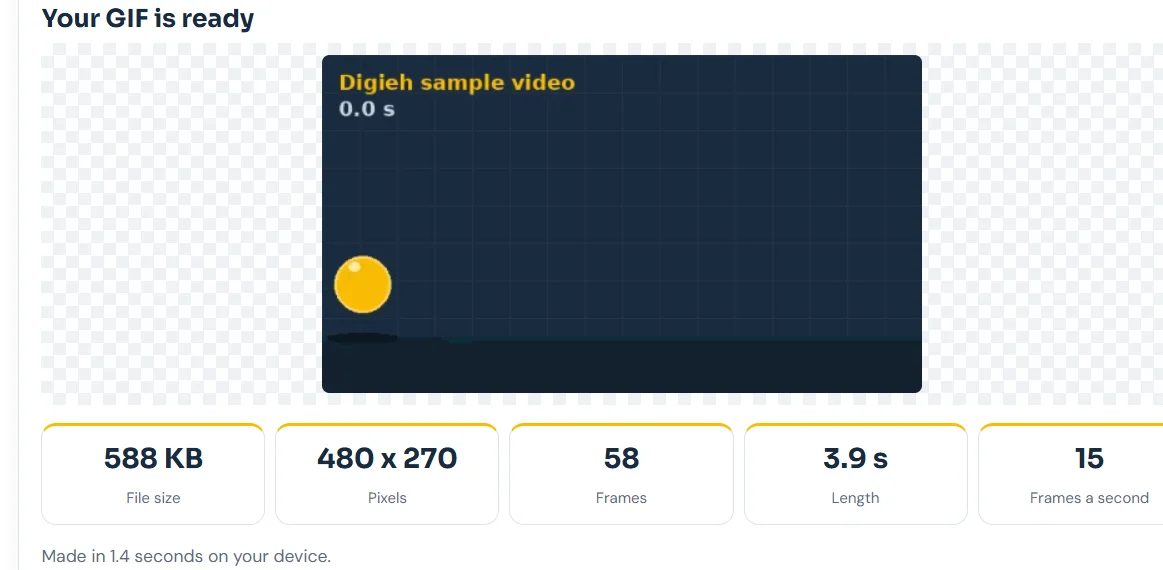
We tested it on November 21, 2026 with our free tool. A 2-second moment became a 3.9-second boomerang of 588 KB in just 1.4 seconds.
Key Takeaways.
- A boomerang plays a clip forward and then in reverse, over and over.
- You can make one from any saved video, not just a live camera.
- Short moments of 1 to 3 seconds make the best boomerangs.
- In our test, a 2-second clip made a 588 KB boomerang, and 6 seconds made 1.81 MB.
- The tool runs in your browser, so your video is never uploaded.
Jump to a section
- What a boomerang is
- How to make one, step by step
- What our test showed
- How long your clip should be
- Boomerang vs reverse vs normal
- Moments that work best
- GIF, WebP or MP4
- Add a caption or sticker
- Where to share it
- Common problems and fixes
- Tips for a smooth loop
- Frequently asked questions
- Conclusion
What a Boomerang Is
Instagram describes Boomerang as mini videos that loop back and forth, in its Building a Boomerang guide. The idea caught on because it turns tiny moments into playful loops.
The same guide says boomerangs need movement in the scene. A steady camera also gives a cleaner result.
You do not need a special camera app. Any short video on your phone or computer can become a boomerang.
How to Make a Boomerang GIF, Step by Step
- Open our free Video to GIF tool in your browser.
- Choose your video, or tap Try our sample video to practice.
- In Choose the part you want, set a short section, ideally 1 to 3 seconds.
- Under Size and motion, set Play direction to Boomerang, forward then back.
- Keep Repeat on Loop forever.
- Pick a width. 480 pixels suits chats and the web.
- Tap Make my GIF, then Download GIF.
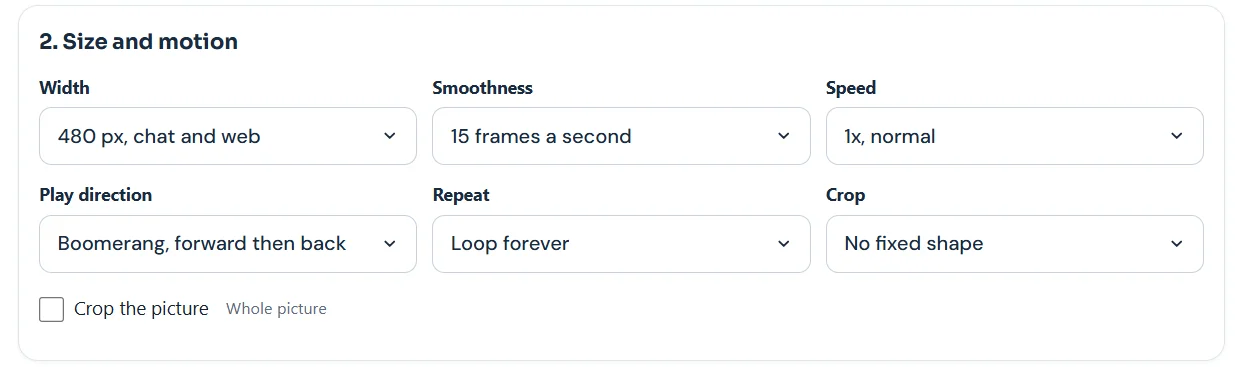
The tool doubles your clip automatically. It plays your section forward, then in reverse. You do not need to edit anything by hand.
What Our Test Showed
We used the tool’s sample video at 480 pixels and 15 frames a second. Then we compared a short section with the full clip.
| Clip used | Boomerang length | Frames | File size | Time to make |
|---|---|---|---|---|
| 2 seconds | 3.9 seconds | 58 | 588 KB | 1.4 seconds |
| 6 seconds | 11.9 seconds | 178 | 1.81 MB | 5.9 seconds |
Source: Digieh test on the Video to GIF tool, November 21, 2026. Sample video, 480 x 270 pixels, 15 frames a second, GIF format, laptop browser.
3xHow much bigger the 6-second boomerang was than the 2-second one, 1.81 MB versus 588 KB. Digieh calculation from our tool test.
Size grows quickly because a boomerang holds every frame twice. Picking a shorter moment is the easiest way to keep it small.
How Long Your Clip Should Be
| Section you pick | Boomerang length | Good for |
|---|---|---|
| 1 second | About 2 seconds | Quick reactions |
| 2 seconds | About 4 seconds | Most chats and posts |
| 3 seconds | About 6 seconds | Slower actions like a toast |
| More than 3 seconds | Over 6 seconds | Rarely needed, gets large |
Source: Digieh test. The tool plays each section forward then back, so length roughly doubles, as our test showed.
If your boomerang feels slow, shorten the section or raise the speed to 1.5x or 2x. If it feels frantic, try 0.5x slow motion.
What would you turn into a boomerang?
- A pet moment
- A celebration
- A sports move
- Not sure
Boomerang vs Reverse vs Normal
| Play direction | What happens | Use it for |
|---|---|---|
| Normal | Plays forward, then starts again | Most GIFs |
| Reverse | Plays backward only | Funny undo effects, like a jump back onto a wall |
| Boomerang | Plays forward, then backward | Smooth, endless loops |
Source: Play direction options in the Digieh Video to GIF tool, checked November 21, 2026.
The Repeat setting also matters. Loop forever suits boomerangs best. Play once or Play 3 times are better for emails or slides.
Moments That Work Best
- A toast with glasses clinking.
- A jump into a pool or onto a bed.
- A dog shaking off water.
- Confetti or leaves thrown in the air.
- A high five or a fist bump.
- A swing at the park.
Pick an action that looks fun both forward and backward. Clear, simple movement reads best in a short loop.
Avoid clips where faces talk, since lips moving backward can look odd. Actions and objects usually work better than speech.
GIF, WebP or MP4?
GIF works almost everywhere, but files are large. GIF uses at most 256 colors per palette, notes the MDN image format guide.
MP4 is usually much smaller. In one web.dev example, a 3.7 MB GIF shrank to 551 KB as MP4.
| Format | Best for |
|---|---|
| GIF | Old apps, emails, GIF libraries |
| WebP | Websites, smaller than GIF |
| MP4 | Chat apps and social posts |
Based on the MDN guide and the format options in our Video to GIF tool.
You can pick the format under Where will you share it in the tool. For a deeper look, see our full video to GIF guide.
Free updates
Join the Digieh list
Be the first to know when our weekly brief launches.
No spam. Unsubscribe anytime. Read our Privacy Policy.
Add a Caption or Sticker
A few words can turn a boomerang into a reaction or a greeting. The tool’s Add text step lets you write up to four lines.
| Option | Choices |
|---|---|
| Caption style | Bold clean, Meme style, Classic serif, Handwritten, Typewriter |
| Caption color | White, Black, Gold |
| Caption position | Top or bottom |
| Stickers | Laughing, Heart, Fire, Party, Wow and more |
Source: caption and sticker options in the Digieh Video to GIF tool, checked November 21, 2026.
Keep captions short so they stay readable as the clip moves back and forth. White text with a dark background is easiest to read.
Where to Share It
- Chat apps, as an MP4 or GIF.
- Social stories and posts, as an MP4.
- Websites and blogs, as WebP or GIF.
- Email, as a small GIF under 2 MB.
For chats, our guide on making a GIF for WhatsApp covers the six-second trick and the WhatsApp preset.
Common Problems and Fixes
| Problem | Fix |
|---|---|
| The loop looks jumpy | Start the section on movement, not a still pause |
| The file is too big | Use a shorter section, 320 pixels or MP4 |
| It looks blurry | Pick a sharper, brighter clip and 480 pixels or more |
| It feels too slow | Raise the speed to 1.5x or 2x |
| Motion looks choppy | Use 15 frames a second or higher |
Based on settings in the Digieh Video to GIF tool and our November 21, 2026 test.
Making a boomerang on your phone
You can open the tool in your phone’s browser too. Choose a clip from your camera roll, set the direction and download the result.
Phones with less memory may take a few extra seconds. Short sections finish fastest, as our 1.4-second test result shows.
Tips for a Smooth Loop
- Hold the camera still or use a stand.
- Start and end on clear movement, not a pause.
- Pick a bright, well-lit clip.
- Keep the section between 1 and 3 seconds.
- Use 15 frames a second for smooth, small files.
- Preview the result and adjust the start time if it jumps.
Want to add words? Use the Add text step for a short caption. A one-word caption like Cheers can make a boomerang feel finished.
Making boomerangs from photos
Have a burst of still photos instead of a video? Our guide on making a GIF from photos shows how to turn them into a loop.
Try this today. Film a 2-second clip of something moving today, then make your first boomerang with it.
Sharing your boomerang in a server? Follow how to make a GIF for Discord for upload steps and size limits.
Test Yourself
What does the Boomerang setting do to your clip?
- Speeds it up
- Plays it forward then backward
- Removes the background
A boomerang plays the clip forward and then in reverse on a loop.
Frequently Asked Questions
Can you make a boomerang from an existing video?
Yes. Load any saved video in our tool, pick a short part and set Play direction to Boomerang.
How long should a boomerang be?
Pick 1 to 3 seconds. The finished loop will be about twice that length.
Why is my boomerang file so big?
Each frame appears twice. Use a shorter section, a smaller width or MP4 format.
Conclusion
A boomerang is a short clip played forward, then backward, on a loop. Short, lively moments make the best ones and keep files small.
Your next step is to open the tool, pick a 2-second moment and set Play direction to Boomerang.
Editor’s Note
This article is accurate as of November 21, 2026. The boomerang definition comes from Instagram. File sizes come from a Digieh test on our Video to GIF tool on November 21, 2026. Tested on a laptop browser.
Spot an error in this article? Please contact us at support@digieh.com or read our Corrections Policy.
Keep exploring
Your next read is waiting
 1Pets & AnimalsCost of Owning a Cat: Yearly Budget, Calculator7 min read
 2AI & TechMeta Muse Privacy Report: What Users Should Know4 min read
 3HealthInsomnia Fixes People Say Work, Checked Against Science8 min read
 4TechnologyBusiness Card to Contact: Save Cards From Photos7 min read
 5Food & LifestyleElectric Blanket vs Space Heater: Which Costs Less?7 min read
 6NewsSchool Phone Bans: What Two New Studies Found5 min read
Found this useful?