TRENDING
Simple Steps to Set Up a Password Manager

10 min read
Last updated November 8, 2026
Most of us juggle dozens of accounts. Remembering a strong, different password for each one is almost impossible.
That is why many people reuse the same few passwords. It feels easier, but one leak can then unlock many of your accounts.
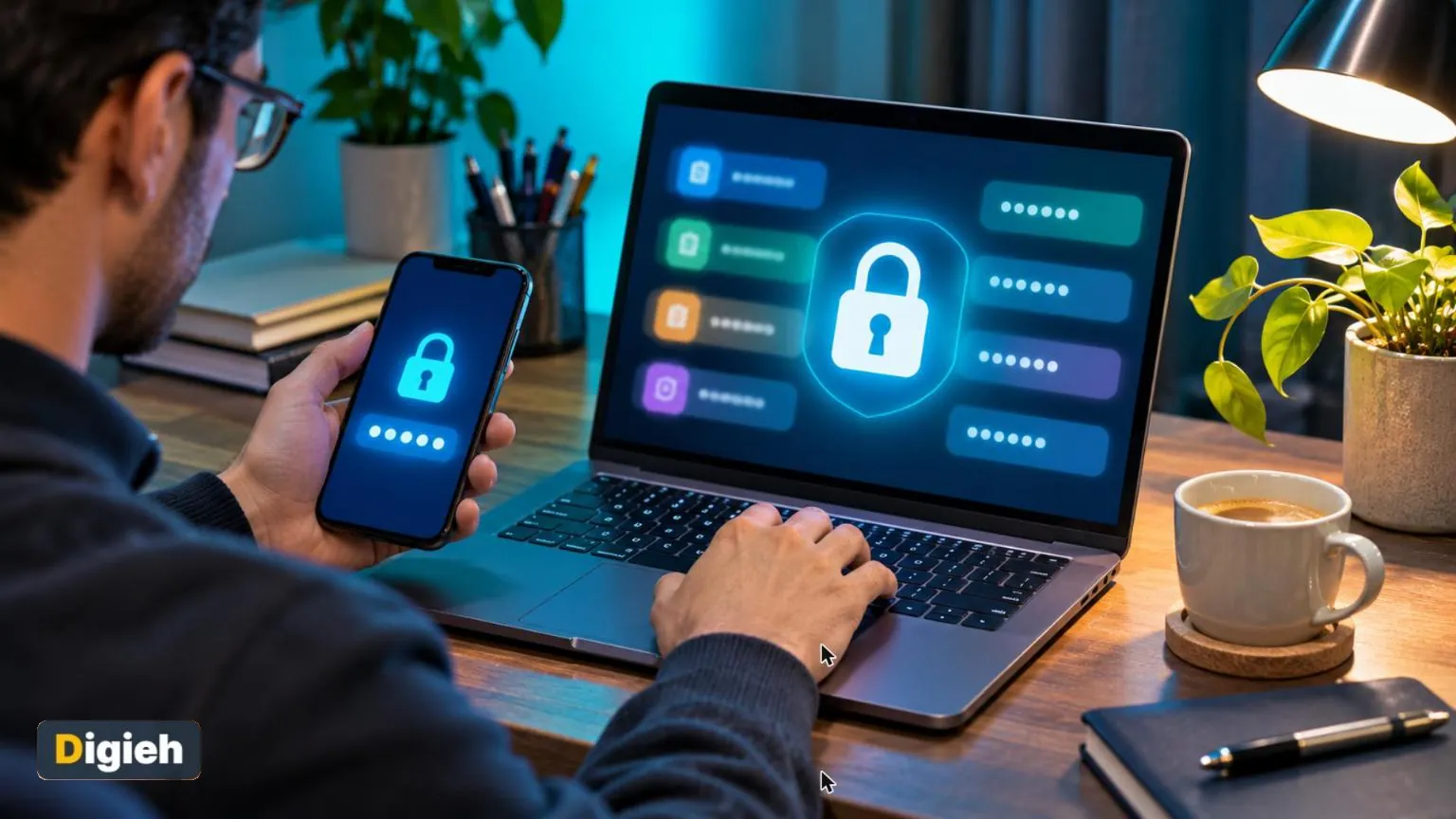
A password manager solves this problem. This guide walks you through setting one up, step by step, even if you are not a tech person.
Key Takeaways
- A password manager creates, stores and fills in passwords for you.
- You only need to remember one strong master password.
- The Cybersecurity and Infrastructure Security Agency suggests passwords of at least 16 characters.
- Turn on two-step login to protect the manager itself.
- Fix your most important accounts first, such as email and banking.
16+Minimum password length in characters recommended by the Cybersecurity and Infrastructure Security Agency.
What Is a Password Manager?
A password manager is an app that keeps your logins in an encrypted vault. Think of it as a locked digital notebook only you can open.
It can create long, random passwords and save them for each site. When you visit a login page, it fills in the details for you.
The Cybersecurity and Infrastructure Security Agency (CISA) passwords tip sheet explains the main benefit. You only remember one strong master password. Everything else is handled for you.
Why Reusing Passwords Is Risky
Criminals often steal lists of emails and passwords from hacked websites. They then try those same details on other popular sites.
If you reuse one password, a single breach can expose your email, shopping and bank accounts. This trick is common because it works so often.
The CISA tip sheet calls weak passwords the most common way criminals get into accounts. Unique passwords for every account close that door.
How do you keep track of your passwords now?
- A password manager
- My browser saves them
- Memory or paper notes
- Not sure
Step 1. Choose a Trusted Password Manager
Many good password managers exist, both free and paid. The right one is the one you will actually use every day.
The University of British Columbia privacy guide lists several well-known options. It says committing to one matters more than picking the perfect one.
The Freedom of the Press Foundation suggests looking for these features before you decide.
- A random password generator
- End-to-end encryption, so the company cannot read your passwords
- Regular updates that fix security problems
- A recent independent security audit
- Browser extensions and apps for the devices you use
CISA also suggests checking trusted reviewers and reading reviews. Look at pricing, family plans and the number of devices allowed.
Cloud or Offline?
Cloud managers keep an encrypted copy of your vault online. That keeps your phone and computer in sync, and helps if you lose a device.
Offline managers keep everything on your own device. They give you more control but take more work to sync and back up.
Most beginners find a cloud manager easier. Either type is far safer than reusing the same password everywhere.
What About Built-In Browser Managers?
Most browsers and phones offer to save passwords for you. That is better than reusing one password, but options are often more limited.
The University of British Columbia guide suggests turning off the browser’s built-in manager once you choose a dedicated one. Keeping passwords in one place avoids confusion.
Step 2. Create a Strong Master Password
Your master password unlocks everything, so it deserves extra care. It should be long, unique and easy for you to remember.
CISA recommends a passphrase of five to seven unrelated words. The University of British Columbia suggests aiming for about 20 to 30 characters.
Here are a few simple rules to follow.
- Never use your master password anywhere else.
- Avoid names, birthdays, pet names and favorite teams.
- Pick random words that do not form a common phrase.
- Add a number or symbol if you like, but length matters most.
Write it down once and keep the paper somewhere safe at home. Do not save it in a phone note or email.
Good to know. A passphrase like four or five random words is often easier to remember and harder to crack than a short jumble of symbols.
Step 3. Install the Apps and Browser Extension
Download the manager from its official website or your device’s official app store. Avoid links in emails or pop-up ads.
Next, install the browser extension on your computer. It saves new logins, suggests strong passwords and fills in forms.
Then install the mobile app on your phone and tablet. Sign in with your master password so your vault syncs everywhere.
Step 4. Turn On Two-Step Login
Two-step login asks for a second proof after your password. It might be a code from an app or a tap on a security key.
The University of York information technology services advises turning on multifactor authentication for the password manager itself. That way, a stolen master password is not enough.
Our guide on how to turn on two-factor authentication explains the different options in plain steps.
Save any backup or recovery codes the manager gives you. Print them and store them with your written master password.
Step 5. Import Your Saved Passwords
You do not have to type every login by hand. Most managers can import passwords saved in your browser or another app.
The University of British Columbia guide says you can import from a browser, a spreadsheet file or another manager. You can also add logins slowly as you visit each site.
If you export passwords to a file for importing, be careful. Delete that file from your computer and empty the trash once the import works.
Step 6. Fix Weak and Reused Passwords
Many managers include a health check or security report. It flags weak, reused and leaked passwords in your vault.
Start with the accounts that matter most. Change your email password first, because email can reset almost every other account.
Then move on to banking, shopping and social media. Use the built-in generator to create a new long, random password for each one.
- Main email account
- Bank and credit card logins
- Phone carrier account
- Online shopping sites
- Social media
- Cloud storage and photos
You do not need to fix everything in one day. Try updating five accounts a week until your list is clean.
Quick tip. Set a weekly reminder called password day. Spend ten minutes updating a few old logins.
Step 7. Plan for Emergencies
Many managers cannot reset your master password if you forget it. The Freedom of the Press Foundation explains that encryption keeps even the company locked out.
That is why your written backup matters. Some managers also offer an emergency kit or recovery key to print.
The University of British Columbia guide suggests storing access instructions with your estate documents. Some managers let you name a trusted emergency contact as well.
Which account should you secure first?
- A gaming site
- Your main email
- A recipe website
Email can reset most other accounts, so it deserves the strongest protection first.
How Long Does Setup Take?
Most people can finish the basic setup in under an hour. Installing the apps and creating your master password takes only a few minutes.
Importing saved passwords is usually quick too. The slower part is updating weak passwords, and you can spread that over several weeks.
Do not let the full list overwhelm you. Even securing your top five accounts makes a big difference right away.
Free updates
Join the Digieh list
Be the first to know when our weekly brief launches.
No spam. Unsubscribe anytime. Read our Privacy Policy.
Helping Older Relatives Get Started
Parents and grandparents are often targets for online scams. A password manager can protect them, but they may need a patient guide.
Sit with them and set it up together on their own device. Let them choose and type the master password themselves.
Start with just their email and bank logins. Add more accounts later, once they feel comfortable with the routine.
Write simple steps on a card for them to keep. A short note like open the app, then tap fill, can help a lot.
Check in after a week to answer questions. Small wins build confidence and make the new habit stick.
Using a Password Manager at Work
Some employers provide a password manager for work accounts. If yours does, follow your company’s rules for using it.
Keep work and personal vaults separate when possible. That makes it easier to leave a job without losing personal logins.
Never store work passwords in a personal vault unless your employer allows it. Ask your technology team if you are unsure.
What About Passkeys?
Passkeys are a newer way to sign in without typing a password. Your phone or computer confirms it is you with a fingerprint, face scan or screen lock.
Many websites now offer passkeys alongside regular passwords. Several password managers can store passkeys and sync them across your devices.
You can use passkeys and a password manager together. Passwords will still be needed for many sites for years to come.
Smart Habits After Setup
A password manager works best when you use it every time. Let it create a new password whenever you sign up for something.
Watch for fake login pages. A good extension fills in passwords only on the real site, which adds a layer of protection.
If it refuses to fill in, stop and check the web address. Our guide on how to spot phishing emails shows common warning signs.
Keep the apps and your devices updated. Updates often fix security problems you never hear about.
Getting a new phone soon? Our guide to transferring data to a new phone covers moving apps and logins safely.
How long should a password be, according to CISA?
- At least 16 characters
- Exactly 8 characters
- Any length is fine
CISA recommends passwords of at least 16 characters.
Signs Your Setup Is Working
After a few weeks, using the manager should feel natural. You will notice you rarely type a password by hand anymore.
Your health report should show fewer weak and reused passwords. Each green check means one less door left open for criminals.
You should also feel calmer when a company announces a data breach. With unique passwords, only that one account needs a quick change.
If you still reach for sticky notes, revisit the setup steps. Make sure the extension and phone app are both signed in.
What to Do After a Data Breach
Companies sometimes announce that customer logins were stolen. Many password managers can alert you when one of your saved accounts appears in a leak.
Change that password right away using the generator. Then check whether you used the same password anywhere else.
Turn on two-step login for that account if you have not already. Watch your email and bank statements for anything unusual.
Common Mistakes to Avoid
- Using a short or reused master password
- Skipping two-step login on the manager
- Leaving an exported password file on your computer
- Keeping passwords in both the browser and the manager
- Sharing your master password with anyone
Avoiding these mistakes keeps your vault truly safe. Small habits make a big difference over time.
Sharing Passwords With Family
Families often share streaming, utility or shopping accounts. Many managers offer family plans with shared folders for this.
The University of York notes that managers can share access without showing the password directly. That is safer than sending passwords by text.
Give each person their own vault and master password. Share only the folders they truly need.
Try this today. Pick a password manager and change just your email password to a long, random one. That single step protects many other accounts.
Frequently Asked Questions
Are password managers safe?
Reputable managers encrypt your vault, so the company cannot read your passwords. They are far safer than reusing passwords.
What happens if I forget my master password?
Many managers cannot reset it. Keep a written copy and any recovery kit in a safe place.
Can I use a password manager on my phone?
Yes. Most managers offer phone apps that sync with your computer.
Is a free password manager good enough?
Many free managers cover the basics well. Paid plans often add family sharing and extra features.
How long should my passwords be?
CISA recommends at least 16 characters. Your manager can generate long random passwords for you.
Conclusion
A password manager takes about an hour to set up and saves time every day after. It also makes each account much harder to break into.
Choose a trusted manager, create a long master password and turn on two-step login. Then fix your most important accounts first and build from there.
Found this useful?
Editor’s Note
This article is accurate as of November 8, 2026. It draws on guidance from the Cybersecurity and Infrastructure Security Agency, two universities and the Freedom of the Press Foundation. Product names are mentioned only as examples, not endorsements.
Spot an error in this article? Please contact us at support@digieh.com or read our Corrections Policy.
Keep exploring
Your next read is waiting
 1TechnologyCold Weather Car Battery Tips That Prevent Breakdowns10 min read
 2Food & LifestyleHow to Carve a Turkey Like a Pro10 min read
 3HealthWinter Asthma Triggers and Proven Ways to Cope10 min read
 4Finance & MarketsSmart Year-End Charitable Giving Tax Tips for 20269 min read
 5EntertainmentKwanzaa 2026 Dates and Traditions: A Meaningful Guide9 min read
 6BusinessHow to Write a Powerful Year-End Self Review10 min read