
TRENDING
How to Turn On Two-Factor Authentication

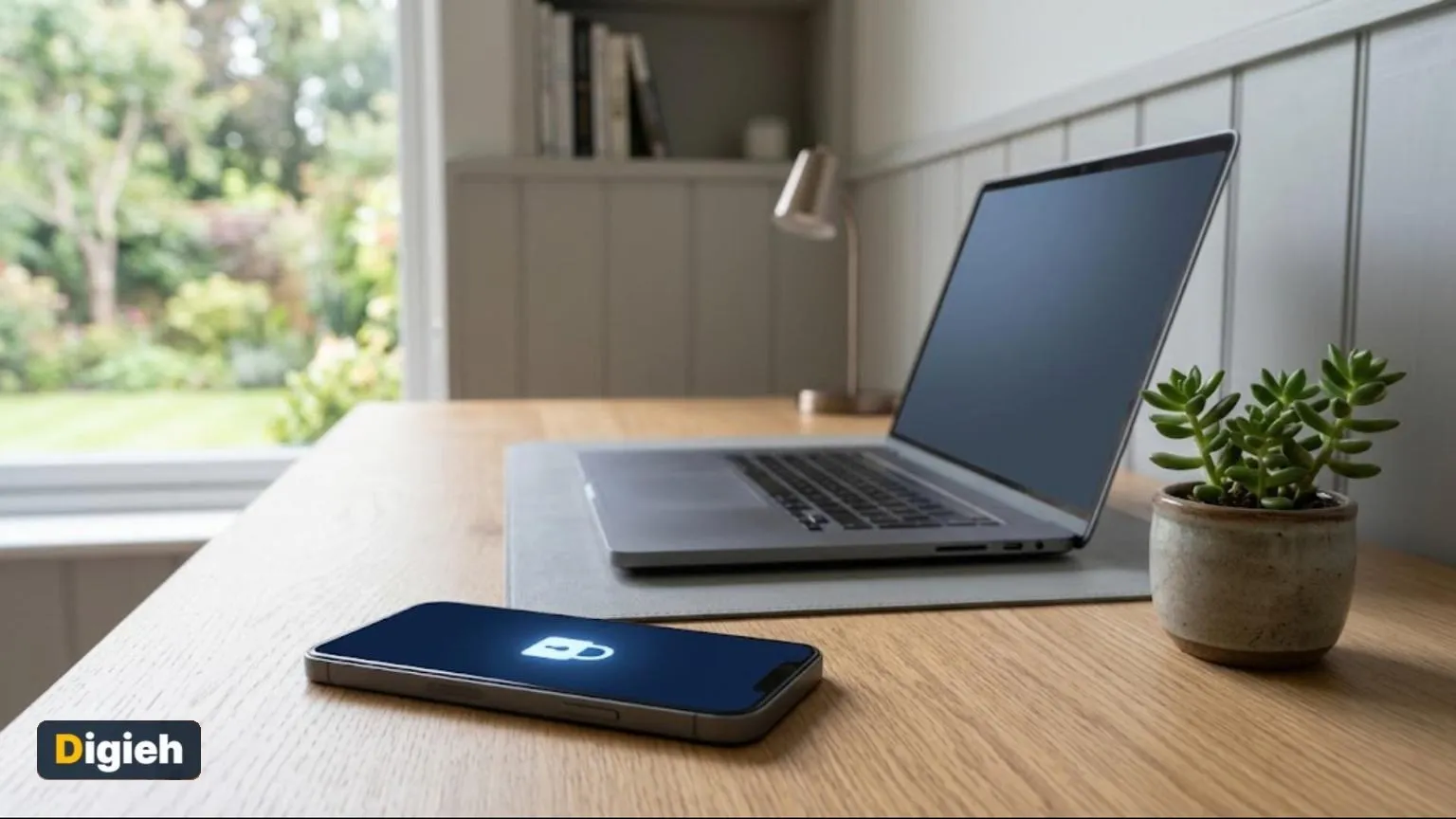
8 min read
Last updated November 6, 2026
To turn on two-factor authentication, open the security settings of your account. Choose an authenticator app, a passkey or text codes as your second step. Save your backup codes somewhere safe so you never get locked out.
Two-factor authentication (2FA) adds a second lock to your accounts. Even if someone steals your password, they still cannot get in.
Key Takeaways
- Two-factor authentication (2FA) blocks most account takeovers.
- Authenticator apps are safer than text codes.
- Passkeys are the easiest strong option.
- Save backup codes offline.
- Start with email, banking and social media.
On This Page
- How Two-Factor Authentication Works
- How to Turn On Two-Factor Authentication (2FA) Step by Step
- Compare Two-Factor Authentication (2FA) Methods
- Which Accounts to Protect First
- What to Do If You Lose Your Phone
- Why Passwords Alone Are Not Enough
- Signs Your Account May Be Hacked
- Understand Passkeys
- Choose an Authenticator App
- Beware of Push Notification Fatigue
- Use a Password Manager
- Protect Your Phone Number
- Make Two-Factor Authentication (2FA) Easy for Everyone
- Review Your Accounts Each Year
- Two-Factor Authentication (2FA) at Work
How Two-Factor Authentication Works
You sign in with your password first. Then you confirm with something only you have, like your phone.
The Cybersecurity and Infrastructure Security Agency (CISA) explains how to turn on multifactor authentication.
A thief would need both your password and your device. That makes break-ins much harder.
5Minutes is all it takes to add two-factor authentication (2FA) to your email account.
How to Turn On Two-Factor Authentication (2FA) Step by Step
1. Open Security Settings
Sign in and look for Security, Privacy or Sign-in options.
2. Find Two-Step Options
Look for two-factor authentication, two-step verification or passkeys.
3. Pick a Method
Choose an authenticator app or passkey if offered. Text codes work if nothing else is available.
Quick tip. Add two methods when you can. A passkey plus backup codes keeps you covered.
4. Scan or Confirm
Scan the Quick Response (QR) code with your authenticator app, or confirm the passkey on your device.
5. Save Backup Codes
Print them or write them down. Store them in a safe place at home.
Do you use two-factor authentication?
- On all my accounts
- On some accounts
- Only where it is required
- Not yet
Compare Two-Factor Authentication (2FA) Methods
| Method | Safety | Ease |
|---|---|---|
| Passkey | Very high | Very easy |
| Authenticator app | High | Easy |
| Security key | Very high | Medium |
| Text message code | Medium | Very easy |
Use this calculator to track your progress.
Two-factor authentication (2FA) progress tracker
Good to know. Many authenticator apps can back up codes to the cloud. Turn this on in case you lose your phone.
- Main email
- Bank and credit cards
- Shopping accounts
- Social media
- Cloud storage
- Backup codes saved
Which Accounts to Protect First
Start with your main email. It can reset passwords for almost every other account.
The Cybersecurity and Infrastructure Security Agency (CISA) explains how to create strong passwords.
Next, protect banking, shopping, social media and cloud storage accounts.
What to Do If You Lose Your Phone
Use a backup code to sign in from another device. Then remove the lost phone from your account.
Set up two-factor authentication (2FA) again on your new phone right away.
Watch Out for Code Scams
Scammers may call or text and ask for your sign-in code. Never share a code with anyone.
Report code-stealing scams at ReportFraud.ftc.gov.
Real companies will not ask for your two-factor authentication (2FA) code. Hang up and contact them through their official site.
Help Family Members Set It Up
Older parents and teens are common scam targets. Sit with them and turn on two-factor authentication (2FA) for their main accounts.
Write their backup codes on paper and keep them in a safe spot they will remember.
Add to calendar
Why Passwords Alone Are Not Enough
Passwords get stolen in many ways. Data breaches, phishing emails and fake websites all expose them.
Many people reuse the same password on several sites. When one site leaks it, thieves try it everywhere.
Two-factor authentication (2FA) adds a second lock. Even with your password, a thief still needs your second factor.
Signs Your Account May Be Hacked
Even careful people can have an account broken into. Spotting the signs early limits the damage.
- You get sign-in alerts you do not recognize.
- Friends receive strange messages from your account.
- Your password suddenly stops working.
- You see purchases or posts you did not make.
- Your recovery email or phone number has changed.
Act fast if you notice any of these. Change your password, sign out of all devices and turn on two-factor authentication (2FA).
Report identity theft at IdentityTheft.gov. The site helps you build a recovery plan.
Understand Passkeys
Passkeys are a newer way to sign in without typing a password. Many major websites and apps now support them.
A passkey lives on your phone, computer or password manager. You unlock it with your fingerprint, face or device personal identification number (PIN).
Passkeys resist phishing because they only work on the real website. A fake site cannot trick your device into using them.
Look for a passkey option in your account security settings. Set one up on each device you use often.
Choose an Authenticator App
Authenticator apps create short codes that change every few seconds. They work even without a phone signal.
Many free apps are available from well-known tech companies. Download one from your phone’s official app store.
Some apps back up your codes to the cloud. That helps if you lose or replace your phone.
Turn on the app’s own lock, like a fingerprint or personal identification number (PIN). It adds another layer of protection.
Beware of Push Notification Fatigue
Some scammers send many sign-in requests in a row. They hope you will tap approve just to make them stop.
Never approve a sign-in request you did not start. If you get a surprise request, someone may have your password.
Change that account’s password right away. Then review your recent sign-in activity.
Free updates
Join the Digieh list
Be the first to know when our weekly brief launches.
No spam. Unsubscribe anytime. Read our Privacy Policy.
Use a Password Manager
A password manager stores strong, unique passwords for every account. It pairs well with two-factor authentication (2FA).
You only need to remember one strong master password. The manager fills in the rest.
Many password managers also store passkeys and authenticator codes. Choose a well-known, trusted option.
Protect Your Phone Number
Some scammers try to take over your phone number. They trick your carrier into moving it to a new subscriber identity module (SIM) card.
Ask your carrier about adding a personal identification number (PIN) or passcode to your account. This makes number transfers harder.
Use an authenticator app or passkey instead of text codes for important accounts. That way, a stolen number alone cannot unlock them.
Make Two-Factor Authentication (2FA) Easy for Everyone
Some people skip 2FA because it seems complicated. A little help goes a long way.
Set it up together with family members. Show them how the codes or passkeys work.
Write simple instructions on a card for older relatives. Keep it with their backup codes in a safe place.
Check in after a week. Answer any questions while the steps are still fresh.
Review Your Accounts Each Year
Security needs change over time. A yearly checkup keeps your accounts safe.
- Remove old devices from your account settings.
- Update recovery phone numbers and emails.
- Check that backup codes are still in a safe place.
- Upgrade text codes to an app or passkey where possible.
Pick a date you will remember, like New Year’s Day. Make it a yearly habit.
Two-Factor Authentication (2FA) at Work
Many employers now require 2FA for work accounts. It protects company data as well as your own.
Follow your workplace instructions for setup. Your information technology (IT) team may ask you to use a specific authenticator app or security key.
Keep work and personal accounts separate. Use different passwords and, when possible, different authenticator entries.
Report any strange sign-in requests to your information technology (IT) team right away. Quick reports help stop attacks before they spread.
Two-Factor Mistakes to Avoid
Some habits can weaken your account security. Watch out for these common mistakes.
- Not saving backup codes
- Approving sign-in prompts you did not request
- Using the same password everywhere
- Turning on protection for only one account
Never approve a sign-in request you did not start. It may mean someone has your password.
Help Family Members Stay Safe
Many people find security settings confusing. A little help goes a long way.
Sit with older relatives and turn on two-step sign-in together. Show them how to use an authenticator app.
Keep Backup Codes Safe
Store backup codes in a safe place, like a locked drawer or password manager. You will need them if you lose your phone.
Review your security settings once or twice a year.
Try this today. Turn on two-factor authentication for your main email today. Save the backup codes somewhere safe.
Test Yourself
Which account should you protect first?
- Your main email
- A game account
- A recipe site
Email can reset passwords for other accounts.
Who should you share your two-factor authentication (2FA) code with?
- Bank callers
- Tech support texts
- No one
Real companies never ask for your code.
Frequently Asked Questions
Is Two-Factor Authentication (2FA) worth the extra step?
Yes. It takes seconds and stops most hacks.
Are text message codes safe?
They are better than nothing, but apps and passkeys are safer.
What is a passkey?
A passkey lets you sign in with your face, fingerprint or device personal identification number (PIN).
Can I use one app for all accounts?
Yes. One authenticator app can hold many accounts.
What is the safest two-factor authentication (2FA) method?
Passkeys and physical security keys are among the strongest options.
What should I do if I get a sign-in request I did not start?
Do not approve it. Change your password and check your recent sign-in activity.
Do password managers work with 2FA?
Yes. Many store passwords, passkeys and authenticator codes together.
How can I protect my phone number from scammers?
Ask your carrier to add a personal identification number (PIN) to your account and avoid text codes for key accounts.
Wrapping Up
Turn on two-factor authentication (2FA) for your email account today. It takes five minutes and protects everything else.
Stay safe online with our guide to holiday scams. Protect your files with tips to back up your phone.
Found this useful?
Editor’s Note
This guide is accurate as of November 6, 2026. Menu names vary by app and website.
Spot an error in this article? Please contact us at support@digieh.com or read our Corrections Policy.
Keep exploring
Your next read is waiting
 1BusinessHow to Work From Home Productively8 min read
 2HealthCancer Diagnoses in England Hit a Record High4 min read
 3Food & LifestyleHow to Store Fresh Herbs So They Last8 min read
 4TechnologyHow to Use Your Phone as a Hotspot Safely8 min read
 5NewsAmerica Hits a New Record for Energy Production4 min read
 6Finance & MarketsWhy the Gold Price Soared Back Above $4,1004 min read