TRENDING
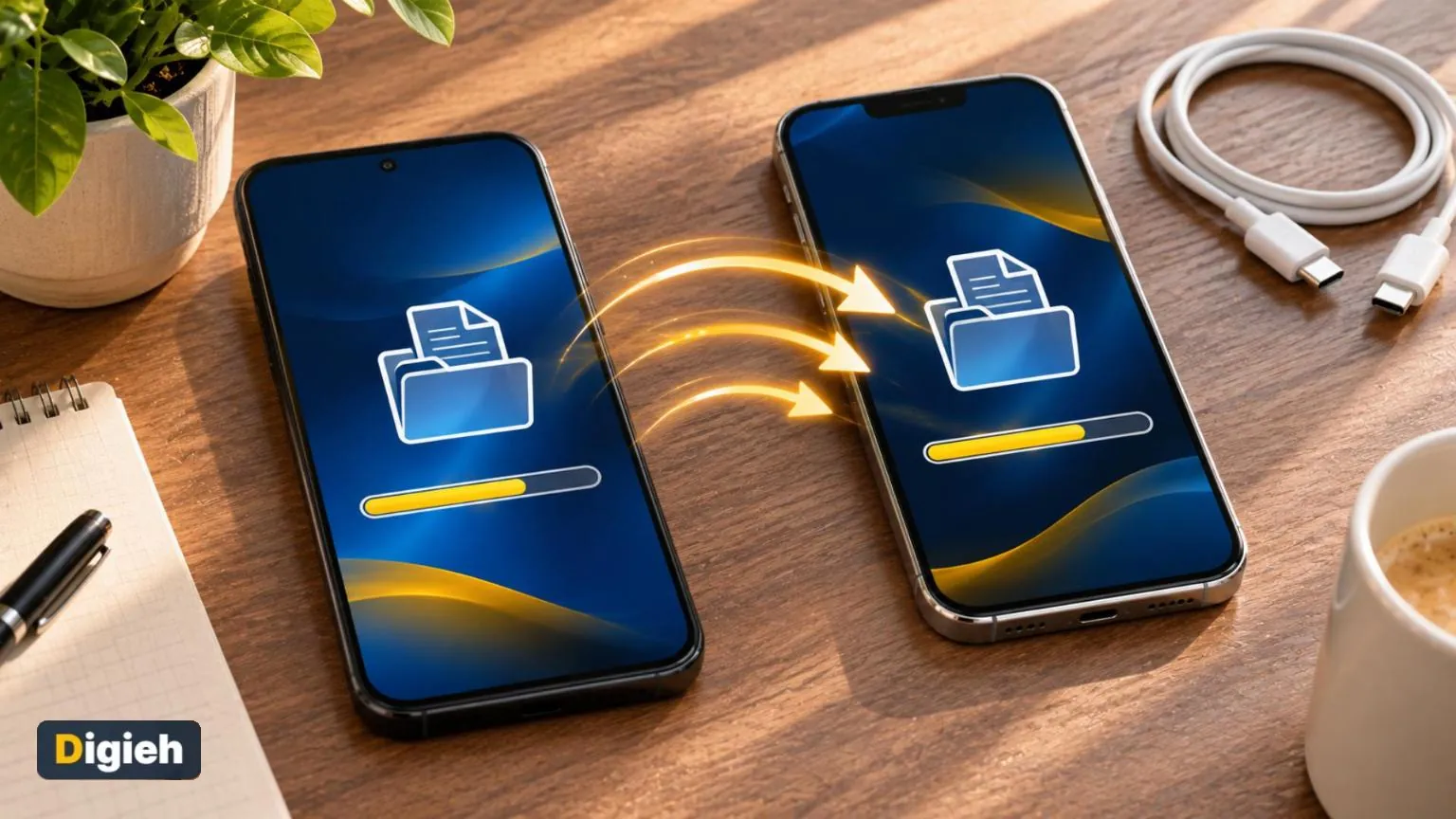
Easy Ways to Transfer Data to a New Phone

10 min read
Last updated November 8, 2026
A new phone is exciting, especially during the holiday season. Moving your photos, contacts and apps over is the part that makes people nervous.
The good news is that modern phones make transfers much easier than they used to be. Most of the work happens automatically during setup.
This guide walks through iPhone to iPhone, Android to Android and Android to iPhone transfers. It also covers what to check before you erase your old phone.
Key Takeaways
- Back up your old phone before you start.
- Keep both phones charged and on Wi-Fi during the transfer.
- iPhones use Quick Start, and Android phones use Copy apps and data.
- Check authenticator apps before you erase the old phone.
- Remove your subscriber identity module (SIM) card and reset the old phone before selling it.
30+ minutesHow long an Android to iPhone transfer can take, according to Asurion.
Before You Start
A little preparation prevents most transfer problems. According to Asurion’s guide to setting up a new phone, these steps come first.
- Back up your old phone to iCloud or Google.
- Make sure you have enough cloud storage for the backup.
- Update the old phone’s software.
- Connect both phones to Wi-Fi.
- Plug both phones into power.
- Have your Apple account or Google account password ready.
Asurion also suggests turning off any virtual private network (VPN) during the transfer. You can turn it back on afterward.
Our guide on how to back up your phone explains backups in more detail.
Write down the names of apps you use most, especially banking and work apps. That list makes it easy to spot anything missing later.
If you use a smartwatch or earbuds, check how to pair them with the new phone. Some devices need to be unpaired from the old phone first, so check the maker’s steps.
Are you getting a new phone this holiday season?
- Yes, an iPhone
- Yes, an Android phone
- No
- Not sure
iPhone to iPhone With Quick Start
Apple’s Quick Start feature moves data directly from your old iPhone to the new one.
Steps
- Turn on the new iPhone and place it near the old one.
- On the old iPhone, tap Continue when the Quick Start screen appears.
- Use the old phone’s camera to scan the animation on the new phone.
- Follow the prompts to set up face unlock and transfer your data.
- Keep both phones close and charging until the transfer finishes.
If Quick Start Fails
Restart both phones and update their software. Turn on Bluetooth, stay on Wi-Fi and turn off Low Power Mode.
If it still does not work, you can restore from an iCloud backup instead. Asurion lists both options as reliable paths.
Quick tip. Take screenshots of your home screen and app folders before you switch. They make it easier to set up the new phone the same way.
Android to Android
Most Android phones offer a Copy apps and data option during setup.
Steps
- Turn on the new phone, tap Start and connect to Wi-Fi.
- Choose Copy apps and data.
- Connect the old phone with a cable or wirelessly.
- Sign in to your Google account.
- Choose what to move, like contacts, photos, messages, apps, call history and settings.
Some app logins and downloaded files may need to be set up again by hand. Make a note of important apps before you begin.
Cable or Wireless?
Android setup works with either a cable or a wireless connection. Whichever you choose, stay on Wi-Fi the whole time, since a dropped connection can leave apps or photos behind.
Good to know. Incomplete backups are a common cause of lost photos and contacts. Check that your latest backup finished before you start.
Android to iPhone
Switching from Android to iPhone takes a few extra steps. Apple’s Move to iOS app handles most of the work.
What You Need
According to Asurion’s Android to iPhone guide, plug both phones into power first. A Universal Serial Bus Type-C (USB-C) cable is fastest, but Wi-Fi also works.
Make sure the iPhone has enough storage. Have your Apple account and Google account details ready.
You must use Move to iOS during iPhone setup. If the iPhone is already set up, you need to erase it first.
Steps
- On the Android phone, download Move to iOS from Google Play and open it.
- On the iPhone, start setup until you reach the Transfer Your Apps and Data screen.
- Tap From Android.
- Connect with a cable, or enter the code shown on the iPhone into the Android app.
- Choose the content to move and tap Continue.
- Keep both phones plugged in and close together until the transfer finishes.
The transfer can take 30 minutes or longer, Asurion notes.
What Moves and What Does Not
Contacts, messages, photos, videos, calendars and some apps usually move over. Music, passwords and paid apps generally do not, so plan to download them again.
- Back up the old phone
- Charge both phones
- Connect to Wi-Fi
- Have account passwords ready
- Move authenticator apps
- Confirm photos and contacts
Moving Photos and Videos
Photos are often the most precious data on a phone. Many people also have thousands of them, which can slow a transfer.
If you use a cloud photo service, your pictures may already be backed up. Sign in on the new phone and they will appear as they sync.
Check that the photo count on the new phone roughly matches the old one. Look for older albums and videos too.
For extra peace of mind, copy your favorite photos to a computer or external drive. Our guide to freeing up cloud storage can help if your storage is full.
Moving Contacts and Calendars
Contacts and calendars usually sync through your Apple or Google account. Make sure syncing is turned on in your old phone’s settings before you switch.
After setup, open your contacts app and search for a few names. If someone is missing, check that the right account is selected.
Calendar events should appear once you sign in. Check upcoming appointments to confirm they arrived.
Music, Paid Apps and Passwords
Some content needs extra steps, especially when switching between iPhone and Android. Music, passwords and paid apps may not move automatically.
Streaming music services usually just need you to sign in again. Downloaded songs may need to be downloaded again on the new phone.
Paid apps bought on one platform generally do not carry over to the other. Check if the app offers a cross-platform subscription.
A password manager makes switching much easier. Your saved logins follow you to the new phone once you sign in.
How Long Does a Transfer Take?
Transfers can take anywhere from a few minutes to a few hours. It depends mostly on how much data you have.
Start the transfer when you do not need your phone for a while. Evenings or weekends work well.
Keep both phones plugged in the entire time. A dead battery can interrupt the process.
Free updates
Join the Digieh list
Be the first to know when our weekly brief launches.
No spam. Unsubscribe anytime. Read our Privacy Policy.
Check Everything Before You Erase the Old Phone
Do not reset your old phone right away. Confirm that your important data made it to the new one first.
Asurion recommends checking photos, contacts, messages, passwords, banking apps and authenticator apps. Only then should you reset the old device.
Authenticator Apps Need Extra Care
Authenticator apps create the codes you use for two-step sign-ins. They do not always transfer automatically.
Losing them can lock you out of banking, work and social media accounts. Open each authenticator app and follow its steps to move accounts before you wipe the old phone.
Our guide on turning on two-factor authentication explains how these codes work.
Which app type should you check before erasing your old phone?
- Weather apps
- Games
- Authenticator apps
Authenticator apps may not transfer automatically, and losing them can lock you out of accounts.
Wipe Your Old Phone Safely
Your old phone holds a lot of personal information. Clear it before you sell, trade in, give away or recycle it.
The Federal Trade Commission (FTC) guide lists these steps.
- Back up your phone so you keep a copy of your data.
- Remove the SIM card and any Secure Digital (SD) memory card.
- Erase all data by resetting the phone to factory settings.
- Update your phone number with accounts that use it to verify your identity.
- Recycle the phone if you will not trade it in, sell it or give it away.
Keep the SIM only if you plan to move it to a new phone. Otherwise, the FTC suggests destroying it.
Recycling, Selling or Trading In
Old phones still have value. Many carriers and manufacturers offer trade-in credit toward a new device.
If you sell the phone yourself, wipe it first and remove it from your accounts. Meet buyers in safe, public places.
The FTC suggests recycling through the manufacturer, your wireless provider or a local electronics store. Our guide on how to recycle old electronics shares more options.
Common Transfer Problems and Fixes
The transfer is stuck
Restart both phones and try again. Make sure both are charging and on the same Wi-Fi network.
Not enough storage
The new phone needs room for everything you are moving. Delete old videos or offload large apps on the old phone first.
Apps ask you to sign in again
This is normal for many apps, especially banking apps. Have your passwords ready or use a password manager.
Messages are missing
Check that message backups were turned on before the transfer. Some chat apps use their own backup settings.
Set Up Your New Phone Like a Pro
Once your data arrives, take a few minutes to make the phone your own.
Turn on automatic backups so your data stays safe going forward. Set a strong passcode and enable face or fingerprint unlock.
Organize your home screen so the apps you use most are easy to reach. Our tips on how to organize your phone home screen can help.
Protect Your New Phone
A new phone deserves good protection from day one. A sturdy case and screen protector can prevent costly repairs.
Turn on your phone’s find-my-device feature. It helps you locate, lock or erase the phone if it is lost or stolen.
Keep your software updated so you get the latest security fixes. Be careful with links in texts and emails, since scams often target new phone owners.
Our guide on how to spot phishing emails covers the warning signs.
Help a Family Member Switch
Older relatives often get new phones as holiday gifts. A little help with the transfer can make a big difference.
Sit down together and go through each step slowly. Write down important passwords in a safe place they can find.
Show them how to make calls, send photos and use video chat on the new phone. A few minutes of practice builds confidence.
Try this today. Open your phone settings and check when your last backup finished. Run a new backup if it is more than a few days old.
Frequently Asked Questions
Can I transfer data without a computer?
Yes. iPhones use Quick Start, and Android phones use Copy apps and data. Move to iOS handles Android to iPhone, all without a computer.
Will my apps transfer to my new phone?
Many apps move automatically, but some logins and files may need setup again. Paid apps do not move from Android to iPhone.
Do my text messages transfer?
Usually yes. Messages are included in Quick Start, Copy apps and data, and Move to iOS transfers.
What if my old phone is broken?
You can often restore from an iCloud or Google backup during setup, if you backed up recently.
Should I factory reset my old phone?
Yes, after you confirm everything transferred. Remove your SIM and memory cards first.
Conclusion
Transferring data to a new phone is easier than ever. Back up first, keep both phones charged and follow the built-in setup tools.
Check your authenticator apps and important data before you erase the old phone. Then wipe it, remove the SIM and sell, trade or recycle it safely.
Found this useful?
Editor’s Note
This guide is accurate as of November 8, 2026. Menu names may vary by phone model and software version. It draws on guidance from Asurion and the Federal Trade Commission.
Spot an error in this article? Please contact us at support@digieh.com or read our Corrections Policy.
Keep exploring
Your next read is waiting
 1EntertainmentKwanzaa 2026 Dates and Traditions: A Meaningful Guide9 min read
 2HealthHoliday Heartburn Relief: Simple Tips That Really Work10 min read
 3Finance & MarketsHoliday Tipping Guide for 2026 With Smart Amounts9 min read
 4Food & LifestyleHow to Carve a Turkey Like a Pro10 min read
 5SportsSnowshoeing for Beginners: Easy Guide to Winter Trails10 min read
 6BusinessEssential Holiday Staffing Tips for Small Business Owners10 min read