TRENDING
How to Clean a Keyboard Safely: Laptop and Desktop Guide

8 min read
Last updated November 9, 2026
To clean a keyboard, unplug it or shut down the laptop. Tip it upside down to shake out crumbs, then blow out debris with short bursts of compressed air. Then wipe the keys with a soft cloth lightly dampened with 70 percent isopropyl alcohol.
Never spray liquid directly onto the keyboard or soak it. This guide covers laptop keyboards, desktop keyboards, mechanical keyboards and what to do after a spill.
Key Takeaways
- Turn off or unplug the keyboard before cleaning.
- Shake out crumbs and use compressed air for debris between keys.
- Wipe hard surfaces with a 70 percent isopropyl alcohol wipe or a dampened cloth.
- Avoid bleach, hydrogen peroxide, abrasive cleaners and spraying liquid directly.
- Clean your keyboard every week or two to cut germs and grime.
Inside this guide
- Why clean your keyboard
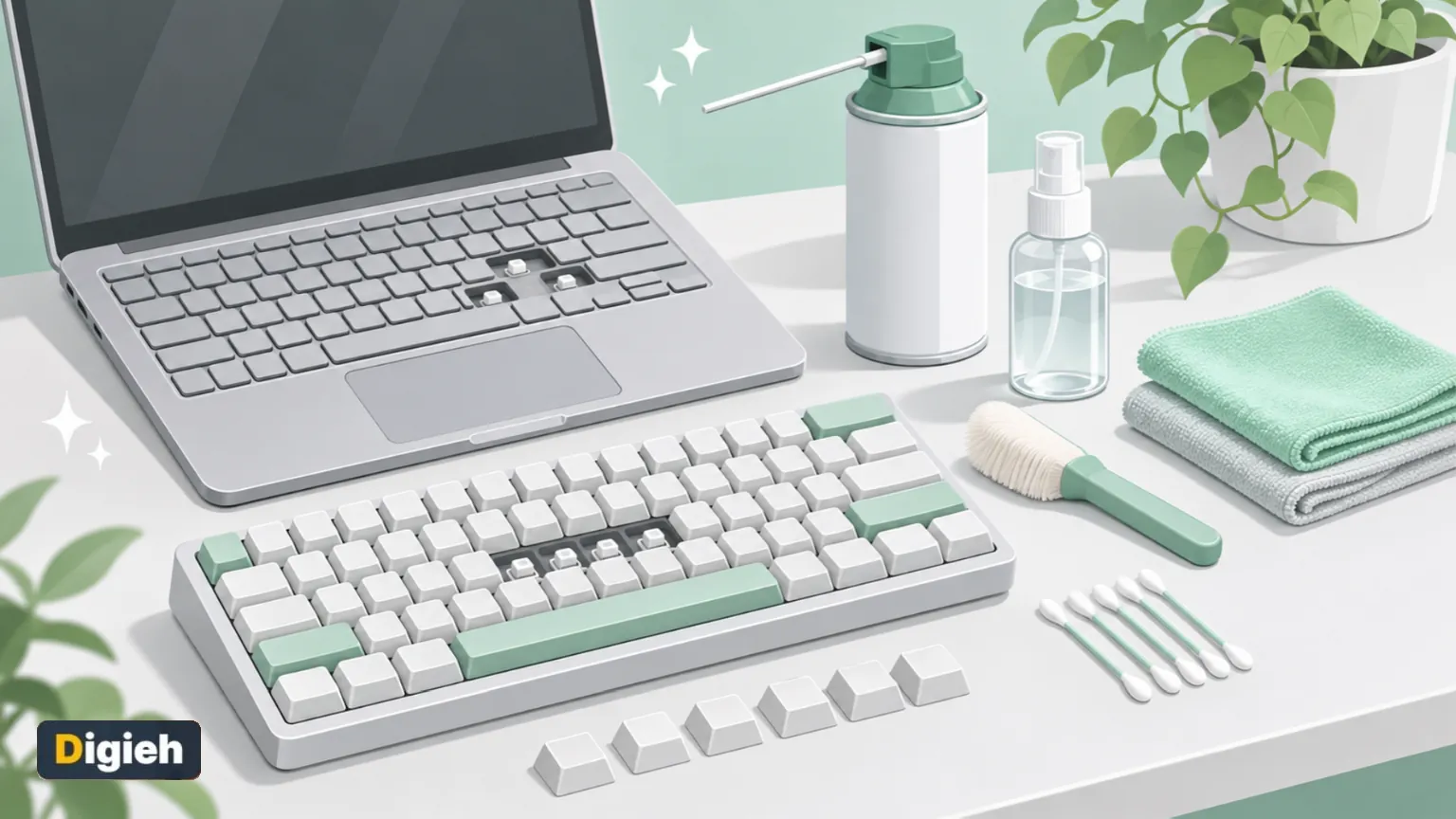
- What you need
- How to clean a laptop keyboard
- How to clean a desktop keyboard
- Deep clean a mechanical keyboard
- What to do after a spill
- What not to use
- How often to clean
- Frequently asked questions
Why Clean Your Keyboard
Your keyboard collects crumbs, dust, skin oils and germs every day. Over time, debris can make keys stick or stop working.
A clean keyboard also looks better and feels nicer to type on. Regular cleaning can help your laptop or keyboard last longer.
70%Strength of isopropyl alcohol wipes Apple says are safe for hard surfaces like keyboards, per its cleaning guide.
What You Need
- A soft, lint-free microfiber cloth
- A can of compressed air
- 70 percent isopropyl alcohol wipes or alcohol and a cloth
- Cotton swabs for tight spaces
- A soft brush, such as a clean makeup brush or small paintbrush
- A keycap puller, for mechanical keyboards only
Apple notes in its guide to cleaning its products that a soft, lint-free cloth is best. Avoid paper towels, which can scratch surfaces and leave lint.
How to Clean a Laptop Keyboard
- Shut down the laptop and unplug the charger and any accessories.
- Hold the laptop open and tilt it upside down at an angle, then gently tap to release crumbs.
- Blow out debris between keys with short bursts of compressed air, holding the can upright.
- Sweep loose dust with a soft brush.
- Lightly wipe the keys and surrounding area with an alcohol wipe or slightly damp cloth.
- Use a cotton swab for edges and corners.
- Let everything dry completely before turning the laptop back on.
Do not pry keys off a laptop keyboard. Laptop keys are fragile and can break easily.
Good to know. Apple says to keep moisture out of openings. Wring out any cloth well so no liquid drips between the keys.
How often do you clean your keyboard?
- Every week
- Every few months
- Almost never
- Not sure
How to Clean a Desktop Keyboard
- Unplug the keyboard or remove its batteries.
- Turn it upside down and shake it gently over a trash can.
- Use compressed air between the keys.
- Wipe the keys and frame with an alcohol wipe.
- Clean the underside and the cable too.
- Let it dry fully before plugging it back in.
Switch off wireless keyboards before cleaning. Remove the batteries if possible.
Deep Clean a Mechanical Keyboard
Mechanical keyboards have removable keycaps, which makes deep cleaning easier.
- Take a photo of the layout so you can put keys back correctly.
- Unplug the keyboard and remove keycaps with a keycap puller.
- Soak plastic keycaps in warm, soapy water, then rinse and dry them fully.
- Brush and blow out debris from the switch plate.
- Wipe the plate gently with a lightly damp cloth.
- Replace keycaps only when they are completely dry.
Do not soak the keyboard itself, only the removed plastic keycaps. Larger keys like the spacebar may have stabilizer wires, so remove them carefully.
What to Do After a Spill
Act fast. Quick steps can save your keyboard or laptop.
- Turn off the device and unplug it right away.
- Turn the keyboard or laptop upside down to drain liquid.
- Blot, do not rub, with a dry cloth.
- Leave it upside down to dry for at least a full day.
- Do not turn it on until it is completely dry.
Sugary drinks like soda and juice leave sticky residue. If keys stay sticky or the laptop will not start, contact the maker or a repair shop.
Avoid hair dryers on high heat, which can damage parts.
What Not to Use
- Bleach or cleaners with hydrogen peroxide
- Abrasive powders or scrubbing pads
- Aerosol sprays sprayed directly onto the keyboard
- Window cleaner or household all-purpose sprays
- Too much water or any liquid that could drip inside
Apple advises avoiding aerosol sprays, bleaches and abrasives. It also says not to spray cleaners directly onto products or submerge them.
How Often to Clean Your Keyboard
| Task | How often |
|---|---|
| Shake out crumbs | Weekly |
| Wipe keys with alcohol | Weekly, or more if shared |
| Compressed air clean | Monthly |
| Mechanical keycap deep clean | Every few months |
Shared keyboards at work or school need more frequent wiping, especially during cold and flu season.
Quick tip. Avoid eating over your keyboard. It is the easiest way to keep crumbs and sticky spills away.
Cleaning Shared and Office Keyboards
Shared keyboards in offices, schools and libraries pass germs between many hands. Wipe them more often, especially during cold and flu season.
- Keep a pack of alcohol wipes near shared computers.
- Wipe keys and the mouse at the start of each shift.
- Wash your hands before and after using shared devices.
- Ask your workplace about approved cleaning products for its equipment.
Some offices use washable keyboards designed for frequent cleaning. Check the label before using water on any keyboard.
Cleaning a Gaming Keyboard
Gaming keyboards often have lights, extra keys and detachable wrist rests. Unplug them, remove the wrist rest and clean it separately.
Many gaming keyboards are mechanical, so follow the keycap steps above. Keep liquid away from the lighting strips and the cable port.
Free updates
Join the Digieh list
Be the first to know when our weekly brief launches.
No spam. Unsubscribe anytime. Read our Privacy Policy.
Signs Your Keyboard Needs Cleaning
- Keys feel sticky or slow to bounce back
- Some keys do not register every press
- You can see crumbs or dust between keys
- The keys look shiny or greasy
- There is a smell near the keyboard
Do not wait for keys to fail. A quick weekly wipe prevents most of these problems.
Clean Your Mouse and Trackpad Too
Your mouse and trackpad get just as grimy as your keyboard. Clean them at the same time.
- Turn off a wireless mouse or unplug a wired one.
- Wipe the top and sides with an alcohol wipe or slightly damp cloth.
- Clean the bottom and around the sensor gently with a dry swab.
- Wipe a laptop trackpad with a lightly dampened cloth, never a wet one.
- Clean mouse pads by hand washing fabric pads and letting them dry fully.
Apple notes that compressed air can gently clear debris from the sensor window on some mice. Always check your own device instructions first.
A clean mouse tracks more smoothly and feels better to use.
Clean the Rest of Your Setup
While you are at it, clean your screen, mouse and trackpad. Each collects oils and dust too.
Our guide on how to clean a phone or laptop screen explains the safest way. A clean laptop also stays cooler, as our laptop overheating fixes explain.
Keep Your Keyboard Clean Longer
- Wash your hands before typing.
- Use a silicone keyboard cover for messy environments.
- Close the laptop lid when not in use.
- Keep drinks in spill-proof cups away from your computer.
- Store keyboards in a dust-free place.
A little care each week saves you from bigger clean-ups later.
When to Get Professional Help
If keys still stick after cleaning, or some stop working, the problem may be inside. A repair shop or the maker’s support team can help.
Spills on laptops can damage the main board, so get help quickly. Many warranties do not cover liquid damage, so check yours.
If your computer also runs slowly, see our tips to speed up a slow computer.
Your Keyboard Cleaning Checklist
- I turned off and unplugged the device
- I shook out crumbs
- I used compressed air between keys
- I wiped keys with a 70 percent alcohol wipe
- I avoided spraying liquid directly
- I let everything dry fully
Setting up a new machine? Follow our steps to set up a new laptop, or browse the best laptop for students guide.
Try this today. Turn your laptop upside down over a trash can and give it a gentle tap. You may be surprised at what falls out.
Test Yourself
What strength of isopropyl alcohol does Apple say is safe for keyboards?
- 10 percent
- 70 percent
- 100 percent bleach mix
Apple lists 70 percent isopropyl alcohol wipes for hard, nonporous surfaces like keyboards.
What should you do first after spilling a drink on a laptop?
- Turn it off and unplug it
- Keep typing to see if it works
- Dry it with a hot hair dryer
Turning it off quickly helps prevent electrical damage.
Frequently Asked Questions
Can I use disinfecting wipes on my keyboard?
Apple says 70 percent isopropyl alcohol wipes and Clorox Disinfecting Wipes are fine for hard surfaces. Squeeze out excess moisture first.
Can I put a keyboard in the dishwasher?
No. Water and heat can ruin the electronics. You can wash only removed plastic keycaps.
Is compressed air safe for laptops?
Yes, in short bursts with the can upright. Avoid spraying directly into vents at close range.
How do I fix a sticky key?
Clean around it with compressed air and an alcohol swab. If it still sticks, contact a repair shop.
Conclusion
Cleaning a keyboard takes just a few minutes. Turn it off, shake out crumbs, use compressed air and wipe with 70 percent alcohol.
Avoid harsh cleaners and liquids, and clean regularly to keep keys working smoothly.
Found this useful?
Editor’s Note
This guide is accurate as of November 9, 2026. It draws on Apple’s official guide to cleaning its products.
Always check your device maker’s cleaning instructions before you start.
Spot an error in this article? Please contact us at support@digieh.com or read our Corrections Policy.
Keep exploring
Your next read is waiting
 1FashionHow to Iron a Shirt Quickly and Perfectly9 min read
 2Science & DiscoveriesQuadrantid Meteor Shower 2027: Best Time to Watch9 min read
 3Fruits & VegetablesClementine vs Mandarin vs Tangerine: What Is Different?9 min read
 4MedicinesElectrolytes Explained: When You Need Them, When Not9 min read
 5Travel & TourismHow to Pack a Carry-On for a Week9 min read
 6AI & TechHow to Use AI for Smarter Holiday Shopping9 min read