TRENDING
Laptop Overheating Fixes That Actually Work

8 min read
Last updated November 9, 2026
To stop a laptop from overheating, use it on a hard, flat surface and keep the vents clear. Close heavy apps, clean out dust and keep the room cool.
A warm laptop is normal, but a very hot one can slow down, shut off or wear out faster. This guide explains why laptops overheat and how to fix it step by step.
Key Takeaways
- Soft surfaces like beds and couches block airflow and trap heat.
- Most laptop makers list a room range of about 10 to 35 degrees Celsius.
- Heavy tasks like games and video editing make fans run faster.
- Dust in vents and fans is a common cause of overheating.
- If a laptop shuts down from heat, let it cool for several minutes before restarting.
Inside this guide
- How hot is too hot
- Why laptops overheat
- Quick fixes
- Software and settings
- Clean the vents and fans
- Helpful accessories
- When to get help
- Frequently asked questions
How Hot Is Too Hot?
Laptops get warm during normal use. Microsoft notes that its devices may feel warm. It lists an operating range of 0 to 35 degrees Celsius.
Apple lists an operating range of 10 to 35 degrees Celsius for its laptops. Its guide to acceptable operating temperatures explains the details.
35Degrees Celsius, the top room temperature for Mac laptops, per Apple Support.
Warning signs
- The fan runs loudly all the time
- The bottom feels too hot to touch
- Apps freeze or the laptop slows down
- The laptop shuts off suddenly
- A thermometer icon or heat warning appears
If the device gets too hot, it may shut down to protect itself. Microsoft says to turn it off and move it somewhere cooler. Its warm device guide says to let it cool for at least five minutes.
Why Laptops Overheat
- Using the laptop on a bed, pillow, couch or lap
- Blocked vents
- Dust built up inside the fans
- Heavy tasks like gaming, video editing or many browser tabs
- A hot room or direct sun
- Old thermal paste or a failing fan
Apple warns against using its laptops in bed, on a pillow or under bedding. Soft surfaces cover the vents and trap heat.
Good to know. Never leave a laptop in a parked car. Apple says the temperature there can go beyond the safe range.
Quick Fixes That Work
1. Move to a hard, flat surface
A desk or table lets air flow under the laptop. Apple notes fans may run more on a couch, bed or lap.
2. Clear the vents
Make sure nothing blocks the openings on the sides, back or bottom. Do not place objects on the keyboard while the laptop runs.
3. Close heavy apps
Quit apps and browser tabs you are not using. Every open program adds work for the processor.
4. Cool the room
Move away from heaters and sunny windows. A cooler room helps the fans work less.
5. Restart the laptop
A restart clears stuck processes that may keep the processor busy. Apple suggests restarting newer Macs if the fans run fast without heavy use.
Where do you use your laptop most often?
- At a desk or table
- On my lap or couch
- In bed
- Not sure
Software and Settings
Find what is using power
On Windows, open Task Manager to see which apps use the most processor time. On a Mac, open Activity Monitor.
End or uninstall programs you do not need. Some apps keep running in the background without you noticing.
Use a balanced power mode
Windows and macOS offer power settings that trade a little speed for less heat. Try a balanced or battery saver mode.
Install updates
System and driver updates can fix bugs that cause high processor use. Turn on automatic updates.
Scan for malware
Hidden malware can run the processor hard and create heat. Run a trusted security scan.
Our guide on how to speed up a slow computer covers more ways to lighten the load.
Dust in the keys can reach the fans too. Learn how to clean a keyboard the right way.
Clean the Vents and Fans
Dust is one of the most common causes of overheating. It builds up in vents and fan blades over time.
- Turn off and unplug the laptop.
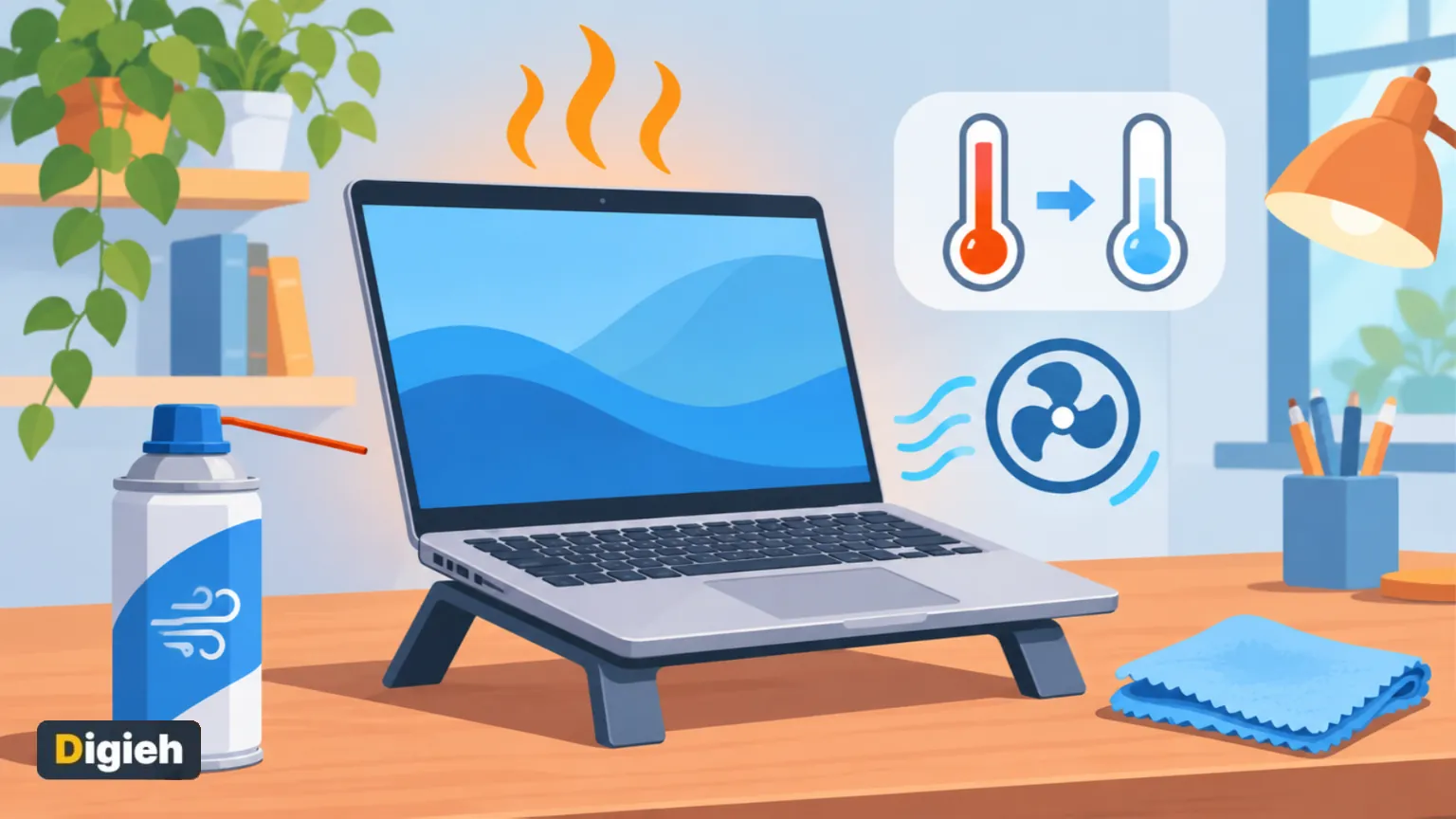
- Use short bursts of compressed air into the vents from an angle.
- Hold the can upright and keep it a few inches away.
- Wipe the outside with a soft, dry cloth.
Do not open the case unless you know how, since it may void the warranty. A repair shop can clean the inside safely.
While you are cleaning, see our tips to clean your laptop screen without streaks.
Quick tip. Clean the vents every few months, more often if you have pets or a dusty home.
Helpful Accessories
Laptop stand
A stand lifts the laptop and improves airflow. It also raises the screen to a better height for your neck.
Cooling pad
A cooling pad has built-in fans that push air under the laptop. It can help during gaming or long video calls.
Lap desk
If you must use the laptop on your lap or couch, a hard lap desk keeps the vents open.
Gaming and Heavy Work
Games, video editing and 3D design push the processor and graphics chip hard. Fans will run faster, and Apple calls that rushing-air sound normal in its guide to fans and fan noise.
Lower graphics settings and cap the frame rate in games to reduce heat. Plug in the charger for best performance, but keep the vents clear.
Battery and Heat
Heat wears out laptop batteries faster. Keeping your laptop cool helps the battery last longer too.
Our guide to extending laptop battery life shares more habits that protect the battery.
Free updates
Join the Digieh list
Be the first to know when our weekly brief launches.
No spam. Unsubscribe anytime. Read our Privacy Policy.
Working in Hot Weather
Summer heat makes overheating more likely. Work in the coolest room you can and keep blinds closed against direct sun.
Avoid working outside in full sun for long periods. Shade helps, but the air may still be too hot for the laptop.
Give the laptop breaks during heavy tasks on very hot days. Short pauses let the fans catch up.
Browsers and Video Calls
Web browsers can use a lot of power, especially with dozens of tabs. Close tabs you do not need and remove extensions you never use.
Long video calls work the processor and camera hard. Turn off your video when you do not need it, and close other apps during the call.
Overheating Myths
Myth one, the freezer will cool it fast
Never put a laptop in a freezer or fridge. Moisture can form inside and damage the parts.
Myth two, loud fans mean it is broken
Fans often get loud during heavy work. That is usually the cooling system doing its job.
Myth three, a hot laptop is always dangerous
Warm is normal. Watch for warning signs like shutdowns, swelling or burning smells instead.
School Laptops and Chromebooks
Students often use laptops on beds and couches. A cheap lap desk or tray can make a big difference.
Remind kids to shut the laptop down before packing it. A running laptop inside a backpack can get very hot.
When to Get Help
See a technician if the laptop keeps shutting down or the fan makes grinding noises. A fan that never runs at all is also a warning sign. These can point to a failing fan or other parts.
Stop using the laptop if the battery swells, smells strange or gets extremely hot. These can be safety risks.
Microsoft advises contacting support if the overheating icon keeps appearing.
Scientists are also working on cooler, more efficient chips. Read about the third type of magnetism that could help.
Is It Time for a New Laptop?
Older laptops may run hot because parts have worn out. If repairs cost a lot, a new laptop may make more sense.
A technician can also replace old thermal paste or a tired fan. That simple repair can give an older laptop a few more good years.
Thinking of upgrading? Our Mac vs Windows laptop comparison can help you choose.
Your Overheating Checklist
- I use my laptop on a hard, flat surface
- The vents are clear and clean
- I close apps I am not using
- My system and apps are up to date
- I keep the laptop out of hot cars and sun
- I use a stand or cooling pad for heavy tasks
Try this today. Open Task Manager or Activity Monitor and close the app using the most processor time. Then check that nothing blocks your vents.
Test Yourself
Where should you avoid using a laptop to prevent overheating?
- On a desk
- In bed or on a pillow
- On a table
Apple warns against using its laptops in bed or on a pillow, which block airflow.
What should you do if a laptop shuts down from heat?
- Turn it off, move it somewhere cooler and wait at least five minutes
- Restart it right away
- Put it in the freezer
Microsoft advises cooling the device for at least five minutes.
Frequently Asked Questions
Is it bad if my laptop gets hot?
Warm is normal. Very hot, loud fans or sudden shutdowns mean you should take action.
Do cooling pads really work?
They can help, especially during heavy use. Keeping vents clear matters most.
Can overheating damage my laptop?
Ongoing heat can shorten the life of the battery and other parts. Fixing the cause early helps.
Conclusion
Most laptop overheating comes from blocked airflow, dust and heavy apps. Use a hard surface, keep vents clean and close what you do not need.
If the laptop still runs hot, get it checked before small problems become big, costly ones.
Found this useful?
Editor’s Note
This guide is accurate as of November 9, 2026. It draws on Apple Support and Microsoft Support guidance.
Every laptop is different, so follow your maker’s instructions.
Spot an error in this article? Please contact us at support@digieh.com or read our Corrections Policy.
Keep exploring
Your next read is waiting
 1Home & KitchenHow to Make a Christmas Wreath at Home, Step by Step8 min read
 2Fruits & VegetablesWinter Fruits and Vegetables in Season: A Simple Guide8 min read
 3FashionHow to Layer Clothes for Cold Weather the Right Way8 min read
 4Food & LifestyleHow to Make Mulled Wine: Easy Recipe and Tips for the Holidays8 min read
 5CarsTire Pressure in Cold Weather: Why It Drops and What to Do8 min read
 6BikesRiding a Bike in Winter: Gear, Safety and Tips8 min read