TRENDING
How to Extend Phone Battery Life, Easy Tips

8 min read
Last updated November 9, 2026
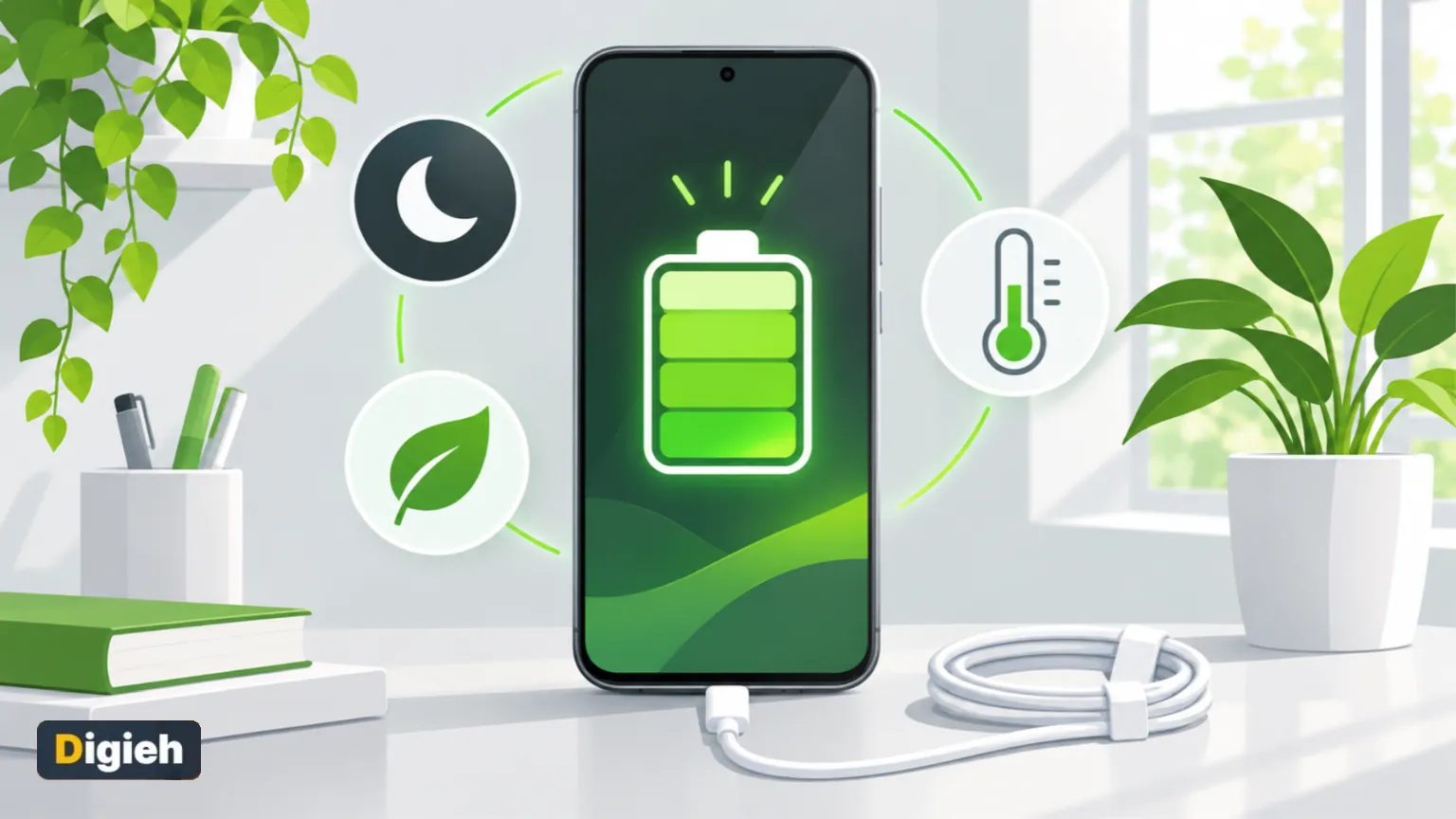
To make your phone battery last longer, lower the screen brightness and turn on battery saver. Keep the phone away from heat too. Also check which apps drain power and limit them.
These small changes help each day and protect the battery’s health over the years. This guide covers both iPhone and Android in plain words.
Key Takeaways
- Screen brightness and screen-on time use the most power.
- Low Power Mode on iPhone and Battery Saver on Android stretch a low battery.
- Heat is the biggest enemy of long-term battery health.
- Smart charging features reduce wear by limiting time at full charge.
- Updates and app checks can fix sudden battery drain.
Inside this guide
- What drains your battery
- Quick settings that help
- iPhone tips
- Android tips
- Protect long-term battery health
- Cold weather and batteries
- Fix sudden battery drain
- Frequently asked questions
What Drains Your Battery
- A bright screen that stays on for a long time
- Video streaming and mobile games
- Navigation apps with GPS running
- Weak mobile signal, which makes the phone work harder
- Apps refreshing in the background
- Heat from sun, cars or heavy use
Your phone shows which apps use the most power. On iPhone, look in Settings under Battery, and on Android, look in Settings under Battery usage.
16 to 22Degrees Celsius, the ideal comfort zone for Apple devices, per Apple’s battery guide.
Quick Settings That Help
- Lower the brightness or turn on auto-brightness.
- Shorten the screen timeout so the display turns off sooner.
- Use dark mode, which can save power on many screens.
- Use Wi-Fi instead of mobile data when you can.
- Turn off Bluetooth and location when you do not need them.
- Turn off keyboard sounds and vibration.
Google lists many of these steps in its Android help page on fixing battery drain. Most also apply to iPhone.
Quick tip. Turn on Airplane mode in places with no signal, like a subway or remote trail. Searching for a signal drains the battery fast.
iPhone Tips
Use Low Power Mode
Low Power Mode reduces brightness and background activity. Apple says the iPhone suggests it at 20 percent and 10 percent, and turns it off once charged.
You can turn it on any time in Settings or from Control Center.
Lower brightness
Apple advises dimming the screen to the lowest comfortable level. Drag the brightness slider down in Control Center.
Use smart charging
Optimized Battery Charging learns your routine and can delay charging past 80 percent. Apple explains this in its guide to charge limit and optimized charging.
Newer iPhones also let you set a charge limit. That keeps the battery from sitting at full charge all the time.
Check battery health
Go to Settings, then Battery, then Battery Health. It shows how much capacity the battery has left compared with when it was new.
Android Tips
Turn on Battery Saver
Battery Saver limits background activity when power is low. Google notes it may delay some features and app updates.
Use Adaptive Battery
Adaptive Battery learns which apps you use less and limits them. Turn it on in the battery settings.
Restrict hungry apps
Check the battery usage screen for apps that use a lot of power. You can restrict their background activity or uninstall ones you no longer need.
Remove old accounts
Google suggests deleting unused accounts. Each account may sync in the background and use power.
How often do you charge your phone?
- Once a day
- Twice a day or more
- Every other day
- Not sure
Protect Long-Term Battery Health
Phone batteries slowly lose capacity over time. Good habits can slow that wear.
Avoid heat
Apple says temperatures above 35 degrees Celsius can permanently reduce battery capacity. Never leave your phone on a hot dashboard or in direct sun.
Remove a thick case if the phone gets hot while charging. Google also advises keeping the device cool, since heat drains the battery even when idle.
Use the right charger
Google recommends the charger that came with your phone or one from a trusted maker. Cheap, unknown chargers may charge slowly or cause damage.
Store it half charged
If you will not use a phone for a long time, Apple suggests storing it at about 50 percent charge. Keep it in a cool, dry place and power it off.
Good to know. You do not need to drain your battery to zero before charging. Modern phone batteries prefer partial charges.
Everyday Charging Habits
Short top-ups during the day are fine for modern batteries. You do not need to wait until the phone is nearly empty.
Unplug cables that look frayed or bent. Damaged cables can overheat and may be unsafe.
Charge on a hard, cool surface rather than a pillow or bed. Good airflow helps the battery stay cool while it charges.
Cold Weather and Batteries
Cold weather can make your battery drain faster or shut the phone off early. Apple lists a normal operating range of 0 to 35 degrees Celsius for iPhone.
Keep your phone in an inside pocket on cold days. If it shuts off, warm it gently at room temperature before charging.
The battery usually works normally again once it warms up. Do not put a cold phone on a heater.
Fix Sudden Battery Drain
- Restart your phone.
- Install the latest system update.
- Update your apps.
- Check for a single app using unusual power.
- As a last resort, back up and reset the phone.
Google lists these same steps for Android. If problems continue, contact your carrier or the phone maker.
A slow, laggy phone can also feel like a battery problem. Our guide on how to speed up a slow phone can help.
Free updates
Join the Digieh list
Be the first to know when our weekly brief launches.
No spam. Unsubscribe anytime. Read our Privacy Policy.
Battery Myths You Can Ignore
Myth one, closing apps saves power
Phones manage paused apps well. Reopening an app from scratch can use more power than leaving it in the background.
Myth two, new phones need a full drain first
Modern batteries do not need special first charges. Charge your new phone whenever it is convenient.
Myth three, any charger is fine
Poor chargers can damage batteries and even cause safety risks. Stick with trusted brands that match your phone.
Fewer background permissions can also save power. See which phone privacy settings to change first.
Tame Notifications and Widgets
Every alert wakes the screen and uses a little power. Turn off notifications from apps you do not need to hear from.
Live widgets that refresh often can drain power too. Keep only the ones you actually check.
Background app refresh is another hidden drain. Turn it off for apps that do not need constant updates.
Watches and Earbuds
A smartwatch or wireless earbuds stay connected by Bluetooth all day. That link uses a small but steady amount of phone power.
Disconnect devices you are not using. Turn off watch features you never look at, like constant activity alerts.
Older Phones and Kids’ Phones
Older phones often have worn batteries. Use battery saver more often and consider a battery replacement before buying new.
For kids’ phones, set screen time limits. Less screen time means longer battery life and healthier habits.
Phone will not charge at all? Follow our step-by-step guide for a phone not charging.
When to Replace the Battery
Most phone batteries wear down over a few years of daily charging. If your phone dies by midday even with good habits, the battery may be worn out.
A battery replacement often costs much less than a new phone. Use the maker or an authorized repair shop for safety.
Stop using a phone right away if the battery swells, smells odd or gets very hot. Take it to a professional.
Habits for Travel Days
Download maps, music and shows before you leave. Streaming and navigation on mobile data use a lot of power.
Carry a small power bank and a short cable. Charge whenever you have a chance, even for a few minutes.
Do Not Forget Storage and Updates
A nearly full phone can run slower and work harder. Our tips to free up phone storage keep things running smoothly.
Laptop battery tips follow many of the same rules. See our guide to extending laptop battery life for your computer.
Shopping for a new phone? Battery life is one factor in our iPhone vs Android comparison.
Your Battery Checklist
- Brightness lowered or set to automatic
- Screen timeout set short
- Battery saver or Low Power Mode ready to use
- Heavy apps restricted or removed
- Phone kept out of heat
- Smart charging turned on
Try this today. Open your battery settings and find the top three apps by power use. Limit or delete any you do not need.
Test Yourself
What can permanently reduce battery capacity?
- Charging overnight once
- Using dark mode
- Temperatures above 35 degrees Celsius
Apple says high heat can permanently reduce battery capacity.
What charge level does Apple suggest for long-term storage?
- About 50 percent
- 100 percent
- 0 percent
Apple advises storing devices at about half charge.
Frequently Asked Questions
Is it bad to charge my phone overnight?
Not usually. Smart charging features limit time at full charge to reduce wear.
Does dark mode save battery?
It can help, especially on phones whose screens light each pixel on their own.
Should I close all my apps to save battery?
Usually not. Focus on restricting apps that use a lot of background power.
Conclusion
A longer-lasting phone battery comes from small habits. Lower brightness, use battery saver, avoid heat and turn on smart charging.
Check your battery settings today, and your trusty phone will thank you for years to come.
Found this useful?
Editor’s Note
This guide is accurate as of November 9, 2026. It draws on Apple’s battery and support pages and Google’s Android help center.
Settings names can vary by phone model and software version.
Spot an error in this article? Please contact us at support@digieh.com or read our Corrections Policy.
Keep exploring
Your next read is waiting
 1Home & KitchenPower Outage Preparedness: How to Get Ready and Stay Safe8 min read
 2Fruits & VegetablesHow to Wash Fruits and Vegetables the Safe Way8 min read
 3CarsCar Maintenance Checklist, Simple Monthly Guide8 min read
 4LaptopsChromebook Explained: What It Is and Who Should Buy One8 min read
 5FashionHow to Care for Cashmere and Wool So They Last8 min read
 6Travel & TourismHow to Get TSA PreCheck: Cost, Steps and Renewal8 min read