TRENDING
How to Speed Up a Slow Phone: 10 Fixes
Learn how to speed up a slow phone with 10 easy fixes for iPhone and Android, from freeing storage and updating software to limiting background apps too.

8 min read
Last updated November 6, 2026
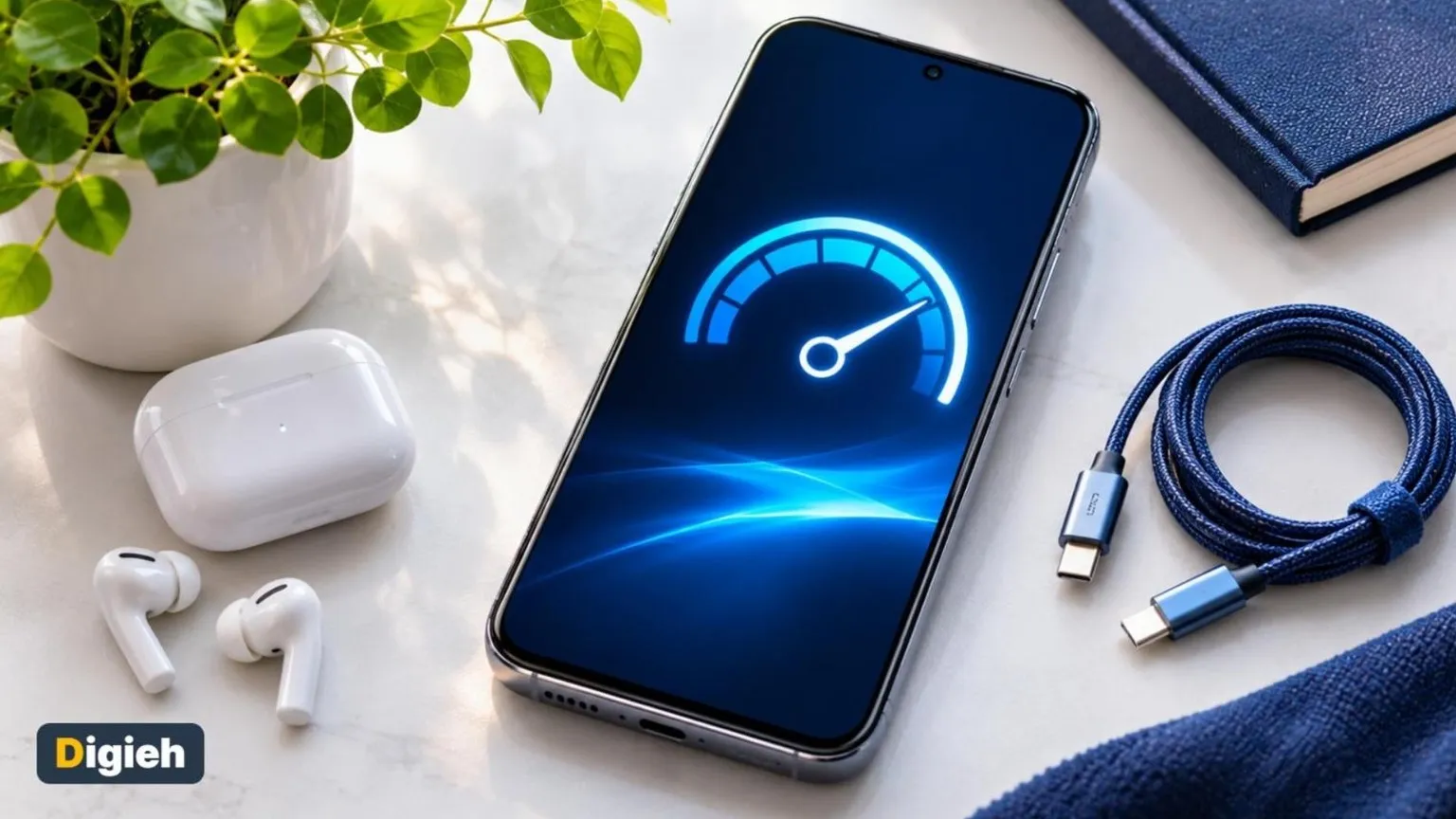
To speed up a slow phone, restart it, install the latest software update and free up storage space. Then close or delete apps you do not use and turn off heavy animations. These simple fixes work on both iPhone and Android phones.
This guide walks you through 10 easy ways to make your phone feel faster.
Menu names vary by phone model and software version. Back up your phone before making big changes.
Key Takeaways
- A simple restart clears temporary glitches and frees memory.
- Software updates often include speed and battery fixes.
- Phones slow down when storage is almost full.
- Deleting unused apps and old media frees space fast.
- A factory reset is a last resort, so back up first.
On This Page
- Why Phones Slow Down
- 10 Ways to Speed Up Your Phone
- iPhone vs Android Quick Guide
- When to Replace Your Phone
- Try Lite Versions of Apps
- Manage Message Attachments
- Check Battery Health
- What to Do if Your Phone Slows After an Update
- Watch for Malware and Scam Apps
- Keep Your Phone Cool
- Speed Up Your Browser
- Back Up Before Big Changes
- Give an Old Phone a Second Life
Why Phones Slow Down
Phones get slower over time for a few common reasons. Storage fills up, apps get heavier and old batteries lose strength.
In addition, many apps keep running in the background. They use memory and battery even when you are not using them.
The good news is that most slowdowns are easy to fix.
10 to 15%Free storage space to aim for so your phone has room to run smoothly.
10 Ways to Speed Up Your Phone
1. Restart Your Phone
Turning your phone off and on clears temporary files and closes stuck apps. Try it once a week.
2. Install Software Updates
Updates often fix bugs and improve speed. Check your phone’s settings for a system update and install it.
Also, update your apps from the App Store or Google Play.
3. Free Up Storage Space
A nearly full phone often runs slowly. Try to keep at least 10 to 15 percent of storage free.
Open your storage settings to see what takes up the most room.
Quick tip. Check your messaging app. Old videos and voice notes in chats can quietly take up gigabytes of space.
4. Delete Apps You Do Not Use
Scroll through your apps. If you have not opened one in months, delete it.
Many phones can also offload unused apps automatically while keeping your data.
5. Move Photos and Videos to the Cloud
Photos and videos take up a lot of space. Back them up to a cloud service, then remove copies from your phone.
6. Clear App Caches
Apps like browsers and social media store temporary files. On Android, you can clear an app’s cache in its settings.
On iPhone, deleting and reinstalling a heavy app can clear its stored data.
7. Limit Background Activity
Turn off background refresh for apps that do not need it. This saves memory, data and battery.
How old is your current phone?
- Less than 1 year
- 1 to 4 years
- 5 years or more
- Not sure
8. Reduce Animations
Fancy screen effects can make older phones feel slow. Look for options to reduce motion or turn off animations in accessibility or developer settings.
9. Remove Widgets You Do Not Need
Live widgets refresh often and use resources. Keep only the ones you check every day.
10. Reset as a Last Resort
If nothing else works, a factory reset can make an old phone feel new again. However, it erases everything.
Back up your phone completely before you try this step.
Use this calculator to see how much space you should keep free.
Free space target
Good to know. Avoid “phone cleaner” or “booster” apps from unknown developers. Many add ads or collect data without making your phone faster.
iPhone vs Android Quick Guide
Apple Support explains how to update your iPhone.
Android Help explains how to check for Android updates.
| Task | iPhone | Android |
|---|---|---|
| Check storage | Settings, General, iPhone Storage | Settings, Storage |
| Update software | Settings, General, Software Update | Settings, System, Software update |
| Offload unused apps | Settings, App Store, Offload Unused Apps | Often in Settings, Apps or Files app |
| Limit background use | Settings, General, Background App Refresh | Settings, Apps, Battery or Data use |
Menu names may differ slightly depending on your model and software version.
- Restart once a week
- Install system and app updates
- Keep 10 to 15 percent storage free
- Delete unused apps
- Back up photos to the cloud
- Limit background refresh
Add to calendar
Charging trouble too? See how to fix a phone that is not charging.
When to Replace Your Phone
Sometimes a phone is simply too old. Consider an upgrade if your phone no longer gets software updates.
The Environmental Protection Agency (EPA) explains how to recycle old phones.
Also look for a battery that drains quickly even after a replacement, or apps that will not install.
Planning to buy a new phone? Holiday sales can help you save.
Try Lite Versions of Apps
Some popular apps offer lighter versions. They use less storage, memory and data.
Search your app store for “lite” or “go” versions of social media, maps and messaging apps. Many work well on older phones.
You can also use some services through your web browser instead of an app. It saves space and reduces background activity.
Manage Message Attachments
Text and chat apps store photos, videos and voice notes. Over time, they can take up a lot of space.
- Delete old conversations with large attachments.
- Set messages to delete after a year if your phone offers it.
- Turn off auto-download for media in chat apps.
- Save important photos to your gallery or cloud first.
Group chats often hold the most media. Clear them now and then.
Check Battery Health
An aging battery can slow your phone. Some phones reduce performance to protect a worn battery.
On iPhone, check Battery Health in the battery settings. Many Android phones show battery information in settings or a support app.
If the battery is worn, a replacement can make your phone feel faster. It costs much less than a new phone.
Battery running low too fast? Our guide on how to extend phone battery life has easy fixes.
Free updates
Join the Digieh list
Be the first to know when our weekly brief launches.
No spam. Unsubscribe anytime. Read our Privacy Policy.
What to Do if Your Phone Slows After an Update
Phones sometimes feel slow for a day or two after a big update. The system may be finishing background tasks.
Leave the phone plugged in and on Wi-Fi overnight. Many background tasks finish while it charges.
If it stays slow for a week, restart it and check for app updates. Older apps may need updates to work well with the new system.
Contact the maker’s support if problems continue. Search their help pages for known issues.
Watch for Malware and Scam Apps
Sometimes a slow phone signals harmful software. Watch for warning signs.
- Pop-up ads that appear outside apps
- Apps you do not remember installing
- Battery draining much faster than usual
- Unusual data use
Download apps only from official app stores. Read reviews and check the developer before installing.
Delete any suspicious apps right away. Run your phone’s built-in security scan if it has one.
The Federal Trade Commission (FTC) explains how to spot phishing scams that try to install harmful apps.
Keep Your Phone Cool
Heat slows phones down and wears out batteries. Many phones reduce speed when they get too warm.
Avoid leaving your phone in a hot car or direct sunlight. Remove thick cases while charging if the phone gets hot.
Close heavy apps like games when you are not using them. Give the phone a break if it feels warm.
Speed Up Your Browser
Web browsers can slow down with many open tabs. Clearing them can help.
Close tabs you no longer need. Clear the browser cache if pages load oddly.
Turn off browser extensions or features you do not use. Use the browser’s lite or data saver mode on slow connections.
Back Up Before Big Changes
Before you delete apps, reset settings or do a factory reset, back up your phone. A backup protects your photos and contacts.
Check that the backup finished before you continue. Then you can make changes with peace of mind.
Give an Old Phone a Second Life
An older phone can still be useful even if it feels slow for daily use.
Reset it and install only a few light apps. It can work as a music player, alarm clock or video calling device for a relative.
Keep it updated if it still receives security updates. If not, use it offline only.
Try this today. Restart your phone today and delete three apps you have not opened in a month. Then check for updates.
Test Yourself
What is the easiest first fix for a slow phone?
- Factory reset
- Buying a new phone
- Restarting it
A restart clears temporary files and closes stuck apps.
What should you do before a factory reset?
- Delete your photos
- Back up your phone
- Turn off Wi-Fi
A reset erases everything, so back up first.
In related news, read The Galaxy S27 May Use Three Different Chips.
Frequently Asked Questions
Why is my phone so slow?
Common causes include full storage, old software, too many background apps and an aging battery.
Does restarting my phone make it faster?
Yes. A restart clears temporary files and closes apps that may be stuck.
How much storage should I keep free?
Try to keep at least 10 to 15 percent of your storage free.
Will a factory reset speed up my phone?
It often does, but it erases everything. Back up your phone first.
Can a worn battery slow down my phone?
Yes. Some phones reduce speed to protect an aging battery. A replacement can help.
Do chat apps take up storage?
Yes. Photos, videos and voice notes in chats can use a lot of space.
How do I know if my phone has malware?
Watch for pop-up ads, unknown apps, fast battery drain and unusual data use.
Does heat slow down my phone?
Yes. Phones often slow down when they get too warm.
Wrapping Up
Start with a restart and a software update today. Then clear out unused apps and old videos to free up space.
Shopping for a new device? See our Black Friday 2026 guide and our roundup of Apple’s November 2026 releases.
Read next.
Found this useful?
Editor’s Note
This guide is accurate as of November 6, 2026. Settings menus change with software updates, so steps may look slightly different on your phone.
Spot an error in this article? Please contact us at support@digieh.com or read our Corrections Policy.
Keep exploring
Your next read is waiting
 1Pets & AnimalsHow to Choose Dog Food: Reading the Label7 min read
 2HealthGum Disease: Signs, Causes, Treatment and Prevention Tips7 min read
 3Beauty & Personal CareDandruff vs Dry Scalp: Signs, Causes and Treatment7 min read
 4Home & KitchenFridge Without Power: How Long Food Stays Safe7 min read
 5MedicinesIs Sugar an Electrolyte? The Simple Science Answer7 min read
 6Pets & AnimalsCat Urinary Problems: Signs That Need Urgent Care7 min read