TRENDING
Phone Not Charging? How to Fix It Step by Step

8 min read
Last updated November 9, 2026
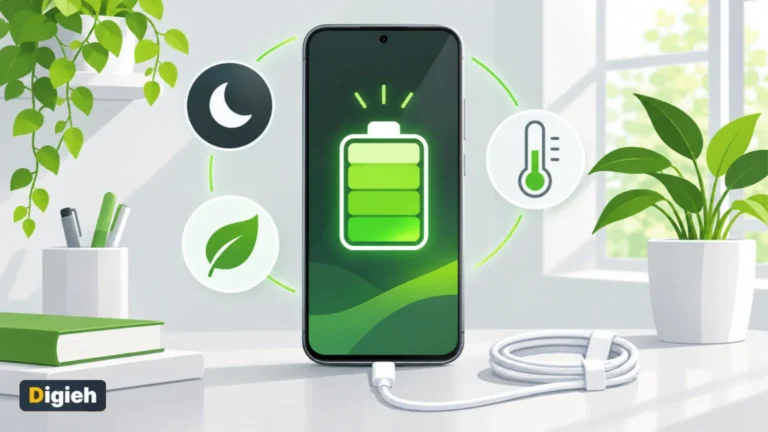
If your phone is not charging, start with the simple fixes. Try a different outlet, cable and charger, clean lint out of the charging port and restart the phone.
Most charging problems come from a worn cable, a dirty port or a setting that pauses charging. This guide walks through each fix for iPhone and Android, in order from easiest to hardest.
Key Takeaways
- Test the outlet, cable and adapter first, since they fail more often than phones.
- Pocket lint in the charging port is a very common cause.
- A fully drained phone may need several minutes on the charger before it shows any sign of life.
- Charging that stops at 80 percent is often a battery-saving feature, not a fault.
- If nothing works, back up your data and contact the maker or a repair shop.
Inside this guide
- Quick checks
- Clean the charging port
- Restart and wait
- If charging stops at 80 percent
- Wireless charging problems
- Slow charging fixes
- When to get repairs
- Frequently asked questions
Start With Quick Checks
- Plug a lamp or another device into the outlet to make sure it works.
- Try a different cable and power adapter.
- Look for frayed wires, bent plugs or damage on the cable and adapter.
- Remove the phone case, which can block a full connection.
- Push the plug in firmly until it clicks or seats fully.
Apple lists these same steps in its guide for when an iPhone will not charge. Stop using any cable or adapter that looks damaged.
25 minHow long a fully drained Pixel may show no response while plugged in, per Pixel Phone Help.
Clean the Charging Port
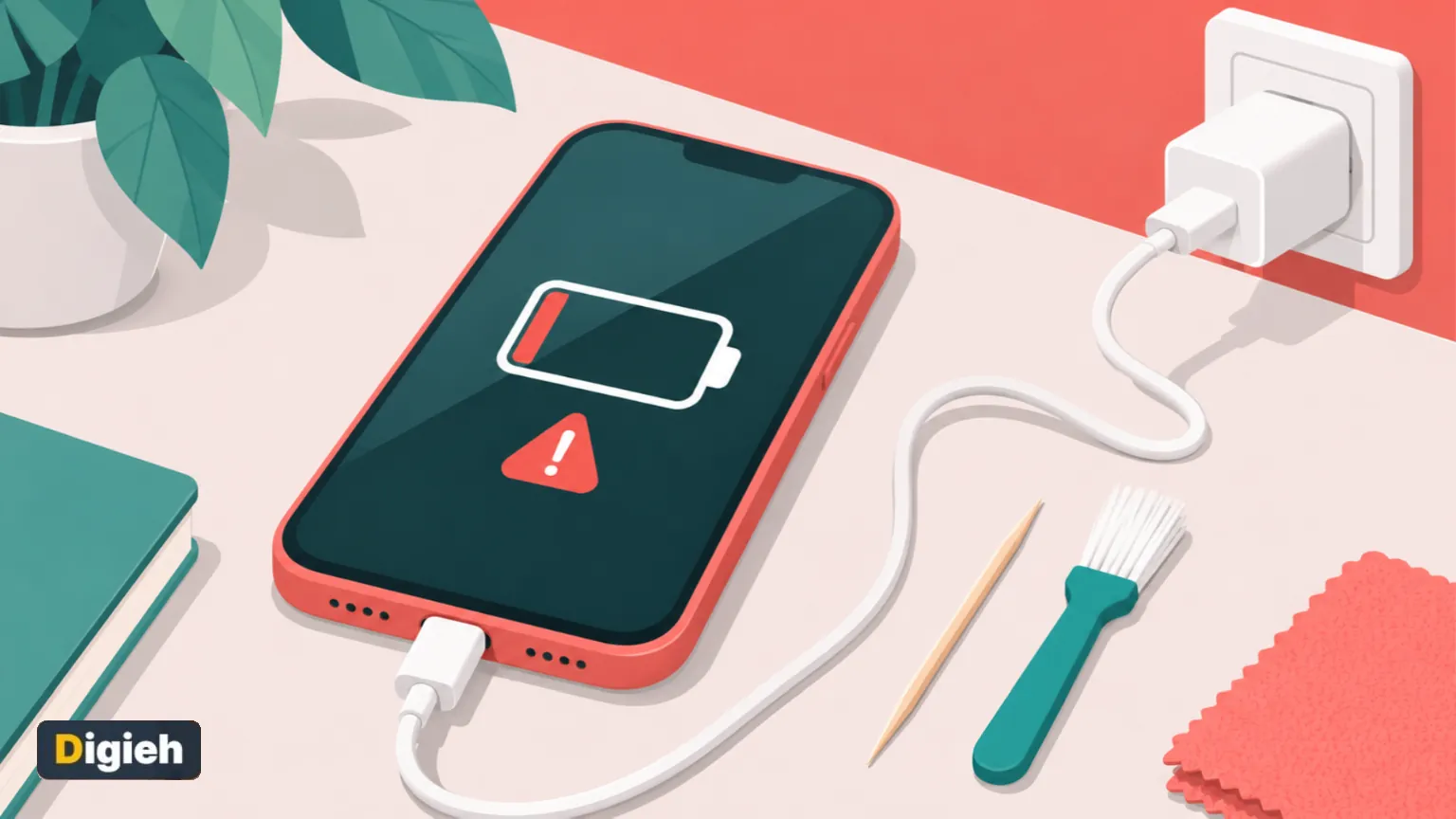
Lint and dust from pockets pack into the port over time. The plug then cannot reach the contacts inside.
- Turn off the phone first.
- Shine a flashlight into the port to look for debris.
- Gently loosen lint with a wooden toothpick or a soft, dry brush.
- Blow out loose dust, or use a short burst of compressed air from a distance.
- Never use metal pins, liquids or anything sharp.
Google also suggests clearing dust or lint from the port on its Pixel charging help page.
Good to know. If the port looks damaged or corroded, stop and visit a repair shop. Digging harder can make it worse.
Restart and Wait
A software glitch can stop charging. Restarting the phone often fixes it.
iPhone
Apple suggests charging for about 30 minutes, then force restarting if the phone still will not turn on. The button steps vary by model, so check your model on Apple’s site.
If it still will not charge after another 30 minutes, Apple recommends getting service.
Android and Pixel
Google says a completely drained Pixel may show no response for up to 25 minutes while plugged in. Charge it with a known-good cable for about 10 minutes, then look for a battery icon.
If the screen stays blank, hold the power button for about 35 seconds. Then wait and call the phone from another device to see if it rings.
What usually causes your phone charging problems?
- A worn-out cable
- Lint in the port
- A faulty charger
- Not sure
If Charging Stops at 80 Percent
This often surprises people, but it is usually normal. Many phones pause at 80 percent to protect the battery.
On iPhone, Optimized Battery Charging can hold the charge at 80 percent when the phone expects a long session. Apple explains this in its guide to charge limit and optimized charging.
Newer iPhones also let you set a charge limit. Check your battery settings if the phone always stops at the same level.
A hot battery can also limit charging. Move the phone and charger somewhere cooler and try again.
Accessory Not Supported Alerts
Some iPhones show a message that an accessory is not supported. Apple suggests plugging straight into the charger without adapters and cleaning the port.
Restart the phone, update the software and try a different cable. Cheap, uncertified cables are a common cause of this alert.
Wireless Charging Problems
- Remove thick cases, wallets or metal plates.
- Center the phone on the charging pad.
- Make sure the pad itself has power.
- Use a charger made for your phone’s standard.
Google notes that some car pads need the phone re-centered or a wired connection instead. A cable is often faster and more reliable.
Slow Charging Fixes
Slow charging is not always a fault. Older or low-power adapters simply deliver less energy.
- Use the charger made for your phone or a trusted fast charger.
- Plug into a wall outlet instead of a computer port.
- Avoid using heavy apps or games while charging.
- Turn on airplane mode for a faster top-up.
Battery health also matters over time. Our guide to extending phone battery life shares habits that help.
Power Banks and Car Chargers
Portable power banks lose their own charge over time. If your phone will not charge from one, top up the power bank first and try again.
Car chargers often deliver less power than wall chargers, especially older ones. A phone running navigation and music may barely gain charge in the car.
Check that the car socket works by testing another device. Some sockets only work when the engine runs or with the key on.
Choose power banks and car chargers from trusted brands. Look for safety certifications on the label or box, and stop using any unit that gets very hot.
Water and Heat Warnings
If your phone got wet, unplug it and let it dry before charging. Charging a wet port can cause damage.
Never charge a phone that is swollen, very hot or smells strange. Stop using it and get it checked right away.
Free updates
Join the Digieh list
Be the first to know when our weekly brief launches.
No spam. Unsubscribe anytime. Read our Privacy Policy.
Care for Your Cables
Most cables fail near the ends, where they bend the most. Unplug by holding the plug, not by pulling the cord.
Avoid wrapping cables tightly around chargers. Loose loops last longer and reduce strain on the wires.
Keep a spare cable in your bag or car. A backup saves the day when your main one wears out.
Charging in Cold Weather
Very cold phones may charge slowly or refuse to charge. Batteries work best at room temperature.
Let a cold phone warm up indoors for a while before plugging it in. Never place it on a heater to speed things up.
Apple lists a normal operating range of 0 to 35 degrees Celsius for iPhone. Many Android phones have similar limits.
Charging Myths to Ignore
Myth one, charging overnight ruins the battery
Modern phones manage overnight charging well. Smart charging features hold the battery at a safer level until morning.
Myth two, you must drain the battery to zero
Phone batteries prefer partial charges. Topping up during the day is fine.
Myth three, all cables are the same
Cheap cables can charge slowly, overheat or trigger accessory alerts. Choose certified or trusted brands.
Try Another Device
If you have a second phone, test your charger and cable on it. If that phone charges fine, the problem is likely your first phone.
If the second phone also fails, the charger or cable is the culprit. This simple test saves time and money.
Update the Software
Bugs in old software can affect charging. Install the latest system update once the phone has some power.
A sluggish phone may also need cleanup. See our tips on how to speed up a slow phone.
When to Get Repairs
If you tried every step and the phone still will not charge, the battery or port may need repair. Contact the maker or an authorized repair shop.
Back up your phone first if you can. Our guide on how to back up your phone explains how.
Google notes that a factory reset is a last resort because it erases all data. Check your warranty before paying for repairs.
If repairs cost too much, it may be time for a new phone. Our iPhone vs Android comparison can help you choose.
Your Charging Fix Checklist
- Outlet tested with another device
- Different cable and adapter tried
- Phone case removed
- Charging port cleaned gently
- Phone restarted and charged for at least 10 to 30 minutes
- Battery settings checked for an 80 percent limit
Try this today. Shine a flashlight into your charging port. If you see lint, clean it gently with a wooden toothpick while the phone is off.
Test Yourself
Why might an iPhone stop charging at 80 percent?
- The cable is always broken
- The phone is full
- Optimized charging or a charge limit is protecting the battery
Apple says these features can pause charging at 80 percent.
What should you use to clean a charging port?
- A wooden toothpick or soft brush, gently
- A metal paper clip
- Water
Soft, non-metal tools are safest for the port.
Frequently Asked Questions
Why is my phone plugged in but not charging?
Common causes are a damaged cable, a dirty port, a faulty outlet or a software glitch.
Can lint stop a phone from charging?
Yes. Packed lint can stop the plug from reaching the contacts.
Is it safe to use any charger?
Use the maker’s charger or a trusted, certified one. Cheap chargers can be slow or unsafe.
Conclusion
Most charging problems have simple fixes. Test the outlet and cable, clean the port, restart the phone and check battery settings.
If none of that works, back up your data and get professional help.
Found this useful?
Editor’s Note
This guide is accurate as of November 9, 2026. It draws on Apple Support and Google Pixel Phone Help.
Steps may vary by phone model and software version.
Spot an error in this article? Please contact us at support@digieh.com or read our Corrections Policy.
Keep exploring
Your next read is waiting
 1LaptopsHow to Choose the Best Laptop for Students in 20268 min read
 2CarsElectric Car Winter Range: Tips to Get More Miles8 min read
 3Travel & TourismTraveling With Kids: Tips for Stress-Free Family Trips8 min read
 4Science & DiscoveriesCold Moon December 2026, the Year’s Last Supermoon8 min read
 5PhonesHow to Extend Phone Battery Life, Easy Tips8 min read
 6FashionHow to Build a Capsule Wardrobe, Simple Guide8 min read