TRENDING
Phone Privacy Settings to Change Right Now

8 min read
Last updated November 9, 2026
The most important phone privacy settings control which apps can see your location, camera, microphone, photos and contacts. Review them in your privacy menu and switch off anything an app does not truly need.
On iPhone, also limit app tracking. On Android, use the permission manager and let the phone remove permissions from apps you stop using.
This guide walks through each setting step by step, for both iPhone and Android.
Key Takeaways
- Give apps location access only while you use them, not all the time.
- Turn off camera, microphone and photo access for apps that do not need them.
- On iPhone, choose Ask App Not to Track to stop cross-app ad tracking.
- On Android, let the phone pause unused apps and remove their permissions.
- A strong lock screen and regular updates protect everything else.
Inside this guide
- Why phone privacy settings matter
- Location settings
- Camera, microphone and photos
- Ad tracking
- Lock screen privacy
- iPhone checklist
- Android checklist
- Frequently asked questions
Why Phone Privacy Settings Matter
Your phone knows where you go, who you talk to and what you look at. Many apps ask for access to that data when you first open them.
It is easy to tap Allow without thinking. Over time, dozens of apps may collect more than they need.
The good news is that both iPhone and Android let you take that access back. A short review every few months keeps your data in your hands.
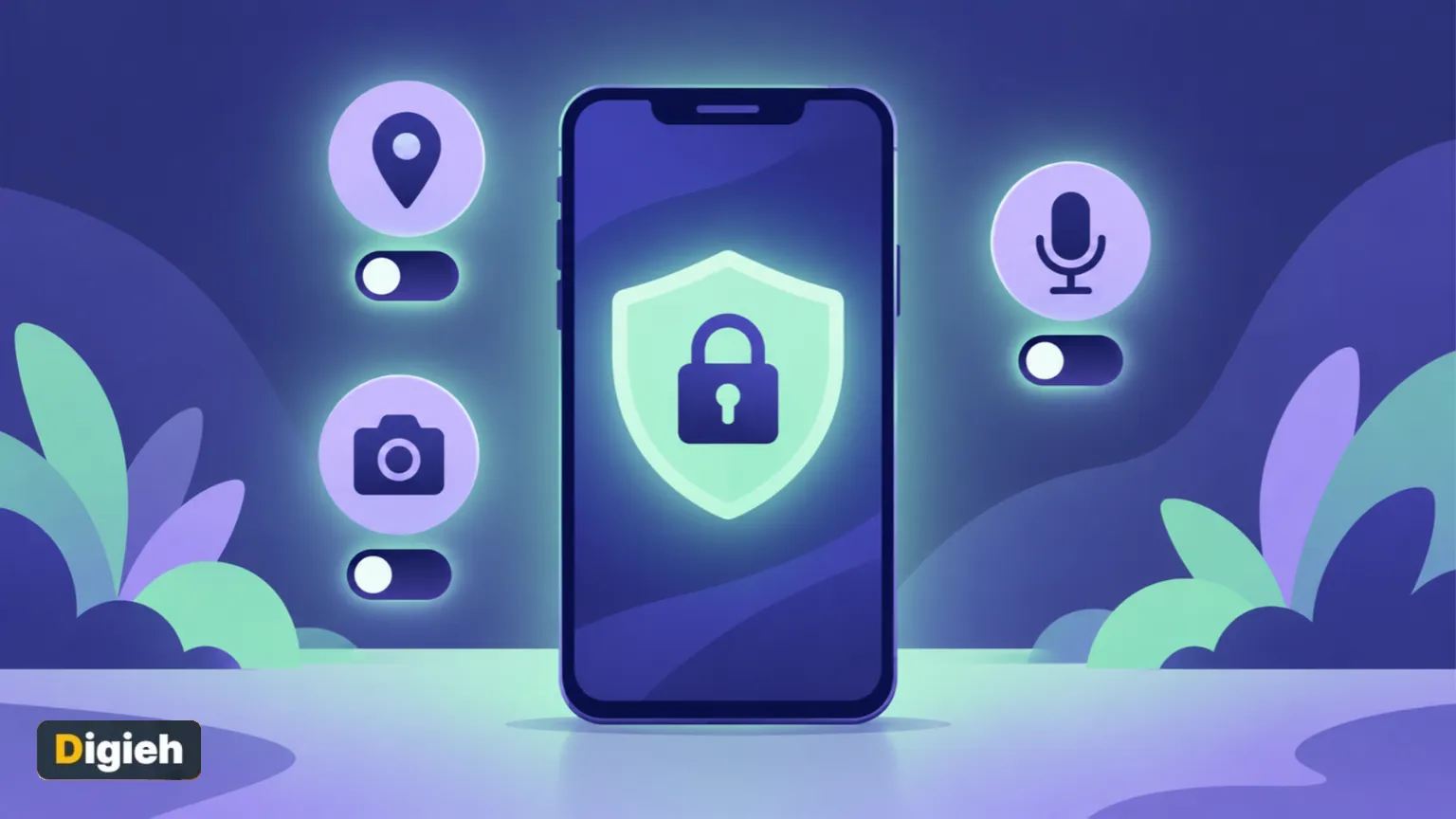
4Choices Android may offer for location, camera and microphone access, per Android Help.
Location Settings
Location is the most sensitive permission on your phone. It can reveal your home, workplace and daily routine.
Choose the right level
Google lists the choices in its guide to Android app permissions. They include all the time, only while using the app, ask every time and do not allow.
iPhone offers similar options under Location Services. For most apps, while using the app is the safest useful choice.
- Maps and ride apps need location while you use them.
- Weather apps can often work with a city you type in.
- Games, shopping and social apps rarely need your exact location.
Turn off precise location
Both systems let you share an approximate area instead of your exact spot. This works well for weather and local news apps.
Clean up photo location data
Photos can store the place they were taken. Before sharing pictures online, learn how to remove location from photos.
Good to know. Turning off location for an app does not affect emergency calls. Emergency services can still find you when you dial for help.
Camera, Microphone and Photos
Apps that can use your camera or microphone deserve a close look. So do apps that can read your whole photo library.
On Android
Open Settings, then Security and privacy, then Privacy, then Permission manager. Pick camera or microphone and review each app.
Google also offers privacy controls that switch off camera or microphone access for the whole phone at once.
On iPhone
Open Settings, then Privacy and Security. Tap Camera, Microphone or Photos to see which apps have access.
For Photos, you can share only selected pictures instead of your full library. That suits apps that only need one image at a time.
Watch for the indicator lights
Both systems show a small colored dot or icon when an app uses the camera or microphone. If you see one you did not expect, check which app caused it.
When did you last review your app permissions?
- This month
- This year
- Never
- Not sure
Stop Ad Tracking
Many apps follow your activity across other apps and websites to show targeted ads. You can limit this on both systems.
iPhone App Tracking Transparency
Apple explains in its App Tracking Transparency guide that apps must ask before tracking you. Tap Ask App Not to Track when the prompt appears.
To review choices later, open Settings, then Privacy and Security, then Tracking. You can also turn off Allow Apps to Request to Track to stop the prompts.
Apple says apps still work fully either way. Saying no simply blocks the advertising identifier used for tracking.
Android ad settings
On Android, look for Ads under the privacy section of Settings. There you can delete your advertising ID so apps cannot use it to build a profile.
Lock Screen Privacy
A strong lock screen is your first line of defense if your phone is lost or stolen.
- Use a six-digit passcode or longer, not a simple pattern.
- Turn on Face ID, Touch ID or fingerprint unlock for convenience.
- Hide message previews on the lock screen.
- Turn off lock screen access to settings and wallet features you do not need.
Use strong, unique passwords for your accounts too. Our guide to creating strong passwords explains how, and a password manager makes it easy.
iPhone Privacy Checklist
- Open Settings, then Privacy and Security.
- Review Location Services and set most apps to while using the app.
- Check Tracking and turn off apps you do not want following you.
- Review Camera, Microphone, Photos and Contacts.
- Run Safety Check to review who and what can access your data.
- Install the latest iOS update.
Apple describes Safety Check in its Personal Safety guide. It works on iPhones with iOS 16 or later and helps you quickly change what you share.
Safety Check sits in the same Privacy and Security menu. It lets you review sharing step by step or reset access quickly in an emergency.
Free updates
Join the Digieh list
Be the first to know when our weekly brief launches.
No spam. Unsubscribe anytime. Read our Privacy Policy.
Android Privacy Checklist
- Open Settings, then Security and privacy.
- Go to Privacy, then Permission manager.
- Review location, camera, microphone and contacts one by one.
- Turn on Pause app activity if unused for apps you rarely open.
- Delete or reset your advertising ID.
- Install the latest system and security updates.
Menu names can differ slightly between phone brands. If you cannot find a setting, use the search bar at the top of Settings.
Google notes that pausing unused apps removes their permissions automatically. It is a simple way to keep old apps from collecting data.
Quick tip. Delete apps you have not opened in three months. Fewer apps means fewer chances for data to leak.
See Which Apps Used Your Data
Both systems keep a record of recent permission use. It is the fastest way to spot an app that is more curious than it should be.
iPhone App Privacy Report
Open Settings, then Privacy and Security, and scroll to App Privacy Report. Turn it on, then check back after a few days.
The report shows how often apps used your location, camera, microphone and contacts. It also lists web domains that apps contacted.
Android privacy dashboard
Open Settings, then Security and privacy, then Privacy dashboard. It shows a timeline of which apps used location, camera and microphone.
Tap any permission to see the apps behind it. From there, you can change access with one more tap.
Good to know. A navigation app using location during a drive is normal. A flashlight app using it at midnight is not.
Review Old Accounts and Connected Apps
Your privacy also depends on the accounts linked to your phone. Old sign-ins can keep sharing data long after you forget them.
- Check which apps can sign in with your Google or Apple account.
- Remove apps and services you no longer use.
- Turn on two-step verification for your main accounts.
More Smart Privacy Habits
- Download apps only from the official app stores.
- Read the permission request before you tap Allow.
- Turn off Bluetooth and Wi-Fi scanning when you do not need them.
- Avoid logging in to sensitive accounts on public Wi-Fi.
- Check app privacy labels in the store before you install.
Privacy settings can also help battery life, since apps use less power in the background. See our tips to extend phone battery life.
Choosing a new phone? Our iPhone vs Android guide compares how each handles privacy and updates.
Your Privacy Checklist
- Location is set to while using the app for most apps
- I limited camera and microphone access
- Apps see only selected photos where possible
- I turned off or limited ad tracking
- My lock screen uses a strong passcode
- My phone has the latest updates
Try this today. Open your location settings and switch every app set to always down to while using the app.
Test Yourself
Which location setting is safest for most apps?
- All the time
- Only while using the app
- Precise location always on
While using the app gives apps what they need without tracking you in the background.
What happens when you tap Ask App Not to Track on iPhone?
- The app stops working
- The app is deleted
- The app cannot use the advertising identifier to track you
Apple says apps work fully either way, but they lose access to the advertising identifier.
Frequently Asked Questions
Can apps listen to me through the microphone?
Only apps with microphone permission can use it, and your phone shows an indicator when they do. Remove access from apps that do not need it.
Does turning off location stop all tracking?
No. Apps can still use other data, such as Wi-Fi and ad identifiers. Limit tracking settings too.
How often should I check my privacy settings?
Every few months and after installing new apps or a major system update.
Will privacy settings break my apps?
Most apps keep working. Some features, such as maps or photo uploads, may ask for access again when you need them.
Conclusion
A few minutes in your privacy menu can stop apps from collecting more than they need. Start with location, then camera, microphone, photos and tracking.
Repeat the review every few months, and keep your phone updated for the latest protections.
Found this useful?
Editor’s Note
This guide is accurate as of November 9, 2026. It draws on official help pages from Apple and Google.
Menu names change with system updates, so check your phone maker’s latest guidance.
Spot an error in this article? Please contact us at support@digieh.com or read our Corrections Policy.
Keep exploring
Your next read is waiting
 1CarsPenny Test for Tires: How to Check Tread Depth8 min read
 2Travel & TourismHow to Get TSA PreCheck: Cost, Steps and Renewal8 min read
 3FashionHow to Care for Cashmere and Wool So They Last8 min read
 4HealthFull-Fat Dairy Did Not Raise Cholesterol in New Study4 min read
 5Science & DiscoveriesCold Moon December 2026, the Year’s Last Supermoon8 min read
 6Fruits & VegetablesHow to Wash Fruits and Vegetables the Safe Way8 min read