TRENDING
How to Rearrange PDF Pages Without Losing Bookmarks

7 min read
Last updated November 16, 2026
To rearrange PDF pages, open the file in a page organizer and drag the pages into order. Then save a new PDF. A good organizer also lets you remove, copy and turn pages in the same step.
This guide covers the fastest way to do it on a phone or computer. It also shows how to keep bookmarks working after pages move.
Key Takeaways
- Drag thumbnails on a computer, or use arrow buttons on a phone.
- Remove, copy and turn pages while you reorder.
- Paperlume keeps bookmarks pointing to the right pages.
- Nothing is uploaded, so private files stay on your device.
- Always save a new copy and keep the original.
Quick links
- Page organizing facts
- How to rearrange pages
- Reorder pages on a phone
- Remove, copy and turn pages
- Keep bookmarks working
- Our hands-on test
- Other ways to reorder
- Frequently asked questions
Page Organizing Facts at a Glance
| Fact | Detail | Source |
|---|---|---|
| Mac built-in method | Drag thumbnails in Preview to move pages | Apple Support |
| Deleting pages in Preview | Annotations on those pages go too | Apple Support |
| Bookmarks after reorder in Paperlume | 4 of 4 kept in our test | Digieh test, November 16, 2026 |
| Time for a 12-page file | 0.1 seconds | Digieh test, November 16, 2026 |
| Gmail attachment limit | 25 MB for personal accounts | Gmail Help |
How Do I Rearrange Pages in a PDF?
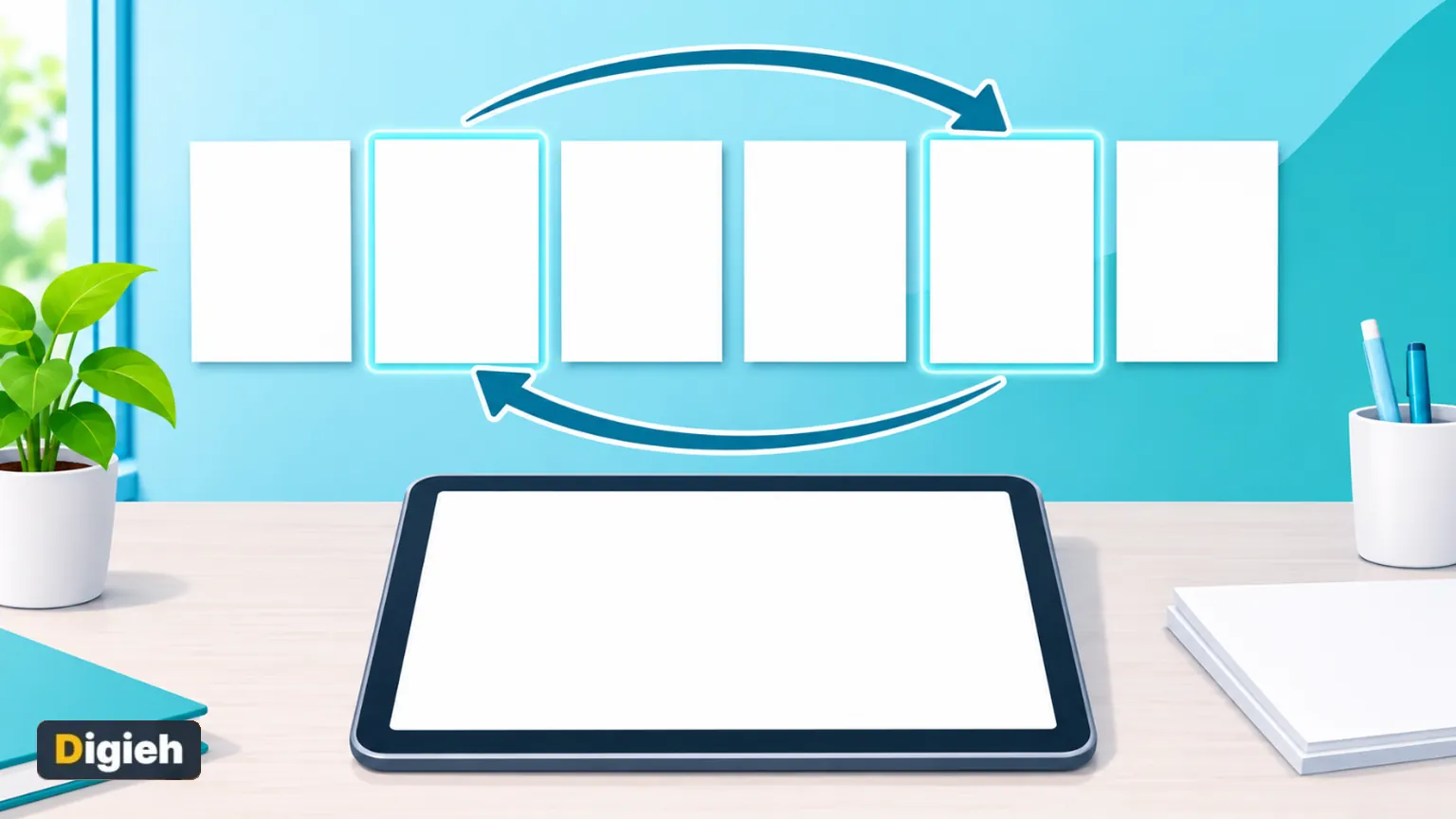
Open the PDF in an organizer, move the pages and download the result. The free Paperlume Organize PDF tool shows every page as a card. You drag cards into place and save, all inside your browser.
- Open Paperlume Organize PDF.
- Choose your PDF or drop it onto the page.
- Drag a page card to its new spot.
- Use the arrow buttons for small moves.
- Tap Reverse order if the whole file runs backwards.
- Tap Save PDF and download the new file.
Changed your mind? Tap Start over to bring back the original order. Nothing changes in your file until you save.
4 of 4Bookmarks still pointing to the right pages after we reversed and trimmed a 12-page file. Digieh test, November 16, 2026.
How Do I Reorder PDF Pages on a Phone?
Use the arrow buttons on each page card. Dragging tiny thumbnails with a finger is slow and easy to get wrong, so Paperlume adds left and right arrows. Each tap moves the page one spot.
Paperlume runs in your phone browser, so there is nothing to install. It works the same way on Android phones and iPhones.
For long files, fix the big moves on a computer first. Then do the small tweaks wherever you are.
Quick tip. Scanned pages often come out in reverse order. One tap on Reverse order fixes the whole stack.
Can I Remove, Copy and Turn Pages at the Same Time?
Yes. Each page card in Paperlume has buttons to remove, copy, turn left and turn right. You can clean up a messy file in one pass instead of using three different tools.
Remove pages
Tap the remove button on blank pages, duplicates or pages you do not want to share. The result screen tells you how many pages you removed.
Copy pages
Copy a page when you need it twice, such as a cover sheet for two sections. The copy lands right after the original, and you can drag it anywhere.
Turn pages
Turn sideways pages while you sort. For a whole file of wrong pages, our Rotate PDF tool can find them for you.
Why do you usually reorder PDF pages?
- Scans came out in the wrong order
- Combining parts of a report
- Removing pages before sharing
- Not sure
Will My Bookmarks Still Work After Reordering?
With Paperlume, yes. Bookmarks are the clickable chapter list in a PDF reader. When pages move, Paperlume updates each bookmark to point at the page in its new spot.
Many quick tools copy pages into a fresh file and drop the bookmarks. That makes long reports and manuals much harder to read.
If you remove a page that a bookmark pointed to, that bookmark has nowhere to go. Check the chapter list after saving if you removed key pages.
Good to know. A copied page keeps its bookmark on the first copy only. That stops the chapter list from showing the same entry twice.
Our Hands-On Test
We tested Paperlume Organize PDF on a 12-page report we made with four bookmarks. We reversed the order and removed one page.
Digieh test, November 16, 2026. Method. Desktop Chromium browser, one 12-page text PDF made by Digieh, bookmarks counted with a separate PDF library.
| What we checked | Result |
|---|---|
| Pages before and after | 12 and 11 |
| Pages removed | 1 |
| Bookmarks kept | 4 of 4 |
| Time to save | 0.1 seconds |
| Output file size | About 6 KB |
Every bookmark survived the reorder. The file stayed tiny because pages were moved, not redrawn.
Free updates
Join the Digieh list
Be the first to know when our weekly brief launches.
No spam. Unsubscribe anytime. Read our Privacy Policy.
Other Ways to Reorder PDF Pages
Preview on a Mac
Preview lets you drag thumbnails to new places. Apple explains it in its guide to adding, deleting or moving PDF pages.
Apple also notes that deleting a page removes its annotations. Keep that in mind before you remove marked-up pages.
Split and merge
For big changes, you can split a file and join the parts in a new order. Our guides on splitting a PDF and merging PDFs show both steps.
An organizer is quicker for most jobs, since you see every page at once.
| Method | Works on phones | Keeps bookmarks | Uploads your file |
|---|---|---|---|
| Paperlume Organize PDF | Yes, with arrow buttons | Yes | No |
| Mac Preview | No, Mac only | Depends on the file | No |
| Split then merge | Yes | Partly | No, with Paperlume |
Mistakes to Avoid
- Saving over your only copy of the original file.
- Removing a page that other pages refer to.
- Forgetting blank backs of scanned pages.
- Sending private files to unknown upload sites.
- Skipping a final scroll through the saved file.
A final scroll takes ten seconds and catches most slips. Check the first page, the last page and any page you moved.
Sending the finished file by email? Personal Gmail accounts allow attachments up to 25 MB, per Gmail Help. Our guide to reducing PDF file size helps if yours is bigger.
See every free tool on our free PDF tools page.
Your Page Order Checklist
- Keep the original file safe
- Reverse scans that came out backwards
- Drag or tap pages into order
- Remove blanks and duplicates
- Save and download the new PDF
- Scroll through and test the bookmarks
Try this today. Take a scanned file you use often and remove its blank pages. The cleaner copy will be smaller and easier to read.
Test Yourself
What is the easiest way to move pages on a phone?
- Arrow buttons on each page
- Pinch to zoom
- Printing the file
Arrow buttons move a page one spot per tap, which is more accurate than dragging small thumbnails.
What happens to a bookmark when you remove the page it points to?
- It moves to page one
- It has no page to open
- It becomes a new page
A bookmark needs its target page. Remove the page and the bookmark has nowhere to go.
Frequently Asked Questions
Can I rearrange PDF pages for free?
Yes. Paperlume Organize PDF is free, with no sign-up and no watermark.
Does reordering pages lower quality?
No. Pages are moved as they are, so text and images stay exactly the same.
Can I undo a change before saving?
Yes. Tap Start over to return to the original order, or fix single moves with the arrows.
Can I reorder pages from two different PDFs?
Combine them first with Merge PDF, then sort the pages in Organize PDF.
Conclusion
Rearranging a PDF takes a minute with the right tool. Move the pages, clean up blanks and save a new copy with working bookmarks.
Your next step is easy. Open the free Paperlume Organize PDF tool and put your next file in order.
Found this useful?
Editor’s Note
This guide is accurate as of November 16, 2026. It draws on Apple Support and Gmail Help.
We also ran our own hands-on test of the Paperlume tool on the same date.
Apps and tools change over time. We will update this page when the steps or features change.
Spot an error in this article? Please contact us at support@digieh.com or read our Corrections Policy.
Keep exploring
Your next read is waiting
 1EcommerceHow to Take Product Photos That Actually Sell4 min read
 2Pets & AnimalsHoliday Plants Toxic to Pets and Safer Swaps4 min read
 3Science & DiscoveriesSpaceX Catches Starship From Orbit in Historic First4 min read
 4CarsThe Cheapest MG4 Urban Yet Costs Just $34,9904 min read
 5TechnologyHow to Add a Text or Logo Watermark to a PDF7 min read
 6HealthEarly Flu Season 2026 and the Essential Facts4 min read