TRENDING
How to Reduce PDF File Size for Email

8 min read
Last updated November 10, 2026
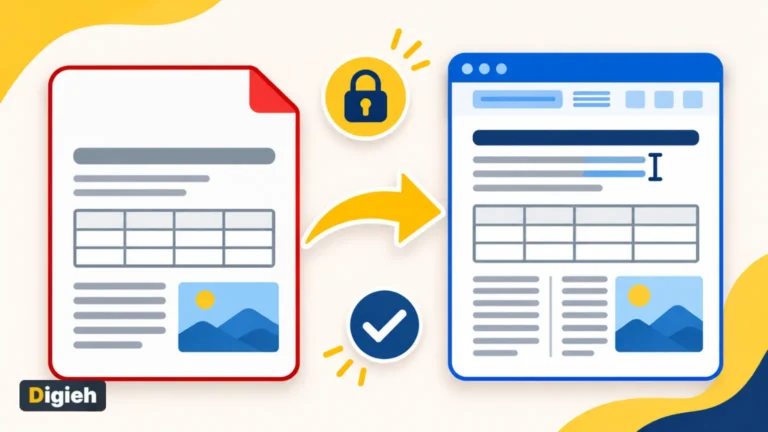
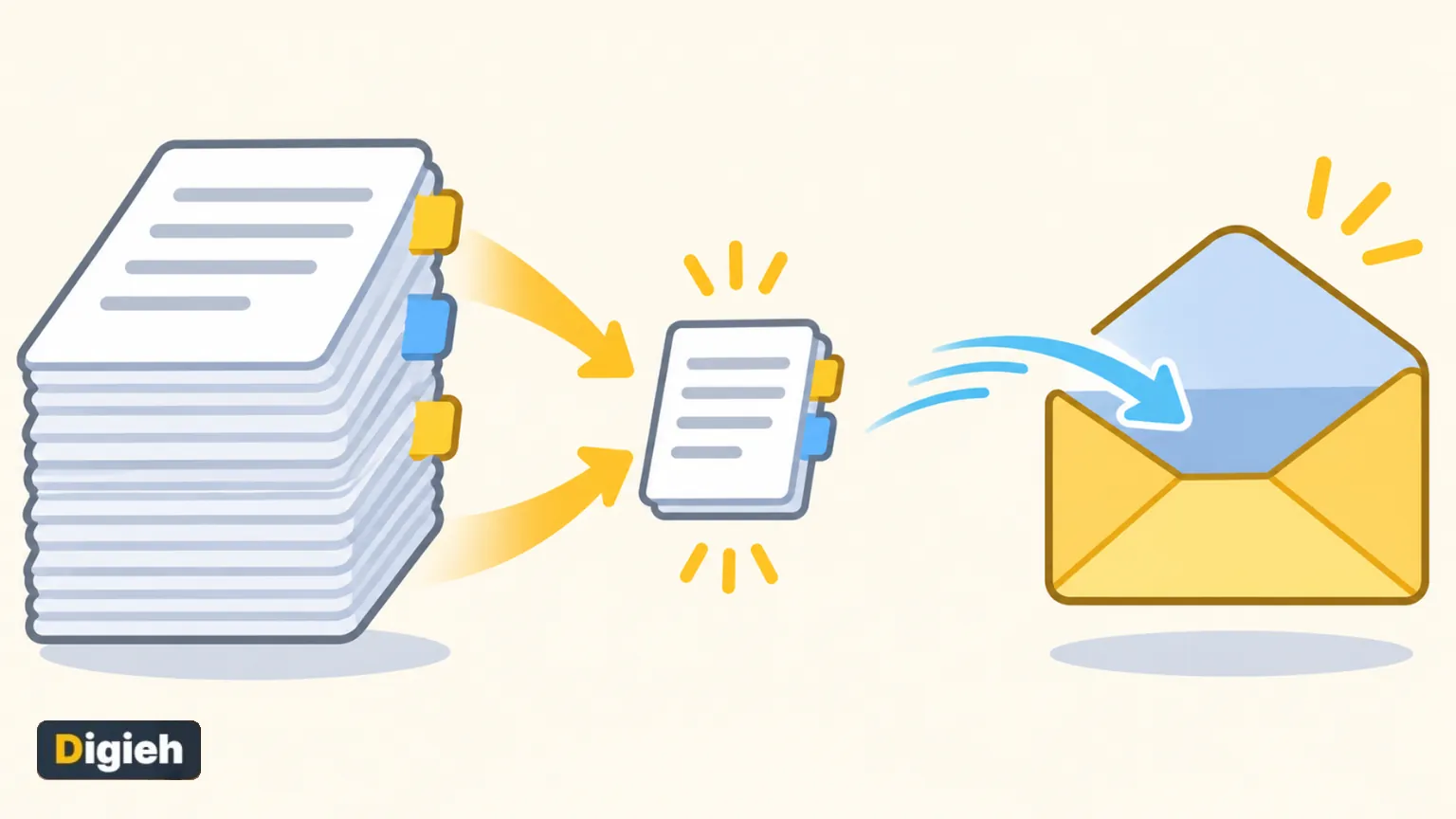
To reduce PDF file size for email, use a free compressor like Paperlume Compress PDF. Choose the Recommended level. Most of the size in big PDFs comes from photos and scans, and shrinking them often cuts the file dramatically.
Gmail limits personal attachments to 25 MB, and Outlook’s default limit for many accounts is 20 MB. Some work Exchange accounts allow only 10 MB in total.
This guide shows how to compress safely and what each level does. It also covers what to try if a file is still too big.
Key Takeaways
- Photos and scanned pages are the main reason PDFs get large.
- Paperlume compresses files in your browser without uploading them.
- Choose Recommended for most files, Light for print quality and Strong for tight limits.
- Text stays sharp because compression mainly targets images.
- If a file is still too big, split it or share a cloud link.
Jump to a section
- Email size limits
- Why PDFs get so big
- Compress with Paperlume
- Which level to choose
- Other ways to shrink a PDF
- Still too big?
- Keep files private
- Fix common problems
- Frequently asked questions
Email Attachment Size Limits
| Email service | Attachment limit | What happens if bigger |
|---|---|---|
| Gmail personal accounts | 25 MB | Gmail turns it into a Google Drive link |
| Outlook with internet accounts | 20 MB by default | Outlook shows a size error |
| Outlook with Exchange work accounts | 10 MB total by default | The message will not send |
Google says Gmail allows attachments up to 25 MB for personal accounts. Larger files become a Google Drive link instead.
Microsoft explains that Outlook uses a default 20 MB limit for internet email accounts. Exchange accounts often default to 10 MB for all attachments together.
25 MBThe attachment limit for personal Gmail accounts, per Gmail Help.
Why PDFs Get So Big
Adobe created the PDF format to keep documents looking the same on any device. Adobe notes it is now an open standard maintained by ISO. The format can hold text, fonts, images and more.
- Scanned pages are photos of paper, so every page is a large image.
- High-resolution photos from phones and cameras add many megabytes.
- Embedded fonts add a little size to each file.
- Hidden extras like thumbnails and editing data can bloat files.
A text-only report might be a few hundred kilobytes. The same report with full-page photos can grow to tens of megabytes.
How to Compress a PDF With Paperlume
Paperlume Compress PDF is free, needs no sign-up and runs inside your browser.
- Open the Paperlume Compress PDF page.
- Drop your PDF on the box, or tap to choose it.
- Pick a level, Light, Recommended or Strong.
- Tap Compress and wait a moment.
- Check the new size shown on screen.
- Download the smaller PDF and attach it to your email.
If compression would save almost nothing, Paperlume keeps your original file. That way you never get a worse copy for no benefit.
Quick tip. Start with Recommended. Only switch to Strong if the file is still over your email limit.
Which Compression Level to Choose
| Level | What it does | Best for |
|---|---|---|
| Light | Keeps photos large and very sharp | Files you may print |
| Recommended | Balances size and quality | Most emails and uploads |
| Strong | Shrinks photos most and removes extra data | Tight limits like 10 MB |
All three levels keep text crisp, because a PDF stores real text as text, not pictures. Photos are where the savings come from.
Paperlume only turns images into compressed photos when they look like photos. Diagrams and line art keep their clean edges.
What kind of PDF do you most often need to shrink?
- Scanned documents
- Reports with photos
- Forms and applications
- Not sure
Other Ways to Shrink a PDF
Save a Smaller Version From the Source
If you made the PDF from Word or another app, export it again with a smaller size option. Many apps offer a setting for online or email use.
Scan at a Lower Resolution
Scan text pages at a sensible quality, such as 150 to 200 dots per inch. The file stays smaller and still readable.
Remove Pages You Do Not Need
Cut extra pages with Paperlume Split PDF. Our guide on how to split a PDF shows the Pick pages mode.
Compress Photos Before Making the PDF
If you build a PDF from phone photos, shrink the photos first. The final PDF will be much lighter.
Still Too Big? Try These
- Use the Strong level.
- Split the PDF into two or three parts and send them in separate emails.
- Share a cloud link through Google Drive, OneDrive or another service.
- Ask the receiver if they have an upload portal instead.
Gmail does the cloud link step for you when a file is over 25 MB. Microsoft also suggests sharing a link from OneDrive or SharePoint.
Keep Private Files Private
People often compress tax returns, bank statements and medical records. Uploading those to unknown sites is risky.
- Choose tools that say files stay on your device.
- Avoid sites that ask for your email before download.
- Check the web address before you drop a file.
- Delete compressed copies you no longer need.
Paperlume works inside your browser, like a calculator on your own device. Your PDF never travels over the internet.
Good to know. Password-locked PDFs cannot be compressed until the lock is removed with the right software. Paperlume tells you if a file is locked.
Fixing Common Compression Problems
| Problem | Likely cause | Quick fix |
|---|---|---|
| File barely shrank | Mostly text, already small | No action needed |
| Photos look blurry | Strong level used | Try Recommended or Light |
| Still over the limit | Very long scan | Split the file or share a link |
| File will not open | Password lock or damage | Remove the lock or get a fresh copy |
How PDF Compression Works, in Plain Words
A compressor looks at each picture inside your PDF. The tool resizes large photos to a sensible width and saves them with smarter photo compression.
It also cleans out hidden extras, like page thumbnails and leftover editing data. Then it packs the rest of the file more tightly. Text and vector drawings are left alone, so they stay sharp at any zoom.
| Part of the PDF | What compression does |
|---|---|
| Photos and scans | Resizes and recompresses them |
| Text | Leaves it as real, sharp text |
| Charts and line art | Keeps clean edges |
| Hidden extras | Removes data you do not need |
Free updates
Join the Digieh list
Be the first to know when our weekly brief launches.
No spam. Unsubscribe anytime. Read our Privacy Policy.
Compressing a PDF vs Zipping It
Zipping a PDF wraps it in a ZIP file. That usually saves very little, because PDFs are already packed.
Compressing a PDF shrinks the images inside, which saves far more space. The receiver can also open it directly, without unzipping first.
Before You Hit Send
- Open the compressed PDF and check a few pages.
- Rename it clearly, like 2026-tax-return.pdf.
- Mention the attachment in your email text.
- Avoid sending sensitive files to unknown addresses.
A quick check saves an awkward follow-up email if something looks wrong. It only takes a minute and protects your reputation.
Free Up Storage Space Too
Compression is not only for email. Shrinking old scans and reports can free up space on your phone, laptop or cloud storage.
Keep the original only when you need top print quality. For everyday records, a compressed copy is usually all you need.
Combine Then Compress
Sending several documents? Merge them first with Paperlume Merge PDF, then compress the single file. Our guide on how to merge PDF files explains each step.
Need to edit the text before sending? Convert it with the free PDF to Word converter.
Compressing PDFs on a Phone
- Open the Compress PDF page in Chrome or Safari.
- Tap the box and choose a PDF from your files.
- Pick a level and tap Compress.
- Save the smaller file, then attach it in your mail app.
Large scans may take longer on older phones. Be patient, or use a computer for very big files.
Sending PDFs on Slow Connections
Smaller files are kinder to people on slow internet or limited mobile data. A compressed PDF downloads faster and opens sooner, especially on older phones.
If you send documents to clients, students or family in areas with weak signal, compression is a simple courtesy that makes your file easier to use.
Upload Limits Beyond Email
Job portals, school sites and government forms often set their own file limits, sometimes as low as a few megabytes. Check the limit on the upload page before you compress.
Aim a little under the stated limit every time. Some systems count file size slightly differently, so a small cushion avoids a frustrating error.
Common Situations and the Best Level
| Situation | Suggested level | Why |
|---|---|---|
| Job application with a scanned ID | Recommended | Clear enough to read, small enough to upload |
| Photo-heavy school project | Recommended or Strong | Many large images to shrink |
| Brochure for printing | Light | Keeps photos sharp for print |
| Tax documents for your accountant | Recommended | Readable and easy to email |
| Strict 2 MB upload limit | Strong | Maximum savings |
When in doubt, compress a copy and keep the original. You can always try another level if the result is not right.
Your PDF Compression Checklist
- Check your email or upload limit
- Start with the Recommended level
- Compare the new size
- Open the file to check quality
- Split or share a link if still too big
- Use a tool that keeps files on your device
Try this today. Find the largest PDF in your downloads folder and compress it. See how much space you save.
Test Yourself
What usually makes a PDF file large?
- Photos and scanned pages
- The number of words
- The file name
Images take up far more space than text, so photos and scans cause most of the size.
Frequently Asked Questions
How do I make a PDF smaller to email?
Use a compressor like Paperlume Compress PDF with the Recommended level, then attach the smaller file.
What is the Gmail attachment limit?
Google says personal Gmail accounts can attach files up to 25 MB.
Will compressing a PDF make text blurry?
No. Text stays sharp because compression mainly shrinks images.
What if my PDF is still too big after compressing?
Split it into parts or share it with a cloud link instead.
Conclusion
Reducing PDF size for email is quick once you know what makes files large. Compress photos with the right level, check the result and split or share a link if needed.
Try Paperlume Compress PDF on your next big file and keep it on your own device.
Found this useful?
Editor’s Note
This guide is accurate as of November 10, 2026. Email limits come from Gmail Help and Microsoft Learn, and PDF background comes from Adobe. Paperlume is a free tool made by Digieh.
Email limits can change, so check your provider before sending very large files.
Spot an error in this article? Please contact us at support@digieh.com or read our Corrections Policy.
Keep exploring
Your next read is waiting
 1Fruits & VegetablesHow to Ripen Fruit Faster With Kitchen Tricks9 min read
 2Travel & TourismHow to Pack a Carry-On for a Week9 min read
 3MedicinesElectrolytes Explained: When You Need Them, When Not9 min read
 4Science & DiscoveriesQuadrantid Meteor Shower 2027: Best Time to Watch9 min read
 5FashionHow to Hem Pants Without Sewing in Minutes9 min read
 6AI & TechHow to Use AI for Smarter Holiday Shopping9 min read