TRENDING
How to Split a PDF Into Separate Pages

8 min read
Last updated November 10, 2026
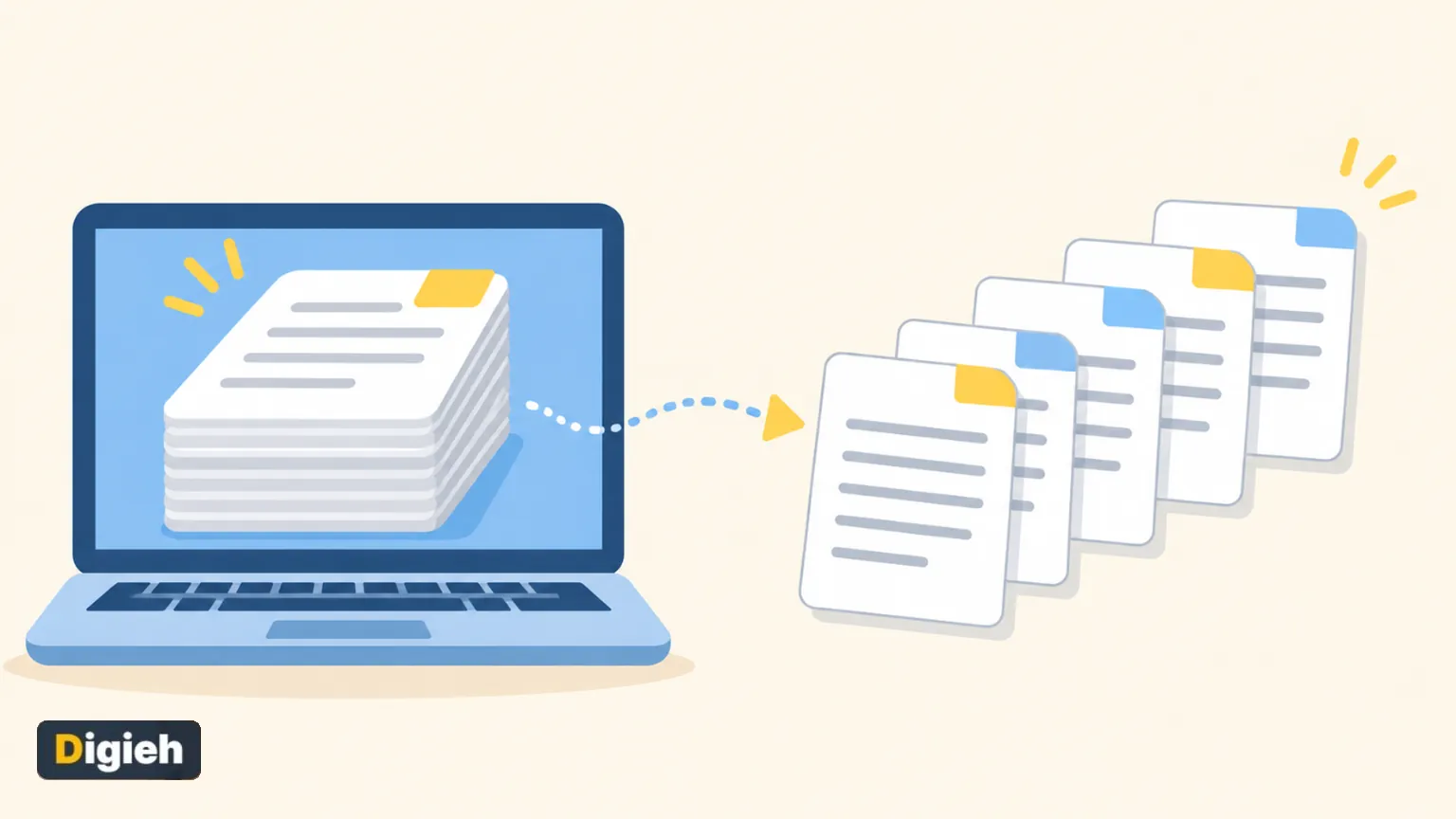
To split a PDF into separate pages, open a free tool like Paperlume Split PDF. Drop in your file and choose Every page. Each page becomes its own PDF, and you download them all in one ZIP file.
You can also split by page ranges, every few pages, chosen pages or bookmarks. Mac users can pull pages out with Preview, and Windows users can print selected pages to a new PDF.
This guide covers every free method, step by step, with tips for big files and private documents.
Key Takeaways
- Paperlume Split PDF offers five ways to split, all free and without sign-up.
- Your file stays in your browser and is never uploaded.
- Split every page into separate files, or cut the PDF into chosen ranges.
- Mac Preview lets you drag page thumbnails to the desktop as new PDFs.
- Windows can save chosen pages with the built-in Microsoft Print to PDF.
Jump to a section
- Why split a PDF
- Split with Paperlume
- The five split modes
- Split a PDF on a Mac
- Split a PDF on Windows
- Split a PDF on a phone
- Methods compared
- Keep files private
- Fix common problems
- Frequently asked questions
Why Split a PDF?
Big PDFs are hard to share and slow to open. Splitting lets you send only what someone needs.
- Send one chapter of a long report instead of the whole thing.
- Separate scanned bills into one file per month.
- Pull a signed page out of a contract.
- Break a large file into parts that fit email limits.
- Share a single form from a big application packet.
PDF stands for Portable Document Format. Adobe says the format is now an open standard maintained by ISO. That is why split files open on almost any device.
5 waysTo split a file with the free Paperlume Split PDF tool, including by bookmarks.
How to Split a PDF With Paperlume
Paperlume Split PDF is free, needs no account and has no page limits. Here is the quick version.
- Open the Paperlume Split PDF page in any modern browser.
- Drop your PDF on the box, or tap to choose it.
- Look over the page thumbnails to see what is inside.
- Pick a split mode, such as Every page or Page ranges.
- Type your ranges or pick pages if the mode asks for them.
- Tap Split PDF and wait a moment.
- Download the ZIP file or the single new PDF.
Need to split another file? Tap Split another PDF to start fresh without reloading the page.
Quick tip. Check the thumbnails before you split. They help you spot blank pages or scans that came in the wrong order.
The Five Split Modes Explained
| Mode | What it does | Best for |
|---|---|---|
| Every page | Each page becomes its own PDF | Separating scanned pages or slides |
| Page ranges | Each range you type becomes one PDF | Splitting a report into chapters |
| Every few pages | Makes files of equal size, like 2 pages each | Two-page forms or double-sided scans |
| Pick pages | The pages you choose become one new PDF | Pulling out a few key pages |
| By bookmarks | Each chapter or section becomes its own PDF | Books, manuals and long reports |
How to Type Page Ranges
| You type | You get |
|---|---|
| 1-3, 4-6 | Two files, pages 1 to 3 and pages 4 to 6 |
| 1-5, 6-10, 11-20 | Three files covering those ranges |
| 2, 5, 9 (in Pick pages) | One file with only pages 2, 5 and 9 |
Bookmark mode names each new file after its bookmark. That makes long documents easy to sort.
How do you usually need to split PDFs?
- Every page separately
- By chapters or ranges
- Just pull out a few pages
- Not sure
How to Split a PDF on a Mac
Apple explains how to add, delete or move PDF pages in Preview. You can also create a new PDF by dragging page thumbnails to your desktop.
- Open the PDF in Preview.
- Choose View, then Thumbnails, to show the page sidebar.
- Drag a page thumbnail to your desktop to make a new PDF of that page.
- To remove pages instead, select them and press Delete.
Work on a copy if you plan to delete pages. Preview saves changes automatically, so the original file changes too.
How to Split a PDF on Windows
Windows has no split button, but it includes Microsoft Print to PDF. Tennessee Tech University shares simple steps to print to PDF in Windows.
- Open the PDF in your browser or PDF reader.
- Choose Print and select Microsoft Print to PDF as the printer.
- In the print settings, choose the pages you want, such as 3-7.
- Click Print, then name and save the new file.
This works well for one range. For many files at once, a split tool saves time.
How to Split a PDF on a Phone
- Open the Split PDF page in Chrome or Safari.
- Tap the box and choose a PDF from your files.
- Pick a mode and tap Split PDF.
- Save the ZIP or PDF to your phone, then open it from your files app.
Most phones open ZIP files from the built-in files app. Tap the ZIP to see each page as its own PDF.
Split Methods Compared
| Method | Cost | Split modes | Uploads your file |
|---|---|---|---|
| Paperlume in your browser | Free | Five, including bookmarks | No |
| Mac Preview | Free with macOS | Drag pages or delete pages | No |
| Microsoft Print to PDF | Free with Windows | One page range at a time | No |
| Paid PDF editors | Subscription | Many | Depends on the app |
| Random upload sites | Often free with limits | Varies | Usually yes |
Keep Private Files Private
People often split bank statements, tax forms and medical records. Sending those to unknown upload sites is a real risk.
- Choose tools that say files stay on your device.
- Avoid sites that ask for your email before download.
- Delete split copies you no longer need.
- Check the web address before you drop a file.
Paperlume does all the work inside your browser, like a calculator on your own device. Your file never travels over the internet.
Good to know. Password-locked PDFs cannot be split until the lock is removed with the right software. Paperlume tells you if a file is locked.
Free updates
Join the Digieh list
Be the first to know when our weekly brief launches.
No spam. Unsubscribe anytime. Read our Privacy Policy.
Split, Extract or Delete Pages?
These three jobs sound alike, but they give different results.
| Job | What happens | Original file |
|---|---|---|
| Split | One PDF becomes several smaller PDFs | Stays the same |
| Extract | Chosen pages become one new PDF | Stays the same |
| Delete | You remove unwanted pages | Changes unless you save a copy |
In Paperlume, extracting is the Pick pages mode. Your original file is never changed, since the tool always creates new files.
Splitting Double-Sided Scans
Office scanners often save a whole stack of two-sided forms as one long PDF. Every few pages mode fixes this quickly.
Set it to 2 pages per file, and each front and back pair becomes its own document. For three-page forms, set it to 3.
How to Name and Organize Split Files
- Rename files with dates first, like 2026-11 electricity bill.
- Use bookmark mode to get chapter names automatically.
- Keep the original PDF in a separate folder.
- Delete any blank pages before you share.
Clear names save time later, especially when you search your computer or email for a single page.
Splitting Large or Scanned PDFs
Big scans can contain hundreds of pages. Splitting them into smaller files makes them easier to email and open on phones.
If each part is still too big to send, run it through the free Paperlume Compress PDF tool. It shrinks photos while keeping text sharp.
How Many Pages Can You Split?
Paperlume has no set page limit. The real limit is your device memory, because the work happens in your browser.
Most laptops split files with hundreds of pages without trouble. On an older phone, very large scans may take longer, so be patient or use a computer.
Splitting PDFs to Meet Upload Limits
Job portals, schools and government forms often cap file size. Splitting a big PDF into parts can get you under the limit.
- Check the size limit on the upload page.
- Split the PDF into two or three ranges.
- Check the size of each new file.
- Compress any part that is still too large.
Fixing Common Split Problems
| Problem | Likely cause | Quick fix |
|---|---|---|
| Wrong pages in a file | Range typed incorrectly | Check the thumbnails and retype |
| Bookmark mode is empty | The PDF has no bookmarks | Use Page ranges instead |
| File will not open | Password lock or damage | Remove the lock or get a fresh copy |
| Cannot find the files | They are inside a ZIP | Open or extract the ZIP file |
After You Split
Need to put pages back together later? Our guide on how to merge PDF files for free shows the reverse job. Or go straight to the Paperlume Merge PDF tool.
Want to edit the text inside a page? Convert it with the free PDF to Word converter.
Your PDF Split Checklist
- Pick a tool that keeps files on your device
- Check the page thumbnails first
- Choose the right split mode
- Type ranges carefully
- Open the ZIP to find your files
- Compress parts that are too big to send
Try this today. Take one long PDF you keep emailing and split out the pages people actually need.
Test Yourself
Which Paperlume split mode names each new file after a chapter?
- Every page
- Pick pages
- By bookmarks
Bookmark mode turns each chapter or section into its own PDF and names it after the bookmark.
Frequently Asked Questions
How do I split a PDF into separate pages for free?
Use Paperlume Split PDF and choose Every page. You get each page as its own PDF in one ZIP file.
Can I split a PDF without uploading it?
Yes. Paperlume and Mac Preview both work on your device without uploading the file.
How do I extract one page from a PDF?
Use Pick pages in Paperlume, drag the thumbnail out in Preview, or print that page to PDF on Windows.
Why is bookmark mode not working?
Your PDF may have no bookmarks. Try Page ranges instead.
Conclusion
Splitting a PDF is quick and free once you pick the right mode. Paperlume handles every page, ranges, chosen pages and bookmarks in your browser, while Mac and Windows offer basic built-in options.
Try Paperlume Split PDF on your next long document and keep your files on your own device.
Found this useful?
Editor’s Note
This guide is accurate as of November 10, 2026. Mac steps come from Apple Support, Windows steps from Tennessee Tech University and PDF background from Adobe. Paperlume is a free tool made by Digieh.
Software features change over time, so check each tool before you rely on it fully.
Spot an error in this article? Please contact us at support@digieh.com or read our Corrections Policy.
Keep exploring
Your next read is waiting
 1Fruits & VegetablesLemon Water Benefits: Separating the Facts From Myths9 min read
 2MedicinesHydrocortisone Cream Uses: What It Treats and Avoids9 min read
 3FashionHow to Layer Necklaces Without Tangles or Clutter9 min read
 4Science & DiscoveriesQuadrantid Meteor Shower 2027: Best Time to Watch9 min read
 5Finance & MarketsAnthropic IPO Explained: Date, Ticker and Key Numbers5 min read
 6AI & TechHow to Use AI for Smarter Holiday Shopping9 min read