TRENDING
How to Convert PDF Pages to Sharp JPG Images

6 min read
Last updated November 16, 2026
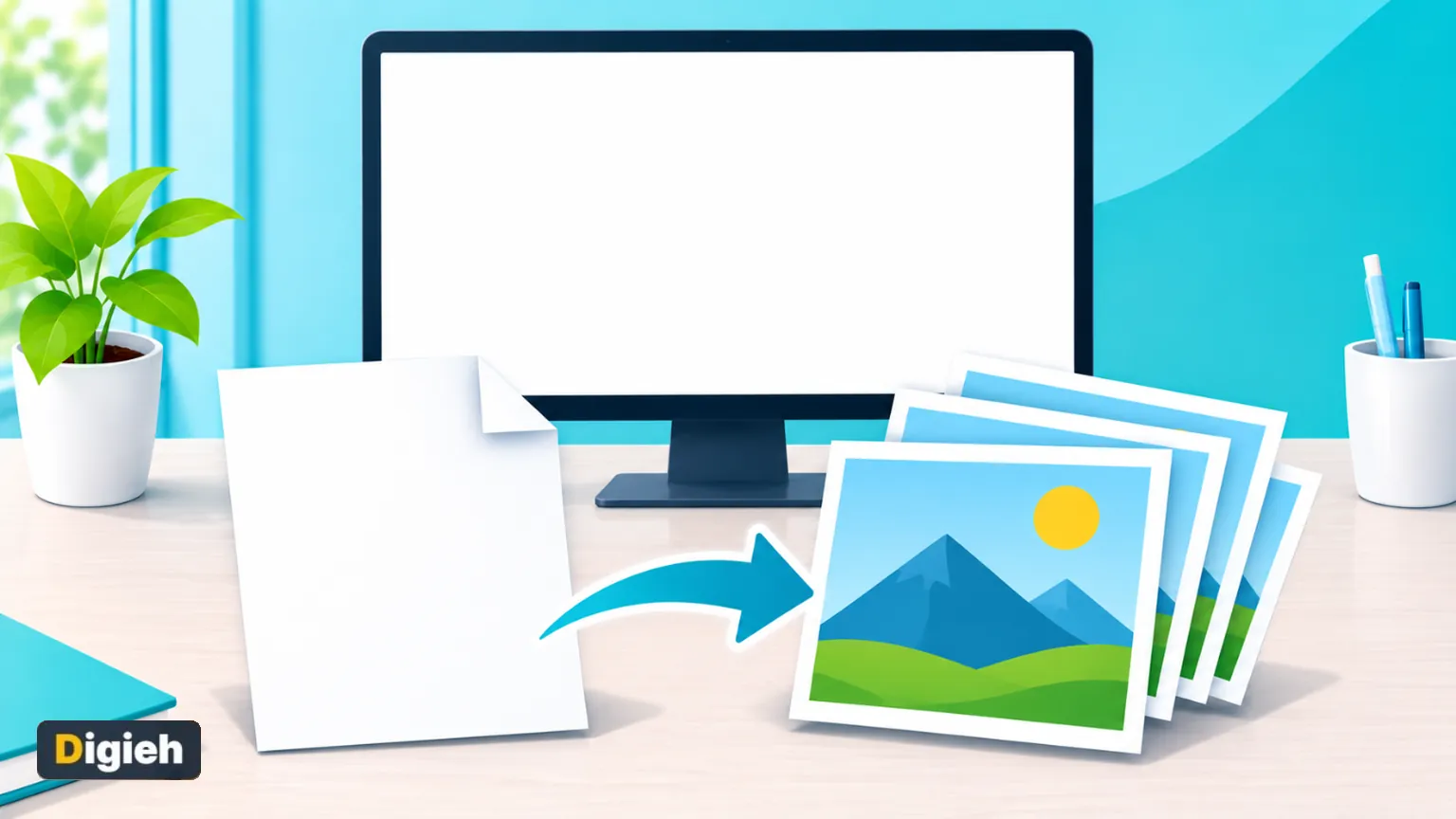
To convert PDF pages to sharp JPG images, use a converter that lets you pick 150 or 300 DPI. Use 72 DPI for quick previews and 150 DPI for slides and websites. Use 300 DPI for printing or small text.
This guide explains what DPI means in real pixels and file sizes, with numbers from our own test. It also shows when PNG beats JPG.
Key Takeaways
- Higher DPI means more pixels, sharper text and bigger files.
- 150 DPI suits screens, while 300 DPI suits print.
- Choose PNG for diagrams and screenshots with sharp lines.
- Convert all pages or only the pages you need.
- Paperlume converts inside your browser, with no upload.
Quick links
- PDF to JPG facts
- How to convert
- Which DPI to choose
- JPG or PNG
- Convert only some pages
- Our hands-on test
- Fix blurry images
- Frequently asked questions
PDF to JPG Facts at a Glance
| Fact | Detail | Source |
|---|---|---|
| Common resolution | 300 DPI is standard for many uses | Adobe Acrobat blog |
| Letter page at 72 DPI | 612 by 792 pixels, about 47 KB | Digieh test, November 16, 2026 |
| Letter page at 150 DPI | 1275 by 1651 pixels, about 131 KB | Digieh test, November 16, 2026 |
| Letter page at 300 DPI | 2550 by 3301 pixels, about 349 KB | Digieh test, November 16, 2026 |
| Mac built-in export | Preview can export to JPEG or PNG | Apple Support |
How Do I Convert a PDF to JPG?
Open a converter, choose the image type and quality, then convert. The free Paperlume PDF to JPG tool turns each page into an image inside your browser. Several pages download together as one ZIP file.
- Open Paperlume PDF to JPG.
- Choose your PDF or drop it onto the page.
- Pick JPG for smaller files or PNG for the sharpest result.
- Choose Screen, Standard or Print quality.
- Type the pages you need, or leave it for all pages.
- Tap Convert to images and download the result.
Big files with many pages take longer at Print quality. A Cancel button stops the job at any time.
7.5xHow much bigger our 300 DPI image was than the 72 DPI one, 349 KB versus 47 KB. Digieh test, November 16, 2026.
Which DPI Should I Choose?
Choose 150 DPI for most screen uses and 300 DPI for print or fine text. DPI means dots per inch. Each extra step multiplies the pixels, so the image gets sharper and the file grows.
| Quality in Paperlume | DPI | Pixels for a letter page | Best for |
|---|---|---|---|
| Screen | 72 | 612 by 792 | Quick previews and chat messages |
| Standard | 150 | 1275 by 1651 | Slides, websites and social posts |
| 300 | 2550 by 3301 | Printing, small text and archives |
Adobe notes that 300 DPI is standard for many uses. It suggests 600 DPI for some uploads with tiny text. See its guide to converting PDF to JPG at 600 DPI.
Paperlume goes up to 300 DPI. That covers almost every everyday need without giant files.
Good to know. DPI only adds detail that exists in the PDF. A blurry scan stays blurry, even at 300 DPI.
Should I Pick JPG or PNG?
Pick JPG for photos and mixed pages, and PNG for text, charts and diagrams. JPG keeps files small but can blur sharp edges slightly. PNG keeps every edge crisp, at the cost of bigger files.
- JPG suits brochures, photo pages and social media posts.
- PNG suits screenshots, charts, maps and line drawings.
- PNG also suits images you will edit again later.
What do you usually need PDF pages as images for?
- Social media posts
- Slides or documents
- Upload forms
- Not sure
Can I Convert Only Some Pages?
Yes. Type the pages you want, such as 1, 3-5. The tool shows how many images it will make before you start.
A single page downloads as one image. Several pages come as a ZIP file with each page named in order.
Converting fewer pages saves time and space. Pick only the pages you will actually use.
Our Hands-On Test
We converted page one of a letter-size report we made, at all three quality levels in JPG.
Digieh test, November 16, 2026. Method. Desktop Chromium browser, one text and chart PDF made by Digieh, image size read with a separate image library.
| What we checked | Result |
|---|---|
| Screen, 72 DPI | 612 by 792 pixels, 46.6 KB |
| Standard, 150 DPI | 1275 by 1651 pixels, 130.8 KB |
| Print, 300 DPI | 2550 by 3301 pixels, 349.3 KB |
| Time per page | 0.1 to 0.2 seconds |
| Upload needed | None, all on the device |
Doubling the DPI roughly quadrupled the pixels. File size grew less than that, because JPG compresses plain white areas well.
Free updates
Join the Digieh list
Be the first to know when our weekly brief launches.
No spam. Unsubscribe anytime. Read our Privacy Policy.
Why Is My PDF to JPG Image Blurry?
Usually the resolution was too low for how you use the image. A 72 DPI image looks soft when you zoom in or print it.
- Switch to Standard or Print quality.
- Use PNG for pages with small text or thin lines.
- Check the original, since a blurry scan cannot get sharper.
- Avoid squeezing the image again in a chat app.
Need a smaller image for an upload form? Convert at 150 DPI, then shrink it with our image compressor. Our guide to reducing photo size in KB covers exact limits.
Want editable text instead of a picture? Our PDF to Word tool keeps text you can change.
Other Ways to Convert a PDF to JPG
Preview on a Mac
Preview can export a page to JPEG or PNG. Apple shows how in its guide to converting image file types in Preview.
Preview works one page at a time. Paperlume converts many pages in one go.
Screenshots
A screenshot works in a pinch, but its sharpness depends on your screen and zoom. A converter gives the same result every time.
Going the other way? Our JPG to PDF tool turns images back into a PDF. All tools are on the free PDF tools page.
Your PDF to JPG Checklist
- Decide where the image will be used
- Pick 150 DPI for screens or 300 for print
- Choose PNG for charts and fine text
- Convert only the pages you need
- Zoom in to check sharpness
- Compress only if a size limit requires it
Try this today. Convert one page at 72 and 300 DPI. Zoom in on both and you will see the difference at once.
Test Yourself
Which quality suits printing a PDF page as an image?
- 72 DPI
- 96 DPI
- 300 DPI
300 DPI gives enough pixels for crisp printed text and lines.
Which image type keeps sharp chart lines best?
- JPG
- PNG
- GIF
PNG keeps every edge crisp, which suits charts, diagrams and small text.
Frequently Asked Questions
Is Paperlume PDF to JPG free?
Yes. It is free, with no sign-up and no watermark on the images.
Can I convert a locked PDF to JPG?
Not if it needs a password to open. The tool tells you clearly when a file is locked.
How many pages can I convert at once?
As many as your device can handle. Long files at 300 DPI simply take longer.
Are my files uploaded?
No. Pages are drawn as images inside your browser, so the PDF stays on your device.
Conclusion
Sharp images come from the right DPI and the right format. Use 150 DPI for screens, 300 DPI for print and PNG for crisp lines.
Your next step is simple. Open the free Paperlume PDF to JPG tool and save your pages as images.
Found this useful?
Editor’s Note
This guide is accurate as of November 16, 2026. It draws on the Adobe Acrobat blog and Apple Support.
We also ran our own hands-on test of the Paperlume tool on the same date.
Apps and tools change over time. We will update this page when the steps or features change.
Spot an error in this article? Please contact us at support@digieh.com or read our Corrections Policy.
Keep exploring
Your next read is waiting
 1TechnologyHow to Crop a PDF and Remove White Margins6 min read
 2EcommerceHow to Dispute a Charge for Online Orders4 min read
 3Pets & AnimalsDog Flu Symptoms and How to Protect Pets3 min read
 4Food & LifestyleTurkey Cooking Time by Weight, the Easy Chart4 min read
 5NewsFAA Ground Stop and Your Essential Refund Rights5 min read
 6HealthWalking Pneumonia Symptoms and When You Should Worry4 min read