TRENDING
How to Turn Photos Into One PDF File

6 min read
Last updated November 16, 2026
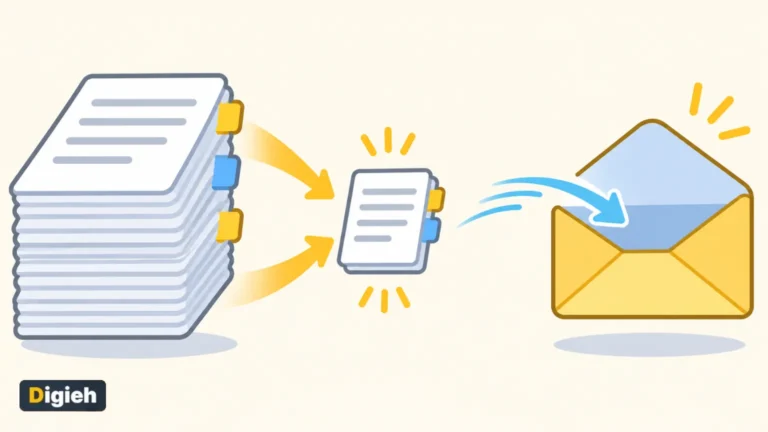
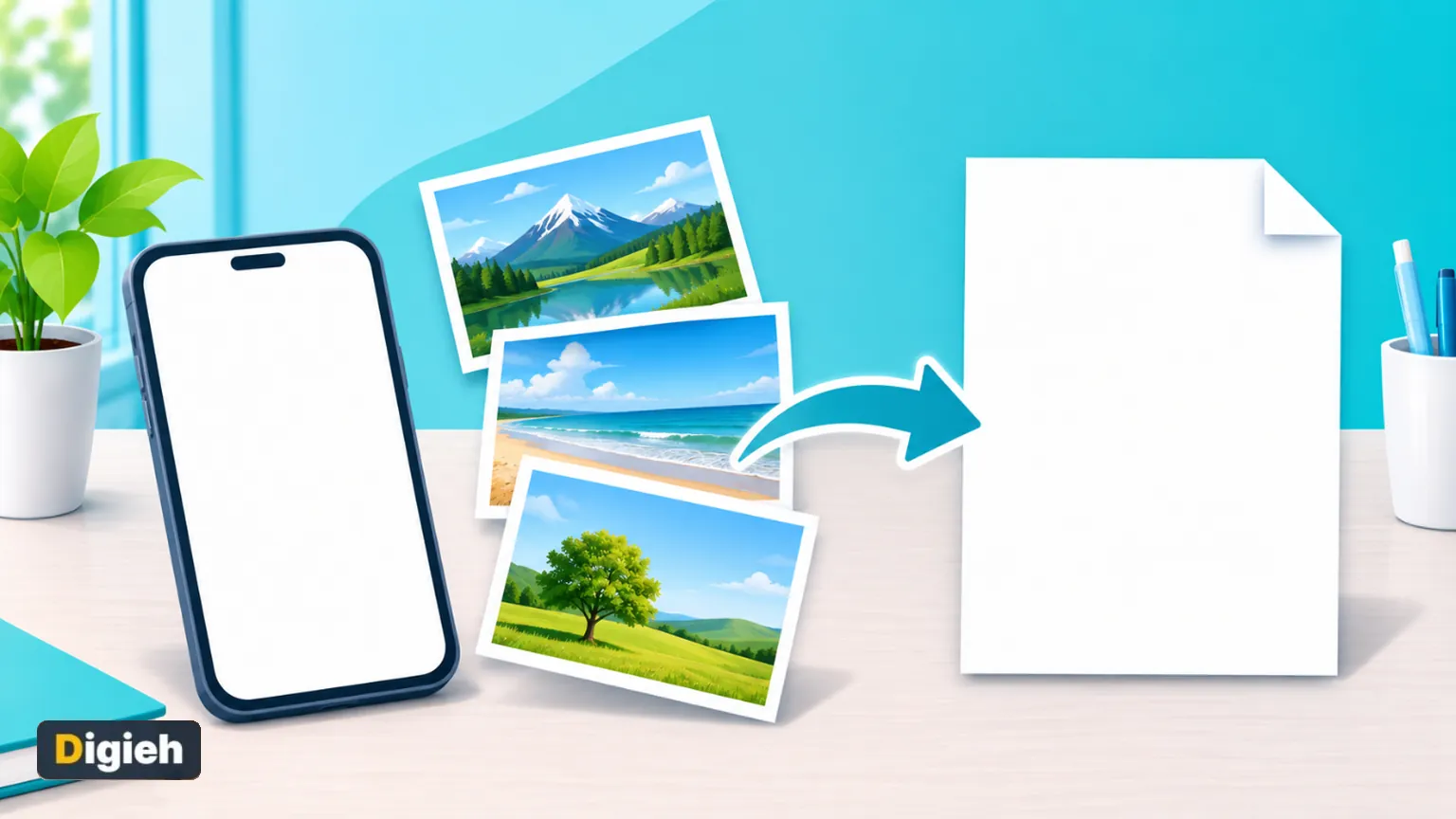
To turn photos into one PDF, open a JPG to PDF converter, add your pictures in order and tap convert. Choose a page size like A4 or Letter, and pick a smaller file option if you plan to email it.
This guide shows how to do it on a phone or computer without uploading your photos. It also fixes the two most common problems, which are sideways pictures and huge files.
Key Takeaways
- Add JPG, PNG and other photos, then sort them into order.
- Paperlume turns sideways phone photos upright on its own.
- Pick A4, Letter, Legal or the size of each image.
- Use Smaller file for email and online forms.
- Your photos never leave your device.
Quick links
- Photo to PDF facts
- How to turn photos into a PDF
- On a phone
- Why photos turn sideways
- Which settings to pick
- Our hands-on test
- Scan straight to PDF instead
- Frequently asked questions
Photo to PDF Facts at a Glance
| Fact | Detail | Source |
|---|---|---|
| Gmail attachment limit | 25 MB for personal accounts | Gmail Help |
| iPhone built-in scanner | Notes and Files can scan documents | Apple Support |
| Android built-in scanner | Google Drive scans and saves as PDF | Google Drive Help |
| Sideways phone photo in Paperlume | Placed upright automatically | Digieh test, November 16, 2026 |
| 3 images to one PDF | 0.4 seconds | Digieh test, November 16, 2026 |
How Do I Turn Photos Into One PDF?
Add your photos to a converter, put them in order and convert. The free Paperlume JPG to PDF tool does this inside your browser. You get one tidy PDF with one photo per page.
- Open Paperlume JPG to PDF.
- Choose your photos or drop them onto the page.
- Drag the thumbnails into the right order, or tap Sort A to Z.
- Pick a page size, page direction and margin.
- Choose Smaller file if you will email the PDF.
- Tap Convert to PDF and download the file.
Forgot a photo? Tap Add more images and drop it into place. The page count updates as you go.
0.4 sTime Paperlume took to turn three mixed images into one PDF. Digieh test, November 16, 2026.
How Do I Convert Photos to PDF on a Phone?
Open Paperlume JPG to PDF in your phone browser and choose photos from your gallery. Everything happens on the phone, so it works on Android and iPhone with nothing to install. Download the PDF and share it like any other file.
Phones that save photos in other formats are fine too. The tool accepts any picture your browser can open, including PNG and WebP files.
Many recent iPhones save photos as HEIC. Safari can usually open those, so they convert there as well.
Why Do My Photos Turn Sideways in a PDF?
Phones often save a photo sideways and add a hidden note that says how to turn it. That note is called EXIF orientation. Many converters ignore it, so your pictures land sideways in the PDF.
Paperlume reads that note and places each photo the right way up. In our test, a sideways phone photo came out upright on a wide page.
Good to know. Photos can carry hidden details like location. Our photo privacy cleaner removes them before you share the pictures.
What do you usually turn into a PDF?
- Receipts and bills
- Identity or application papers
- Notes and homework
- Not sure
Which Settings Should I Pick?
Use A4 or Letter for forms and printing, and Same size as each image for photo albums. Keep Match each image as the page direction. Choose Smaller file whenever a website or email has a size limit.
| Setting | Choose | When |
|---|---|---|
| Page size | A4 | Most countries and online forms |
| Page size | Letter (US) | United States and Canada |
| Page size | Same size as each image | Photo albums and screenshots |
| Page direction | Match each image | Mixed tall and wide photos |
| Margin | Small | Documents you will print |
| Photo quality | Smaller file | Email and upload limits |
Need a separate PDF for each photo? Tick Make a separate PDF for each image, and you get a ZIP file.
Very strict size limits may need more help. Shrink the photos first with our image compressor, or read our guide to reducing photo size in KB.
Our Hands-On Test
We tested Paperlume JPG to PDF with three images. One was a sideways phone photo with an orientation note, one a normal photo and one a PNG scan.
Digieh test, November 16, 2026. Method. Desktop Chromium browser, three test images made by Digieh, page sizes and direction checked with separate PDF tools.
| What we checked | Result |
|---|---|
| Images in and pages out | 3 and 3 |
| Sideways phone photo | Placed upright on a wide A4 page |
| Time to convert | 0.4 seconds |
| File size with Original quality | 367 KB |
| File size with Smaller file | 344 KB |
The gap between the two quality settings was small here, because our test photos were small. Big phone photos usually shrink much more.
Free updates
Join the Digieh list
Be the first to know when our weekly brief launches.
No spam. Unsubscribe anytime. Read our Privacy Policy.
Can I Scan Straight to PDF Instead?
Yes, and it is often the best choice for paper documents. Phone scanners flatten the page and crop the edges for you.
On an iPhone
Open Notes or Files and choose Scan Documents. Apple lists the steps in how to scan documents on your iPhone.
On Android
Open Google Drive, tap the camera button and save as PDF. Google explains it in scan documents with Google Drive.
Use JPG to PDF when you already have the photos. Screenshots, old pictures and images people send you are good examples.
Mistakes to Avoid
- Uploading identity cards and bills to unknown sites.
- Leaving photos in the wrong order.
- Sending huge files that email rejects.
- Shooting documents at a sharp angle.
- Forgetting hidden location data in photos.
Gmail allows attachments up to 25 MB for personal accounts, per Gmail Help. Our guide to reducing PDF file size for email helps if you go over.
Need to add or remove pages later? Use Merge PDF or Organize PDF.
All our tools live on the free PDF tools page.
Your Photo to PDF Checklist
- Shoot documents flat and in good light
- Remove hidden location data if needed
- Add photos and put them in order
- Pick the page size the form asks for
- Choose Smaller file for email
- Open the PDF and check every page
Try this today. Turn this month’s receipts into one PDF. You will have a single, tidy file for your records.
Test Yourself
Why do phone photos sometimes turn sideways in a PDF?
- The converter ignores the orientation note
- The photo is too big
- The PDF is locked
Phones store a hidden note about which way is up. Converters that ignore it place photos sideways.
Which page size do most online forms outside North America expect?
- Legal
- A4
- Same size as the image
A4 is the standard paper size in most countries. Letter is common in the United States and Canada.
Frequently Asked Questions
Is Paperlume JPG to PDF free?
Yes. It is free, with no sign-up, no watermark and no limit on photos.
Can I combine PNG and JPG photos in one PDF?
Yes. Mix any pictures your browser can open, and each becomes its own page.
Will my photos lose quality?
Not with Original quality. Smaller file lowers quality slightly to cut the size.
Are my photos uploaded?
No. The PDF is built inside your browser, so your photos stay on your device.
Conclusion
Turning photos into a PDF takes seconds with the right settings. Keep them in order, let the tool fix sideways shots and pick a smaller file for email.
Your next step is simple. Open the free Paperlume JPG to PDF tool and make your next PDF from photos.
Found this useful?
Editor’s Note
This guide is accurate as of November 16, 2026. It draws on Apple Support, Google Drive Help and Gmail Help.
We also ran our own hands-on test of the Paperlume tool on the same date.
Apps and tools change over time. We will update this page when the steps or features change.
Spot an error in this article? Please contact us at support@digieh.com or read our Corrections Policy.
Keep exploring
Your next read is waiting
 1Pets & AnimalsDog Flu Symptoms and How to Protect Pets3 min read
 2HealthWalking Pneumonia Symptoms and When You Should Worry4 min read
 3TechnologyHow to Add Page Numbers to Any PDF7 min read
 4Finance & MarketsBiggest Government Debts by Country in 2026, Ranked4 min read
 5Food & LifestyleTurkey Cooking Time by Weight, the Easy Chart4 min read
 6NewsAT&T and Verizon Satellite Service, What to Know3 min read