TRENDING
How to Add a Text or Logo Watermark to a PDF

7 min read
Last updated November 16, 2026
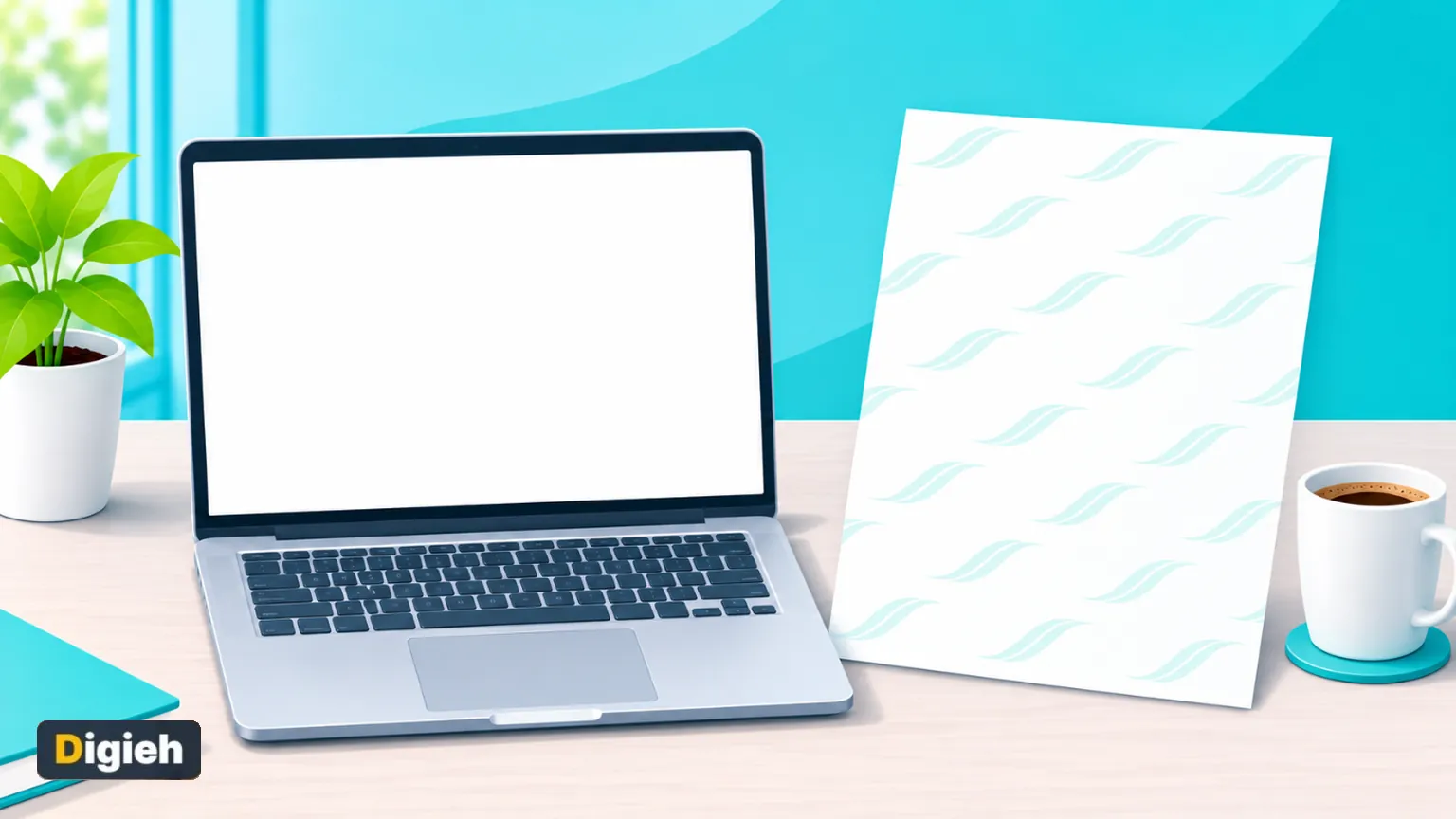
To add a watermark to a PDF, open a watermark tool and type your text or choose a logo. Pick where it goes. Then set the size and see-through level and save a new file.
This guide covers text and logo watermarks, tiling, and placing a mark behind the text. It also explains what a watermark can and cannot protect.
Key Takeaways
- Use text like DRAFT or CONFIDENTIAL, or your own logo.
- Place it in a corner, the middle or tiled across the page.
- Set size, see-through level and angle with a live preview.
- Paperlume handles text in any language, such as Urdu or Arabic.
- A watermark marks a file, but it does not lock it.
Quick links
- Watermark facts
- How to add a watermark
- Add a logo watermark
- Where to place it
- Behind or on top of text
- Text in any language
- Our hands-on test
- What a watermark protects
- Frequently asked questions
Watermark Facts at a Glance
| Fact | Detail | Source |
|---|---|---|
| What a watermark is | Text or an image showing ownership or confidentiality | Adobe |
| Word presets | Draft, confidential and do-not-copy stamps | Microsoft Support |
| Google Docs watermarks | Text or image, in pages format only | Google Docs Help |
| Original text after watermarking | 101 of 101 words still searchable | Digieh test, November 16, 2026 |
| Time for a tiled text watermark | 0.2 seconds | Digieh test, November 16, 2026 |
How Do I Add a Watermark to a PDF?
Open a watermark tool, type your text and choose its spot, then save. The free Paperlume Watermark PDF tool shows a live preview on your real page. You adjust everything before you commit.
- Open Paperlume Watermark PDF.
- Choose your PDF or drop it onto the page.
- Type your watermark text, such as DRAFT or your name.
- Pick a font, a colour and a spot under Where.
- Move the Size, See-through and Angle sliders.
- Tap Add watermark and download the new file.
Check a couple of pages in the preview box. Busy pages may need a lighter or smaller mark.
0.2 sTime Paperlume took to tile a two-language text watermark across our test page. Digieh test, November 16, 2026.
How Do I Add a Logo Watermark?
Switch to Logo or picture and choose a PNG or JPG file. A PNG with a clear background looks best, because only the logo shows. Then set its spot, size and see-through level like a text mark.
Bottom right is a classic spot for a small brand logo. A large, faint logo in the middle suits proposals and price lists.
Quick tip. Set See-through to about 20 to 30 percent for logos. The page stays easy to read while the mark stays clear.
Where Should I Place a Watermark?
Put a short label like DRAFT in the middle at an angle, and a logo in a corner. Use Tile when you want the mark across the whole page, which makes it hard to crop out. Keep marks away from signatures and key numbers.
| Placement | Best for | Tip |
|---|---|---|
| Middle, angled | Draft and confidential labels | Use 45 degrees and a light colour |
| Corner | Brand logos and names | Keep it small and faint |
| Tile | Previews and samples you share | Harder to crop or cover up |
| Top or bottom center | Copy labels and notes | Clear of headers and footers |
Need the mark on only part of a file? Use the Pages box to pick a range, such as the sample pages of a report.
What do you mostly watermark?
- Drafts and confidential files
- Designs or photos I share
- Business documents with my logo
- Not sure
Should the Watermark Go Behind or on Top of the Text?
Behind keeps text easy to read, while on top is harder to ignore. Tick Put it behind the text for contracts and reports people must read. Note that photos on the page will cover a mark placed behind them.
Leave it on top for previews, samples and photo pages. The mark then shows over everything.
Can I Watermark in Urdu, Arabic or Hindi?
Yes. Paperlume draws your text as a sharp image, so any language and script works. That includes right-to-left scripts like Urdu and Arabic, plus Hindi and Chinese.
Many tools only support basic Latin letters. They show empty boxes or broken letters for other scripts.
In our test, we tiled a mixed Urdu and English mark. Every letter came out joined and correct.
Our Hands-On Test
We tested Paperlume Watermark PDF on a one-page report we made. We tiled a mark with an Urdu word and the English word CONFIDENTIAL.
Digieh test, November 16, 2026. Method. Desktop Chromium browser, one text PDF made by Digieh, output checked with separate PDF tools and a page render.
| What we checked | Result |
|---|---|
| Pages marked | 1 of 1 |
| Searchable words before and after | 101 and 101 |
| File size before and after | 51.1 KB and 67.2 KB |
| Time to save | 0.2 seconds |
| Upload needed | None, all on the device |
The original text stayed searchable, since the mark sits on its own layer. The small size jump comes from the tiled image.
Free updates
Join the Digieh list
Be the first to know when our weekly brief launches.
No spam. Unsubscribe anytime. Read our Privacy Policy.
What Does a Watermark Protect?
A watermark shows who owns a file or what state it is in. Adobe describes it as text or an image showing ownership or confidentiality. See its guide to what a watermark is.
It discourages copying and makes leaks easy to trace. But it does not stop anyone from opening, printing or editing the file.
Important. For real protection, keep sensitive files off public links. A watermark marks a file, while a password controls who can open it.
Still Have the Word or Docs File?
You can add a watermark there before saving as PDF. Microsoft explains the Design tab steps in insert a watermark.
Google covers text and image marks in insert, edit, or delete watermarks. Use Paperlume when you only have the PDF.
Mistakes to Avoid
- Making the mark so dark that text is hard to read.
- Covering signatures, totals or key dates.
- Using a logo with a white box around it.
- Watermarking the only copy of your file.
- Treating a watermark as a lock.
Number the pages first with Page Numbers if needed. Then shrink the result with Compress PDF before you email it.
Our guide to reducing PDF file size for email explains each level. See every tool on the free PDF tools page.
Your Watermark Checklist
- Keep a clean copy of the original
- Choose short, clear text or a clear logo
- Pick a spot away from key details
- Set See-through so text stays readable
- Check two pages in the preview
- Save and open the new file
Try this today. Add a faint DRAFT mark to the next file you send for review. Nobody will mistake it for the final version.
Test Yourself
Which placement makes a watermark hardest to crop out?
- Bottom right corner
- Top center
- Tiled across the page
A tiled mark repeats across the whole page, so there is no clean area to crop.
Does a watermark stop people from opening a PDF?
- No, it only marks the file
- Yes, always
- Only on phones
A watermark shows ownership or status. A password is what controls access.
Frequently Asked Questions
Is Paperlume Watermark PDF free?
Yes. It is free, with no sign-up and no extra Digieh mark on your file.
Can I watermark only some pages?
Yes. Type a range in the Pages box, such as 1-3, and the rest stay clean.
Will the watermark hide my text?
Not if you set it see-through or place it behind the text. Your text also stays searchable.
Are my files uploaded?
No. The watermark is added inside your browser, so your PDF stays on your device.
Conclusion
A good watermark is clear but never in the way. Pick short text or a clean logo, keep it faint and remember it marks a file rather than locking it.
Your next step is easy. Open the free Paperlume Watermark PDF tool and mark your next file.
Found this useful?
Editor’s Note
This guide is accurate as of November 16, 2026. It draws on Adobe, Microsoft Support and Google Docs Editors Help.
We also ran our own hands-on test of the Paperlume tool on the same date.
Apps and tools change over time. We will update this page when the steps or features change.
Spot an error in this article? Please contact us at support@digieh.com or read our Corrections Policy.
Keep exploring
Your next read is waiting
 1Finance & MarketsWhy Is Crypto Crashing? The Key Reasons Explained4 min read
 2Science & DiscoveriesSpaceX Catches Starship From Orbit in Historic First4 min read
 3Pets & AnimalsThanksgiving Foods That Are Dangerous for Your Pets4 min read
 4Food & LifestyleTurkey Cooking Time by Weight, the Easy Chart4 min read
 5TechnologyBinance iPhone Warning and the Simple Safety Steps4 min read
 6NewsAT&T and Verizon Satellite Service, What to Know3 min read