TRENDING
How to Choose a Gaming Monitor, Specs Explained

7 min read
Last updated November 17, 2026
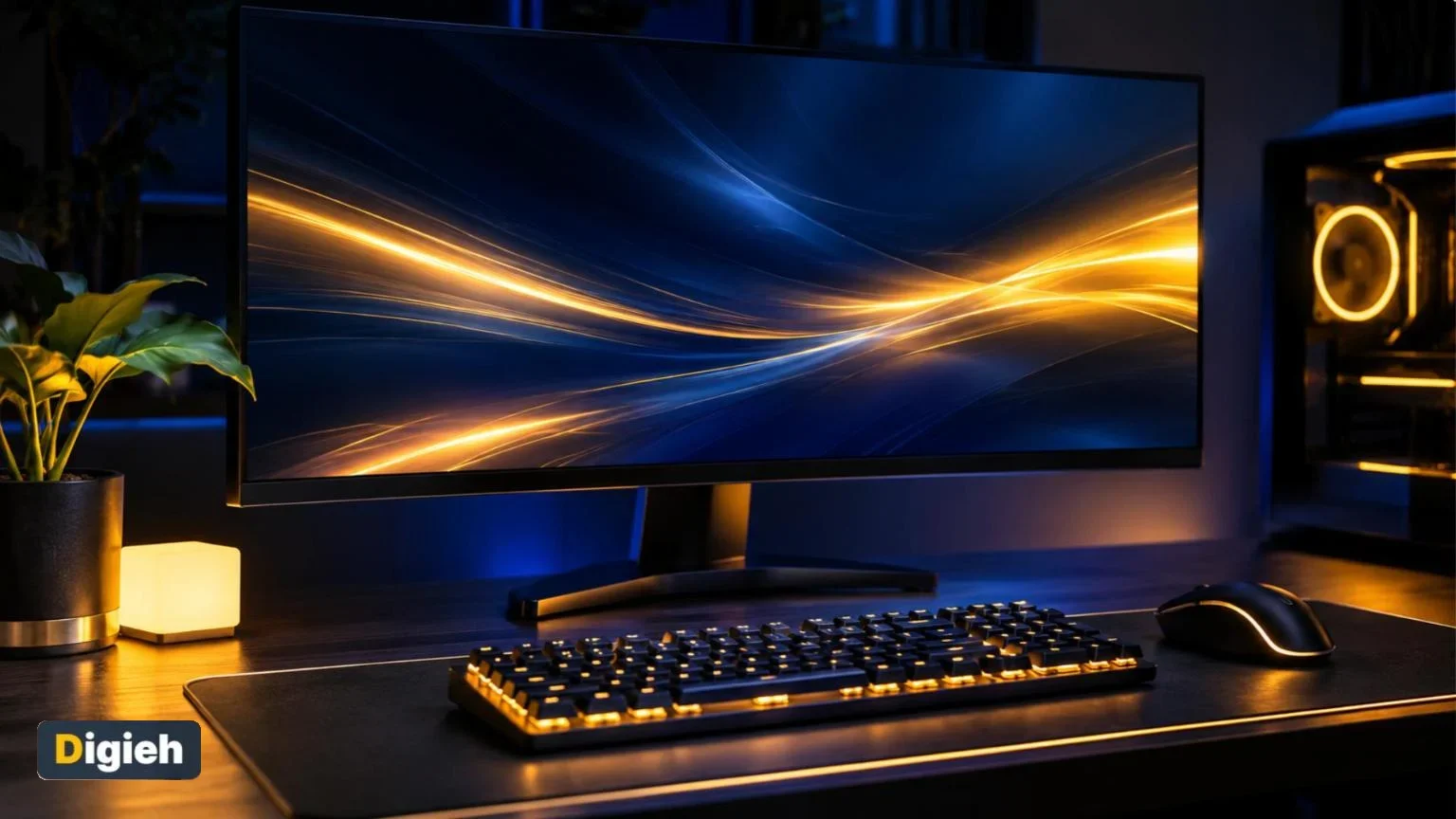
For most players, a good gaming monitor offers a 144Hz refresh rate and adaptive sync. Look for a fast response time of about 1 to 5 milliseconds too. Pick the resolution and size that your PC or console can actually drive.
Console players should look for 120Hz support and HDMI 2.1. This guide explains each spec in plain words, so you can choose with confidence.
Key Takeaways
- Refresh rate decides how smooth motion looks on screen.
- 144Hz suits most gamers, while competitive players may want 240Hz or more.
- Fast response times, around 1 to 5 ms, reduce blur.
- Adaptive sync helps prevent tearing and stutter.
- Your PC or console must produce enough frames to benefit.
Jump to a section
- Refresh rate explained
- Response time and input lag
- Resolution and size
- Panel types compared
- Monitors for consoles
- Ports, stands and comfort
- Buying checklist
Refresh Rate Explained
Refresh rate is how many times per second the screen updates its image. Makers measure it in hertz, written as Hz.
Samsung explains that higher refresh rates generally mean smoother motion and less blur.
| Refresh rate | Best for |
|---|---|
| 60Hz | Everyday tasks and casual play |
| 100 to 120Hz | Casual gaming and consoles |
| 144 to 200Hz | Most PC gamers |
| 240 to 360Hz | Competitive and esports players |
These tiers follow Samsung’s refresh rate guide. Fast shooters benefit most from very high refresh rates.
Your system must keep up
A 240Hz monitor only helps if your PC can produce close to 240 frames per second. Samsung warns that you may see little improvement if your system cannot keep up.
Check what frame rates your graphics card reaches in the games you play. Then choose a refresh rate that matches.
Good to know. Frame rate comes from your PC or console. Refresh rate comes from the monitor. The best results happen when the two are close.
Response Time and Input Lag
Response time is how fast a pixel changes from one color to another. TCL explains that faster times of about 1 to 5 milliseconds reduce motion blur and ghosting.
Input lag is different. It is the delay between pressing a button and seeing the result on screen.
| Term | What it means | Why it matters |
|---|---|---|
| Response time | How fast pixels change color | Lower means less blur |
| Input lag | Delay from button press to screen | Lower feels more responsive |
| Refresh rate | Screen updates per second | Higher feels smoother |
Competitive players care most about low input lag. Reviews that measure it are more useful than the number printed on the box.
Adaptive Sync and HDR
Adaptive sync matches the monitor’s refresh rate to the frames your system sends. Samsung notes this reduces screen tearing and stutter.
The two main versions are G-Sync from NVIDIA and FreeSync from AMD. Check which one works with your graphics card.
HDR
High dynamic range, or HDR, can improve brightness, contrast and color. TCL lists DisplayHDR 400, 600 and 1000 as levels that show brightness.
Entry-level HDR may look only slightly better than standard. Higher levels usually make a clearer difference.
What refresh rate is your current screen?
- 60Hz
- 120 or 144Hz
- 240Hz or higher
- Not sure
Resolution and Size
Resolution is how many pixels the screen shows. Higher resolution looks sharper but needs more power to run smoothly.
| Resolution | Good for | Power needed |
|---|---|---|
| 1080p | Budget setups and high frame rates | Low |
| 1440p | A balance of sharpness and speed | Medium |
| 4K | Sharp detail and future upgrades | High |
Choosing a size
Samsung’s console guide suggests 24 to 27 inches for quick, strategic play. It links 32 to 34 inches with a wider view for action and adventure games.
Sit about an arm’s length from the screen. Very large monitors may need more desk depth.
Quick tip. Measure your desk before you shop. Many 32-inch monitors need a deeper desk for comfortable viewing.
Panel Types Compared
The panel type shapes color, contrast and speed. TCL summarizes the main options.
| Panel | Strengths | Trade-offs |
|---|---|---|
| IPS | Best color accuracy and viewing angles | Slightly slower response |
| TN | Fastest response times | Weaker color and viewing angles |
| VA | Better contrast | Response can be slower |
| OLED | Superior contrast and perfect blacks | Expensive |
This comparison comes from TCL’s gaming monitor glossary. IPS is a popular all-round choice for many players.
Monitors for Consoles
Current consoles have their own needs. Samsung explains that performance modes target 120Hz.
- Look for 120Hz support.
- Choose a monitor with HDMI 2.1 to reach 120Hz.
- Pick 4K or 1440p, which both consoles support.
- Look for variable refresh rate to reduce tearing.
A 240Hz monitor brings little extra for consoles that top out at 120Hz. Spend the money on better color or HDR instead.
144HzA popular refresh rate for most gamers, with 240Hz and up for competitive play, says Samsung.
Ports, Stands and Comfort
Small details can make a big difference once the monitor is on your desk. Check these before you buy.
Ports and cables
High refresh rates need the right connection. Many PCs use DisplayPort, while consoles use HDMI.
Make sure the monitor has the ports your devices need. Use the cable that came in the box, or one rated for the same standard.
Adjustable stand
A stand that tilts and changes height helps you sit comfortably for long sessions. Mayo Clinic advises placing the top of the screen at or slightly below eye level.
Mayo also suggests keeping the screen about an arm’s length away. If the stand is basic, a monitor arm or riser can help.
Curved or flat
Curved screens can feel more immersive on wide monitors. Flat screens are often cheaper and work well at smaller sizes.
Free updates
Join the Digieh list
Be the first to know when our weekly brief launches.
No spam. Unsubscribe anytime. Read our Privacy Policy.
Matching Your Budget
You do not need the most expensive monitor to enjoy games. Match your spend to how you play.
| Budget level | Typical choice | Best for |
|---|---|---|
| Entry | 1080p at 144Hz | Casual and esports players on a budget |
| Mid-range | 1440p at 144 to 170Hz | Most PC gamers |
| High-end | 4K at 120Hz or more, or high-end OLED | Players with powerful systems |
Prices change often, so treat these levels as a rough guide. Sales can bring a higher tier within reach.
Set Up Your New Monitor
Many players plug in a new monitor and never change the settings. That can leave you stuck at 60Hz without knowing it.
- Connect with the right cable, such as DisplayPort or HDMI 2.1.
- Open your computer’s display settings and pick the highest refresh rate.
- Turn on adaptive sync in the monitor menu and graphics software.
- Update your graphics drivers.
- Adjust brightness and contrast to suit your room.
On consoles, check the video output settings. Turn on 120Hz and variable refresh rate if your monitor supports them.
Common buying mistakes
- Buying a very high refresh rate your system cannot use
- Ignoring the ports on your console or PC
- Choosing a size too big for your desk
- Trusting the box specs without reading reviews
A little research before you buy saves money and frustration later.
If possible, see a monitor in a store before you buy. Seeing motion and colors in person helps you judge what suits your eyes and favorite games best.
Buying Checklist
Use this list to narrow your choices before you buy.
- Decide whether you play on PC, console or both.
- Check the frame rates your system can reach.
- Pick a matching refresh rate and resolution.
- Choose a panel type based on color or speed needs.
- Confirm the right ports, such as HDMI 2.1 or DisplayPort.
- Read reviews that measure input lag and response time.
- Refresh rate matches your system
- Response time around 1 to 5 ms
- Adaptive sync support
- Correct ports for your device
- Size fits your desk
Gaming on a laptop instead? See our guides to the best laptops for students and Mac vs Windows laptops.
Keep your new screen in top shape with our tips on cleaning screens safely.
This article is for general information. Specs and prices change often, so compare current models before buying.
Try this today. Check your current monitor’s refresh rate in your display settings. Make sure it is set to the highest rate it supports.
Test Yourself
Which refresh rate suits most PC gamers?
- 30Hz
- 144Hz
- 24Hz
Samsung places 144 to 200Hz as the sweet spot for most gamers.
What do consoles need to reach 120Hz on a monitor?
- HDMI 2.1
- A longer power cable
- A curved screen
Samsung notes that current consoles need HDMI 2.1 to reach 120Hz.
Frequently Asked Questions
Is 60Hz okay for gaming?
Yes, for casual play. Higher refresh rates feel noticeably smoother in fast games.
Is 4K worth it for gaming?
It looks sharp but needs a powerful system. Many players prefer 1440p at a higher refresh rate.
Do I need G-Sync or FreeSync?
Adaptive sync helps reduce tearing. Choose the version that matches your graphics card.
Can I use a TV as a gaming monitor?
Yes, especially for consoles. Look for 120Hz support and low input lag.
Conclusion
The best gaming monitor matches your system and the games you play. Focus on refresh rate, response time, adaptive sync and the right ports.
Your next step is to check your system’s frame rates, then shortlist monitors that match.
Found this useful?
Editor’s Note
This guide is accurate as of November 17, 2026. It draws on Samsung’s monitor guides and TCL’s gaming terminology page.
Monitor technology moves fast. Check the latest reviews before you buy.
Spot an error in this article? Please contact us at support@digieh.com or read our Corrections Policy.
Keep exploring
Your next read is waiting
 1Parenting & FamilySafe Sleep for Babies, a Simple Parent Checklist8 min read
 2TechnologyHow to Convert Excel to PDF Without Cut-Off Columns4 min read
 3Education & CareersHow to Make a Study Timetable That Works7 min read
 4CarsLease vs Buy a Car? Smart Money Guide8 min read
 5Pets & AnimalsDog Scared of Fireworks on New Year’s Eve?9 min read
 6NewsHow Long Can a Blackout Last? Real Cases5 min read