
TRENDING
Hidden iPhone Features That You Should Try Now

9 min read
Last updated November 7, 2026
The best hidden iPhone features include Back Tap, Live Text, Background Sounds and a secret keyboard trackpad. They are already on your phone and take only a minute to turn on.
Most people use just a small part of what their iPhone can do. These tools can save time, reduce stress and make everyday tasks easier.
Menus and names can change a little with each software update. Apple calls this software iOS, and you can update it in Settings.
Key Takeaways
- Back Tap lets you tap the back of your phone to take a screenshot or open tools.
- Live Text copies words from photos and the camera.
- Background Sounds play rain, ocean or white noise to help you focus or sleep.
- Press and hold the space bar to move the cursor like a trackpad.
- Text Replacement turns short codes into full phrases.
On This Page
- Back Tap
- Live Text
- Background Sounds
- The Secret Keyboard Trackpad
- Text Replacement
- Shake to Undo
- Locked Hidden Album
- Medical ID and Emergency SOS
- Screen Distance
- Magnifier
- Built-In Level
- Quick Calculator Fix
- Visual Look Up
- Focus Modes
- Type to Siri
1. Back Tap
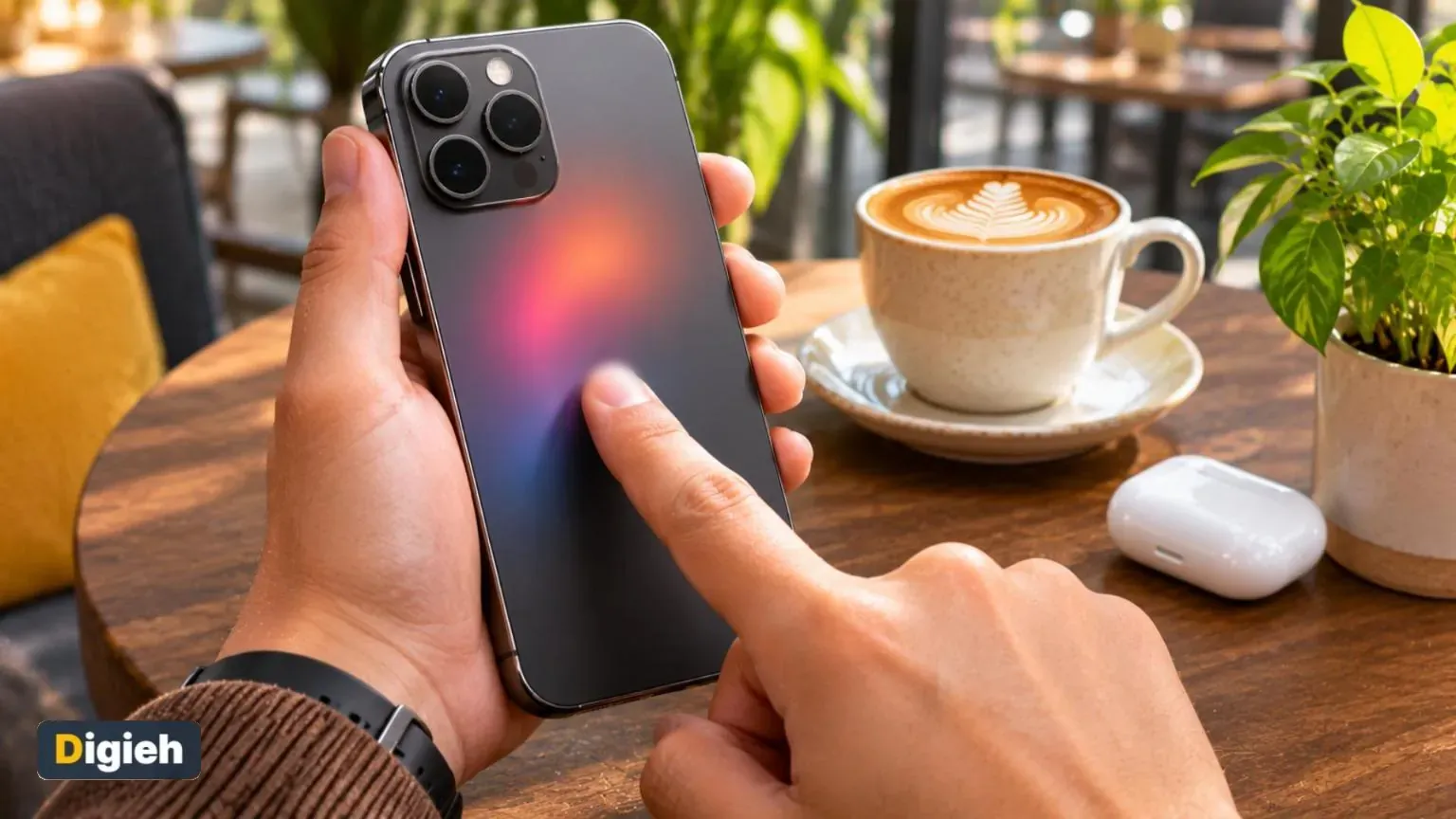
Back Tap lets you double tap or triple tap the back of your iPhone to run an action. You can use it to take a screenshot, open Control Center or start other tools.
To turn it on, go to Settings, then Accessibility, then Touch and Back Tap. Choose an action for Double Tap and Triple Tap.
Apple says Back Tap works on iPhone 8 or later, on its support page. It even works with most phone cases.
iPhone 8The oldest model that supports Back Tap, per Apple Support.
2. Live Text
Live Text lets you copy words from a photo, a screenshot or the camera view. You can then paste them, call a phone number, send an email or translate the words.
In the Photos app, open a picture with text and tap the Live Text button in the corner. In the Camera app, point at text and tap the same button.
Apple says Live Text needs an iPhone XS, iPhone XR or later, according to its Live Text guide. It is perfect for copying Wi-Fi passwords, recipes and receipts.
Quick tip. Set Back Tap to take a screenshot with a double tap. It is faster than pressing two buttons.
3. Background Sounds
Background Sounds plays calming audio, like rain, ocean waves or white noise. It can help you focus at work, relax or fall asleep.
Find it in Settings, then Accessibility, then Audio and Visual, then Background Sounds. You can also add it to Control Center for quick access.
Apple lists ocean, rain, white noise and bright noise among the options, on its Background Sounds page. You can set a timer so the sounds stop on their own.
4. The Secret Keyboard Trackpad
Moving the cursor to fix a typo can be frustrating. There is an easier way.
Press and hold the space bar on the keyboard. The keys go blank, and you can slide your finger to move the cursor anywhere in the text.
This works in Messages, Notes, Mail and most other apps that use the standard keyboard.
Which hidden feature will you try first?
- Back Tap
- Live Text
- Keyboard trackpad
- Not sure
5. Text Replacement
Text Replacement turns short codes into full words or phrases. For example, typing “omw” can become “On my way!”
Go to Settings, then General, then Keyboard and Text Replacement. Tap the plus button to add your own shortcuts.
Use it for your email address, home address or phrases you type often. It saves time every day.
6. Shake to Undo
Made a mistake while typing or deleted text by accident? Shake your iPhone gently.
A box pops up asking if you want to undo. Tap Undo to bring the text back.
If you find it annoying, you can turn it off in the Touch settings under Accessibility.
Good to know. Many accessibility features help everyone save time, not only people with disabilities.
7. Locked Hidden Album
The Photos app has a Hidden album for private pictures. On newer iOS versions, it locks behind Face ID, Touch ID or your passcode.
To hide a photo, open it, tap the More button and choose Hide. To find hidden photos later, scroll down to the Utilities section in Photos.
This keeps private pictures out of your main library when you show friends your photos.
8. Medical ID and Emergency SOS
Your iPhone can share important health information in an emergency. Medical ID shows details like allergies, medications and emergency contacts on the Lock Screen.
Set it up in the Health app under your profile. Turn on Show When Locked so first responders can see it without your passcode.
Emergency SOS lets you call emergency services quickly by pressing certain side buttons. Check the Emergency SOS section in Settings to see how it works on your model.
- Turn on Back Tap
- Try Live Text on a photo
- Add Background Sounds to Control Center
- Create one Text Replacement
- Set up Medical ID
- Update to the latest iOS
9. Screen Distance
Holding your phone too close to your face for a long time can strain your eyes. Screen Distance alerts you when your iPhone is closer than about 12 inches for a while.
Find it in Settings, then Screen Time. It uses the Face ID camera, so it works on phones with Face ID.
It is a helpful nudge for kids and adults who spend long hours on their phones.
10. Magnifier
Magnifier turns your iPhone camera into a powerful magnifying glass. It is great for reading small print on menus, labels and medicine bottles.
You can find the Magnifier app with a quick search, or add it to Control Center. Adjust zoom, brightness and contrast to see clearly.
How do you turn the keyboard into a trackpad?
- Shake the phone
- Press and hold the space bar
- Double tap the back
Holding the space bar lets you slide the cursor anywhere in the text.
11. Built-In Level
Hanging a picture frame? Your iPhone has a level tool.
Open the Measure app and tap Level. Place your phone on a surface or against a frame, and it shows when it is straight.
The Measure app can also estimate the length of objects using the camera.
12. Quick Calculator Fix
Typed the wrong number in the Calculator app? You do not have to start over.
Swipe left or right across the number display to delete the last digit. It works like a backspace key.
Newer versions of the Calculator app also keep a history of your recent math, so you can check past results.
Free updates
Join the Digieh list
Be the first to know when our weekly brief launches.
No spam. Unsubscribe anytime. Read our Privacy Policy.
13. Visual Look Up
Visual Look Up can identify things in your photos, like plants, pets, landmarks and art. It is great for curious minds.
Open a photo in the Photos app. A small star on the info button means Visual Look Up found something. Tap it to learn more.
You can even lift a subject from its background. Touch and hold the main subject of a photo, then share or copy it as a sticker.
14. Focus Modes
Focus modes help you cut distractions. They silence notifications from apps and people you do not need at the moment.
Open Settings and tap Focus. You can set up modes like Work, Sleep and Personal, each with its own rules.
Focus modes can turn on automatically at a set time or place. You can also link a Focus to a Lock Screen, so your phone changes with your day.
15. Type to Siri
Not every moment is right for talking to your phone. You can type requests to Siri instead.
Look for the Type to Siri option in the Siri or Accessibility settings, depending on your iOS version. Then you can send requests quietly in a meeting or on a bus.
It is also helpful for people who prefer typing or have trouble speaking clearly.
How to Find More Hidden Features
Apple adds new features with every major update. A few habits help you discover them.
Open the Tips app on your iPhone. It shares short guides on new and lesser-known features.
Spend a few minutes exploring Settings, especially the Accessibility section. Many of the most useful tools live there, and they help everyone, not just people with disabilities.
Keep your iPhone updated so you get new features and security fixes. Before a big update, back up your phone using our guide on how to back up your phone.
Which app has a built-in level?
- Notes
- Weather
- Measure
The Measure app includes a Level tool for straightening frames and shelves.
Hidden Features for Safety and Privacy
Some of the most valuable hidden features help keep you and your data safe.
Check-in in the Messages app can let a friend know when you arrive home safely. If you do not arrive on time, it can share helpful details with them.
Safety Check, found in Privacy and Security settings, helps you review who has access to your location and information. You can quickly stop sharing with people or apps.
Turn on two-step sign-in for your Apple Account if you have not already. It adds an extra layer of protection if someone learns your password.
Battery-Saving Hidden Settings
A few small changes can help your battery last longer. Low Power Mode cuts background activity when you need extra time.
Find it in Settings under Battery, or add it to Control Center for one-tap access. Your iPhone may also suggest it when the battery gets low.
Check which apps use the most battery in the same menu. Remove or limit the ones you rarely need.
Make Your iPhone Feel New Again
Hidden features are even more useful on a phone that runs smoothly. Clearing old apps and files can help.
Our guide on how to speed up a slow phone shares simple fixes. You can also tidy your apps with our tips on how to organize your phone home screen.
Hidden Features for Better Photos
Your iPhone camera hides a few handy tricks, too. Turn on the grid in Camera settings to help line up your shots.
Press and hold the shutter button to start a quick video without switching modes. Tap and hold on the screen to lock focus and exposure.
For more ideas, see our holiday photo tips for your phone.
Try this today. Open Settings and turn on Back Tap. Set a double tap to take a screenshot and test it right away.
Frequently Asked Questions
What is the most useful hidden iPhone feature?
Many people love Back Tap and the keyboard trackpad because they save time every day.
How do I turn on Back Tap?
Go to Settings, then Accessibility, then Touch and Back Tap, and choose an action.
Can my iPhone copy text from a photo?
Yes. Live Text lets you copy text from photos and the camera on iPhone XS, iPhone XR and later.
Does my iPhone have white noise?
Yes. Background Sounds offers white noise, rain, ocean and more.
Why can I not find a feature?
Menus can move between updates. Make sure your iPhone is updated, or search in Settings.
Conclusion
Your iPhone is full of helpful tools you may not know about. Start with Back Tap, Live Text and the keyboard trackpad, then explore the rest.
Try one new feature each day, and you will soon wonder how you lived without them.
Found this useful?
Editor’s Note
This guide is accurate as of November 7, 2026. Feature names and menu paths can change with iOS updates and may differ by iPhone model.
Spot an error in this article? Please contact us at support@digieh.com or read our Corrections Policy.
Keep exploring
Your next read is waiting
 1Finance & Markets401(k) Limit for 2027 Could Hit a Record9 min read
 2Food & LifestyleThe Busiest Thanksgiving Travel Days and Smart Tips9 min read
 3TechnologyBest Time to See the November Beaver Moon9 min read
 4HealthWinter Allergies vs Cold Symptoms and Simple Fixes10 min read
 5NewsWinter Storm Watch vs Warning The Key Difference9 min read
 6EntertainmentBest Thanksgiving Movies to Watch With the Family9 min read