TRENDING
How to Set Up a New Smart TV in 7 Easy Steps

8 min read
Last updated November 6, 2026
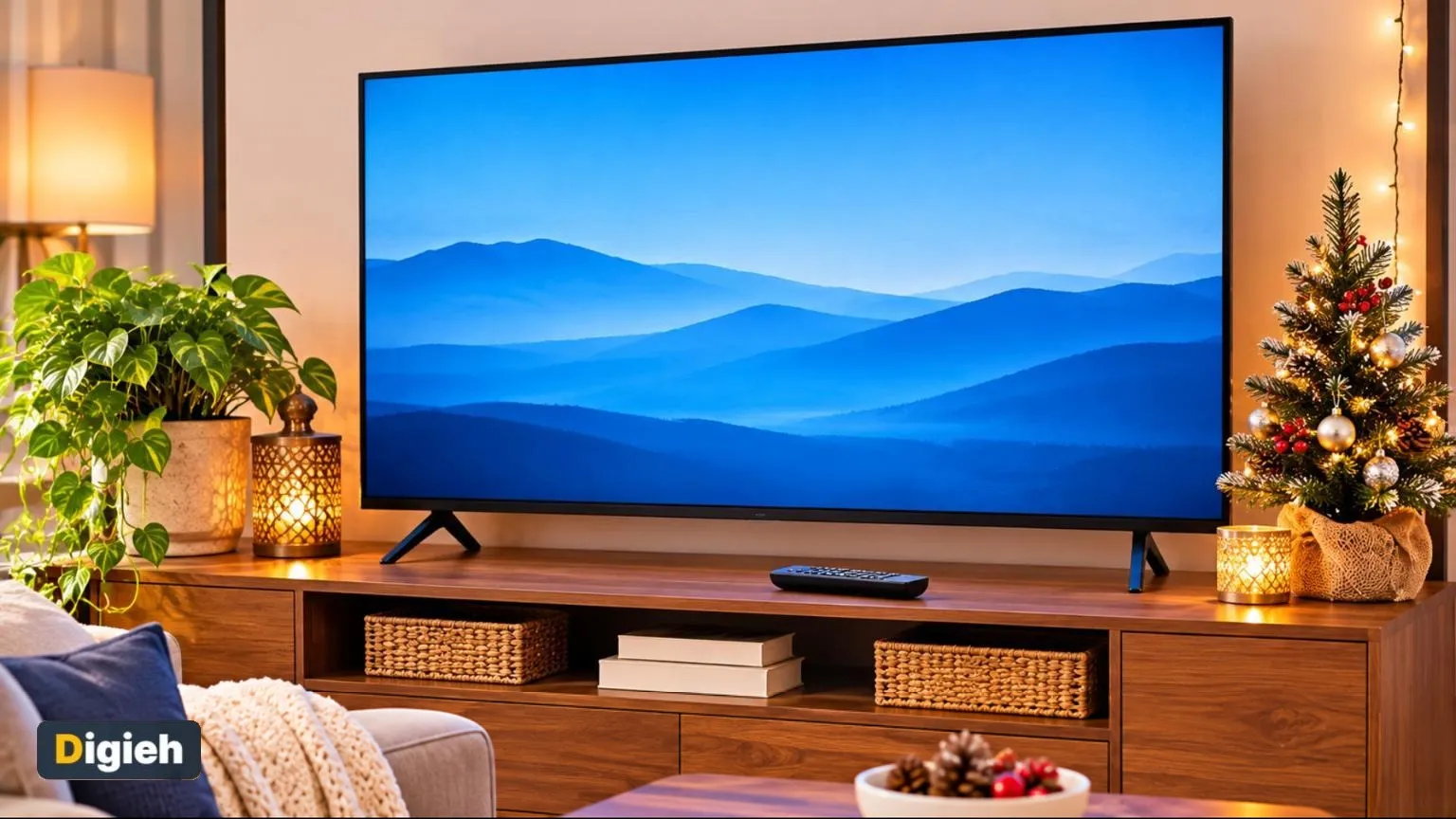
To set up a new smart television (TV), place it on a sturdy stand or wall mount. Then plug it in. Turn it on and follow the on-screen steps to pick your language and connect to Wi-Fi. Sign in to your streaming apps and install any software updates.
A new television (TV) is one of the most popular holiday gifts. Setup usually takes about 20 to 30 minutes.
Key Takeaways
- Use a sturdy stand or anchor the television (TV) to the wall.
- Connect to Wi-Fi or use an Ethernet cable.
- Install updates before you start streaming.
- Switch off motion smoothing for movies.
- Review privacy and viewing data settings.
On This Page
- Before You Unbox
- How to Set Up a Smart Television (TV) Step by Step
- Best Picture Settings to Try
- Privacy Settings to Check
- Safety Tips
- Choose the Right Spot
- How Far Should You Sit?
- Connect to the Internet
- Update the Software
- Set Up Streaming Apps
- Improve the Sound
- Set Up Parental Controls
- Save Energy
- Clean the Screen Safely
- Troubleshooting Common Problems
Before You Unbox
Measure your space and check your stand or wall mount fits the television (TV) size. Have your Wi-Fi name and password ready.
The Environmental Protection Agency (EPA) explains how to recycle your old television.
Keep your streaming app logins handy. You will need them during setup.
20-30 minTypical time to set up a new smart television (TV).
How to Set Up a Smart Television (TV) Step by Step
1. Place the Television (TV)
Set it on a stable surface or mount it on the wall.
2. Connect Cables
Plug in power, plus any soundbar, game console or cable box.
3. Turn It On
Follow the setup screens to choose your language and region.
Quick tip. Use your phone camera to scan any setup quick response (QR) code. It can sign you in faster than typing with the remote.
4. Connect to the Internet
Join your Wi-Fi or plug in an Ethernet cable for a steadier connection.
5. Update the Software
Install any updates. They fix bugs and add features.
6. Sign In to Apps
Log in to your streaming services and add your favorites to the home screen.
What do you watch most on your television (TV)?
- Movies
- Sports
- Shows
- Games
7. Tune the Picture
Switch to movie or filmmaker mode for more natural colors.
Best Picture Settings to Try
| Setting | Suggested choice |
|---|---|
| Picture mode | Movie or filmmaker mode |
| Motion smoothing | Off for movies, on for sports if you like |
| Brightness | Adjust to your room light |
| Energy saver | Off for best picture, on to save power |
Use this calculator to find a good viewing distance.
Viewing distance helper
Good to know. This rough guide uses about 1.5 times the screen size. Higher resolution televisions (TVs) allow sitting closer.
- Sturdy stand or mount
- Wi-Fi details ready
- Streaming logins
- Install updates
- Adjust picture mode
- Anchor the television (TV)
Privacy Settings to Check
Many smart televisions (TVs) collect viewing data to show ads. Look for settings with names like viewing information or ad tracking and turn them off if you wish.
Review microphone and camera settings too. The Federal Trade Commission (FTC) explains how apps and devices collect your information.
Safety Tips
Anchor large televisions (TVs) to the wall or stand. Tip-overs can seriously injure children.
Anchor heavy televisions to the wall, as AnchorIt.gov explains.
The United States Consumer Product Safety Commission shares tips on anchoring furniture and televisions (TVs).
Add to calendar
Choose the Right Spot
Where you place your television (TV) affects picture quality and comfort. Plan the spot before you unbox it.
- Avoid placing it across from a bright window.
- Keep it away from heaters and fireplaces.
- Make sure there is an outlet nearby.
- Check that your router signal reaches the spot.
- Leave space around the back for air flow.
Glare from windows can wash out the picture. Use curtains or blinds during the day.
How Far Should You Sit?
Sitting too close or too far can strain your eyes or hide details. A simple rule helps.
| Screen Size | Comfortable Viewing Distance |
|---|---|
| 43 inches | About 5 to 6 feet |
| 55 inches | About 6 to 7 feet |
| 65 inches | About 7 to 8 feet |
| 75 inches | About 8 to 10 feet |
These are only rough guides. Choose what feels comfortable for your room and eyes.
Aim to have the center of the screen near eye level when you sit. Tilting your head up for long periods can cause neck strain.
Connect to the Internet
Most smart features need a good internet connection. You can connect with Wi-Fi or a cable.
Wi-Fi
Select your network during setup and enter the password. Place your router close if streaming stutters.
Ethernet Cable
A wired connection is often faster and more stable. Plug a network cable from your router into the back of the television.
If your router is far away, a mesh Wi-Fi system can help. It spreads the signal across your home.
Update the Software
Smart televisions get software updates, much like phones. Updates fix bugs and add security.
Check for updates during setup. Then turn on automatic updates in the settings menu.
Updates can take several minutes. Do not turn off the television while it updates.
Set Up Streaming Apps
Most smart televisions come with popular apps preloaded. You can add more from the app store.
- Sign in to the services you already pay for.
- Remove or hide apps you never use.
- Arrange favorites on the home screen.
- Turn on profiles for each family member.
Use a strong, unique password for each streaming account. Turn on two-factor authentication when offered.
Improve the Sound
Thin televisions often have small speakers. Dialogue can sound quiet or muffled.
- Try the “dialogue” or “clear voice” setting.
- Turn off extra sound effects that muddy speech.
- Add a soundbar for fuller sound.
- Use wireless headphones for late-night viewing.
Many soundbars connect with a single cable. High-Definition Multimedia Interface (HDMI) cables carry both picture and sound.
Look for a port labeled Audio Return Channel (ARC) or enhanced Audio Return Channel (eARC). These ports send sound from the television to the soundbar.
Free updates
Join the Digieh list
Be the first to know when our weekly brief launches.
No spam. Unsubscribe anytime. Read our Privacy Policy.
Set Up Parental Controls
Parental controls help you manage what kids can watch. Most smart televisions include them.
Set a personal identification number (PIN) for purchases and mature content. Choose age ratings for each profile.
Many streaming apps have their own controls. Set them up in each app as well.
Talk with your kids about screen time rules. Controls work best alongside clear family guidelines.
Save Energy
Televisions use power even when they are not on. A few settings cut energy use.
- Turn on the energy saving or eco mode.
- Lower the screen brightness slightly.
- Set the television to turn off after a period of no use.
- Turn off quick-start features if you do not need them.
A smart power strip can cut standby power to the television and connected devices.
Clean the Screen Safely
Smart television screens scratch easily. Clean them gently.
Turn the television off and let it cool. Wipe the screen with a dry microfiber cloth.
For smudges, lightly dampen the cloth with water. Never spray liquid directly on the screen.
Avoid paper towels, glass cleaners and alcohol. They can damage the screen coating.
Troubleshooting Common Problems
Small problems often have simple fixes.
| Problem | Try This |
|---|---|
| No picture | Check the input source and cables |
| Buffering video | Restart the router and the television |
| Remote not working | Replace the batteries and re-pair it |
| App crashes | Update the app or reinstall it |
| No sound | Check mute, volume and sound output settings |
If problems continue, check the maker’s support website. Many offer step-by-step help.
Get More From Your Smart Television (TV)
Smart televisions can do much more than play shows. A few features can make daily use easier.
Use voice search on your remote to find shows quickly. Many remotes have a microphone button for this.
Turn on screen casting so you can share photos and videos from your phone. This is great for family gatherings.
Create separate profiles for family members on streaming apps. Each person gets their own suggestions and watch lists.
Keep Your Smart Television (TV) Running Well
A little care keeps your television working smoothly for years. These habits take only a few minutes.
- Restart the television once in a while to clear small glitches.
- Remove apps you no longer use to free up space.
- Keep the vents clear of dust and clutter.
- Install updates when they appear.
If the television feels slow, check your internet speed first. A strong connection makes streaming much smoother.
Set Up Accessibility Features
Many smart televisions offer captions, audio descriptions and larger menu text. These features help viewers with hearing or vision needs.
Look in the accessibility menu in your settings. Turning on captions can also help in noisy rooms.
Try this today. Open your television’s privacy menu today and turn off viewing data sharing. It takes about two minutes.
Test Yourself
Which picture mode gives more natural colors?
- Vivid
- Movie or filmmaker mode
- Store demo mode
Movie mode is closer to how films were made.
Why anchor a large television (TV)?
- To prevent tip-overs
- To improve sound
- To get more channels
Tip-overs can injure children.
Frequently Asked Questions
How long does it take to set up a smart Television (TV)?
Usually 20 to 30 minutes, including updates.
Should I turn off motion smoothing?
Many people turn it off for movies for a more natural look.
Do smart Televisions (TVs) collect data?
Many do. You can limit it in the privacy settings.
Why should I anchor my Television (TV)?
It prevents dangerous tip-overs, especially around kids.
How far should I sit from my television?
For a 55-inch screen, about 6 to 7 feet is a comfortable distance for many people.
Is Wi-Fi or a cable better for streaming?
A wired Ethernet cable is often faster and more stable.
How do I make dialogue easier to hear?
Try the dialogue setting, turn off extra sound effects or add a soundbar.
How do I clean a smart television screen?
Turn it off and wipe gently with a dry microfiber cloth. Never spray liquid on the screen.
Wrapping Up
Set up your new television (TV), check the privacy settings and enjoy a holiday movie night. It only takes a few steps.
Plan a cozy night with our guide to a holiday movie night at home. Get faster streaming with tips to boost your home Wi-Fi.
Found this useful?
Editor’s Note
This guide is accurate as of November 6, 2026. Settings names vary by brand.
Spot an error in this article? Please contact us at support@digieh.com or read our Corrections Policy.
Keep exploring
Your next read is waiting
 1Finance & MarketsStock Market Crash Fears and the Simple Truth9 min read
 2HealthNorovirus Symptoms and Simple Ways to Stop It9 min read
 3Food & LifestyleAn Easy Homemade Stuffing Recipe for Thanksgiving Day8 min read
 4TechnologyHidden iPhone Features That You Should Try Now9 min read
 5EntertainmentBest Thanksgiving Movies to Watch With the Family9 min read
 6NewsFreeze Warning vs Frost Advisory The Simple Difference9 min read