
TRENDING
How to Clean Your Phone and Laptop Screen Safely

8 min read
Last updated November 6, 2026
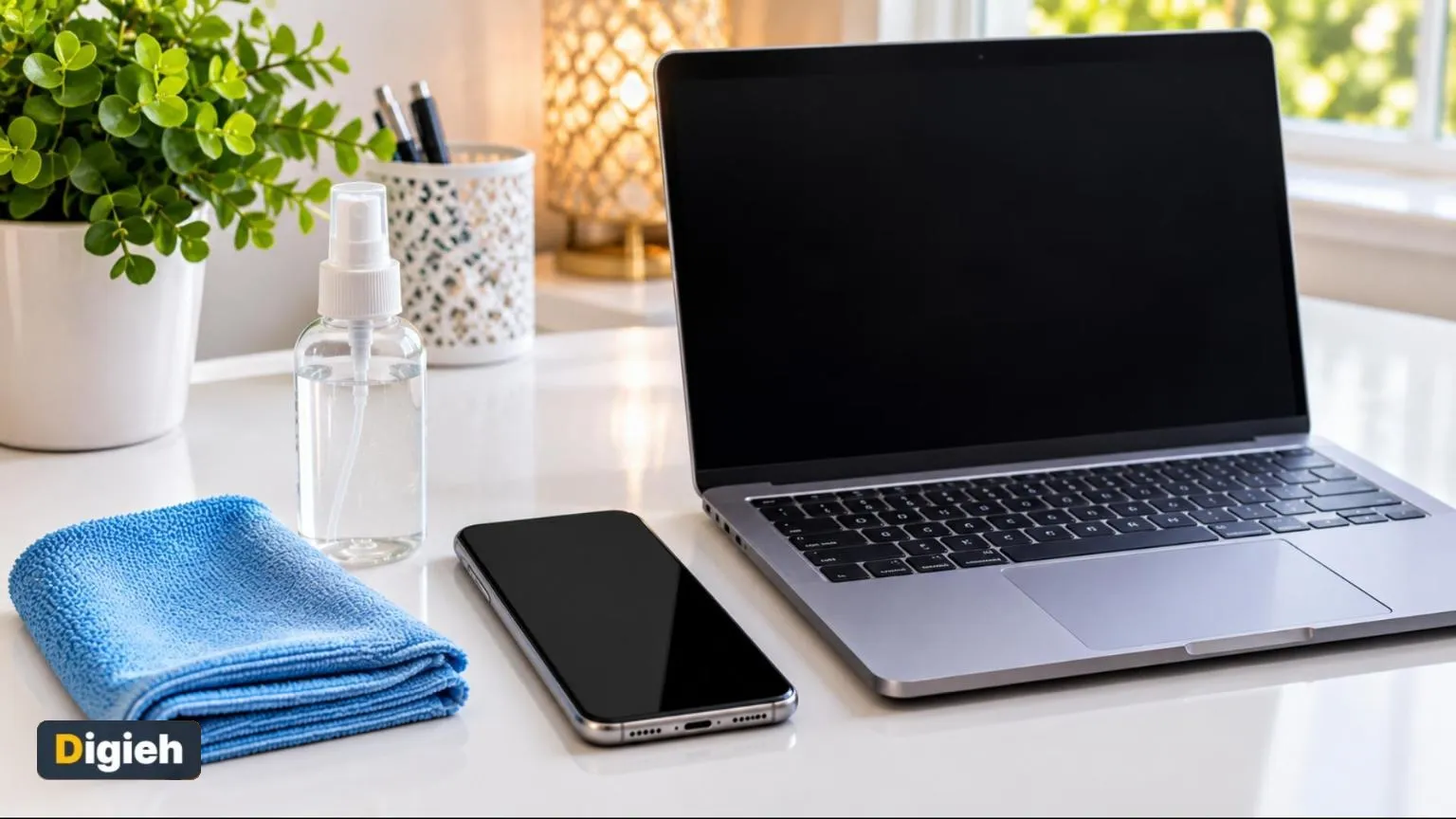
To clean your phone and laptop screens safely, turn off the device and unplug it. Wipe the screen gently with a dry microfiber cloth. For smudges, lightly dampen the cloth with water or a 70 percent isopropyl alcohol wipe.
Screens collect fingerprints, dust and germs fast. A quick, gentle clean keeps them clear without damage.
Key Takeaways
- Power off and unplug before cleaning.
- Microfiber cloths are the safest choice.
- Never spray liquid straight onto a screen.
- Avoid paper towels, glass cleaner and bleach.
- Clean phones often, since they collect germs.
On This Page
- What You Need
- How to Clean a Phone Screen
- How to Clean a Laptop Screen and Keyboard
- What Not to Use
- How Often to Clean
- Why Gadgets Get So Dirty
- Screen Types Need Different Care
- Clean Your Charging Cables and Ports
- Clean Your Computer Mouse
- Clean Headphones and Earbuds Safely
- Clean Smart Home Devices
- Clean Shared Devices More Often
- Protect Devices While You Clean
- Use Screen Protectors and Cases
- Clean Devices After Travel or Illness
What You Need
Grab a soft microfiber cloth and a little distilled water. Seventy percent isopropyl alcohol wipes work for disinfecting.
A soft brush or cotton swab helps with ports and keyboard gaps.
70%Isopropyl alcohol wipes are a safe choice for most phone screens.
How to Clean a Phone Screen
Apple Support explains how to clean Apple products safely.
1. Turn It Off
Power down your phone and remove the case.
2. Wipe Dry First
Use a dry microfiber cloth to remove dust and smudges.
3. Disinfect Gently
Lightly wipe with a 70 percent alcohol wipe. Avoid ports and openings.
Quick tip. Keep a small microfiber cloth in your bag. A quick wipe removes smudges on the go.
4. Clean the Case
Wash plastic or silicone cases with mild soap and water. Let them dry fully.
How to Clean a Laptop Screen and Keyboard
1. Shut Down and Unplug
Turn off the laptop and disconnect the charger.
2. Wipe the Screen
Use a dry microfiber cloth in gentle circles. Add a little water to the cloth for tough smudges.
3. Clean the Keyboard
Tilt the laptop and gently tap out crumbs. Wipe keys with a lightly damp cloth.
How often do you clean your phone?
- Every day
- Every week
- Every month
- Rarely
How to Clean Other Gadgets
Tablets clean just like phones. Use a dry microfiber cloth first, then a light alcohol wipe.
The Centers for Disease Control and Prevention (CDC) explains why clean hands keep gadgets cleaner.
For earbuds, use a dry cotton swab on the mesh and a soft brush for wax. Never get the speaker holes wet.
You can usually wash smartwatch bands with mild soap and water. Check the label for leather or fabric bands.
Wipe your television (TV) remote and game controllers with an alcohol wipe. Remove batteries first if the remote is very dirty.
What Not to Use
The Centers for Disease Control and Prevention (CDC) explains how to clean and disinfect at home.
| Avoid | Why |
|---|---|
| Paper towels | Can scratch screens |
| Glass cleaner | Can damage coatings |
| Bleach | Harsh on finishes |
| Spraying liquid directly | Can seep inside |
| Abrasive pads | Leave scratches |
Use this calculator to set a cleaning routine.
Cleaning routine helper
Good to know. Phones go everywhere with us, so frequent cleaning helps reduce germs.
- Microfiber cloth
- 70 percent alcohol wipes
- Distilled water
- Soft brush or cotton swab
- Device turned off
- Case removed
How Often to Clean
Wipe your phone daily or every few days. Clean your laptop screen and keyboard once a week.
Wash your hands often too. Clean hands mean cleaner devices. Check your device maker’s support page for specific advice.
Add to calendar
Why Gadgets Get So Dirty
Phones and laptops go everywhere with us. They pick up oils, sweat, makeup and germs throughout the day.
Many people use their phones while eating, commuting or even in the bathroom. All of that adds up.
Dirty screens are also harder to read. Smudges scatter light and can make you strain to see.
Screen Types Need Different Care
Not all screens handle cleaning the same way. Check your device type before you start.
| Screen Type | Common On | Care Tips |
|---|---|---|
| Glass touchscreen | Phones and tablets | Gentle alcohol wipes are usually fine |
| Matte laptop screen | Many laptops | Use a dry or slightly damp cloth only |
| Glossy laptop screen | Some laptops and displays | Wipe gently to avoid streaks |
| Television screen | Smart TVs | Dry cloth first, little or no liquid |
| E-reader screen | E-readers | Dry cloth, very gentle pressure |
When in doubt, follow the maker’s cleaning instructions. They know what coatings the screen uses.
Clean Your Charging Cables and Ports
Cables and chargers get handled every day. They need cleaning too.
Unplug cables and wipe them with a slightly damp cloth or alcohol wipe. Let them dry fully before plugging them in.
For charging ports, use a soft, dry brush or a wooden toothpick very gently. Never use metal objects, which can damage pins.
Avoid blowing into ports with your mouth. Moisture from your breath can cause problems.
Clean Your Computer Mouse
A mouse picks up a lot of grime from your hand. Clean it along with your keyboard.
- Turn off or unplug the mouse.
- Wipe the top and sides with an alcohol wipe.
- Clean the bottom sensor gently with a dry cotton swab.
- Remove gunk from the scroll wheel with a soft brush.
Let it dry for a minute before using it again.
Clean Headphones and Earbuds Safely
Headphones and earbuds touch your skin and ears. Clean them often to keep them fresh.
Over-Ear Headphones
Wipe the band and outer shell with a damp cloth. Clean ear cushions with a lightly damp cloth and mild soap if the maker allows.
Earbud Tips
Remove silicone tips if possible. Wash them in mild soapy water, rinse and let them dry completely.
Charging Case
Use a dry cotton swab to clean inside the case. Keep moisture away from the charging contacts.
Free updates
Join the Digieh list
Be the first to know when our weekly brief launches.
No spam. Unsubscribe anytime. Read our Privacy Policy.
Clean Smart Home Devices
Smart speakers, thermostats and doorbells collect dust and fingerprints. They need gentle care too.
- Wipe smart speakers with a dry microfiber cloth.
- Use a soft brush to clear dust from speaker grilles.
- Clean thermostat screens with a barely damp cloth.
- Wipe video doorbell lenses with a dry cloth for a clear picture.
Avoid sprays and harsh cleaners on these devices. Check the maker’s guide for any special steps.
Clean Shared Devices More Often
Family tablets, remotes and game controllers pass through many hands. They spread germs easily.
Wipe shared devices daily during cold and flu season. Wash your hands before and after using them.
Ask kids to wash their hands before using tablets. It keeps the screens cleaner for longer.
Protect Devices While You Clean
A careless wipe can damage expensive gadgets. Follow these safety tips.
- Never spray liquid directly onto a device.
- Do not soak cloths so much that they drip.
- Keep moisture out of ports, speakers and vents.
- Avoid paper towels, which can scratch some screens.
- Let devices dry fully before turning them back on.
If liquid gets inside a device, turn it off right away. Let it dry for at least a day before testing it.
Use Screen Protectors and Cases
Protective gear makes cleaning easier and protects your devices.
A screen protector takes the scratches and smudges instead of your screen. Replace it when it gets cracked or cloudy.
A case protects your phone from drops. Choose one you can remove and wash easily.
Clean Devices After Travel or Illness
Phones and laptops travel through airports, hotels and offices. They pick up extra germs on the way.
Give devices a full wipe when you get home from a trip. Clean cases, cables and chargers too.
After someone in your home has been sick, clean shared devices right away. Wash your hands afterward.
Screen Cleaning Mistakes to Avoid
Some cleaning habits can damage your devices. Watch out for these common mistakes.
- Spraying liquid directly onto the screen
- Using paper towels that can scratch
- Cleaning while the device is turned on
- Using harsh cleaners like window spray
Spray a small amount of cleaner onto a soft cloth instead. Then wipe the screen gently.
Make Device Cleaning a Habit
Regular cleaning keeps devices looking good and working well. A simple schedule helps.
Wipe your phone screen every day with a soft, dry cloth. Clean your laptop keyboard and screen once a week.
Do a deeper clean of cases, cables and accessories each month. Set a phone reminder so you do not forget.
Wash Your Hands Often
Clean hands mean cleaner devices. Wash your hands before using shared tablets or keyboards.
Clean shared devices more often during cold and flu season.
Try this today. Turn off your phone and wipe the screen with a dry microfiber cloth today. Skip paper towels, which can scratch.
Test Yourself
What is safest for wiping screens?
- Paper towels
- Kitchen sponge
- Microfiber cloth
Microfiber is soft and will not scratch.
What should you never do when cleaning a screen?
- Spray liquid directly on it
- Turn the device off
- Use a dry cloth
Liquid can seep inside and cause damage.
Frequently Asked Questions
Can I use alcohol on my phone screen?
Yes, 70 percent isopropyl wipes are fine for most phones. Wipe gently.
Is glass cleaner safe for laptop screens?
No. It can damage screen coatings.
How do I clean between keyboard keys?
Use a soft brush or compressed air.
How often should I clean my phone?
Every day or every few days is ideal.
How do I clean a charging port?
Use a soft, dry brush or a wooden toothpick very gently. Never use metal objects.
Can I wash earbud tips?
Yes. Remove silicone tips, wash them in mild soapy water and let them dry fully.
How often should I clean shared devices?
Wipe them daily during cold and flu season.
What if liquid gets inside my device?
Turn it off right away and let it dry for at least a day before testing it.
Wrapping Up
Grab a microfiber cloth and give your devices a quick clean today. Your screens will look sharp and stay safe.
Get a new computer ready with our guide to set up a new laptop. Keep your phone fast with tips to speed up a slow phone.
Found this useful?
Editor’s Note
This guide is accurate as of November 6, 2026. Follow your device maker’s care instructions.
Spot an error in this article? Please contact us at support@digieh.com or read our Corrections Policy.
Keep exploring
Your next read is waiting
 1TechnologyThe Galaxy S27 May Use Three Different Chips4 min read
 2BusinessHow to Ask for a Raise: Tips and What to Say8 min read
 3AI & Tech6 Gemini Voice Commands That Make Android Hands-Free4 min read
 4Finance & MarketsPound Hits Highest Level Since the Brexit Vote3 min read
 5NewsLoon Chicks Are in Decline, Alarming Study Shows4 min read
 6Food & LifestyleHow to Store Fresh Herbs So They Last8 min read