TRENDING
How to Convert PDF to Word Keeping Layout

8 min read
Last updated November 10, 2026
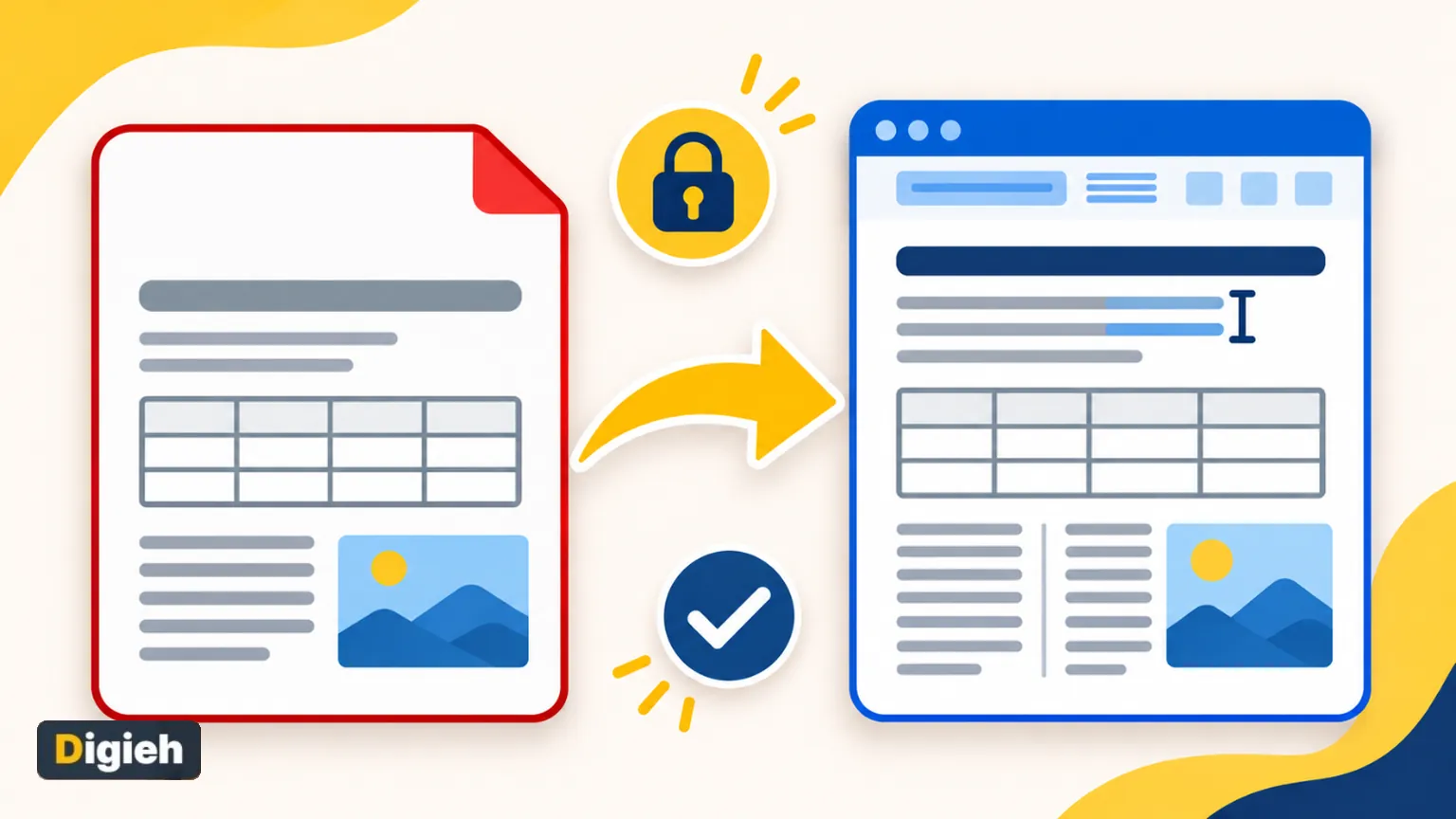
To convert PDF to Word and keep the layout, use a converter that rebuilds real Word parts. Look for headings, lists, tables and columns. Then compare the result with the original.
A good tool saves hours of retyping. A weak one turns every line into a loose text box that breaks the moment you edit it.
This guide shows four ways to convert and explains why layouts break. It ends with a simple checklist for a clean Word file.
Key Takeaways
- PDF files store where things sit on the page, not how a document is built.
- Good converters rebuild real headings, lists and tables, so editing stays easy.
- Scanned pages are photos of paper, so they need text recognition to become editable.
- Free in-browser tools can convert without uploading your private files.
- Always compare the Word file with the PDF before you send it.
Jump to a section
- Why PDF layouts break
- Four ways to convert
- Step by step with Paperlume
- Methods compared
- What about scanned PDFs?
- Tips for a cleaner result
- Keeping private files private
- Fixing common problems
- Which PDFs convert best
- Frequently asked questions
Why PDF Layouts Break When You Convert
Adobe created the PDF format so a document looks the same on any device. That strength is also the problem when you want to edit.
A PDF mostly records where each letter, line and picture sits. It rarely says “this is a heading” or “these cells form a table.”
So every converter has to guess the structure. Microsoft says the same thing in its guide to opening PDFs in Word. PDFs usually lack details like paragraphs, tables and columns.
Weak converters solve this by placing every line in its own floating box. The page looks right, but changing one word can shove everything out of place.
Good to know. Your original PDF never changes during conversion. You always get a new Word copy, so you can try more than one tool safely.
Four Ways to Convert PDF to Word
Each method suits a different need. Pick the one that matches your file, your budget and how private the document is.
1. A Free In-Browser Converter
Browser tools like Paperlume PDF to Word do the work on your own computer or phone. Your file is not uploaded to a server.
Paperlume looks for headings, lists, tables, columns, pictures, headers and footers. It then rebuilds them as real Word features.
2. Microsoft Word Itself
Recent versions of Word can open a PDF directly and turn it into an editable copy. It works best on text-heavy pages.
Microsoft notes that some parts often convert poorly. These include tables with cell spacing, page borders, footnotes spanning pages, bookmarks and comments.
3. Google Docs
You can open a PDF in Google Drive with Google Docs. This is handy for simple files and quick text grabs.
Google says this method may lose lists, tables, columns, footnotes and endnotes. It works best on files 2 MB or smaller.
4. Adobe Acrobat
Adobe sells Acrobat, which can export PDFs to Word. It is a strong choice for offices that already pay for it.
For a one-off job, a free tool often does the same work without a subscription. Check current plans before you buy.
How often do you need to edit a PDF?
- Every week
- A few times a year
- Almost never
- Not sure
How to Convert PDF to Word Step by Step With Paperlume
Here is the simplest way to turn a PDF into an editable Word file that keeps its layout.
- Open the Paperlume PDF to Word page in any modern browser.
- Drop your PDF on the box, or tap to choose it from your device.
- Type a page range, such as 2-5, if you only need some pages.
- Pick picture quality. High keeps charts and photos sharper.
- Tap Convert to Word and wait a few seconds.
- Read the short report that lists pages, tables, pictures and headings.
- Download the .docx file and open it in Word or Google Docs.
If your PDF has a password, the tool asks for it. The password is only used on your device to open the file.
Quick tip. Convert only the pages you need. A smaller range finishes faster and gives you a lighter Word file.
Conversion Methods Compared
| Method | Cost | Keeps tables and columns | Uploads your file |
|---|---|---|---|
| Paperlume in your browser | Free | Rebuilds them as Word tables and columns | No |
| Microsoft Word | Included with Word | Often, but some table styles break | No, it opens locally |
| Google Docs | Free | Often loses them | Yes, to Google Drive |
| Adobe Acrobat | Paid plans | Usually | Depends on the tool you use |
No converter is perfect on every file. Magazine pages, posters and forms with many boxes are the hardest to rebuild.
What About Scanned PDFs?
A scanned PDF is a photo of paper. It has no real text inside, just pixels that look like letters.
To edit it, you need optical character recognition (OCR). This software reads the shapes of letters and turns them into text.
Google Docs can run optical character recognition (OCR) on clear scans. Google advises text at least 10 pixels tall with even lighting.
Paperlume spots scanned pages and adds them as pictures, then tells you which pages were scans. That way you know exactly what still needs work.
2 MBGoogle suggests files this size or smaller when converting to Docs, per Google Drive Help.
Tips for a Cleaner Word File
- Start with the best copy you have, not a photo of a printout.
- Convert a few pages first to test the result.
- Keep the PDF open beside Word while you check.
- Use Word styles for headings so the navigation pane works.
- Turn on “Show paragraph marks” to spot stray breaks.
- Save often, then save a copy before big edits.
Fonts can also change. If the PDF used a font your computer lacks, Word swaps in a similar one. Paperlume picks a common font so the file looks the same on most computers.
Free updates
Join the Digieh list
Be the first to know when our weekly brief launches.
No spam. Unsubscribe anytime. Read our Privacy Policy.
Keeping Private Files Private
Many people convert contracts, bank statements, medical forms and identity papers. Uploading those to an unknown website is a real risk.
- Prefer tools that run in your browser and say files stay on your device.
- Read the privacy note before you upload anything.
- Avoid sites that ask for an email address just to download.
- Delete converted copies you no longer need.
In-browser tools work like a calculator on your own phone. The math happens on your device, so the file never travels over the internet.
Fixing Common Conversion Problems
| Problem | Likely cause | Quick fix |
|---|---|---|
| Text in many small boxes | Weak converter | Try a tool that rebuilds paragraphs |
| Table turned into text | Table had no lines | Insert a Word table and paste the text |
| Strange font | Original font missing | Change the font with one style update |
| Page is a picture | Scanned page | Use text recognition or retype |
| Columns in the wrong order | Complex layout | Check reading order and move blocks |
Most fixes take minutes, not hours. Starting from a well-built Word file is still far faster than retyping. You will thank yourself.
Which PDFs Convert Best
Some files turn into clean Word documents almost every time. Others need more checking afterward.
| File type | How well it converts | Why |
|---|---|---|
| Reports and letters | Very well | Simple text, headings and lists |
| Invoices and simple forms | Well | Clear tables with lines |
| Two-column articles | Well with a good tool | Columns must be read in order |
| Brochures and posters | Fair | Text sits on top of pictures |
| Scanned pages | Needs text recognition | No real text inside |
If your file sits low on this list, expect a few minutes of tidying. The structure will still save you time.
Converting on a Phone or Tablet
You do not need a computer to convert a PDF. Browser tools work on Android phones, iPhones and tablets.
- Open the converter page in Chrome or Safari.
- Tap the upload box and choose the PDF from your files.
- Convert, then save the .docx to your phone.
- Open it in the Word or Google Docs app to edit.
Large files may take longer on older phones. If a file feels slow, convert a smaller page range first.
After You Convert
Once your Word file is ready, you might need other PDF jobs too. You can merge several PDFs into one before converting, so you only convert once.
If a file is too big to email, you can compress the PDF while keeping text sharp.
Your Conversion Checklist
- Pick a converter that keeps files on your device
- Test with a few pages first
- Check headings, lists and tables
- Compare page by page with the PDF
- Fix fonts with Word styles
- Save a backup copy
Try this today. Convert one short PDF you use often, like a form or a menu. See how much time it saves you next time.
Test Yourself
Why do scanned PDFs need extra work to edit?
- They are always password locked
- They are too large for Word
- They are photos with no real text inside
A scan stores pixels, so software must read the letter shapes before you can edit the words.
Frequently Asked Questions
How do I convert a PDF to Word without losing formatting?
Use a converter that rebuilds headings, lists and tables, then compare the result with the original PDF.
Can I convert PDF to Word for free?
Yes. Free tools like Paperlume, Microsoft Word and Google Docs can all convert PDFs to editable documents.
Is it safe to convert PDFs online?
It depends on the site. Tools that run in your browser keep files on your device, which is safer for private papers.
Why does my converted Word file look messy?
The converter may have placed each line in a separate box. Try a tool that rebuilds real paragraphs and tables.
Conclusion
Converting PDF to Word while keeping the layout comes down to the right tool and a quick check. Choose a converter that rebuilds real structure and keeps your file private.
Try the free Paperlume PDF to Word converter on your next file and compare it with the original.
Found this useful?
Editor’s Note
This guide is accurate as of November 10, 2026. Details on Word and Google Docs come from Microsoft and Google support pages, and PDF background comes from Adobe.
Software features and plans change over time, so check each tool before you rely on it.
Spot an error in this article? Please contact us at support@digieh.com or read our Corrections Policy.
Keep exploring
Your next read is waiting
 1MedicinesDoes Zinc Help Colds? How to Use It9 min read
 2FashionHow to Iron a Shirt Quickly and Perfectly9 min read
 3Fruits & VegetablesHow to Ripen Fruit Faster With Kitchen Tricks9 min read
 4AI & TechClaude Fable 5.2 and Mythos 5.2: What Changed4 min read
 5Finance & MarketsAnthropic IPO Explained: Date, Ticker and Key Numbers5 min read
 6Travel & TourismHow to Pack a Carry-On for a Week9 min read