TRENDING
How to Choose the Best Home Wi-Fi Router

10 min read
Last updated November 8, 2026
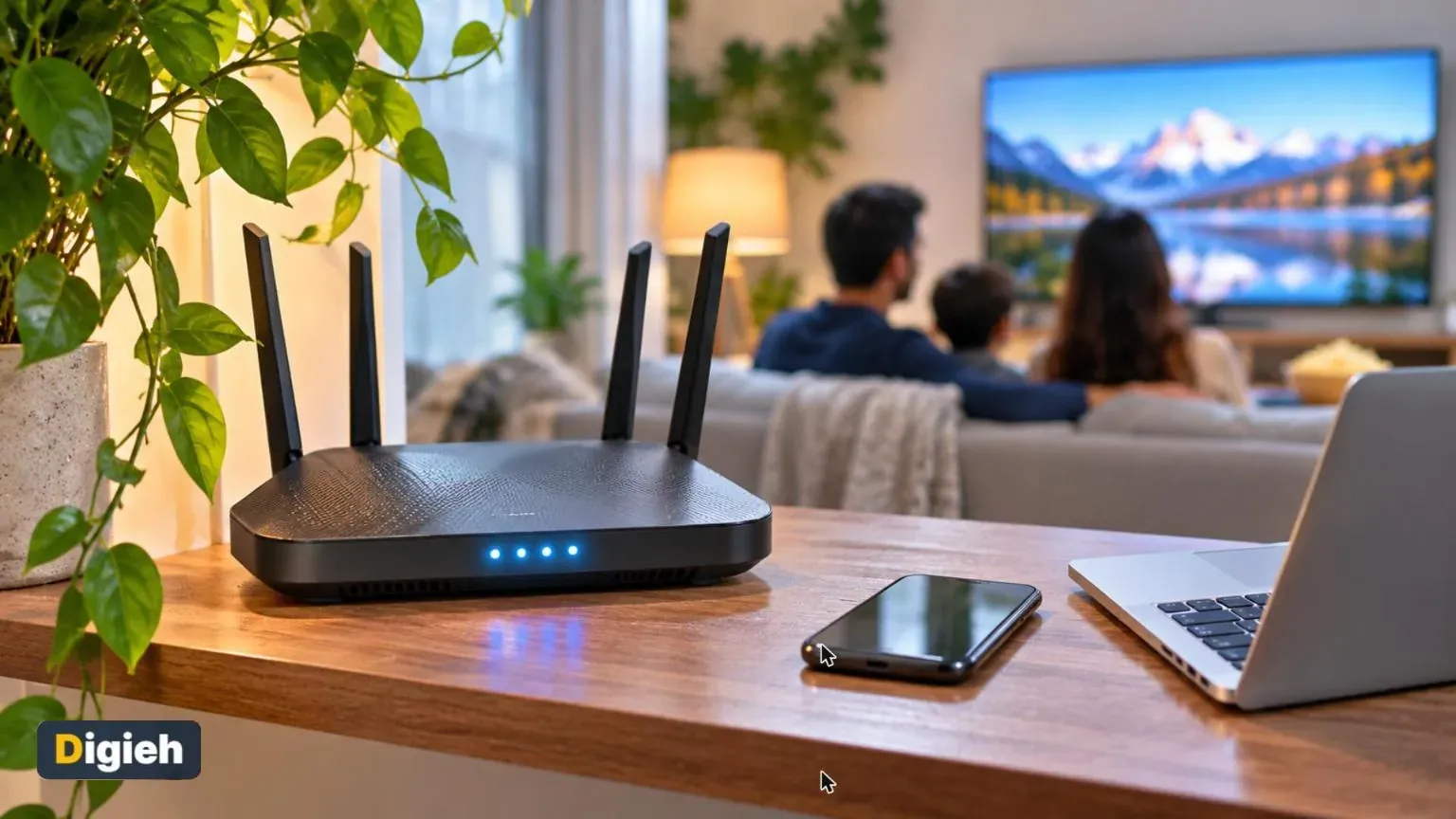
Slow Wi-Fi can ruin movie night, video calls and online games. Often the problem is not your internet plan but the router in your home.
Shopping for a new router can feel confusing. Boxes are packed with numbers, letters and big speed claims.
This guide breaks it down in plain language. You will learn which features matter, which ones do not, and how to set up your new router safely.
Key Takeaways
- Match the router to your home size, internet plan and number of devices.
- Wi-Fi 6 is a solid choice for most homes, while Wi-Fi 7 adds future-proofing.
- Mesh systems work best in large or multi-level homes.
- Buying your own router can save money over time compared with renting.
- Change default passwords and update firmware right after setup.
Up to 4xPossible speed gain of Wi-Fi 7 over Wi-Fi 6, according to the Wi-Fi Alliance.
What Does a Router Actually Do?
Your modem brings the internet into your home. The router then shares that connection with your phones, laptops, televisions and smart devices.
Some internet companies provide a combined modem and router. Others give you just a modem, and you add your own router.
A router also acts as a gatekeeper. It includes a firewall and security settings that help protect devices on your network.
Step 1. Know Your Internet Plan
Your router cannot make your internet faster than your plan. It can, however, slow things down if it is too old or weak.
Check your monthly bill or account page for your plan’s download speed. Look for a router rated well above that number.
If you pay for a very fast plan, an older router may waste much of that speed. Upgrading can unlock what you already pay for.
How happy are you with your home Wi-Fi?
- Very happy
- It is okay
- It drives me crazy
- Not sure
Step 2. Understand Wi-Fi Generations
Routers are labeled by Wi-Fi generation. Newer generations handle more devices and deliver better speeds.
| Generation | Bands | Best For |
|---|---|---|
| Wi-Fi 5 | 2.4 and 5 gigahertz | Older or budget setups |
| Wi-Fi 6 | 2.4 and 5 gigahertz | Most homes today |
| Wi-Fi 6E | Adds 6 gigahertz | Busy homes with newer devices |
| Wi-Fi 7 | 2.4, 5 and 6 gigahertz | Future-proofing and heavy use |
According to the Wi-Fi Alliance, Wi-Fi 7 uses the same three bands as Wi-Fi 6E. It adds wider channels and the ability to use several bands at once.
The alliance says Wi-Fi 7 could be up to four times faster than Wi-Fi 6. It also notes that most people do not need to upgrade yet.
What the Bands Mean
The 2.4 gigahertz band reaches farther and passes through walls better. It is usually slower and more crowded.
The 5 gigahertz band is faster but has a shorter range. The 6 gigahertz band is the fastest and least crowded, though it covers the smallest area.
Most modern routers use several bands and steer devices automatically. You usually do not need to manage this yourself.
Do Your Devices Support It?
New routers work with older devices. The Wi-Fi Alliance confirms that Wi-Fi 7 routers are backward compatible.
But older phones and laptops will not gain the new benefits. You need newer devices to enjoy the full speed of a newer router.
Good to know. Your internet speed is capped by your plan. A faster router helps your devices use that speed fully, but it cannot exceed it.
Step 3. Pick Single Router or Mesh
A single router sits in one spot and broadcasts from there. It works well in apartments and smaller homes.
A mesh system uses two or more units placed around the house. They work together as one network with one name and password.
Mesh shines in large homes, multi-story houses and places with thick walls. It reduces dead zones in far bedrooms, basements and backyards.
| Home Type | Usually Best Choice |
|---|---|
| Studio or small apartment | Single router |
| Average one-story home | Single router or small mesh |
| Large or multi-level home | Mesh system |
| Home with thick brick or plaster walls | Mesh system |
Mesh systems usually cost more. But they often beat adding cheap range extenders, which can cut speed.
Place mesh units about halfway between the main router and the weak area. Putting them too far apart can weaken the link between units.
Most mesh kits come with an app that shows signal strength. Use it to fine-tune placement after setup.
You can often add more units later if you find new dead spots. That flexibility makes mesh easy to grow over time.
Step 4. Count Your Devices
Modern homes have more connected gadgets than ever. Phones, tablets, smart televisions, speakers, doorbells and thermostats all share the same network.
Newer Wi-Fi generations handle crowds better. The Wi-Fi Alliance says Wi-Fi 7 improves the handling of many connected devices.
If your family streams, games and joins video calls at the same time, choose a router built for busy homes. Look for Wi-Fi 6 or newer.
- Home size and number of floors
- Internet plan speed
- Number of connected devices
- Wi-Fi 6 or newer
- Automatic security updates
- Works with your provider
Step 5. Decide Whether to Rent or Buy
Many internet companies charge a monthly fee to rent their equipment. Over a few years, those fees can add up to more than buying a router.
Buying lets you choose better features and keep the device if you switch providers. Make sure the router works with your provider before you buy.
Renting has some perks too. The provider handles replacements and support if something breaks.
Run the numbers with the calculator below to compare.
Rent vs buy calculator
Enter the fee shown on your internet bill.
Step 6. Look for Helpful Features
Beyond speed, a few features make daily life easier.
- Automatic firmware updates. These keep security fixes current without effort.
- Easy phone app. Many routers now set up and manage through an app.
- Guest network. Visitors get Wi-Fi without access to your main devices.
- Parental controls. These help manage screen time and content for kids.
- Wired ports. Plug in televisions, game consoles and desktops for steady speed.
Do not overpay for features you will never use. Gaming routers, for example, include extras most households can skip.
Quick tip. Before buying, check your provider’s list of approved routers. It saves headaches during setup.
Step 7. Set Up Your Router Securely
A new router should be secured before you connect everything. The Cybersecurity and Infrastructure Security Agency (CISA) home network guide lists key steps.
- Change the default administrator username and password.
- Use the strongest encryption, Wi-Fi Protected Access 3, if available.
- Rename your network so it does not reveal the brand or your name.
- Turn off Wi-Fi Protected Setup, the push-button pairing feature.
- Keep firmware updated, ideally automatically.
- Turn off remote management.
- Confirm the built-in firewall is on.
The University of Denver information technology team adds a key point. Your Wi-Fi password and your router admin password should be different.
Use a long, unique passphrase for each. Our guide on how to set up a password manager can help you store them safely.
CISA also suggests turning off Universal Plug and Play unless you need it. Malware can misuse that feature to slip past the firewall.
What should you change first on a new router?
- The light color
- The default admin password
- The antenna angle
Default passwords are widely known, so change them right away.
Free updates
Join the Digieh list
Be the first to know when our weekly brief launches.
No spam. Unsubscribe anytime. Read our Privacy Policy.
Where to Place Your Router
Router placement matters as much as the router itself. A great router hidden in a closet can still perform poorly.
Place it in a central, open spot, ideally up high on a shelf. Avoid basements, cabinets and spots behind the television.
Keep it away from thick walls, metal objects, fish tanks and microwaves. These can weaken or block the signal.
CISA also suggests limiting how far your signal reaches beyond your home. Central placement helps with that too.
Signs It Is Time to Upgrade
Not sure if you need a new router? Watch for these common clues.
- Your router is five or more years old.
- Video calls freeze while others stream.
- Some rooms never get a usable signal.
- The router no longer receives firmware updates.
- Speed tests on a wired connection beat Wi-Fi by a wide margin.
Restarting your router can often fix temporary slowdowns. But if problems keep coming back, an upgrade may help.
Which home benefits most from a mesh system?
- A large multi-story house
- A studio apartment
- A single small room
Mesh systems spread coverage across larger spaces and floors.
Wired Connections Still Matter
Wi-Fi is convenient, but a cable is often faster and steadier. Plug in devices that rarely move, like desktops, game consoles and streaming boxes.
Wired devices also free up wireless capacity for phones and laptops. That helps everyone on the network.
Look for a router with several wired ports if you have many fixed devices. Some mesh units include ports too.
Setting Up a Guest Network
A guest network gives visitors internet access without reaching your personal devices. It is a simple way to add a layer of protection.
Give the guest network its own name and password. Change the password now and then, especially after parties or holidays.
Smart home gadgets can live on a separate network as well. That keeps them apart from computers that hold sensitive files.
Router Care and Maintenance
Routers need a little care to stay fast and safe. Restart yours every month or two to clear temporary glitches.
Check for firmware updates if your router does not install them automatically. The University of Denver team recommends turning on automatic updates when available.
Review the list of connected devices from time to time. CISA suggests watching for unknown devices that may have joined without permission.
Keep the router in a cool, open spot with good airflow. Heat can shorten its life and slow performance.
Recycling Your Old Router
Do not toss an old router in the trash. Electronics contain materials that should be recycled properly.
Before recycling, reset it to factory settings. That wipes your network name, passwords and other saved details.
Many electronics stores and local recycling centers accept old networking gear. Some internet providers also take back rented equipment.
How Much Should You Spend?
Router prices range widely. Basic Wi-Fi 6 models cost far less than high-end Wi-Fi 7 mesh kits.
Most families get great results from a mid-range Wi-Fi 6 or 6E router. Spend more only if you have a large home, a very fast plan or many heavy users.
The Wi-Fi Alliance notes that early Wi-Fi 7 gear is expensive. Prices often fall as more devices support a new standard.
Quick Fixes Before You Buy
Sometimes a few tweaks solve the problem for free. Try these before spending money.
- Restart your modem and router.
- Move the router to a more central spot.
- Update the router’s firmware.
- Connect stationary devices with an Ethernet cable.
- Check for unknown devices using your bandwidth.
Need internet on the go? Our guide on using your phone as a hotspot explains how.
Try this today. Log in to your router’s app or settings page and check for a firmware update. Then confirm you changed the default admin password.
Frequently Asked Questions
What router should I buy for a small apartment?
A single Wi-Fi 6 router is usually enough for apartments and small homes.
Is Wi-Fi 7 worth it right now?
It can be if you want future-proofing and own newer devices. Most homes are still well served by Wi-Fi 6.
Do I need a mesh system?
Mesh helps in large, multi-story or thick-walled homes with dead zones.
Can I use my own router with my internet provider?
Usually yes. Check your provider’s list of compatible equipment first.
How often should I replace my router?
Many people upgrade every four to five years, or when updates stop.
Conclusion
The right router matches your home, your plan and your devices. Wi-Fi 6 suits most homes, while mesh fixes dead zones in larger spaces.
Compare the cost of renting and buying, then secure your router on day one. Good placement and regular updates keep your network fast and safe.
Found this useful?
Editor’s Note
This article is accurate as of November 8, 2026. It draws on the Wi-Fi Alliance, a federal home network guide and the University of Denver. Brand names are not endorsements.
Spot an error in this article? Please contact us at support@digieh.com or read our Corrections Policy.
Keep exploring
Your next read is waiting
 1SportsCrown Jewel 2026 Results and the Biggest Moments5 min read
 2Finance & Markets529 Plan Basics: Essential 2027 Limits for Parents9 min read
 3Food & LifestyleEasy Swedish Meatballs Recipe With Rich Creamy Gravy9 min read
 4TechnologySimple Steps to Set Up a Password Manager10 min read
 5HealthWinter Asthma Triggers and Proven Ways to Cope10 min read
 6BusinessEssential Holiday Staffing Tips for Small Business Owners10 min read