TRENDING
How to Make a GIF for WhatsApp, Tested
How to make a GIF for WhatsApp: the built-in six-second trick, plus our free tool with captions and a WhatsApp preset. Real test: 51 KB MP4 versus 936 KB GIF.


7 min read
Last updated November 21, 2026
To make a GIF for WhatsApp, trim a video to under six seconds in WhatsApp and tap GIF before sending. For captions, stickers or a smaller file, make it first in a free tool, then send it.
We tested both ways on November 21, 2026. Our free tool turned a 6-second clip into a 51 KB file for WhatsApp in about 8 seconds.
Key Takeaways.
- WhatsApp can send videos under six seconds as looping GIFs, says its Help Center.
- Longer videos must be trimmed under six seconds before the GIF option appears.
- Our free Video to GIF tool has a WhatsApp preset that makes a small MP4.
- In our test, the same clip was 51 KB as MP4, 300 KB as WebP and 936 KB as GIF.
- Everything runs on your device, so your video is never uploaded.
Jump to a section
- Method 1: inside WhatsApp
- Method 2: with our free tool
- Captions, stickers and effects
- What our test showed
- Which format to send
- When the GIF option is missing
- Ideas for WhatsApp GIFs
- Tips for a better WhatsApp GIF
- What the other person sees
- Privacy
- Frequently asked questions
- Conclusion
Method 1: Make a GIF Inside WhatsApp
WhatsApp has a built-in way to turn short videos into GIFs. It works for videos less than six seconds long, according to the WhatsApp Help Center.
- Open the chat where you want to send the GIF.
- Tap the attach button, then Gallery.
- Pick a video that is under six seconds.
- Tap GIF in the top right corner.
- If the video is longer, drag the slider to trim it under six seconds, then tap GIF.
- Tap Send.
The GIF plays on a loop in the chat. It has no sound, like any GIF.
Good for
- Quick reactions from a clip already on your phone.
- Funny moments from a recent video.
- When you do not need captions or effects.
Method 2: Make It With Our Free Tool
Use our free Video to GIF tool when you want more control. It adds captions, stickers, speed changes and reverse or boomerang effects.
- Open the Video to GIF tool in your browser.
- Choose your video, or tap Try our sample video to practice.
- Pick the part you want with the start and end handles.
- Under Where will you share it, tap WhatsApp.
- Add a caption or sticker if you like.
- Tap Make my MP4, then Download MP4.
- Send the file in WhatsApp from your gallery or files.
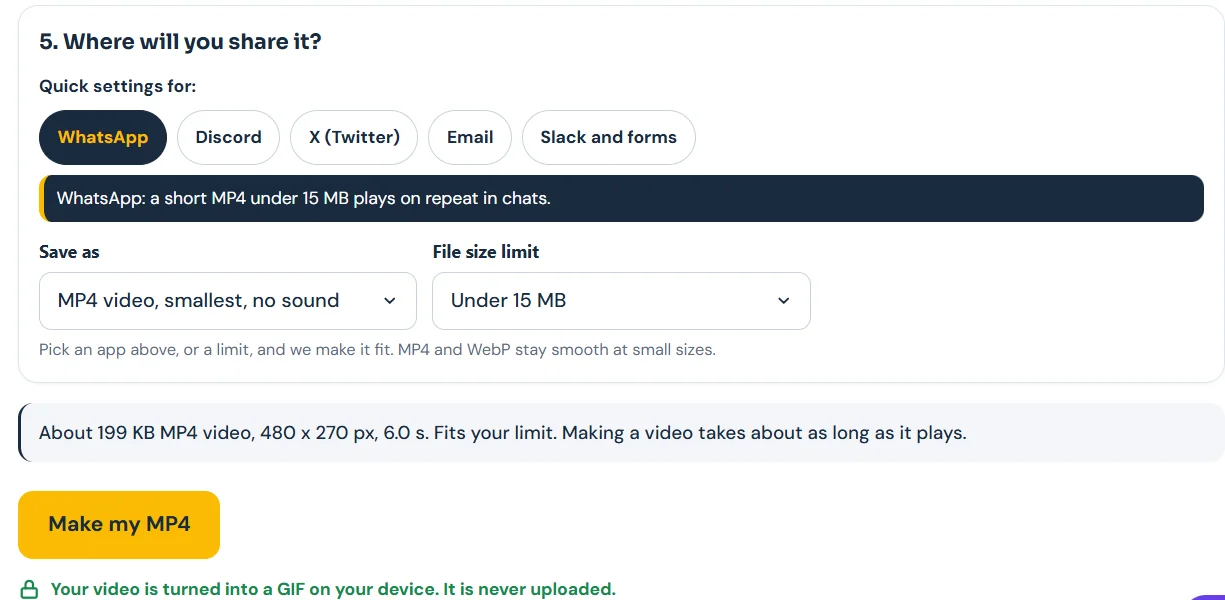
The WhatsApp preset sets the width to 480 pixels, 15 frames a second and MP4 format. It also caps the file under 15 MB.
Add Captions, Stickers and Effects
This is where the tool beats the built-in option. Every setting below comes from the tool itself, checked on November 21, 2026.
| Setting | Choices in the tool |
|---|---|
| Caption style | Bold clean, Meme style, Classic serif, Handwritten, Typewriter |
| Caption color | White, Black, Gold |
| Stickers | Laughing, Heart, Fire, Thumbs up, Party, Love it, Wow and more |
| Speed | From 0.25x very slow to 3x very fast |
| Direction | Normal, Reverse, Boomerang |
| Shape | Free, Square, Portrait 4:5, Story 9:16, Wide 16:9 |
Source: options listed in the Digieh Video to GIF tool, checked November 21, 2026.
A short caption with a laughing sticker turns any clip into a reaction. Square shape fits nicely in a chat bubble.
Making it on your phone
You can open the tool in your phone’s browser too. Pick a video from your camera roll, tap the WhatsApp preset and download the file.
It then sits in your downloads or files, ready to attach in WhatsApp. Older or slower phones may take a little longer to finish.
What Our Test Showed
We used the tool’s 6-second sample video with the WhatsApp preset. Then we made the same clip in all three formats to compare sizes.
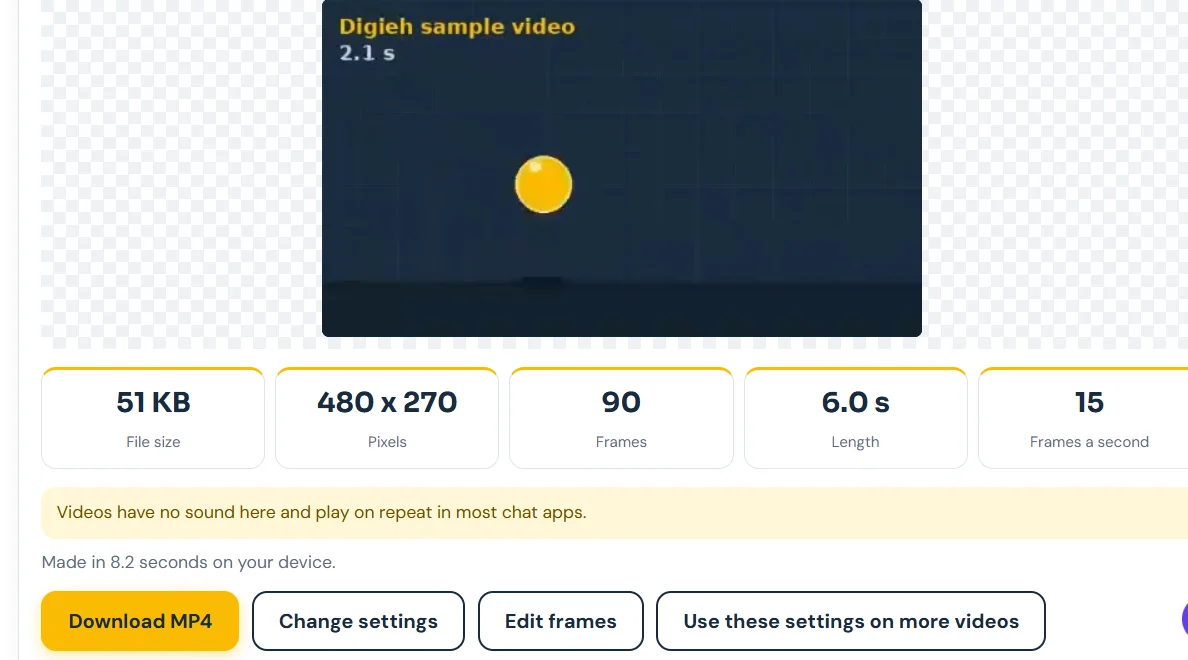
| Format | File size | Time to make |
|---|---|---|
| MP4 video | 51 KB | 8.2 seconds |
| WebP | 300 KB | 6.0 seconds |
| GIF | 936 KB | 5.6 seconds |
Source: Digieh test on the Video to GIF tool, November 21, 2026. Same 6-second clip, 480 x 270 pixels, 15 frames a second, on a laptop browser.
95%How much smaller the MP4 was than the GIF in our test, 51 KB versus 936 KB. Digieh calculation from our tool test.
This matches what web experts have found. In one web.dev example, a 3.7 MB GIF shrank to 551 KB as MP4.
Which Format Should You Send?
| Format | Best for | Watch out for |
|---|---|---|
| MP4 | WhatsApp chats, smallest file | Plays as a short silent video |
| GIF | Saving to GIF favorites, older apps | Much larger files |
| WebP | Websites and some apps | Not every chat app shows it as animated |
Based on our test and the MDN image format guide. GIF uses at most 256 colors per palette.
For most WhatsApp chats, MP4 is the smart pick. It looks sharper and sends faster on slow mobile data.
How do you usually share GIFs?
- Discord
- Social media
- Not sure
Free updates
Join the Digieh list
Be the first to know when our weekly brief launches.
No spam. Unsubscribe anytime. Read our Privacy Policy.
When the GIF Option Is Missing
- Check the length. The GIF button appears only for videos under six seconds, so trim a little more.
- A clip that is exactly 6.0 seconds may be too long. Trim it to about 5.5 seconds.
- Update WhatsApp to the latest version from your app store.
- If it still does not show, make the file in our tool and send it as a video.
Our tool shows the exact length under Choose the part you want. Set the end time below six seconds before you make the file.
Ideas for WhatsApp GIFs
- A pet doing something funny, with a one-word caption.
- A birthday candle blow-out for a family group.
- A thumbs-up clip to say yes without typing.
- A boomerang of friends cheering for a celebration.
- A slow-motion moment from a match or game.
Short, clear moments work best. If you need more than six seconds to tell the story, a normal video may suit you better.
Tips for a Better WhatsApp GIF
- Keep the action in the middle of the frame.
- Use one short caption of three to five words.
- Pick a clear moment with movement, like a laugh or a wave.
- Try Boomerang for a fun forward-and-back loop.
- Choose the 480-pixel size for fast sending.
- Preview the result before you download it.
Want to make GIFs from still photos instead? Read our guide on making a GIF from photos. For all the settings in detail, see our full video to GIF guide.
GIF or Video: What the Other Person Sees
A GIF made inside WhatsApp plays on a loop in the chat without sound. The person can tap it to view it larger.
An MP4 from our tool arrives as a short video. It is silent because the tool removes sound, and many chat apps loop short silent clips.
Either way, the clip stays small and quick to load. That matters for friends on slow mobile data or limited plans.
Privacy
Our tool works inside your browser. Your video is turned into a file on your own device and is never uploaded to our servers.
That makes it safe for personal clips of family and friends. Still, think about who is in the video before you share it in a group chat.
Building a greeting for a special day? Our online greeting card guide covers WhatsApp cards too.
Try this today. Make one GIF today with the sample video. It takes under a minute and shows you every setting.
Posting on Discord too? See our guide on how to make a GIF for Discord, updated for the new 20 MB limit.
Test Yourself
How long can a video be for WhatsApp to send it as a GIF?
- Under six seconds
- Up to 30 seconds
- Up to two minutes
The WhatsApp Help Center says videos less than six seconds long can be sent as looping GIFs.
Frequently Asked Questions
How do I turn a video into a GIF on WhatsApp?
Pick a video under six seconds from Gallery, tap GIF at the top, then send it.
Why is the GIF option not showing on WhatsApp?
The video is probably six seconds or longer. Trim it shorter with the slider.
Can I add text to a WhatsApp GIF?
Yes. Add a caption in our free tool first, then send the finished file.
Conclusion
For a quick GIF, trim a clip under six seconds in WhatsApp and tap GIF. For captions, stickers and the smallest file, use our free tool and its WhatsApp preset.
Your next step is to open the tool, try the sample video and send your first custom GIF.
Editor’s Note
This article is accurate as of November 21, 2026. WhatsApp steps come from the WhatsApp Help Center. File sizes come from a Digieh test on our Video to GIF tool on November 21, 2026. Tested on a laptop browser.
Spot an error in this article? Please contact us at support@digieh.com or read our Corrections Policy.
Keep exploring
Your next read is waiting
 1AI & TechEU Commission Cyberattack: What Happened to Staff Systems4 min read
 2HealthUmbilical Granuloma in Babies: Causes and Salt Treatment7 min read
 3TechnologyBusiness Card to Contact: Save Cards From Photos7 min read
 4Food & LifestyleElectric Blanket vs Space Heater: Which Costs Less?7 min read
 5BusinessUS Chip Export Rule: Five Countries Need Licenses4 min read
 6Pets & AnimalsCost of Owning a Cat: Yearly Budget, Calculator7 min read
Found this useful?