TRENDING
How to Make a GIF for Discord, Tested
How to make a GIF for Discord: the new 20 MB free upload limit, our free tool with a Discord preset, upload steps and fixes when a GIF fails. Real test results.

7 min read
Last updated November 21, 2026
To make a GIF for Discord, turn a short clip into a GIF under 20 MB. Then upload it with the plus button. Free Discord accounts can now upload files up to 20 MB.
Many guides still say 8 MB or 10 MB, but Discord raised the free limit on August 13, 2026. We tested our free tool’s Discord preset on November 21, 2026.
Key Takeaways.
- Free Discord accounts can upload files up to 20 MB, says Discord Support.
- Nitro Basic allows 50 MB, and Nitro allows up to 1 GB.
- Our free Video to GIF tool has a Discord preset that keeps GIFs under 15 MB.
- In our test, a 6-second clip became a 936 KB GIF in 5.8 seconds.
- The same clip was only 51 KB as an MP4, which Discord also accepts.
Jump to a section
- Discord upload limits in 2026
- How to make the GIF
- Ideas for Discord GIFs
- How to upload it to Discord
- What our test showed
- GIF or MP4 for Discord
- Which settings change size most
- Server etiquette for GIFs
- When a GIF will not upload
- Tips for great Discord GIFs
- Frequently asked questions
- Conclusion
Discord Upload Limits in 2026
| Account | Upload limit per file |
|---|---|
| Free | 20 MB |
| Nitro Basic | 50 MB |
| Nitro | Up to 1 GB |
Source: Discord Support page on attachments, updated November 19, 2026.
Discord doubled the free limit from 10 MB to 20 MB on August 13, 2026, Dexerto reported. The support page notes some users may see larger limits in tests.
Discord also changed how phones measure size. Mobile now checks the file before compression, like desktop. The size you see is the one that counts.
20 MBThe current upload limit for free Discord accounts, per Discord Support.
How to Make the GIF
- Open our free Video to GIF tool in your browser.
- Choose your video, or tap Try our sample video to practice.
- Pick the part you want with the start and end handles. Two to six seconds works well.
- Under Where will you share it, tap Discord.
- Add a caption or sticker if you like.
- Tap Make my GIF, then Download GIF.
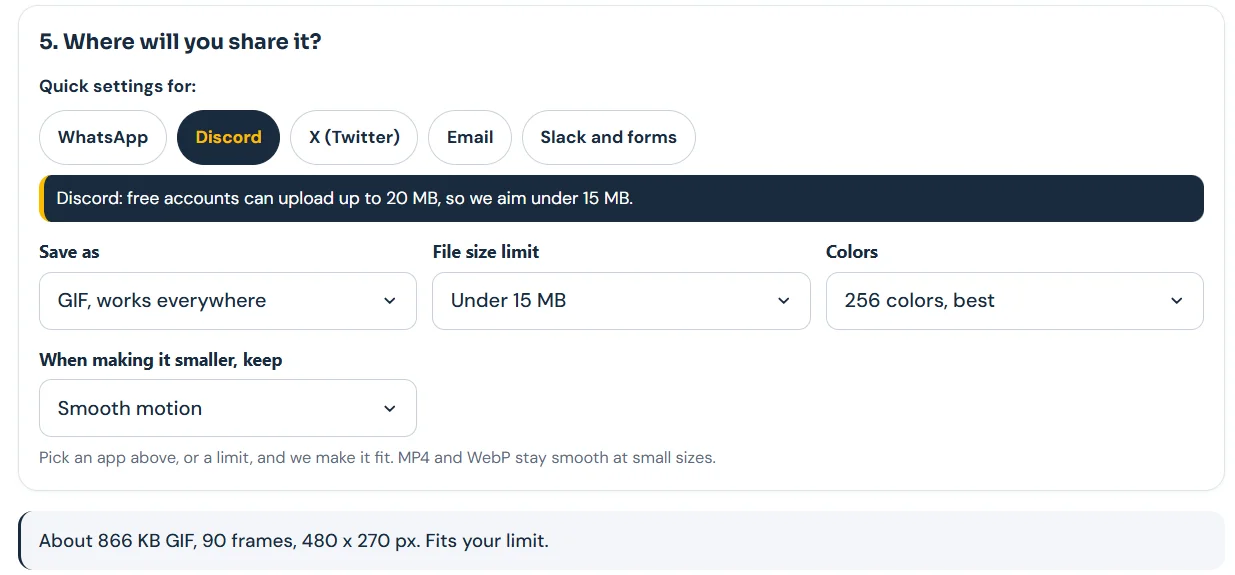
The preset leaves room below Discord’s 20 MB cap. That keeps uploads fast and avoids failed sends on slow connections.
Ideas for Discord GIFs
- A win or a clutch moment from your own gameplay clip.
- A pet reaction for your community’s pets channel.
- A welcome wave for new members.
- A celebration loop for server milestones.
- A custom reaction for inside jokes, with a short caption.
Clips you recorded yourself are the safest to share. They also make your server feel more personal than stock GIFs.
Keep a small folder of your best GIFs on your computer. Then you can drop the right one in seconds when the moment comes.
How to Upload It to Discord
- Open the server channel, group chat or direct message.
- Click or tap the plus sign in the message box.
- Choose Upload a File.
- Pick your GIF and add a message if you want.
- Press Enter or tap Send.
These steps follow the Discord Support attachments guide. If you send several GIFs or images in one message, Discord shows them as a mosaic.
What Our Test Showed
We used the tool’s 6-second sample video with the Discord preset. It runs fully in the browser, so nothing was uploaded to our servers.
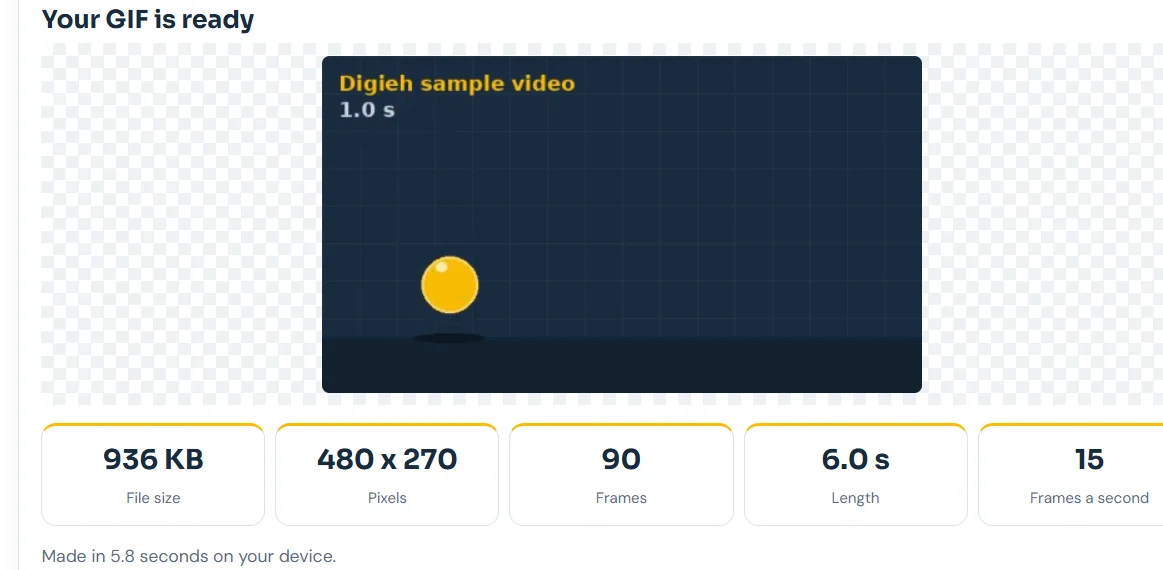
| Format | File size | Fits free Discord? |
|---|---|---|
| GIF, Discord preset | 936 KB | Yes, far under 20 MB |
| MP4, same clip | 51 KB | Yes |
Source: Digieh tests on the Video to GIF tool, November 21, 2026. Same 6-second sample clip, 480 x 270 pixels, 15 frames a second.
A short clip like this sits well under any limit. Longer or wider clips grow fast, which is when the preset’s size cap helps.
GIF or MP4 for Discord?
Discord accepts both. MP4 files using common video codecs such as H.264 are supported, per the support page.
| Choose | When |
|---|---|
| GIF | You want it to auto-play like a classic GIF or save it as a favorite |
| MP4 | You want the smallest file and best quality |
| WebP | You share on websites more than in chat |
Based on our test and the MDN image format guide. GIF uses at most 256 colors per palette.
In our test, MP4 was about 95 percent smaller than GIF. For long clips, MP4 is the safer choice.
Do you post GIFs on Discord?
- Every day
- Sometimes
- Rarely
- Not sure
Free updates
Join the Digieh list
Be the first to know when our weekly brief launches.
No spam. Unsubscribe anytime. Read our Privacy Policy.
Which Settings Change the File Size Most
| Setting | Effect on size |
|---|---|
| Clip length | Biggest effect, every second adds frames |
| Width | Large, 640 pixels is much bigger than 320 |
| Frames a second | Medium, 10 is smaller than 15 |
| Colors | Small to medium, 128 is smaller than 256 |
| Format | Huge, MP4 is usually far smaller than GIF |
Based on settings in the Digieh Video to GIF tool and our November 21, 2026 tests.
Change one setting at a time and watch the estimate. That way you keep the quality you care about most.
Making GIFs on your phone
You can open the tool in your phone’s browser too. Pick a clip from your camera roll, tap the Discord preset and download the GIF.
Then open the Discord app, tap the plus sign and choose the file from your downloads.
Server Etiquette for GIFs
- Check each server’s rules, since some channels ban GIFs or limit uploads.
- Post reaction GIFs in casual channels, not help or announcement channels.
- Avoid flashing GIFs that can bother people sensitive to light.
- Give credit if you use someone else’s clip.
A good GIF lands best when it fits the moment. One well-timed reaction beats a stream of them.
Moderators can remove posts that break channel rules. When in doubt, ask in a general channel before you post a big batch of GIFs.
When a GIF Will Not Upload
- Check the size. Free accounts must stay under 20 MB per file.
- Pick a shorter section, since every extra second adds frames.
- Lower the width to 320 or 480 pixels.
- Drop to 12 or 10 frames a second.
- Try 128 colors instead of 256 in the Colors setting.
- Switch to MP4, which is usually far smaller.
Our tool shows an estimate before you make the file, like About 866 KB GIF. If the estimate looks large, change a setting first.
Tips for Great Discord GIFs
- Keep reactions short, 2 to 4 seconds.
- Use Square shape for clean chat previews.
- Add a short Meme style caption for jokes.
- Try Boomerang for a loop that never jumps.
- Pick 15 frames a second for smooth motion.
- Preview it before you download.
Want a loop that plays forward and back? Read our guide on making a boomerang GIF. Sending to friends on WhatsApp instead? See how to make a GIF for WhatsApp.
Captions and stickers
The tool offers five caption styles, three colors and a set of emoji stickers like Laughing, Fire and Party. A sticker in a corner adds personality without hiding the action.
For a full rundown of every setting, see our complete video to GIF guide.
Privacy for your clips
The tool turns your video into a file on your own device. Nothing is uploaded until you choose to post it on Discord.
Still, think about who appears in a clip before you share it in a large public server.
Try this today. Make one reaction GIF from the sample video today. Upload it to a private test channel to see how it looks.
Want your own reaction for the server? Follow our recipe for how to make a reaction GIF.
Test Yourself
What is the upload limit for free Discord accounts in 2026?
- 8 MB
- 10 MB
- 20 MB
Discord Support lists 20 MB for non-Nitro users after the August 13, 2026 increase.
Frequently Asked Questions
What is the GIF size limit on Discord?
Free accounts can upload up to 20 MB per file. Nitro Basic allows 50 MB, and Nitro up to 1 GB.
How do I upload a GIF to Discord?
Click the plus sign in the message box, choose Upload a File, pick the GIF and send.
Why is my GIF not uploading on Discord?
It is probably too large. Shorten it, lower the width or save it as MP4.
Conclusion
Discord now lets free accounts upload up to 20 MB, so most GIFs fit easily. Our tool’s Discord preset keeps files under 15 MB for quick sending.
Your next step is to open the tool, tap the Discord preset and make your first reaction GIF.
Editor’s Note
This article is accurate as of November 21, 2026. Upload limits come from Discord Support’s attachments page, updated November 19, 2026. File sizes come from Digieh tests on our Video to GIF tool on November 21, 2026.
Spot an error in this article? Please contact us at support@digieh.com or read our Corrections Policy.
Keep exploring
Your next read is waiting
 1TechnologyHow to Make a Reaction GIF in Minutes7 min read
 2AI & TechGemini Computer Use on Mac: Setup and Safety5 min read
 3NewsWill the Grid Hold This Winter? NERC Explained5 min read
 4Food & LifestyleSpace Heater Cost Calculator: What One Room Costs7 min read
 5HealthUmbilical Granuloma in Babies: Causes and Salt Treatment7 min read
 6BusinessUS Chip Export Rule: Five Countries Need Licenses4 min read
Found this useful?