TRENDING
How to Extend Your Laptop Battery Life
Learn how to extend your laptop battery life with simple settings and habits. Dim the screen, use battery saver and keep your battery healthy for years.

9 min read
Last updated November 6, 2026
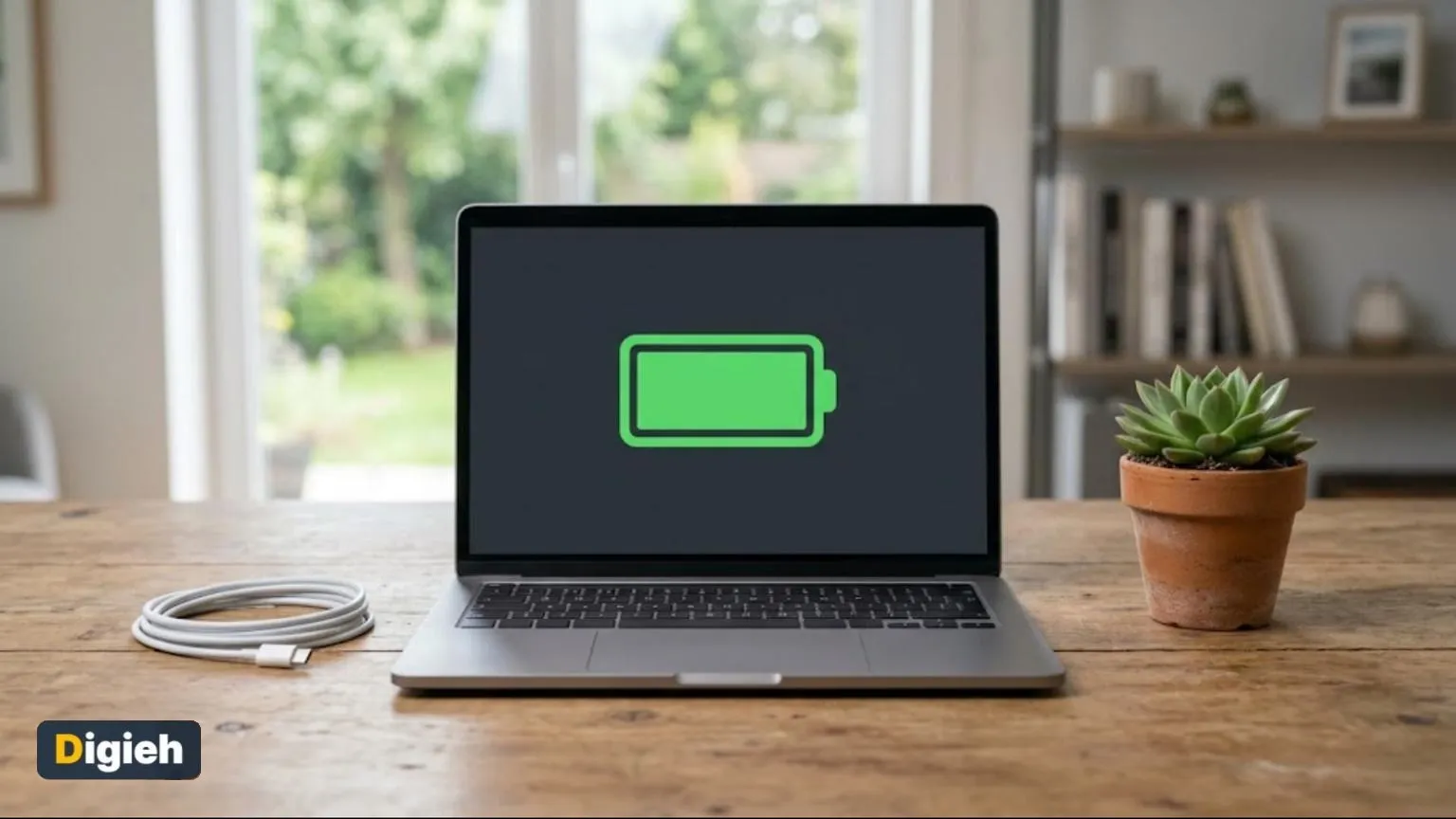
To make your laptop battery last longer, lower screen brightness and turn on battery saver mode. Close apps and browser tabs you are not using. Keep the battery between 20 and 80 percent when you can, and avoid leaving the laptop in hot places.
A longer-lasting battery means fewer hunts for an outlet. These simple habits also help your battery stay healthy for years.
Key Takeaways
- Screen brightness uses the most power.
- Battery saver mode extends runtime fast.
- Close unused apps and tabs.
- Keep charge between 20 and 80 percent.
- Heat shortens battery life.
On This Page
- What Drains a Laptop Battery
- How to Extend Battery Life Step by Step
- Quick Power Settings
- Habits for Long-Term Battery Health
- When to Replace the Battery
- How Laptop Batteries Work
- Check Your Battery Health
- Biggest Battery Drains
- Browser Tips for Longer Battery
- Keep Your Laptop Cool
- Smart Charging Habits
- Use the Right Charger
- Store Your Laptop Properly
- Battery Safety Warning Signs
- Recycle Old Batteries Safely
What Drains a Laptop Battery
Bright screens, video streaming and many open apps use the most power.
Background apps, Bluetooth and keyboard lights also add up over time.
Older batteries also hold less charge. After a few hundred cycles, most lose some of their original capacity.
20-80%Charge range that is easiest on modern laptop batteries.
How to Extend Battery Life Step by Step
1. Dim the Screen
Lower brightness to a comfortable level. It is the biggest single power saver.
2. Turn On Battery Saver
Windows has Battery saver and Macs have Low Power Mode. Both cut background activity.
3. Close Unused Apps
Quit apps and tabs you do not need. Check for apps running in the background.
Quick tip. Check your battery settings to see which apps use the most power. Close the worst ones first.
4. Turn Off Extras
Switch off Bluetooth, keyboard lights and location when not needed.
5. Update Your System
Updates often include power fixes. Keep your laptop up to date.
How long does your laptop battery last?
- Under 3 hours
- 3 to 10 hours
- Over 10 hours
- Not sure
Quick Power Settings
ENERGY STAR explains how power settings save energy on computers.
| Setting | Power Impact |
|---|---|
| Screen brightness | High |
| Video streaming | High |
| Keyboard backlight | Medium |
| Bluetooth | Low |
| Battery saver mode | Saves a lot |
Use this calculator to estimate your battery runtime.
Battery runtime estimator
Good to know. Real gains vary by laptop model and what you do. Video and games drain power fastest.
- Brightness lowered
- Battery saver on
- Unused apps closed
- Bluetooth off when not needed
- Smart charging on
- System updated
Still choosing a laptop for class? See how to pick the best laptop for students with all-day battery life.
Habits for Long-Term Battery Health
Avoid draining the battery to zero often. Partial charges are easier on modern batteries.
Apple’s battery guide explains how heat and charging habits affect battery life.
Many laptops offer an optimized or smart charging setting. Turn it on to limit time spent at 100 percent.
Keep your laptop out of hot cars and off soft surfaces like beds.
When to Replace the Battery
Check battery health in your system settings. Many laptops show a health or cycle count.
Recycle old batteries safely with help from the Environmental Protection Agency (EPA).
If your laptop lasts only an hour or less, a replacement may help.
Your phone needs care too. Read our guide on how to extend phone battery life for iPhone and Android.
Travel Tips
Download shows and files before a trip. Streaming uses more power than offline viewing.
Carry a small power bank that supports laptop charging for long days away.
Add to calendar
How Laptop Batteries Work
Most modern laptops use lithium-ion batteries. These batteries store energy in chemical form and release it as power.
Each battery has a limited number of charge cycles. A full cycle means using 100 percent of its charge, even across several partial charges.
Over time, every battery slowly loses capacity. A laptop that once lasted eight hours may later last only five.
Good habits slow this decline. They can add months or even years to your battery’s useful life.
Check Your Battery Health
Both Windows and Mac laptops can show battery health. Checking it helps you spot problems early.
On Windows
Many Windows laptops can create a battery report through a built-in command. Search online for your laptop maker’s instructions.
Some laptop makers also include a battery app. It shows health and charging settings.
On Mac
Open System Settings and select Battery. Look for the battery health information.
Mac laptops show a condition such as “Normal” or “Service Recommended.”
Biggest Battery Drains
Some features use far more power than others. Here is how common drains compare.
| Feature | Power Use | What to Do |
|---|---|---|
| Screen brightness | High | Lower it to a comfortable level |
| Video streaming | High | Download videos ahead when you can |
| Gaming and editing apps | Very high | Plug in for heavy tasks |
| Bluetooth and Wi-Fi | Medium | Turn off when not needed |
| Keyboard backlight | Low to medium | Turn it off in bright rooms |
| Background apps | Medium | Close apps you are not using |
The screen is usually the biggest single drain. Even a small drop in brightness helps.
Browser Tips for Longer Battery
Your web browser can use a lot of power. A few changes make a difference.
- Close tabs you no longer need.
- Turn on your browser’s energy or efficiency mode.
- Avoid auto-playing videos on websites.
- Remove extensions you do not use.
Some browsers use less power than others. Try a different browser if yours drains your battery fast.
Is your laptop running very hot? Our guide to laptop overheating fixes explains causes and solutions.
Keep Your Laptop Cool
Heat is one of the worst enemies of a lithium-ion battery. High temperatures speed up wear.
- Use your laptop on a hard, flat surface.
- Keep air vents clear of blankets and pillows.
- Avoid leaving it in a hot car.
- Clean dust from the vents now and then.
- Consider a cooling pad for heavy use.
Extreme cold can also reduce battery life temporarily. Let a cold laptop warm up before you turn it on.
Free updates
Join the Digieh list
Be the first to know when our weekly brief launches.
No spam. Unsubscribe anytime. Read our Privacy Policy.
Smart Charging Habits
How you charge your laptop affects its long-term health. Follow these simple habits.
- Avoid draining the battery to zero often.
- Many experts suggest keeping the charge between about 20 and 80 percent.
- Use the charger that came with your laptop or an approved replacement.
- Turn on optimized or smart charging if your laptop offers it.
Leaving a laptop plugged in all the time is fine on many modern models. Many have built-in features that prevent overcharging.
Use the Right Charger
Cheap, unapproved chargers can harm your battery. They may supply the wrong voltage or overheat.
Buy replacement chargers from the laptop maker or a trusted brand. Check that the wattage matches your laptop.
Watch for recalled chargers and batteries. The Consumer Product Safety Commission (CPSC) lists product recalls.
Store Your Laptop Properly
If you will not use your laptop for weeks, store it carefully. A good storage plan protects the battery.
Charge the battery to about half before storing it. Turn the laptop off completely.
Keep it in a cool, dry place. Check and recharge it every few months.
Battery Safety Warning Signs
Lithium-ion batteries can be dangerous if damaged. Watch for warning signs.
- The laptop case bulges or the trackpad lifts.
- The battery gets very hot during normal use.
- You notice a strange smell.
- The laptop shuts down suddenly at a high charge level.
Stop using the laptop if you notice swelling or a burning smell. Unplug it and contact the maker or a repair shop.
Recycle Old Batteries Safely
Never throw laptop batteries in the regular trash. They can cause fires in garbage trucks and landfills.
Take them to an electronics recycling drop-off. Many retailers and local programs accept them.
The agency explains how to recycle electronics and batteries.
Battery Myths You Can Ignore
Many old battery tips do not apply to modern laptops. Knowing the facts saves you time and worry.
You do not need to drain the battery to zero before charging. Modern lithium-ion batteries prefer partial charges.
Leaving your laptop plugged in is usually fine today. Many laptops now have settings that stop charging at a set level.
Closing every app all the time is not always needed. Focus on the few apps that use the most power.
Build a Simple Battery Routine
A steady routine helps your battery last longer each day and over the years. Try these easy habits.
- Lower screen brightness when you are indoors.
- Turn on battery saver mode when you are away from a charger.
- Unplug accessories you are not using.
- Check your battery health every few months.
- Keep your laptop on a hard, flat surface so it stays cool.
Small habits like these add up over time. Your battery will thank you with more hours between charges.
Signs Your Battery Needs Attention
Watch for a battery that drains much faster than before. Sudden shutdowns at a high charge level are another warning sign.
A swollen battery can push up the keyboard or bend the case. Stop using the laptop and get it checked right away.
Try this today. Lower your screen brightness by half and close unused tabs. See how much longer your battery lasts.
Test Yourself
What usually uses the most laptop battery?
- Screen brightness
- The trackpad
- The keyboard
The display uses more power than most parts.
What harms battery health most?
- Cool rooms
- Partial charging
- Heat
High heat wears batteries out faster.
Frequently Asked Questions
Is it bad to keep my laptop plugged in?
Modern laptops manage this well, especially with smart charging on.
Does closing the lid save battery?
Yes. Sleep mode uses very little power.
How long should a laptop battery last?
Most last three to five years with normal use.
Does cold weather affect the battery?
Yes. Cold can lower charge for a while. Let it warm up before use.
Is it bad to keep my laptop plugged in?
Many modern laptops have features that prevent overcharging. Turn on smart charging if available.
What is a battery charge cycle?
A full cycle means using 100 percent of the charge, even across several partial charges.
Why is my laptop battery swelling?
Swelling can mean the battery has a fault. Stop using the laptop and contact a repair shop.
How should I dispose of an old laptop battery?
Take it to an electronics recycling drop-off. Never put it in regular trash.
Wrapping Up
Lower your screen brightness and turn on battery saver today. You may gain an extra hour or more.
Speed up your other devices with tips to speed up a slow phone. Keep your files safe with tips to back up your phone.
Found this useful?
Editor’s Note
This guide is accurate as of November 6, 2026. Settings names vary by laptop model.
Spot an error in this article? Please contact us at support@digieh.com or read our Corrections Policy.
Keep exploring
Your next read is waiting
 1Beauty & Personal CareDandruff vs Dry Scalp: Signs, Causes and Treatment7 min read
 2HealthPinched Nerve in the Neck: Symptoms and Relief7 min read
 3Pets & AnimalsKennel Cough in Dogs: Signs, Treatment and Recovery7 min read
 4MedicinesIs Sugar an Electrolyte? The Simple Science Answer7 min read
 5Home & KitchenFridge Without Power: How Long Food Stays Safe7 min read
 6HealthHand Foot and Mouth Disease: Symptoms, Care, Spread7 min read