TRENDING
How to Set Up a New Laptop: 10 Easy Steps
Learn how to set up a new laptop in 10 easy steps. Install updates, secure your login, turn on backups, remove extra apps and move your files over safely.

9 min read
Last updated November 6, 2026
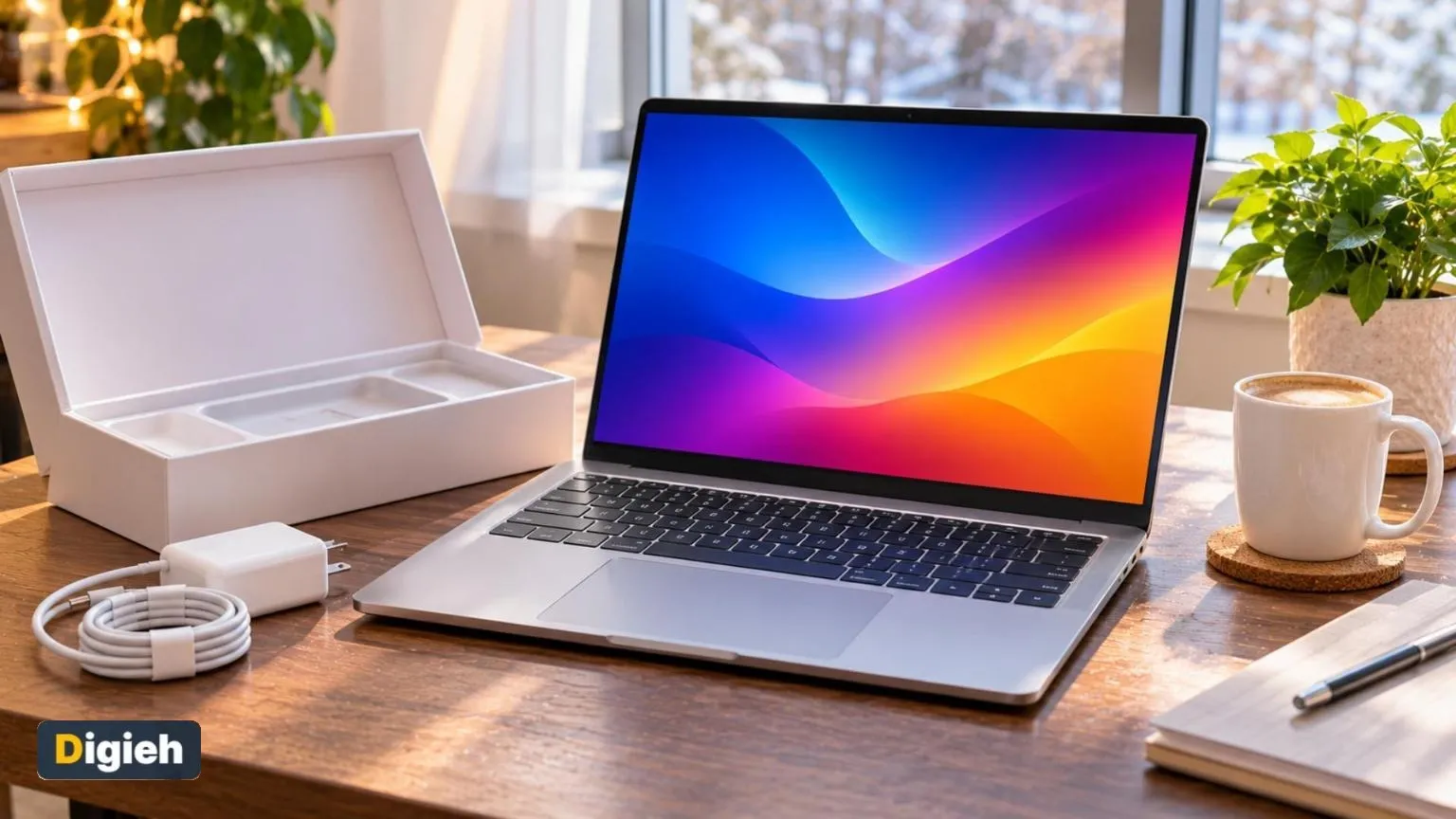
To set up a new laptop, start by installing all system updates. Then sign in with your account, turn on backups and set a strong password or passkey. Remove apps you do not need, install your essentials and move over your files from your old computer.
A good setup makes your new laptop faster, safer and easier to use. These 10 steps work for most Windows laptops and Mac computers.
Only download software from official app stores or trusted company websites. Fake download pages can hide malware.
Key Takeaways
- Install updates first to fix security holes.
- Use a strong password, passkey or fingerprint login.
- Turn on automatic backups right away.
- Remove apps you will never use.
- Download software only from trusted sources.
On This Page
- Before You Start
- 10 Steps to Set Up a New Laptop
- Move Files From Your Old Computer
- Common Setup Mistakes to Avoid
- Keep Your Laptop Running Well
- Review Privacy Settings
- Windows vs Mac Setup Tips
- Useful Accessories
- Protect Your Battery
- Set Up a Laptop for Kids
- Learn Helpful Shortcuts
- Register Your Laptop and Warranty
- Wipe Your Old Computer
Before You Start
Charge the laptop and connect to a secure Wi-Fi network. Have your account login details and important passwords ready.
10Simple steps to set up a new laptop safely and quickly.
10 Steps to Set Up a New Laptop
The Cybersecurity and Infrastructure Security Agency (CISA) explains how to create strong passwords.
1. Run All Updates
Open the settings and check for system updates. Install them, then restart.
2. Sign In to Your Account
Sign in with your Microsoft or Apple account. This syncs settings and helps you find a lost laptop.
3. Set Up a Secure Login
Create a strong password or use fingerprint or face login if your laptop offers it.
Quick tip. Keep the box and receipt for a few weeks. It makes returns or warranty claims easier.
4. Turn On Find My Device
Turn on the built-in tracking feature. It can help you locate a lost or stolen laptop.
5. Turn On Backups
Set up cloud backup or connect an external drive for regular backups.
6. Remove Unwanted Apps
Many laptops come with trial apps. Uninstall the ones you will not use.
What kind of laptop are you setting up?
- Windows
- Mac
- Chromebook
- Not sure yet
7. Install Your Essentials
Add your browser, office tools and other must-have apps from trusted sources.
8. Check Security Settings
Make sure the built-in antivirus and firewall are on.
9. Adjust Power Settings
Pick a balanced power mode to save battery while keeping good speed.
10. Personalize It
Choose a wallpaper, set up your dock or taskbar and organize your desktop.
Use this calculator to estimate your setup time.
Laptop setup time planner
Good to know. The planner adds about 30 minutes for updates plus 5 minutes per app. Large updates can take longer.
Move Files From Your Old Computer
The Environmental Protection Agency (EPA) explains how to recycle your old computer.
| Method | Best for |
|---|---|
| Cloud storage | Documents and photos |
| External drive | Large files and videos |
| Built-in transfer tool | Moving to a new computer of the same type |
- Install all updates
- Sign in to your account
- Set a secure login
- Turn on Find My Device
- Set up backups
- Remove unwanted apps
Common Setup Mistakes to Avoid
New laptop owners often make a few easy mistakes. Watch out for these.
- Skipping updates. Old software can leave security gaps.
- Using a weak password. It makes your files easy to reach if the laptop is lost.
- Clicking random download links. Fake pages can install harmful programs.
- Forgetting backups. One spill or crash can wipe out your files.
- Keeping old accounts signed in. Sign out of your old computer before you sell or donate it.
Keep Your Laptop Running Well
Restart your laptop at least once a week. Keep updates on automatic and clear out old files every few months.
The security agency shares simple steps to stay safe online.
Add to calendar
Review Privacy Settings
New laptops often share more data than you might want. Take a few minutes to review privacy settings.
- Check which apps can use your camera and microphone.
- Turn off location access for apps that do not need it.
- Review ad tracking and personalization settings.
- Limit diagnostic data sent to the maker.
- Choose what your voice assistant can access.
Look for a privacy or security section in your settings. Most laptops group these options in one place.
The Federal Trade Commission (FTC) explains how to protect your privacy online.
Setting up a Chromebook instead? Our guide to how Chromebooks work covers sign-in, apps and offline use.
Windows vs Mac Setup Tips
Each system has its own setup quirks. A few tips help you get started faster.
| Task | Windows | Mac |
|---|---|---|
| Updates | Settings, then Windows Update | System Settings, then General, then Software Update |
| Security | Windows Security app | Built-in protections and firewall settings |
| Find my device | Settings, then Privacy and security | System Settings, then your Apple Account |
| App store | Microsoft Store | Mac App Store |
Menu names can change after updates. Search your settings if you cannot find an option.
Still choosing a laptop? Our Mac vs Windows laptop guide compares price, apps and support.
Useful Accessories
A few accessories make a new laptop more comfortable and protected.
- Laptop sleeve or bag. Protects against bumps and scratches.
- External mouse. Easier for long work sessions.
- Laptop stand. Raises the screen to eye level.
- External keyboard. Pairs with a stand for better posture.
- Surge protector. Guards against power spikes.
Start with what you need most. You can add more accessories over time as your needs change.
Protect Your Battery
Laptop batteries wear down slowly over time. Good habits help them last longer.
Turn on battery health or optimized charging if your laptop offers it. It can reduce wear from always charging to full.
Keep your laptop out of hot cars and direct sunlight. Heat shortens battery life.
Use the charger that came with your laptop or an approved replacement.
Free updates
Join the Digieh list
Be the first to know when our weekly brief launches.
No spam. Unsubscribe anytime. Read our Privacy Policy.
Set Up a Laptop for Kids
A child’s laptop needs extra setup. Safety settings help them learn and explore safely.
- Create a separate child account.
- Turn on parental controls and content filters.
- Set screen time limits.
- Require approval for app downloads.
- Keep the laptop in a shared family space.
Talk with your child about online safety. Explain why the rules exist and how they help.
Learn Helpful Shortcuts
Keyboard shortcuts save time once you learn them. Start with a few basics.
| Action | Windows | Mac |
|---|---|---|
| Copy | Ctrl + C | Command + C |
| Paste | Ctrl + V | Command + V |
| Undo | Ctrl + Z | Command + Z |
| Search | Windows key | Command + Space |
| Screenshot | Windows key + Shift + S | Command + Shift + 4 |
Practice one or two new shortcuts each week. They soon become second nature and save time every day.
Register Your Laptop and Warranty
Registering your laptop helps if you need repairs or recall notices. Keep your receipt in a safe place.
Write down the serial number and save a photo of it. It helps if the laptop is lost or stolen.
Check how long the warranty lasts and what it covers. Some stores offer extra protection plans for a fee.
Wipe Your Old Computer
Before you give away, sell or recycle your old computer, wipe your personal data.
Back up any files you still need. Sign out of all accounts, including email and cloud storage.
Use the built-in reset option to erase the drive and reinstall the system. Then the next owner cannot access your files.
Remove the old computer from your account’s device list too. It stops it from receiving backups or messages.
Set Up Backups From Day One
Backups protect your files if something goes wrong. The best time to start is the day you set up your laptop.
Turn on the built-in backup tool on Windows or Mac. You can save backups to an external drive or a cloud service.
Try to keep at least two copies of your most important files. Store one copy in a different place from your laptop.
Test your backup by restoring one small file. This shows you that everything works before you really need it.
Keep Your New Laptop Secure
A new laptop is a fresh start for your digital safety. A few early steps make it much harder for others to get in.
- Create a strong password or passcode for your account.
- Turn on fingerprint or face sign-in if your laptop supports it.
- Keep the built-in security software turned on.
- Turn on automatic updates for the system and apps.
- Use a password manager to store your passwords safely.
Be careful with free downloads from unknown websites. Install apps only from official stores or trusted developers.
Make Your Laptop Comfortable to Use
Comfort matters if you spend hours on your laptop. Small changes can protect your neck, back and eyes.
Raise the screen closer to eye level with a stand or a stack of books. Use an external keyboard and mouse for long sessions.
Try this today. Turn on automatic updates on your new laptop today. Then set up a backup before you add files.
Test Yourself
What should you do first with a new laptop?
- Install updates
- Change the wallpaper
- Install games
Updates fix security issues and bugs.
Where should you download software from?
- Random pop-up ads
- Unknown email links
- Official app stores or trusted sites
Trusted sources lower the risk of malware.
Frequently Asked Questions
What should I do first with a new laptop?
Install all system updates before anything else.
Do I need extra antivirus software?
Most modern laptops include built-in protection. Keep it turned on and updated.
How do I move files to my new laptop?
Use cloud storage, an external drive or a built-in transfer tool.
Should I remove preinstalled apps?
Yes, remove ones you will not use. It frees up space and can speed things up.
Which privacy settings should I check on a new laptop?
Check camera, microphone and location access, plus ad tracking and data sharing.
How do I protect my laptop battery?
Turn on optimized charging, avoid heat and use an approved charger.
How do I set up a laptop for my child?
Create a child account, turn on parental controls and set screen time limits.
What should I do with my old computer?
Back up your files, sign out of accounts and use the built-in reset to erase it.
Related read. Adding a second screen? Learn how to choose a gaming monitor and what the specs mean.
Wrapping Up
Set aside an hour to work through these steps on your new laptop. A careful start keeps it secure and running smoothly for years.
Protect your accounts with our guide to creating strong passwords. Back up your phone too with our phone backup guide.
Found this useful?
Editor’s Note
This guide is accurate as of November 6, 2026. Menu names vary by brand and system version.
Spot an error in this article? Please contact us at support@digieh.com or read our Corrections Policy.
Keep exploring
Your next read is waiting
 1HealthAthlete’s Foot: Symptoms, Treatment and How to Prevent7 min read
 2Home & KitchenFridge Without Power: How Long Food Stays Safe7 min read
 3MedicinesIs Sugar an Electrolyte? The Simple Science Answer7 min read
 4Pets & AnimalsCat Urinary Problems: Signs That Need Urgent Care7 min read
 5Beauty & Personal CareDandruff vs Dry Scalp: Signs, Causes and Treatment7 min read
 6HealthJaw Pain and TMJ Disorder: Causes and Relief7 min read