TRENDING
How to Back Up Your Phone: iPhone and Android
Learn how to back up your phone on iPhone and Android. Turn on iCloud or Google backup, save photos twice and check that your backup works with simple steps.

9 min read
Last updated November 6, 2026
To back up your phone, turn on automatic cloud backup.
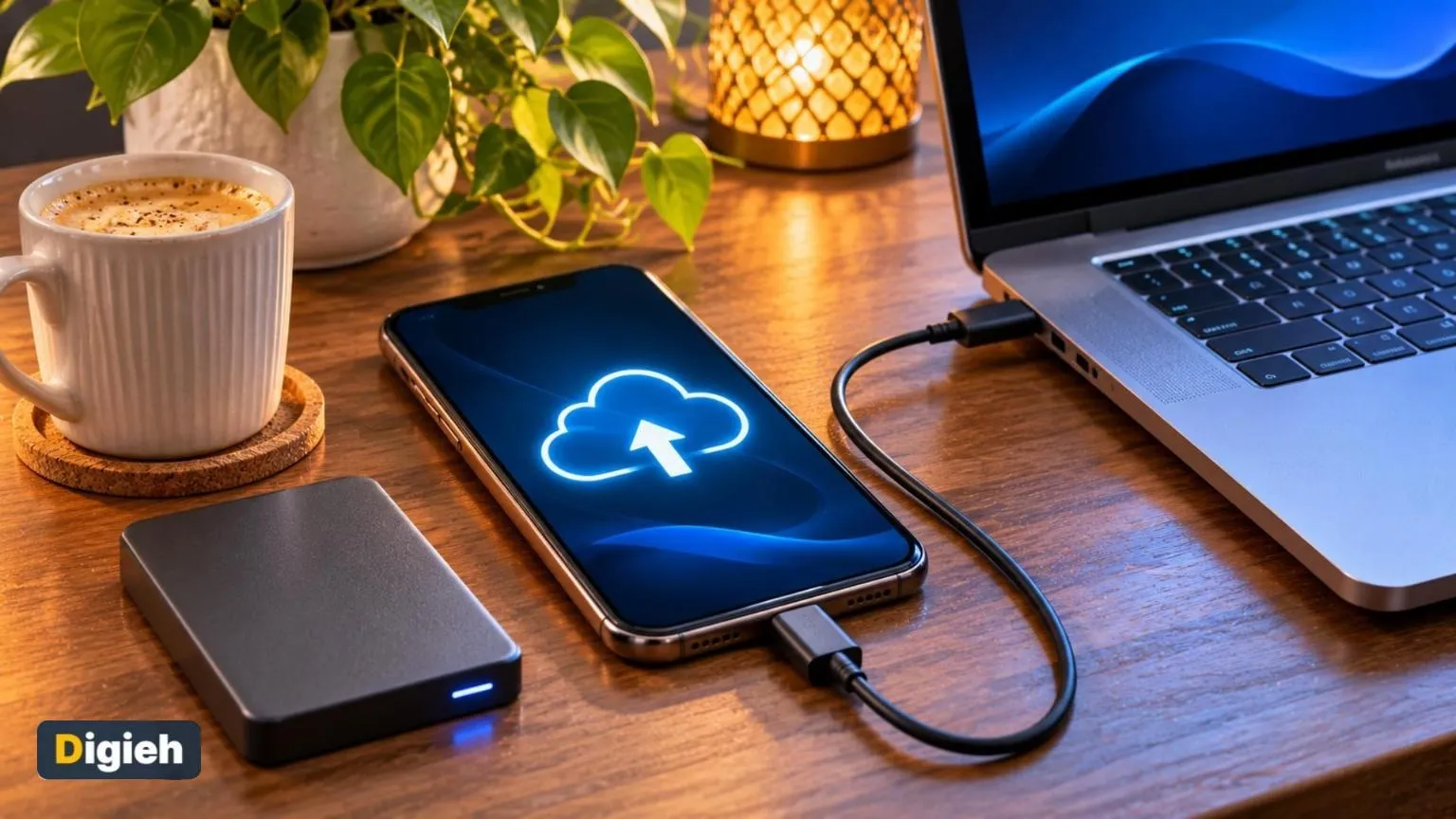
On an iPhone, use iCloud Backup in Settings. On an Android phone, turn on Google backup in Settings. For extra safety, also copy your photos to a computer or external drive.
A backup protects your photos, contacts and messages if your phone is lost, stolen or broken. It also makes moving to a new phone much easier.
Never share your account password or backup codes with anyone who contacts you unexpectedly.
Key Takeaways
- Turn on automatic cloud backup so it runs on its own.
- iPhones use iCloud, and Android phones use your Google Account.
- Apple gives 5 gigabytes (GB) of free iCloud storage, and Google gives 15 gigabytes (GB) shared across its services.
- Keep a second copy of your photos on a computer or drive.
- Check your backup date once a month.
On This Page
- Why Backups Matter
- How to Back Up an iPhone
- How to Back Up an Android Phone
- Back Up Your Photos Twice
- Check That Your Backup Worked
- What Gets Backed Up and What Does Not
- Back Up Chat App Messages
- Do Not Forget Authenticator Codes
- Back Up to a Computer
- How to Restore From a Backup
- Manage Your Storage Space
- Prepare Before Getting a New Phone
- Protect Your Backups
- Help Family Members Back Up
Why Backups Matter
Phones hold years of photos, messages and contacts. Without a backup, a lost or broken phone can mean losing them for good.
If scammers lock your phone or files, report it at ReportFraud.ftc.gov.
Backing up also helps when you get a new phone. The holidays are a popular time to upgrade, so now is a good time to check.
3Copies of your photos we suggest keeping. One in the cloud, one on a computer and one on a drive.
How to Back Up an iPhone
Apple explains these steps on its iCloud backup support page.
1. Connect to Wi-Fi
Backups use a lot of data. Connect to a Wi-Fi network first.
2. Open iCloud Settings
Open Settings and tap your name at the top. Then tap iCloud.
3. Turn On iCloud Backup
Tap iCloud Backup and switch it on. Your iPhone will now back up automatically while it is locked, charging and on Wi-Fi.
4. Back Up Now
Tap Back Up Now to start a backup right away. Stay on Wi-Fi until it finishes.
Quick tip. Plug in your phone at night on Wi-Fi. Automatic backups usually run while it charges.
How to Back Up an Android Phone
Google shares these steps on its Android backup help page. Menu names vary a little by phone brand.
1. Open Backup Settings
Open Settings and search for Backup. On many phones, it sits under System or Google.
2. Turn On Backup by Google
Switch on Backup by Google One or Google backup. Check that you chose the right Google Account.
3. Back Up Now
Tap Back up now to start right away. Your phone will then back up automatically over Wi-Fi.
When did you last back up your phone?
- This week
- This month
- Never
- Not sure
Back Up Your Photos Twice
Experts often suggest keeping more than one copy of important files. For photos, try a cloud copy plus a physical copy.
- Turn on iCloud Photos or Google Photos backup.
- Every few months, copy photos to a computer with a Universal Serial Bus (USB) cable.
- Save a third copy on an external hard drive or Universal Serial Bus (USB) stick.
Use this calculator to estimate how much storage your photos need.
Photo storage estimator
Good to know. This estimate assumes about 3 megabytes (MB) per photo. Videos take much more space.
Check That Your Backup Worked
A backup only helps if it actually runs. Check the date of your last backup once a month.
The Cybersecurity and Infrastructure Security Agency (CISA) also urges regular software updates.
| Phone | Where to check |
|---|---|
| iPhone | Settings, your name, iCloud, then iCloud Backup |
| Android | Settings, then Backup or Google, then Backup |
If the last backup is old, connect to Wi-Fi and tap Back up now. You may also need more storage.
- Connect to Wi-Fi
- Turn on automatic cloud backup
- Tap Back up now
- Turn on photo backup
- Copy photos to a computer or drive
- Check your backup date monthly
Add to calendar
What Gets Backed Up and What Does Not
Phone backups save a lot, but not always everything. Knowing the gaps helps you avoid surprises.
| Usually Included | Often Needs Extra Steps |
|---|---|
| Contacts and calendars | Some app data |
| Phone settings | Music and videos you added yourself |
| Photos, if photo backup is on | Messages in some chat apps |
| Text messages on many phones | Files stored only in certain apps |
| App list | Two-factor authentication codes |
Check each important app’s own backup settings. Chat apps often have a separate backup option.
Back Up Chat App Messages
Popular messaging apps often store messages separately from your phone backup. Set up their backups too.
Open the app’s settings and look for Chats or Backup. Turn on automatic backup to your cloud account.
Choose a daily or weekly schedule. Include videos only if you have enough storage.
Do Not Forget Authenticator Codes
Authenticator apps hold the codes for your two-factor sign-ins. Losing them can lock you out of accounts.
Many authenticator apps now offer cloud backup. Turn it on and protect it with a strong password.
Keep printed backup codes for your most important accounts in a safe place. They help if your phone is lost.
Switching phones soon? Our iPhone vs Android comparison helps you choose the right one first.
Back Up to a Computer
A computer backup gives you a copy that does not depend on the internet. It is a good second layer of protection.
iPhone
Connect your iPhone to a computer with a cable. Use Finder on a Mac or the Apple Devices app on Windows to make a backup.
Android
Connect your phone to a computer and choose file transfer. Copy your photos, videos and important files to a folder.
Store computer backups on an external drive as well. That protects you if the computer fails.
Free updates
Join the Digieh list
Be the first to know when our weekly brief launches.
No spam. Unsubscribe anytime. Read our Privacy Policy.
How to Restore From a Backup
A backup is only useful if you can restore it. Knowing the steps saves stress when you need them.
When you set up a new or reset phone, the setup screen offers to restore from a backup. Sign in with the same account you used before.
Choose the most recent backup from the list. Stay on Wi-Fi and keep the phone plugged in while it restores.
Apps and photos may keep downloading for a while after setup. Leave the phone on Wi-Fi overnight if needed.
Manage Your Storage Space
Backups need storage. Many people run out of free cloud space quickly.
- Delete blurry photos and duplicate shots.
- Remove old videos you no longer need.
- Clear out old backups from phones you no longer use.
- Consider a paid storage plan if you have many photos.
Compare storage plans before you buy. Family plans can be cheaper if several people need space.
Prepare Before Getting a New Phone
A good backup makes switching phones easy. Follow these steps before you trade in or give away your old phone.
- Make a fresh backup and confirm it finished.
- Back up chat apps and authenticator codes.
- Note any app passwords you may need.
- Set up the new phone using your backup.
- Check that photos, contacts and messages moved over.
Only reset the old phone after you confirm everything moved over. Then sign out of accounts and erase it.
Protect Your Backups
Backups hold personal information. Keep them secure.
Use a strong, unique password for your cloud account. Turn on two-factor authentication.
Encrypt computer backups when the option is available. This protects saved passwords and health data.
Help Family Members Back Up
Many people never set up backups until they lose a phone. Help your family set them up now.
Sit with older relatives and turn on automatic backup together. Show them how to check the last backup date.
Set up backups on kids’ devices too. Their photos and schoolwork matter as well.
Phone Backup Mistakes to Avoid
Some habits leave your photos and files at risk. Watch out for these common mistakes.
- Turning off automatic backups to save space
- Never checking if backups finished
- Using one backup only
- Forgetting to back up before an update
Check your backup settings once a month. Make sure the last backup date is recent.
Help Family Members Back Up
Many people lose photos because they never set up backups. A few minutes of help can save years of memories.
Sit with older relatives and turn on automatic backups together. Show them where to find their saved photos.
Keep Two Copies
Save important photos to the cloud and a computer. Two copies protect you if one fails.
Try this today. Open your phone settings and check the date of your last backup. Run one now if it is old.
Test Yourself
What does an iPhone use for cloud backup?
- iCloud
- Google One
- A Universal Serial Bus (USB) stick
iPhones back up to iCloud.
How often should you check your backup?
- Once a year
- Never
- About once a month
A monthly check makes sure backups are still running.
Frequently Asked Questions
How do I back up my iPhone?
Go to Settings, tap your name, then iCloud, then iCloud Backup, and turn it on.
How do I back up my Android phone?
Open Settings, find Backup and turn on Google backup.
Is free cloud storage enough?
It may be enough for contacts and settings. Many people need more for photos and videos.
How often should I back up my phone?
Automatic backup runs daily on Wi-Fi. Check it at least once a month.
Does my phone backup include chat app messages?
Not always. Many chat apps need their own backup turned on.
How do I restore my phone from a backup?
During setup, sign in with the same account and choose your most recent backup.
Should I back up my phone to a computer too?
Yes. A computer backup adds a second layer of protection.
What should I do before getting a new phone?
Make a fresh backup, back up chat apps and authenticator codes, then set up the new phone.
Wrapping Up
Turn on automatic backup today, then tap Back up now. It takes just a few minutes and protects years of memories.
If your phone feels sluggish, see our tips to speed up a slow phone. To stay safe online this season, read about holiday scams.
Read next. Easy Ways to Transfer Data to a New Phone
Found this useful?
Editor’s Note
This guide is accurate as of November 6, 2026. Menu names can change with software updates and vary by phone brand.
Spot an error in this article? Please contact us at support@digieh.com or read our Corrections Policy.
Keep exploring
Your next read is waiting
 1HealthHiccups: Causes, Quick Fixes and When to Worry7 min read
 2Home & KitchenFridge Without Power: How Long Food Stays Safe7 min read
 3Pets & AnimalsFleas on Dogs and Cats: Treatment and Prevention7 min read
 4Beauty & Personal CareDandruff vs Dry Scalp: Signs, Causes and Treatment7 min read
 5MedicinesIs Sugar an Electrolyte? The Simple Science Answer7 min read
 6HealthTennis Elbow: Causes, Exercises and Recovery Time Explained7 min read